8.Jetson Communication
8.1 IIC Communication Instruction
8.1.1 Preparation
Wiring Instruction
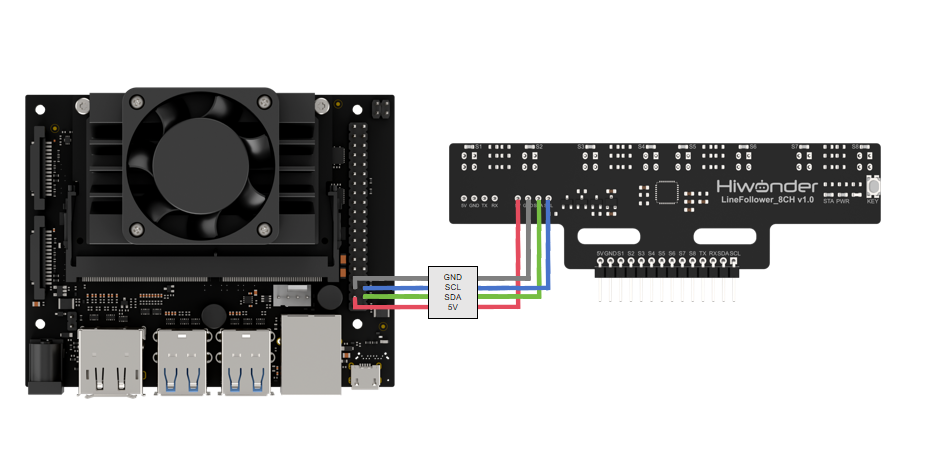
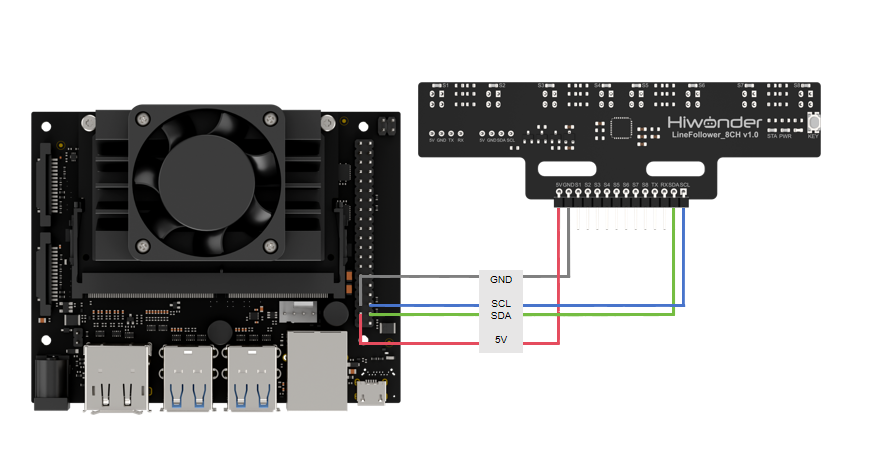
Connect the 5V, GND, SDA, and SCL pins of the 8-ch Line Follower to the corresponding pins on the Jetson Nano controller. The wiring method is shown in the diagram below:
Note
Before powering on, ensure that no metal objects are touching the controller. Otherwise, the exposed pins at the bottom of the board may cause a short circuit and damage the controller.
Environment Configuration
Install MobaXterm on your computer. The software package can be found under the folder Appendix->Raspberry Pi & Jetson Nano Tools Package->Remote Connection Tools. For detailed instructions on how to use MobaXterm, refer to the corresponding document.
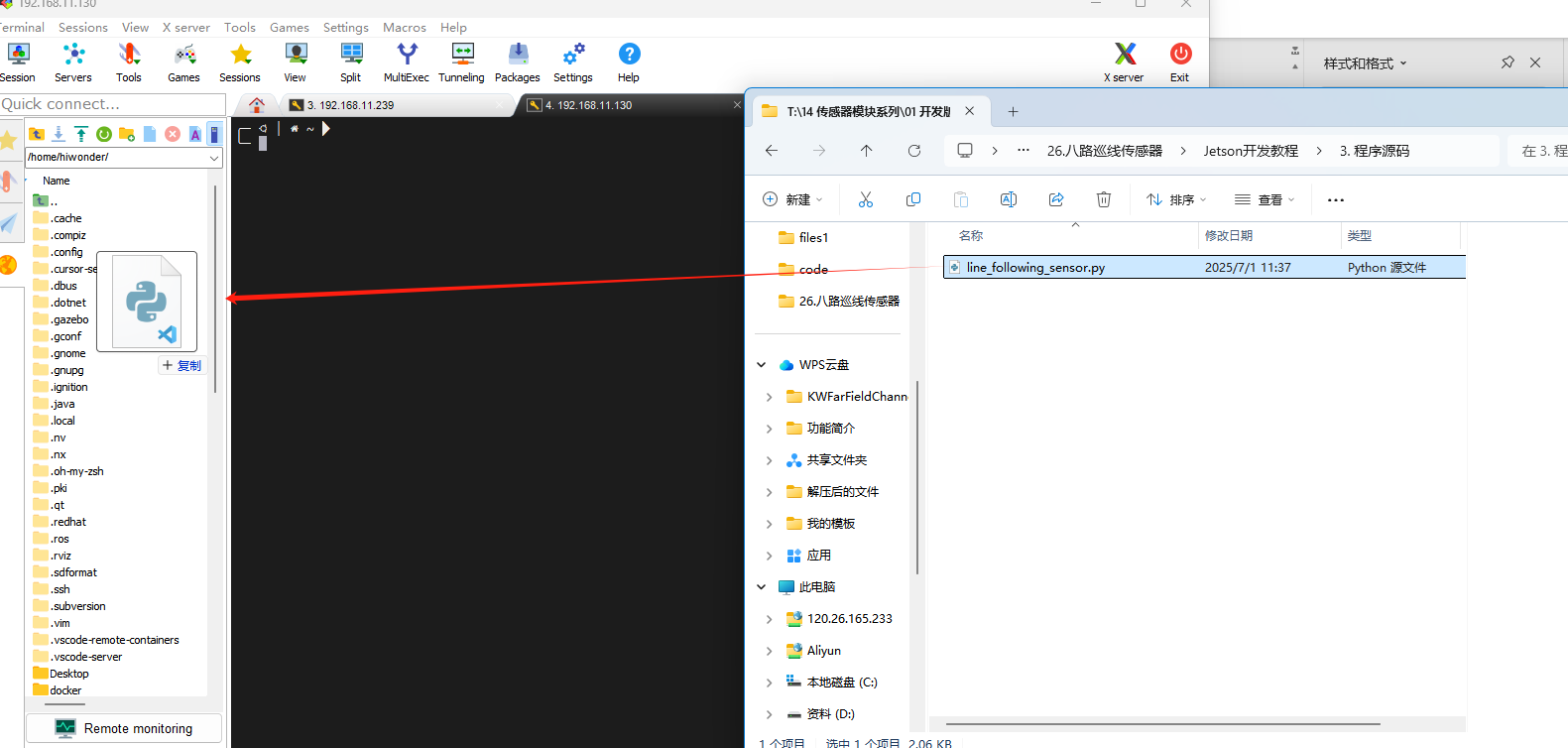
Use MobaXterm to connect to the Jetson Nano. Log in using the preset username and password, and drag the example program files into the Raspberry Pi system.
8.1.2 Test Case
This example reads data from the 8-ch line-following sensor via I2C and prints the status information in real time.
Program Execution
(1) Connect the Jetson controller to the network via Ethernet or Wi-Fi, and enter the following command to install the smbus library:
pip install smbus
(2) In the MobaXterm terminal, enter the following command to run the example:
python3 line_following_sensor.py
Project Outcome
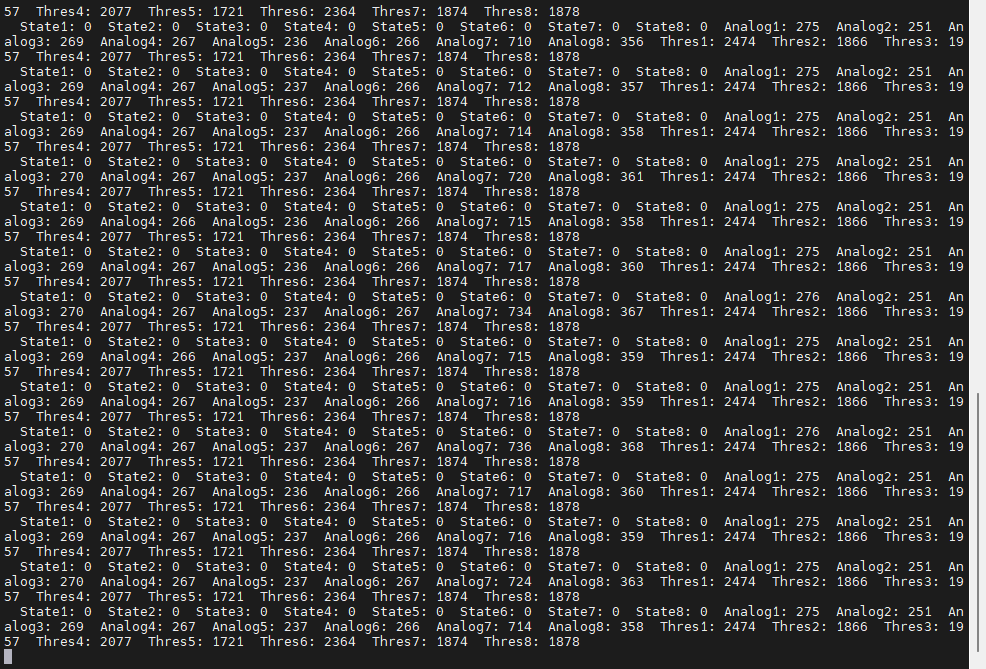
The terminal will continuously print the real-time status of the 8-ch line-following sensor.
Program Brief Analysis
(1) Import Libraries
Import the required libraries for the program. The smbus library is used to initialize the I2C communication interface.
2 3 | import smbus import time |
(2) Define I2C Port Parameters
5 6 7 8 9 10 11 12 | # Define I2C parameters (定义I2C参数) I2C_BUS = 1 # Jetson I2C bus number (Jetson I2C总线号) SENSOR_SUM = 8 # Number of sensor channels (传感器通道数) I2C_ADDR = 0x5D # Sensor I2C address (传感器I2C地址) SensorStateReg = 5 # Sensor all-channel state register address (传感器全通道状态数据寄存器地址) SensorAnalogReg = 6 # Channel 1 analog value register (low 8 bits) address (传感器通道1模拟值寄存器低8位地址) SensorThresholdReg = 22 # Channel 1 threshold register (low 8 bits) address (传感器通道1阈值寄存器低8位地址) |
(3) Initialize I2C Object
13 14 15 16 17 | def setup(): """Initialization function (初始化函数)""" global bus print("Initializing I2C... (初始化I2C...)") bus = smbus.SMBus(I2C_BUS) # Initialize I2C (初始化I2C) |
(4) Read and Print Data in a Loop
19 20 21 22 23 24 25 26 27 28 29 30 31 32 33 34 35 36 37 38 39 40 | def loop(): """Main loop function (主循环函数)""" temp = [0] * (SENSOR_SUM * 2) data = [0] * SENSOR_SUM # Read state data (读取状态数据) state_byte = bus.read_byte_data(I2C_ADDR, SensorStateReg) for i in range(SENSOR_SUM): data[i] = (state_byte >> i) & 0x01 # Parse data to extract state value of each channel (解析数据,提取各通道状态值) print(f" State{i+1}: {data[i]}", end="") # Print state of each sensor channel (打印传感器各通道状态) time.sleep(0.01) # Delay 10 ms (延时10ms) # Read analog value data (读取模拟值数据) analog_data = bus.read_i2c_block_data(I2C_ADDR, SensorAnalogReg, SENSOR_SUM * 2) count = 0 for i in range(SENSOR_SUM): data[i] = analog_data[count] | (analog_data[count + 1] << 8) # Parse data and combine into 16-bit value (解析数据,合并为16位) print(f" Analog{i+1}: {data[i]}", end="") # Print analog value of each sensor channel (打印传感器各通道模拟值) count += 2 time.sleep(0.01) # Delay 10 ms (延时10ms) |
8.2 UART Communication Instruction
8.2.1 Preparation
Wiring Instruction
Connect the 5V, GND, TX, and RX pins of the 8-ch Line Follower to the corresponding pins on the Jetson Nano controller. The wiring method is shown in the diagram below:
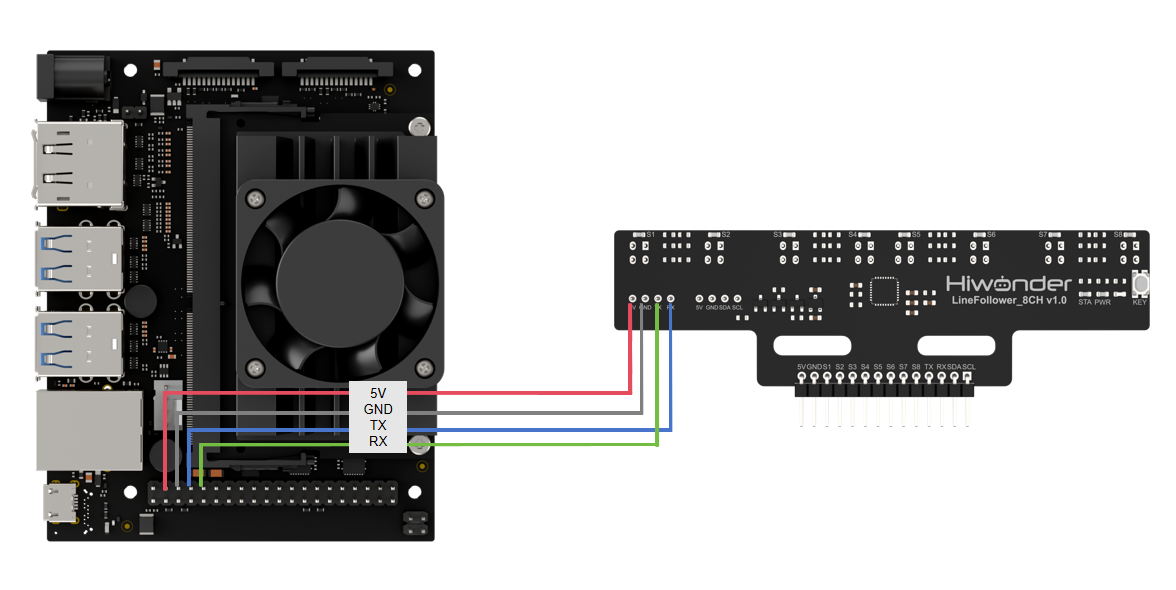
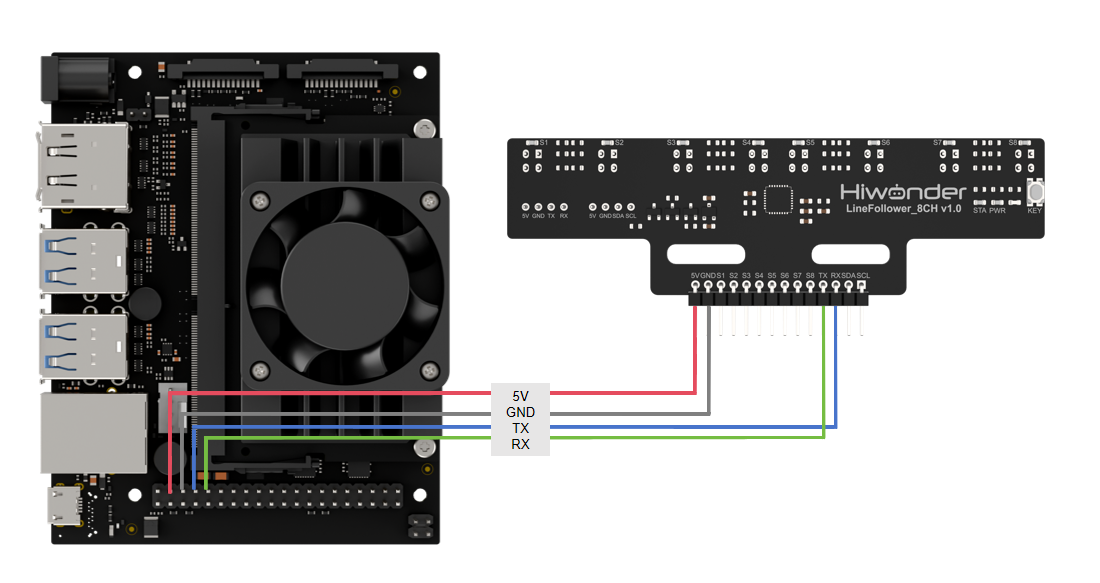
Note
Before powering on, ensure that no metal objects are touching the controller. Otherwise, the exposed pins at the bottom of the board may cause a short circuit and damage the controller.
Environment Configuration
Install MobaXterm on your computer. The software package can be found under the folder Appendix->2.4 Raspberry Pi & Jetson Nano Tools Package->Remote Connection Tools. For detailed instructions on how to use MobaXterm, refer to the corresponding document.
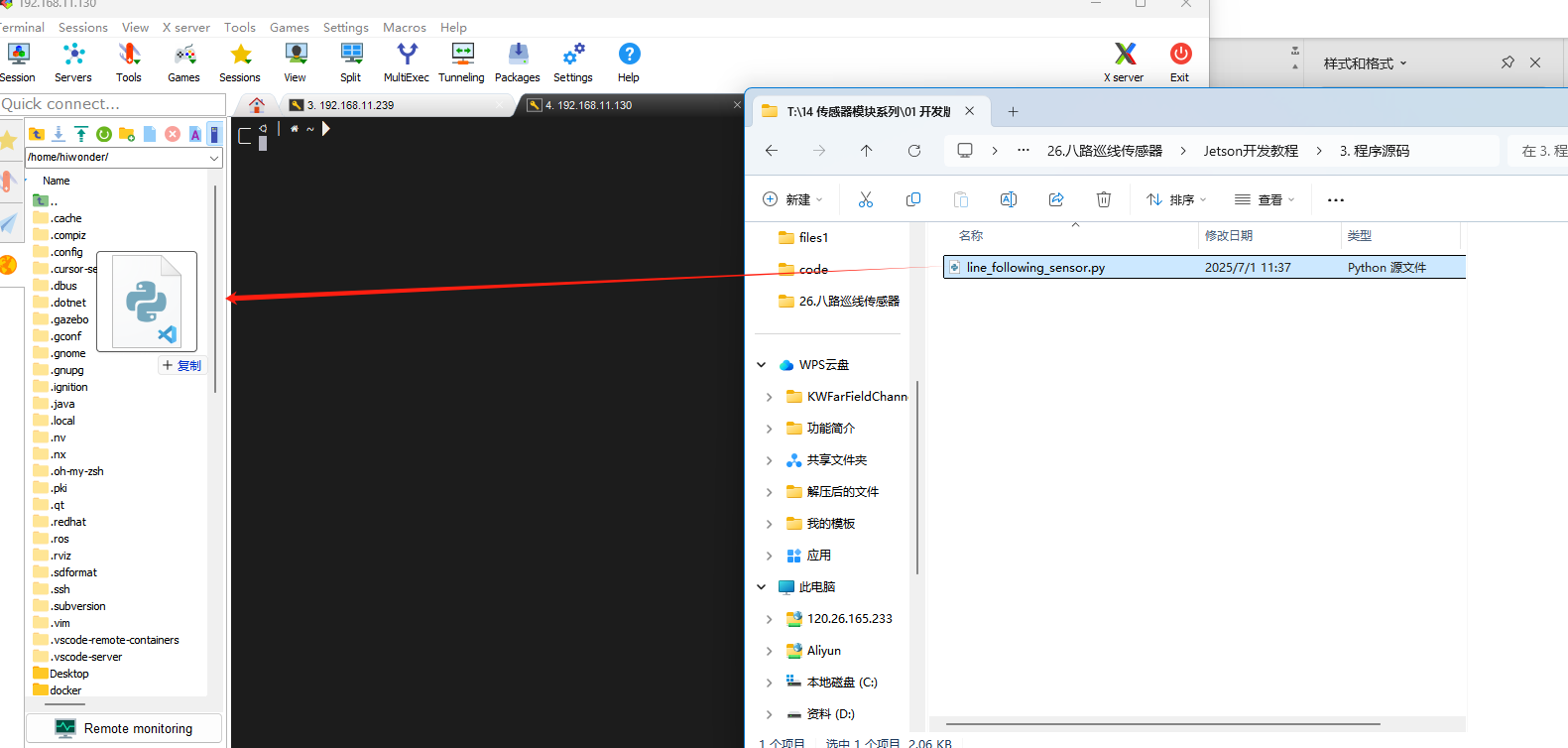
Use MobaXterm to connect to the Jetson Nano. Log in using the preset username and password, and drag the example program files into the Raspberry Pi system.
8.2.2 Test Case
This example reads data from the 8-ch line-following sensor via I2C and prints the status information in real time.
Program Execution
In the MobaXterm terminal, enter the following command to run the example:
sudo python3 line_following_sensor.py
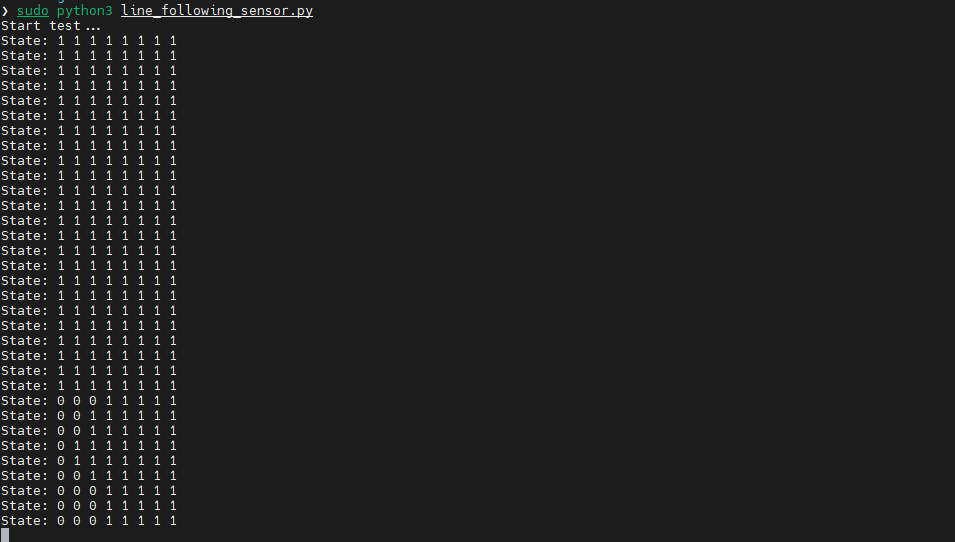
Project Outcome
The terminal will continuously print the real-time status of the 8-ch line-following sensor.
Program Brief Analysis
(1) Import Libraries
Import the required libraries for the program. The serial library is used to initialize the serial communication interface.
3 4 | import serial import time |
(2) Define Serial Port Parameters
6 7 8 | SENSOR_SUM = 8 UART_PORT = '/dev/ttyTHS1' BAUD_RATE = 115200 |
(3) Initialize Serial Port and Configure Reading Mode
20 21 22 23 24 25 26 27 | def main(): try: uart = serial.Serial(UART_PORT, BAUD_RATE, timeout=1) print("Start test...") uart.write(bytes([1])) # 0: manual mode, 1: automatically send state data, 2: automatically send analog values, 3: automatically send threshold values (0:手动模式,1:自动发送状态数据,2:自动发送模拟值,3:自动发送阈值) write_lock = 0 |
(4) Continuously Read Status Information
29 30 31 32 33 34 35 36 37 38 39 40 41 42 43 44 45 46 | while True: data = [0] * SENSOR_SUM if uart.out_waiting == 0 and write_lock == 0: uart.write(bytes([1])) write_lock = 1 if uart.in_waiting > 0 and write_lock == 1: temp = uart.read(1) if len(temp) > 0: print("State:", end="") for length in range(SENSOR_SUM): data[length] = (temp[0] >> length) & 0x01 print(f" {data[length]}", end="") print() write_lock = 0 time.sleep(0.01) |
(5) Continuously Read Analog Values
32 33 34 35 36 37 38 39 40 41 42 43 44 45 46 | if uart.out_waiting == 0 and write_lock == 0: uart.write(bytes([1])) write_lock = 1 if uart.in_waiting > 0 and write_lock == 1: temp = uart.read(1) if len(temp) > 0: print("State:", end="") for length in range(SENSOR_SUM): data[length] = (temp[0] >> length) & 0x01 print(f" {data[length]}", end="") print() write_lock = 0 time.sleep(0.01) |
(6) Continuously Read Threshold Values
52 53 54 55 56 57 58 59 60 61 62 63 64 65 | if uart.in_waiting >= (SENSOR_SUM * 2 + 5) and write_lock == 2: temp = uart.read(SENSOR_SUM * 2 + 5) if len(temp) >= (SENSOR_SUM * 2 + 5): if temp[0] == 0x55 and temp[1] == 0xAA: if temp[2] == 0x02 and temp[3] == 0x10: if temp[SENSOR_SUM * 2 + 4] == check_code(temp): print("Analog:", end="") count = 4 for length in range(SENSOR_SUM): data[length] = temp[count] | (temp[count + 1] << 8) print(f" {data[length]}", end="") count += 2 print() write_lock = 0 |