7. PC Software Control
7.1 Control Software Opening and Connection
7.1.1 Turn on PC Software
Note
Please turn off the APP and VNC connection when run the PC software.
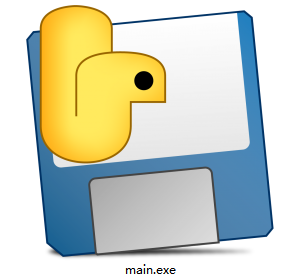
Extract the PC control software to file under English path and then open the icon in the file. (Please turn off firewall before opening the application)
Note
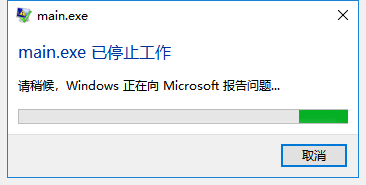
If the error message appears, the reason is that the folder is saved by the file contains the Chinese. Please place all files from the software in the English directory.
7.1.2 PC Software Connection
(1) Turn on the switch to start SpiderPi.
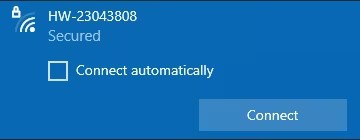
(2) After turning on, Raspberry Pi will be in a AP hotspot mode and launch a Wi-Fi hotspot with a network named with the first letters “HW”. (Desktop computers require your own wireless network card)
(3) Open PC software, click “Scan” and wait for a moment to receive the data as below picture.
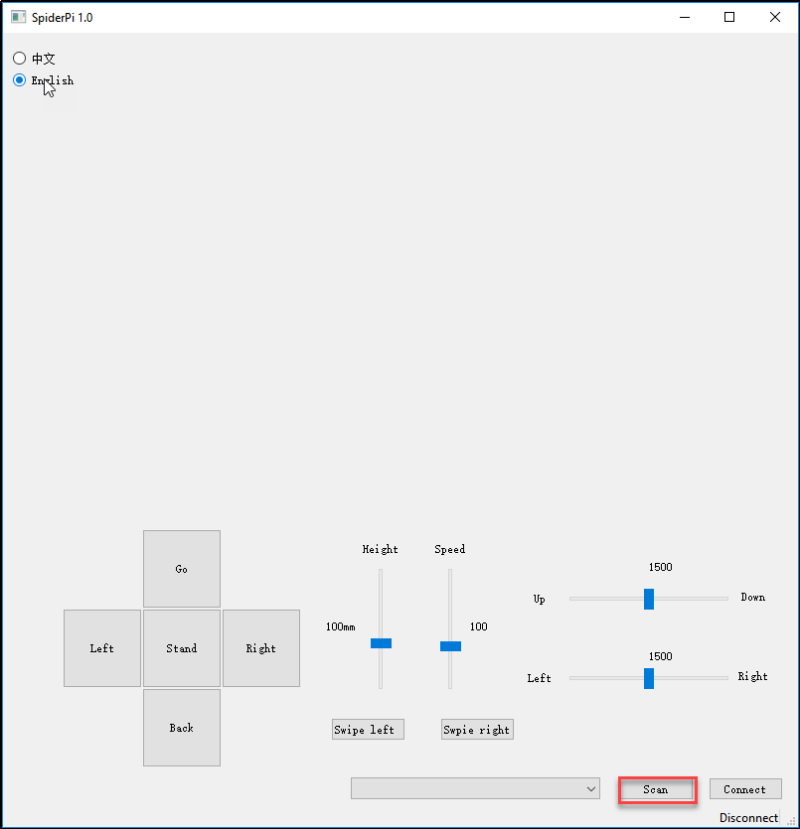
(4) Click “Connect” after scanning.

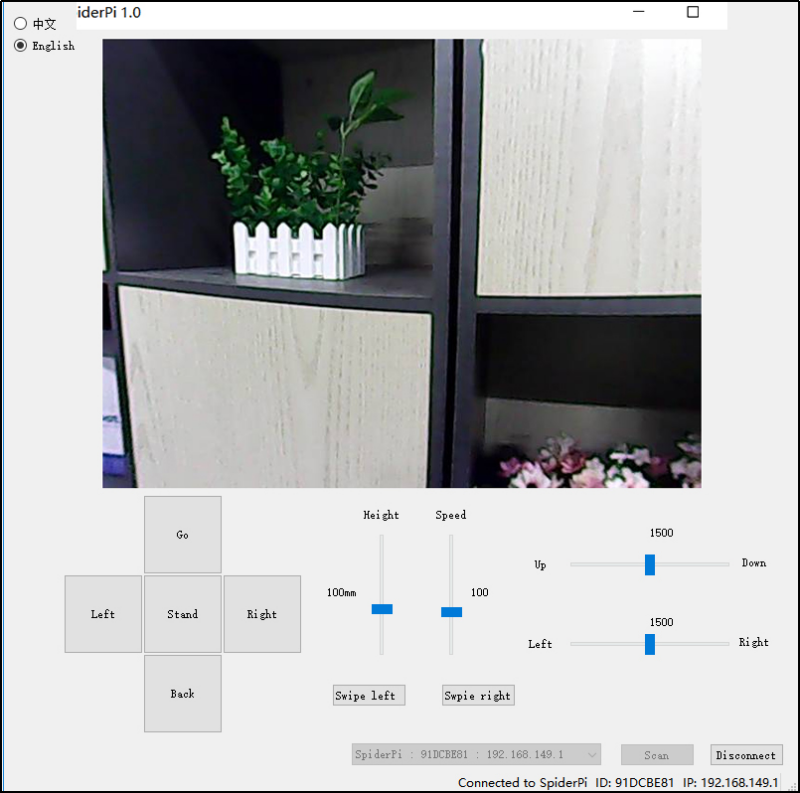
7.2 PC Control Instruction
(1) After successful scanning, let’s move to the device connection. Then the real-time returned screen will appear at the software.
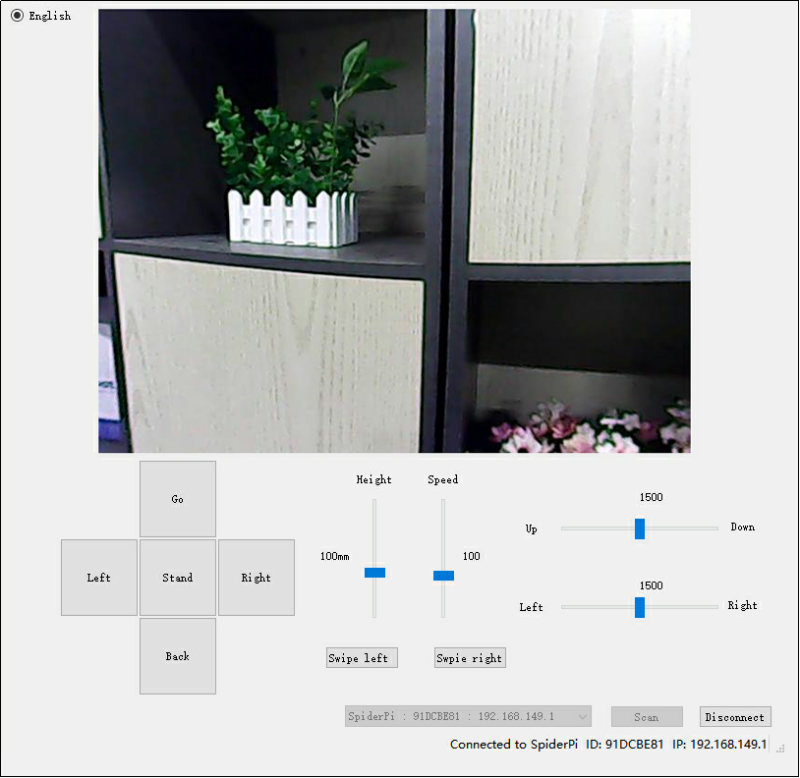
(2) Click the buttons to control the SpiderPi’s movement.
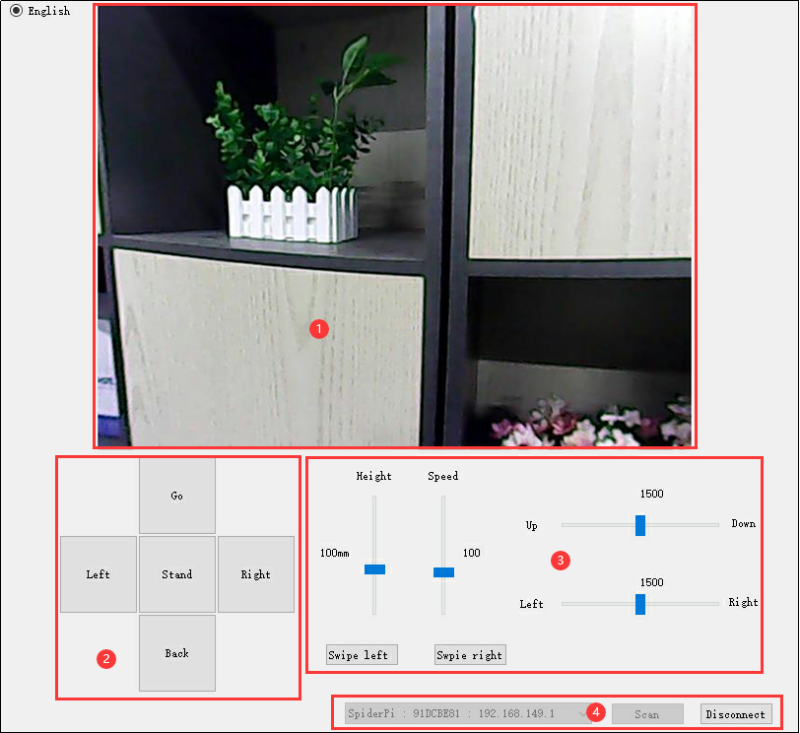
| Icon | Function |
|---|---|
 |
Display the returned image |
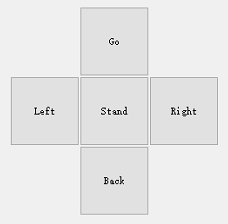 |
Call to operation |
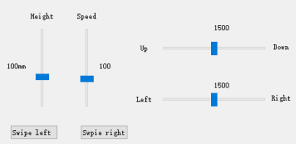 |
Adjust rotation, robotic stance (high to low) and speed |
 |
Scan, connect or turn off the launched hotspot |