2. Remote Control
2.1 Wireless Control
2.1.1 Preparation
(1) The wireless receiver for the controller is pre-installed in the robot at the time of shipment. Please prepare two AAA batteries to power on the wireless controller.
(2) Remove the back cover of the wireless controller and insert the batteries. Make sure to insert the batteries with the correct polarity.
2.1.2 Device Connection
(1) Turn on both the robot and the wireless controller. The red and green LEDs on the controller will start flashing.
(2) Wait a few seconds until the robot and the controller are paired successfully. The green LED will remain on. If the connection fails, turn off both the robot and the controller, then repeat the steps above.
Note
Sleep Mode: If the controller is not connected to the robot within 30 seconds after being powered on, or if there is no user input for 5 minutes after connection, the controller will enter sleep mode. To wake the PS2 controller, simply press the “START” button.
2.1.3 Button Instruction
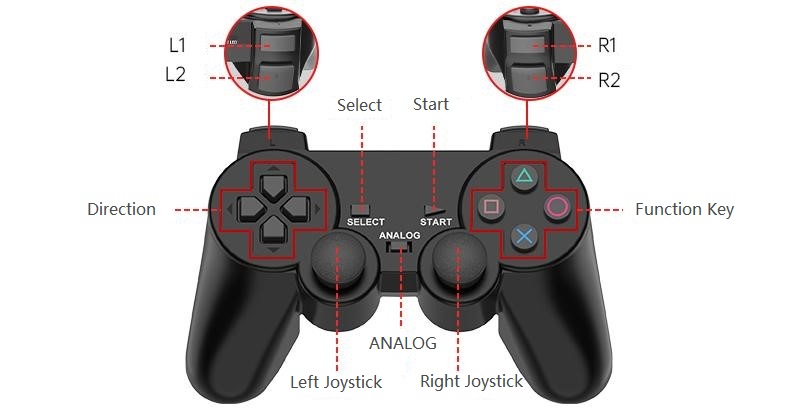
| Button | Function |
|---|---|
| START | Stand at attention |
↑ |
Move Forward |
↓ |
Move Backward |
← |
Single-leg Left Turn |
→ |
Single-leg Right Turn |
 |
Forward Roll |
× |
Backward Roll |
 |
Push-up |
○ |
Sit-up |
L1 |
Waving |
R1 |
Bowing |
L2 |
Strafe left |
R2 |
Strafe right |
SELECT+ |
Spread Wings |
SELECT + × |
Squat |
SELECT+ |
Laugh Out Loud |
SELECT + ○ |
Street Dance |
SELECT + L1 |
Gangnam Style Dance |
SELECT + R1 |
Apple Dance |
SELECT + L2 |
La Song Dance |
SELECT + R2 |
Cool Dance |
2.2 APP Installation and Connection
2.2.1 APP Installation
iOS users: Search for Wonderbot in the App Store to download, or go to the Appendix to find the Wonderbot installation package and install it on your phone.
Android users: You can find the Wonderbot installation package in the same directory as this section or in the Appendix, then install it on your phone.
2.2.2 APP Connection
Note
Ensure that both Bluetooth and Location Services are enabled in your phone’s settings before launching the app.
Do not pair the device manually via system Bluetooth settings. Instead, use the Bluetooth button within the app to initiate pairing and connection.
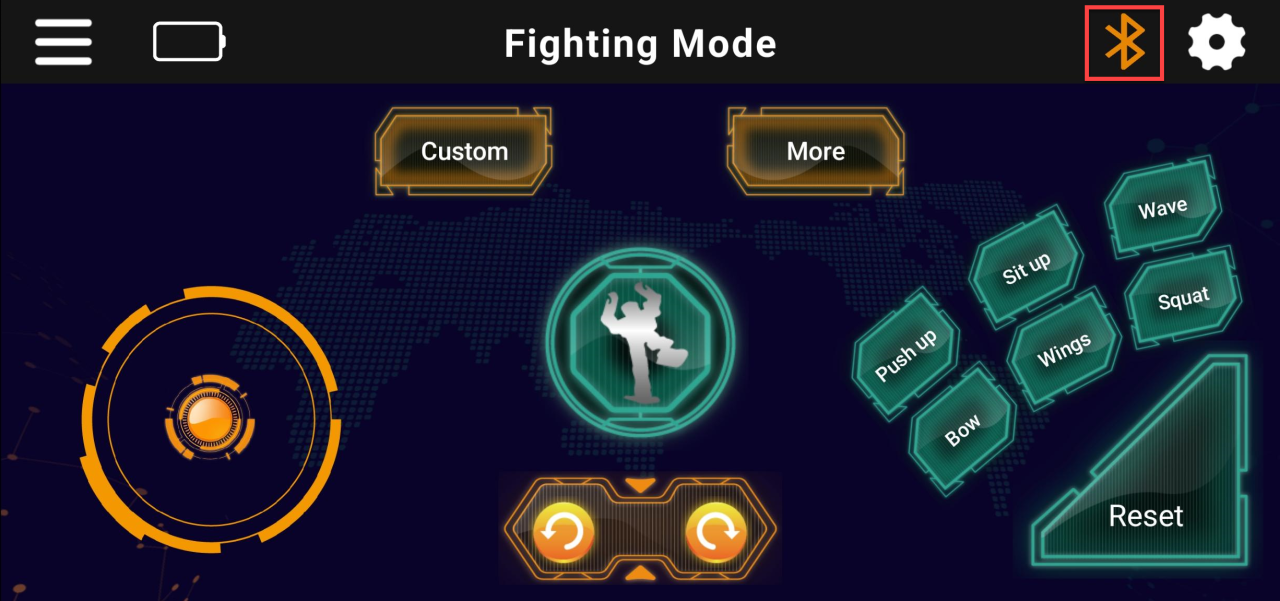
(1) Turn on the robot and open the mobile APP. You should see the main interface as shown below.
Note
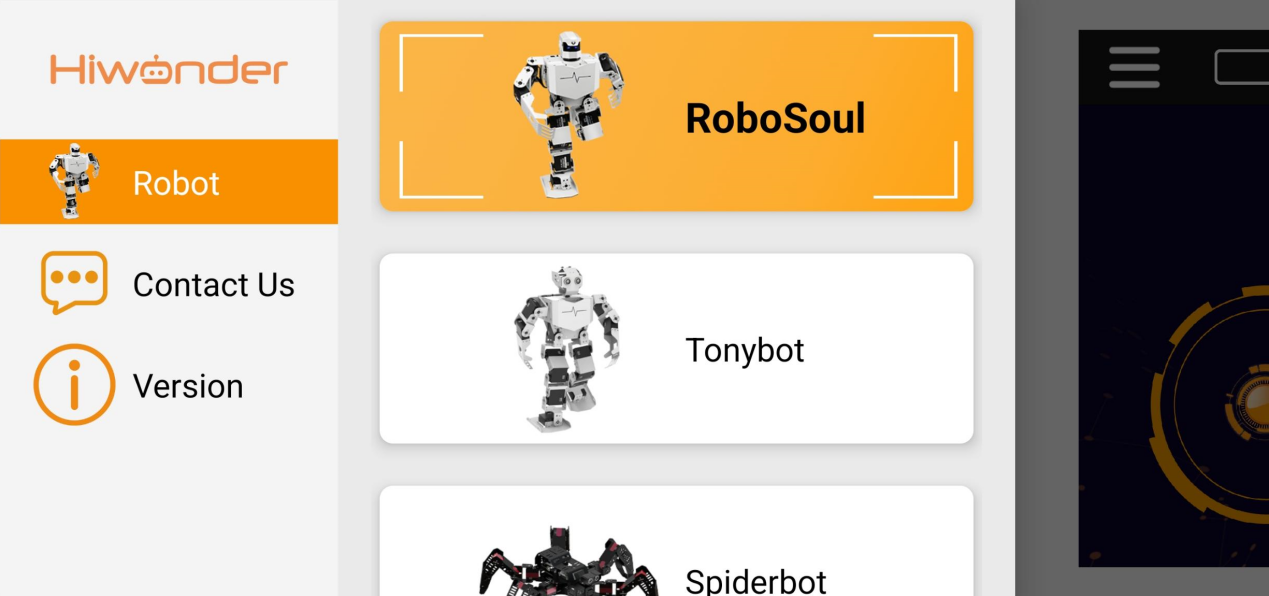
If the displayed interface is different, tap the icon  of the current page, then tap Robot and select RoboSoul.
(2) Tap the Bluetooth icon at the top to enter device search mode. Wait for few seconds, then select the device with the Bluetooth name “Robo-Soul”.
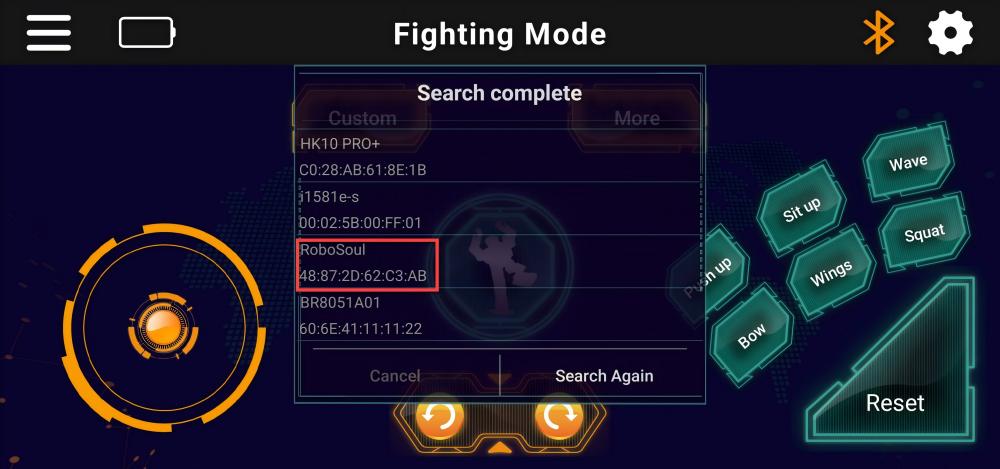
(3) Once connected successfully, the Bluetooth icon will remain solid and the robot’s battery level will be displayed in the top-left corner of the screen.
2.3 APP User Guide
2.3.1 Getting Started
Before starting this section, please follow the instructions in 2.2 APP Installation and Connection to complete the installation and connect the device.
2.3.2 Button Function
Normal Mode
The app offers three operation modes: Normal Mode, Football Mode, and Fighting Mode. By default, the app starts in Normal Mode. The table below explains the button functions in Normal Mode as an example. The other modes work in a similar way, and functions with the same icon can be referenced here.
| Icon | Function |
|---|---|
 |
Drag upward to make the robot walk forward, drag downward to walk backward, drag left to move left, and drag right to move right. |
 |
Tap the left button to make the robot move left, press and hold to turn left. Tap the right button to move right, press and hold to turn right. |
 |
Open a settings menu with five options: Contact Us, Control Mode, Work Mode, Reset Data, and Cancel. |
 |
Open the list of preloaded dance routines. After selecting a dance routine, the robot will immediately perform it. |
 |
Tap to enter the device search list. Once the device is connected successfully, the Bluetooth icon will remain solid. Tap again to disconnect the device. |
 |
Display the robot's current battery level. |
 |
Tap to access and play action group files that have been downloaded to the robot. |
 |
Executes one of the three preset actions: Cheer, Roll forward, or Roll backward. |
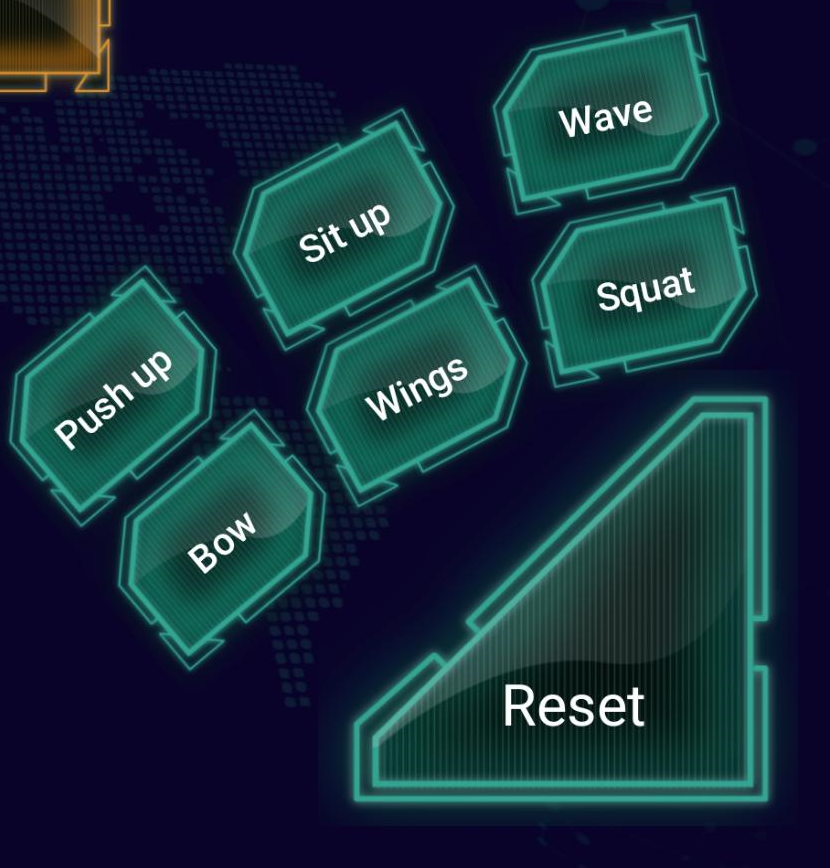 |
Tap to perform a predefined action once. |
 |
Tap to enter voice command control mode. |
(1) Football Mode
① Tap the settings icon , select Work Mode  , then choose Football Mode.
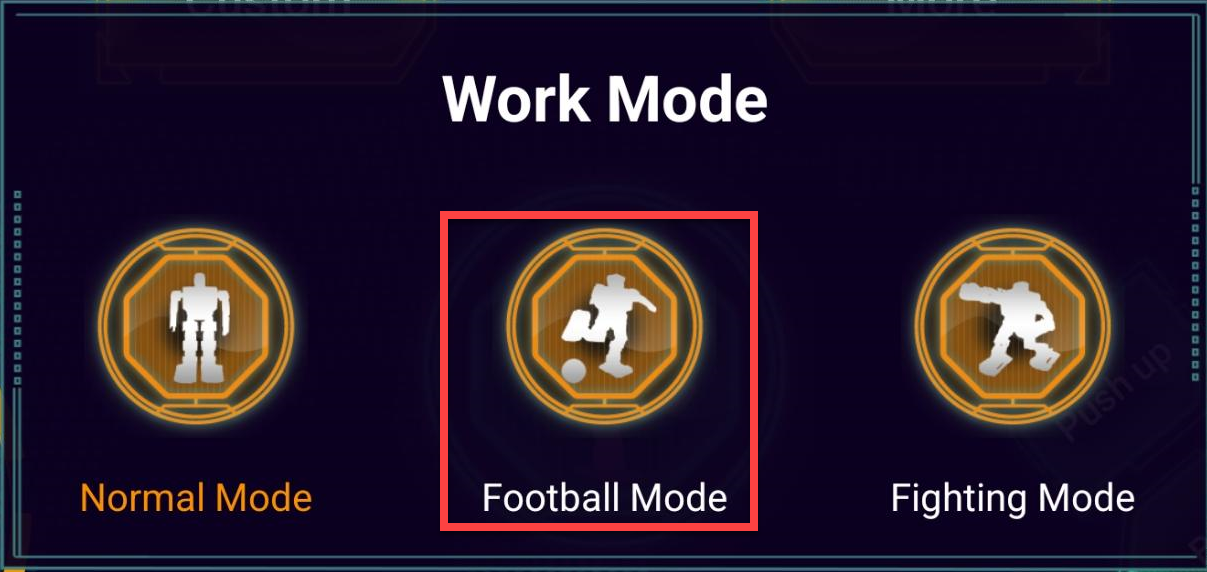
② The app will automatically switch to the corresponding control interface, as shown below.
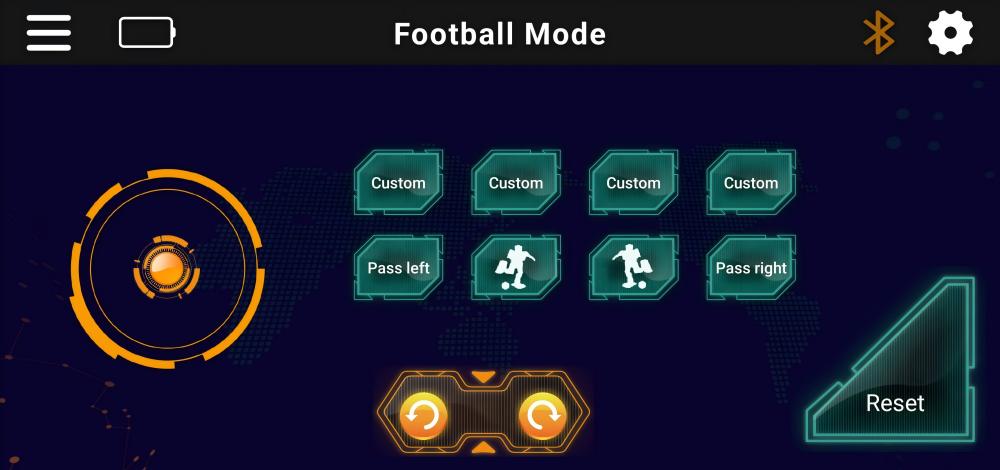
(2) Fighting Mode
① Tap the settings icon , select Work Mode , then choose Fighting Mode.
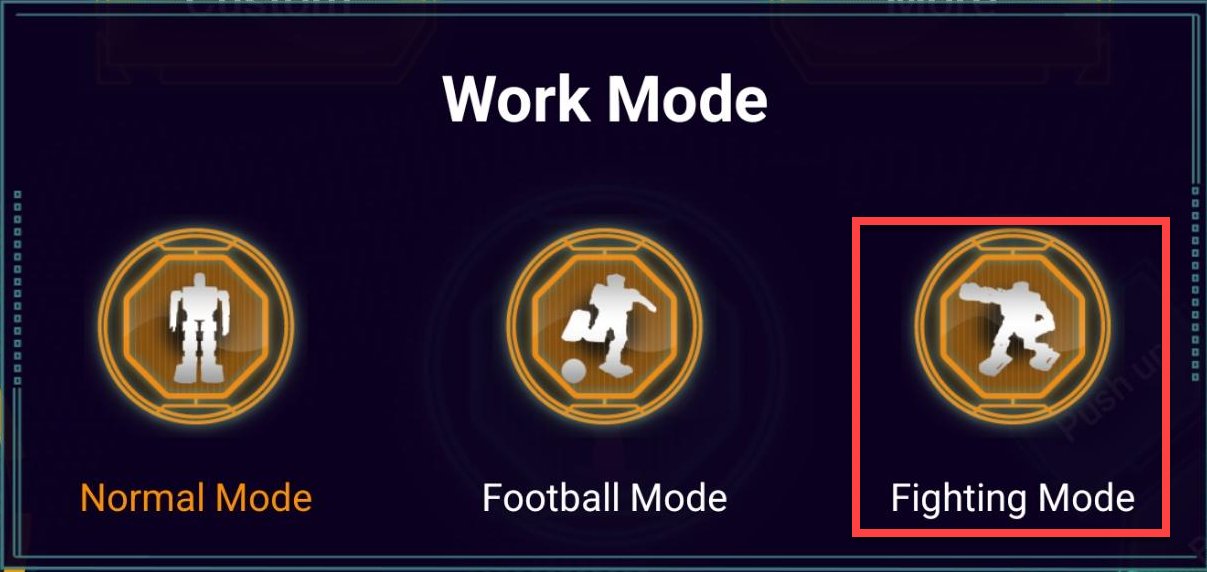
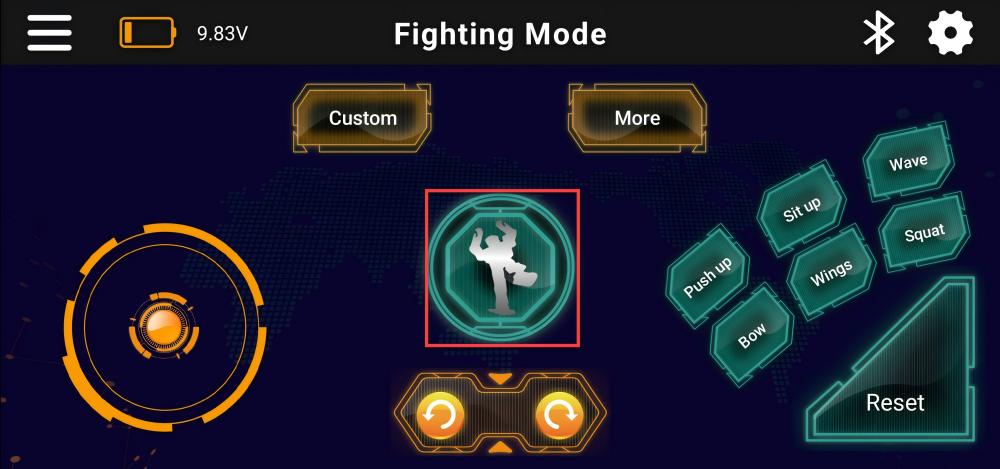
② The app will automatically switch to the corresponding control interface, as shown below.
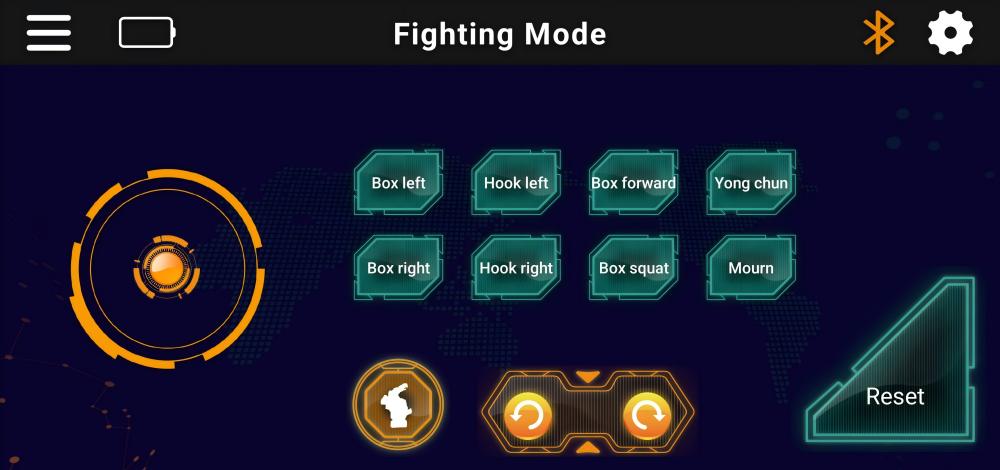
2.3.3 Group Control (Optional)
Note
Group dance control requires at least two RoboSoul H5S robots.
When controlling multiple robots simultaneously, to maintain stable performance and keep the formation neat, avoid using the forward/backward/left/right joystick controls
and the left/right turn buttons.
(1) Turn on all robots.
(2) Connect to the devices named “Robo-Soul” following the same steps used for a single robot connection.
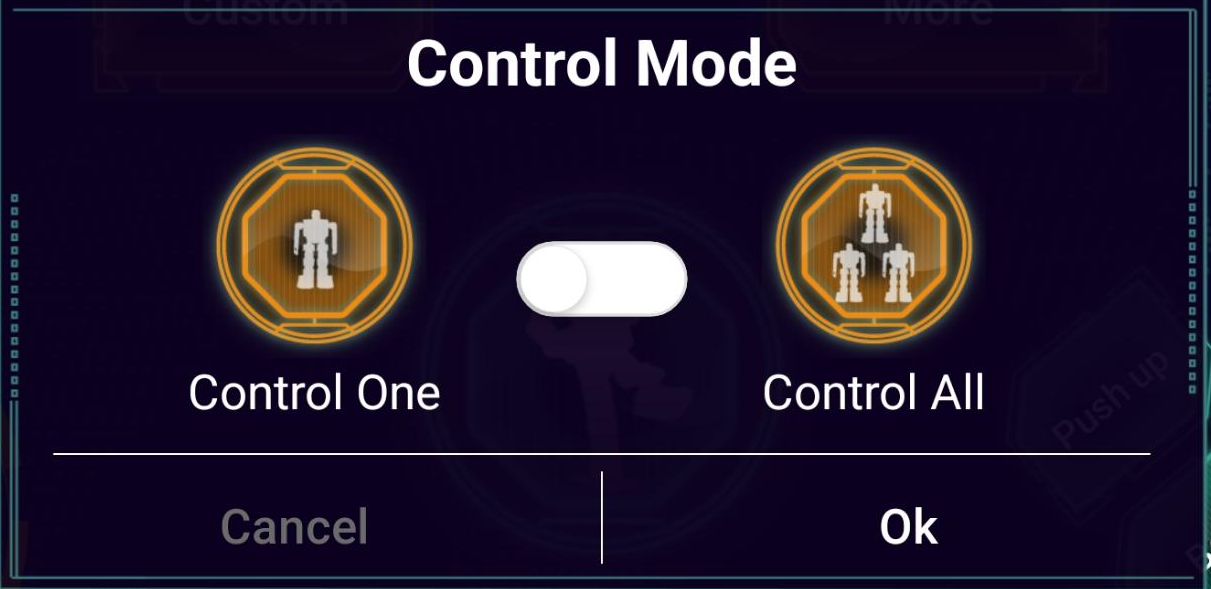
(3) Tap the menu icon in the upper-right corner, then tap  to select Control All.
(4) On the app interface, tap the central robot icon. If your app interface is different, tap the upper-right menu icon, select Normal Mode, and the interface will switch back.
(5) Tap the dance icon as shown, select the desired dance routine from the pop-up list, and all robots will begin the group dance performance.