3. Raspberry Pi Development Tutorial
3.1 Getting Started
3.1.1 Wiring Instruction
This section uses DuPont wires to connect the 5V, GND, DIN (GPIO24), CLK (GPIO22) and other pins on the LED digital tube as an example. The connection method is shown in the figure below:

Note
When using Hiwonder’s lithium battery, connect the battery cable with the red wire to the positive (+) terminal and the black wire to the negative (–) terminal of the DC port.
If the battery is not connected to the cables, do not connect the cable ends directly together. Doing so may cause a short circuit and damage the system.
Before powering on, ensure that no metal objects are touching the controller. Otherwise, the exposed pins at the bottom of the board may cause a short circuit and damage the controller.
3.1.2 Environment Configuration
Install VNC on your computer. The software package is located under “Appendix-> Remote Desktop Connection Tool”. For detailed usage of VNC, you can learn in the same directory.
Drag the program and SDK library files into the Raspberry Pi system image. For demonstration purposes, the files are placed on the Desktop in this example.
Note
Make sure the library files are placed in the same directory as the program.
Open the terminal and enter the command to change to the program directory:
sudo chmod a+x Sensor_Demo/
3.2 Test Case
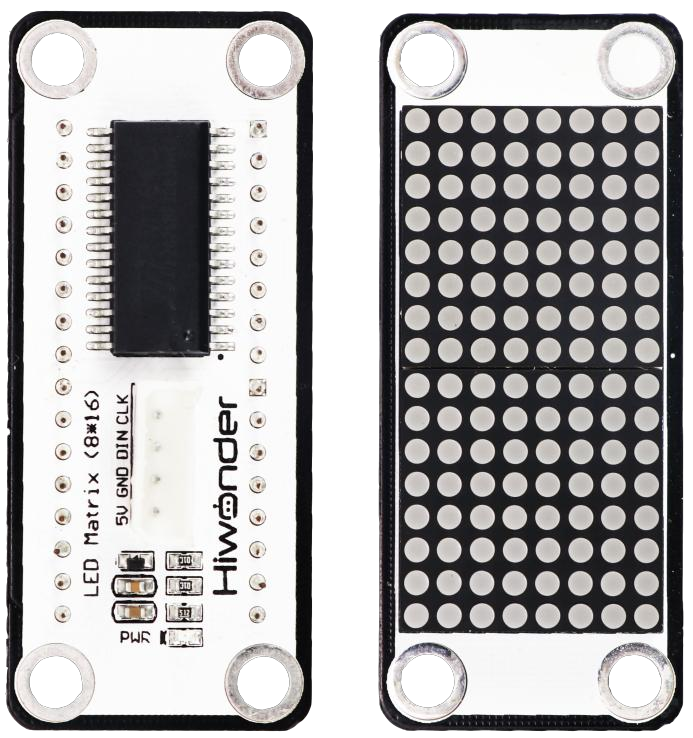
Program to display the character “Hello” on the LED matrix module by controlling the GPIO pins with high level to turn on and low level to turn off.
3.2.1 Program Download
Open the terminal and enter the command to navigate to the program directory, enter then press Enter
cd Desktop/Sensor_Demo/
Enter to run the program in this case.
python3 LatticeDisplayDemo.py
3.2.2 Project Outcome
Program to display “Hello” on the LED matrix module.
3.2.3 Program Brief Analysis
Import Libraries
#!/usr/bin/env python3
import os
import sys
import time
import tm1640 as tm
Import the required libraries for the program, where tm1640 is the library for the LED matrix module.
Check the running Python version
if sys.version_info.major == 2:
    print('Please run this program with python3!')
    sys.exit(0)
Check if the running Python version is 3.0 or higher.
If yes, the program runs normally; if not, it prints a message via the print() function and exits.
Display “Hello” characters
Assign the 16-byte list of the LED dot matrix module to tm.display_buf
## Display 'Hello'
#tm.display_buf = (0x7f, 0x08, 0x7f, 0x00, 0x7c, 0x54, 0x5c, 0x00,
#                  0x7c, 0x40, 0x00,0x7c, 0x40, 0x38, 0x44, 0x38)

tm.display_buf = ( 0xff,0x8,0xff,0x0,0x1f,0x15,0x1d,0x00,0xff,0x0,0xff,0x0,0xe,0x11,0x11,0xe)

tm.update_display()

time.sleep(5)
tm.display_buf = [0] * 16
tm.update_display()
As shown in the figure below:
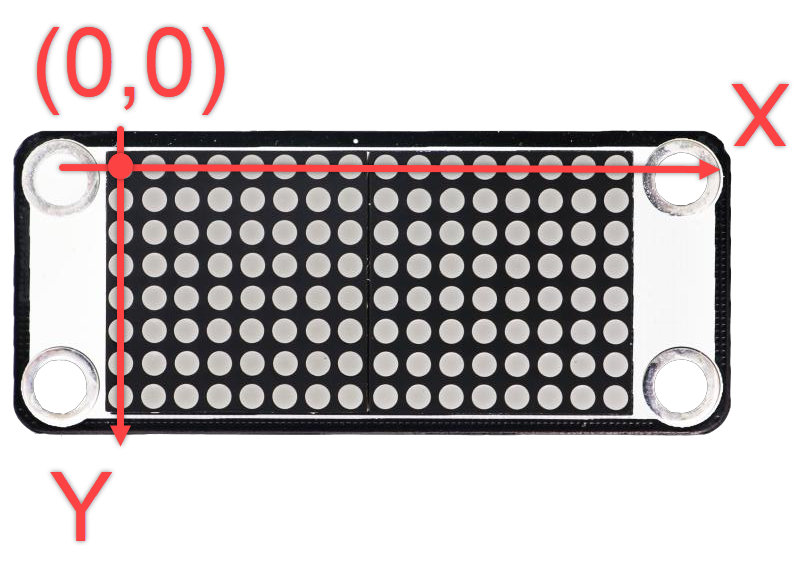
x: The horizontal LED number, from left to right, ranges from 0 to 15.
y: The vertical LED number, from top to bottom, ranges from 0 to 7.
When lighting up the digital tube, each column corresponds to a hexadecimal number. When lighting up the matrix module, 16 hexadecimal numbers need to be input. The following array elements are used as an example to illustrate:
tm.display_buf = (0x7f, 0x08, 0x7f, 0x00, 0x7c, 0x54, 0x5c, 0x00,
0x7c, 0x40, 0x00,0x7c, 0x40, 0x38, 0x44, 0x38);
If the first element in the array, that is, the 0th column is: 0x7f, converted to binary number: 01111111, then the light status of the 0th column from top to bottom is: off, on, on, on, on, on, on, on.
If the second element in the array, that is, the light status of the first column from top to bottom is: 0x08, its corresponding binary number is: 00001000, then the light status of the first column from top to bottom is: off off off off off on off off off.
The other elements in the array follow the same principle.
Call the update_display method of the tm object to display the contents of
tm.display_bufon the LED dot matrix screen。
tm.update_display()
Delay 5s and turn off the dot matrix screen.
time.sleep(5)
tm.dispaly_buf = [0] * 16
tm.update_dispaly()