6. Telegram Application Configuration
6.1 Minimum Working Loop
The minimum working loop in this chapter can be summarized as follows:
Telegram message trigger -> Gateway routes the message to the email Agent ->
email-fetchretrieves emails ->mail-agentperforms structured analysis ->feishu-sendpushes the result back to the group chat.
In this loop, each component has a clear role.
Gateway: Receives Telegram events and routes sessions.Agent: Determines the workflow and selects the required Skill.Skills: Handle email retrieval, analysis, and message pushing.Workflow: Connects retrieval, analysis, and pushing into a fixed process.
This chapter covers the first and most important part of the loop: connecting Telegram to the OpenClaw Gateway. The email and Telegram integration will be covered in later chapters.
6.2 Preparation
Step 1: Confirm that OpenClaw is running properly.
Run the following commands in the terminal to confirm that the Gateway status is normal and the environment has no configuration issues.
openclaw gateway status
openclaw doctor
Step 2: Confirm that the Agent for the email workflow exists.
An Agent is required for the email workflow covered in later chapters. Run the following command to view the current Agent list:
openclaw agents list --json
Note
The following steps use the Agent named main by default.
Step 3: Confirm that a Telegram account is available.
Make sure a Telegram account is available and ready to use.
6.3 Telegram Configuration
Note
Telegram can be set up from either the app or Telegram Web. The steps below use Telegram Web.
Telegram Web address: https://web.telegram.org/k/
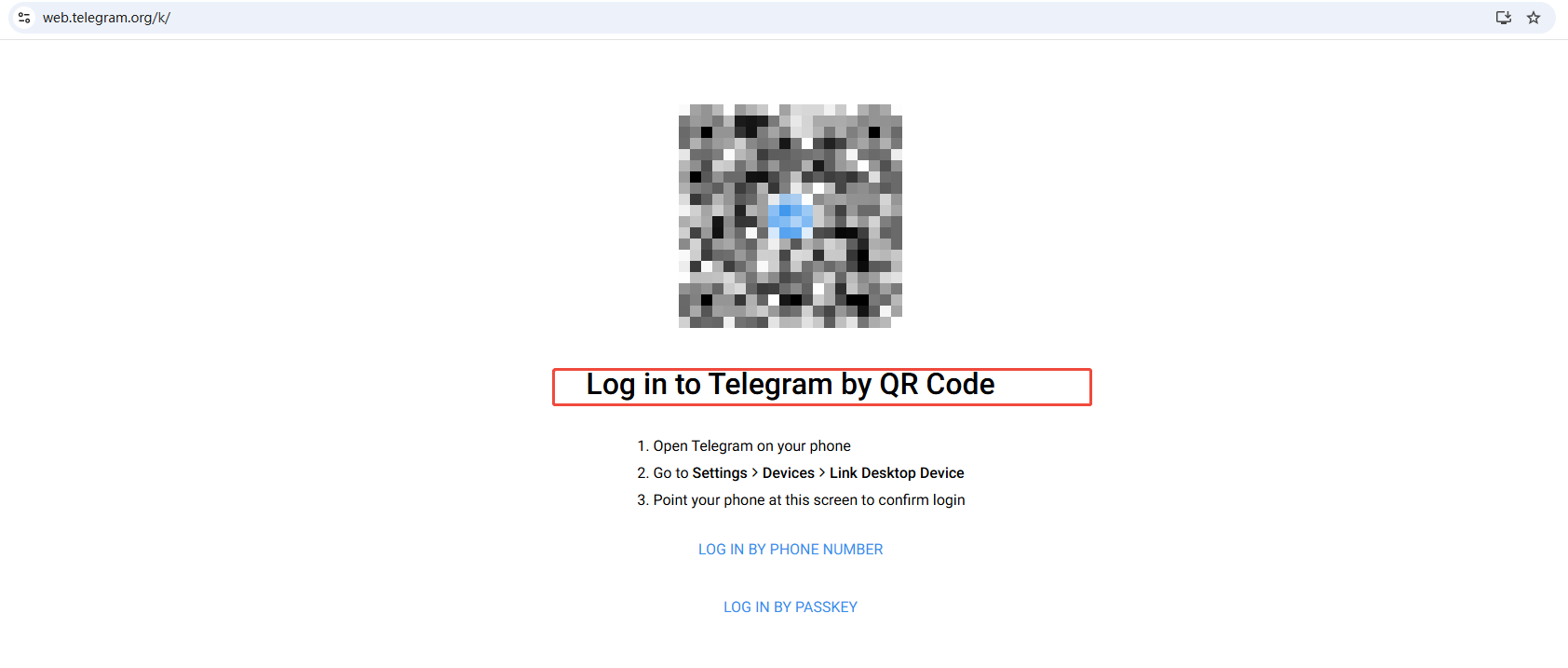
Step 1: Log in to Telegram.
Scan the QR code with the app, or log in with a phone number and verification code.
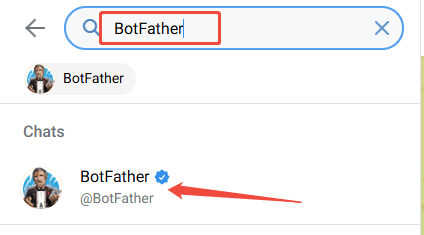
Step 2: Search for BotFather.
Search for BotFather in the search bar at the upper-left corner of Telegram, then open the officially verified account with the blue checkmark.
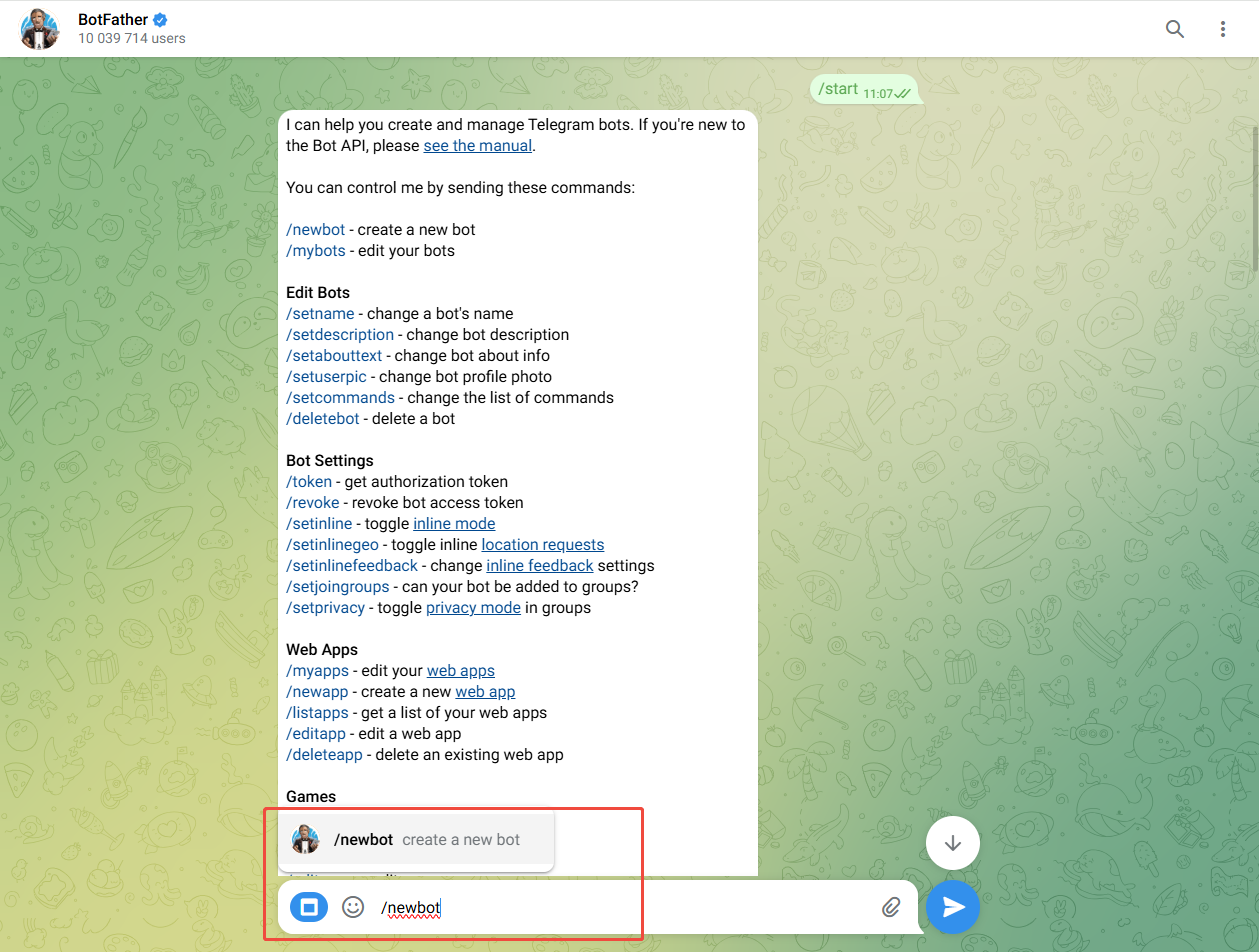
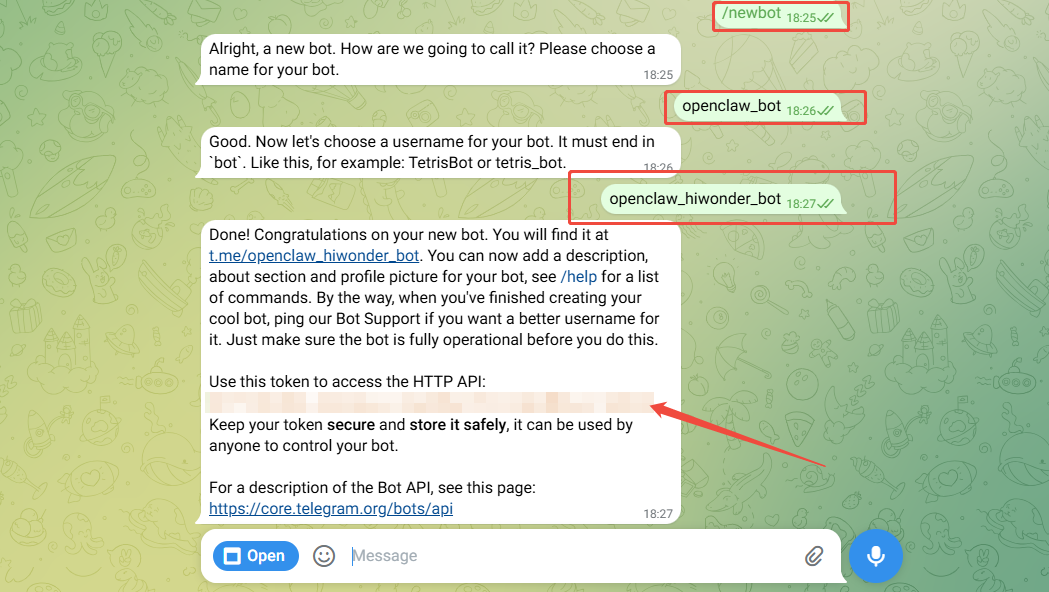
Step 3: Create a bot and get the token.
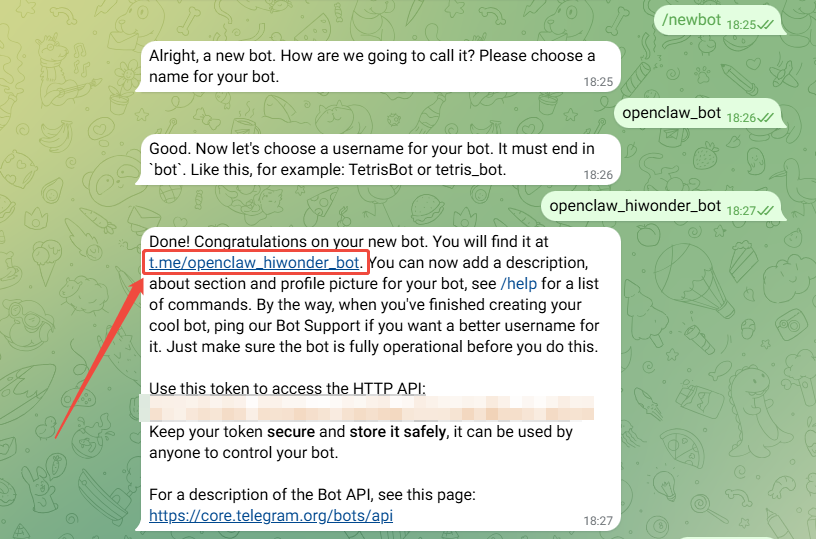
Send /newbot in the chat to create a Bot and get the Token. The bot username must end with _bot.
Note
A Token will be generated after the setup is complete. Save it securely and do not share it. This token will be required later in the OpenClaw configuration.
6.4 Connect Telegram to OpenClaw through the Plugin
After the Telegram bot is ready, configure OpenClaw from the server or local terminal.
Step 1: Enable the Telegram plugin in the OpenClaw config.
openclaw config set channels.telegram.enabled true

Step 2: Add the Telegram bot Token to OpenClaw.
openclaw config set channels.telegram.botToken "TELEGRAM_BOT_TOKEN"

Step 3: Start the OpenClaw Gateway service.
openclaw gateway

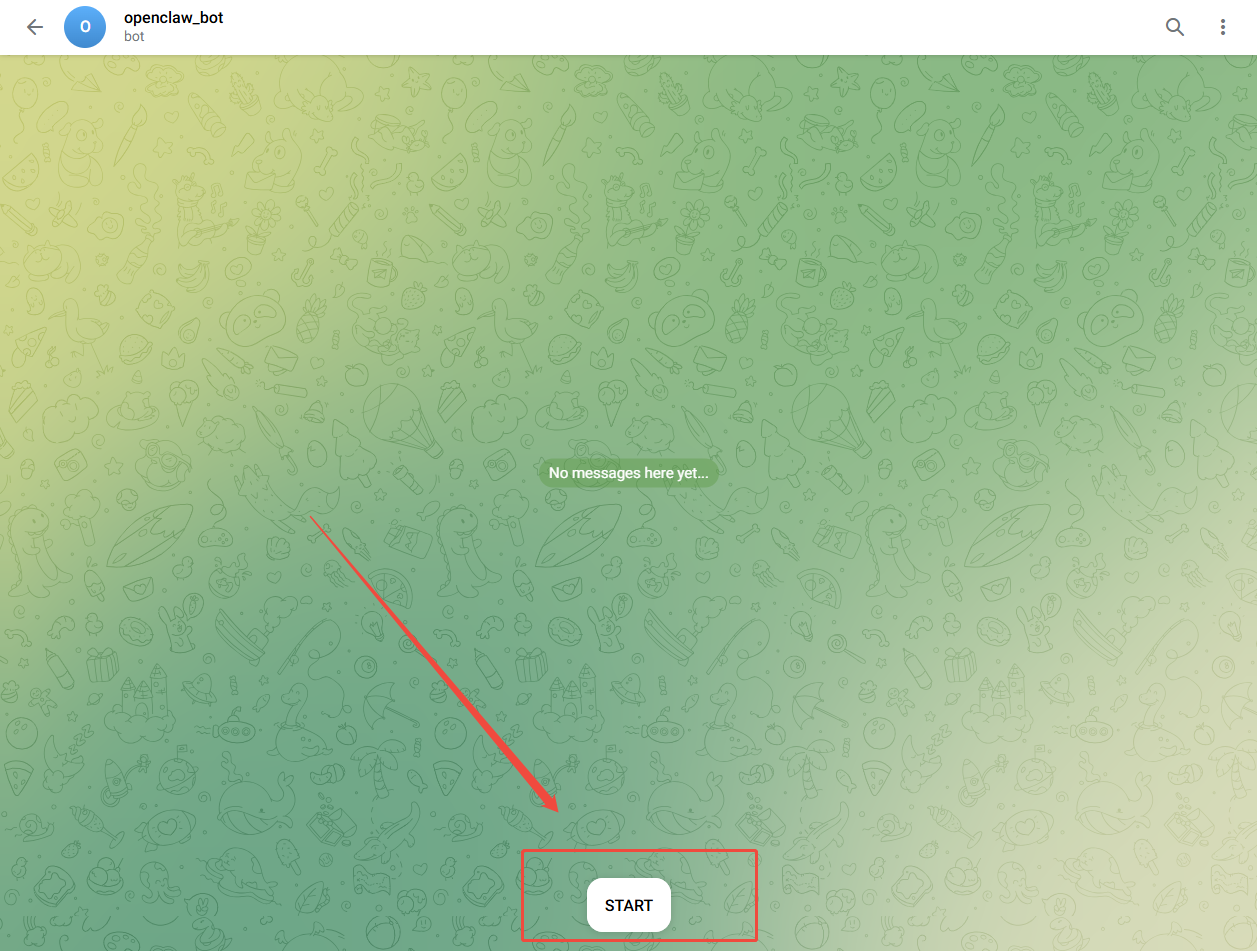
Step 4: In the BotFather chat, click the bot link shown in the message, such as t.me/openclaw_hiwonder_bot, to open the bot chat. Then click START.
Note
openclaw gateway must be started before clicking START in Telegram. Otherwise, the pairing code will not be received.
Step 5: During the first chat, the Telegram Bot sends a pairing code. Run the following command on the server to complete pairing.
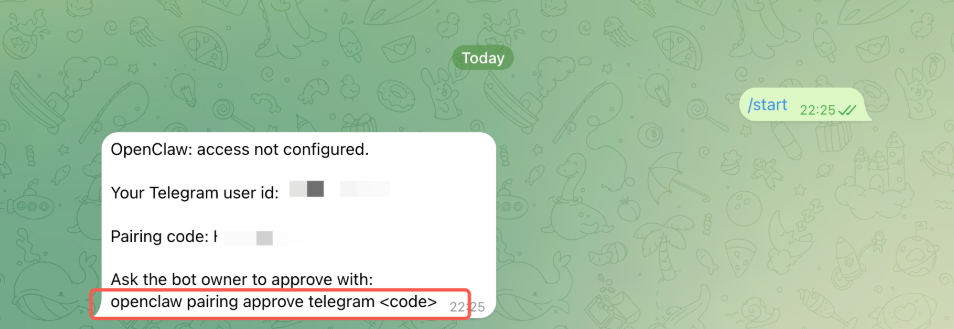
Step 6: Open a new command-line terminal and run the following command. Replace
<code>with the Pairing code received in Telegram. Do not include the angle brackets when entering it.
openclaw pairing approve telegram <code>

Step 7: After the command runs successfully, send a test message to the Telegram Bot, such as
hello. If the bot replies like an AI assistant, the Telegram connection to OpenClaw is working properly.

The Telegram integration for OpenClaw is now complete.