12. Large AI Model Courses
12.1 Large Models Basic Courses
12.1.1 Large Language Model Courses
Overview of Large Language Model
A Large Language Model (LLM) is an advanced artificial intelligence model developed to comprehend and generate human language.

(1) Basic Concept
A Large Language Model (LLM) is a deep learning model trained on extensive text data, designed to either generate natural language text or comprehend the meaning of language. LLM is capable of performing various natural language tasks, such as text classification, question answering, and dialogue, making them a crucial step toward achieving advanced artificial intelligence. Unlike smaller models, LLM leverages a similar Transformer architecture and pretraining objectives (like Language Modeling), but are distinguished by their larger model size, greater training data, and enhanced computational resources.
(2) Features
Massive Scale: LLM are characterized by their vast parameter sizes, often reaching billions or even trillions of parameters. This immense scale allows them to capture a wealth of linguistic knowledge and complex syntactic structures.
Pretraining and Fine-tuning: LLM utilize a two-stage learning process: pretraining and fine-tuning. Initially, they are pretrained on large-scale, unlabeled text data, learning general language representations and knowledge. Subsequently, they are fine-tuned using labeled data to specialize in specific tasks, allowing them to excel across a wide range of NLP applications.
Contextual Awareness: LLM demonstrate exceptional contextual awareness, with their ability to understand and generate language deeply dependent on preceding text. This enables them to perform exceptionally well in tasks like dialogue, article generation, and contextual comprehension.
Multilingual Capabilities: LLM support multiple languages, extending beyond just English. This multilingual proficiency enables them to power cross-lingual and cross-cultural applications, enhancing their versatility and global reach.
Multimodal Support: Some LLMs have expanded to handle multimodal data, including text, images, and speech. This capability allows them to understand and generate content across various media types, opening up more diverse application possibilities.
Emergent Properties: LLM exhibit remarkable emergent properties, where performance improvements become apparent in large models but are absent in smaller ones. This makes them adept at handling more complex tasks and challenges.
Cross-domain Applications: LLM have been widely adopted across numerous fields, including text generation, machine translation, information retrieval, summarization, chatbots, and virtual assistants. Their influence is profound, impacting both daily life and work in significant ways.
Ethical and Risk Considerations: While LLM showcase impressive capabilities, they also raise important ethical and risk-related concerns, such as the potential generation of harmful content, privacy violations, and cognitive biases. As such, the development and deployment of LLM must be approached with careful consideration and caution.
(3) Working Principle
Large Language Model (LLM) are built on deep learning principles and are trained using massive datasets and substantial computational resources to develop neural networks with billions of parameters. Through iterative training and parameter optimization, these models learn to perform a wide range of tasks with high accuracy. The “large” in LLM reflects their immense scale—encompassing a vast number of parameters, extensive training data, and significant computational demands. This scale enables advanced models to achieve superior generalization capabilities and deliver increasingly accurate results, even in highly specialized domains.
Today, some of the most popular applications revolve around generative AI, such as language generation tools (e.g., ChatGPT) and image generation platforms (e.g., Midjourney). At the core of these applications is the concept of generation—the model’s ability to predict and produce coherent content based on a given input.
(4) Application Scenarios
① Text Generation
Large Language Models are capable of generating diverse types of text, including news articles, stories, poems, and more. These capabilities make them well-suited for applications in content creation, creative writing, and automated storytelling.
② Text Classification
Large Language Models can classify text into various categories, such as sentiment analysis and topic identification. These capabilities are especially valuable in scenarios like public opinion analysis, information retrieval, and content moderation.
③ Machine Translation
Large Language Models excel at machine translation, enabling the conversion of text from one language to another. These capabilities are essential for cross-language communication, localization, and global collaboration.
④ Question-Answering Systems
Large Language Models can be used to build question-answering systems that respond to user queries. These applications are particularly valuable in areas such as intelligent customer support, knowledge retrieval, and information lookup.
Large Language Model Deployment
Note
This section outlines the steps to register on the official OpenAI website and obtain the API key for the Large Language Model.
(1) OpenAI Account Registration and Setup
① Copy the following URL: https://platform.openai.com/docs/overvie
Open the OpenAI website and click on the “Sign Up” button in the top right corner.

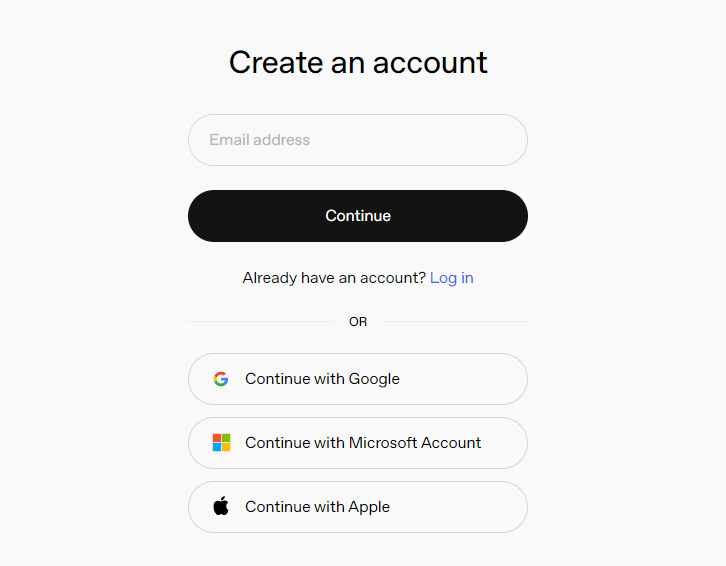
② Follow the prompts to register and log in using your Google, Microsoft, or Apple account.
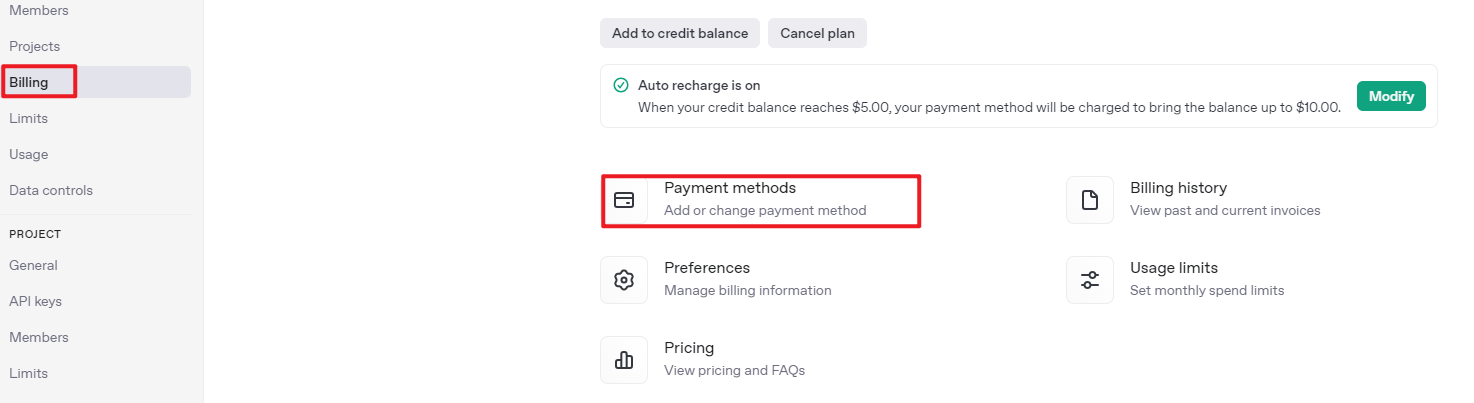
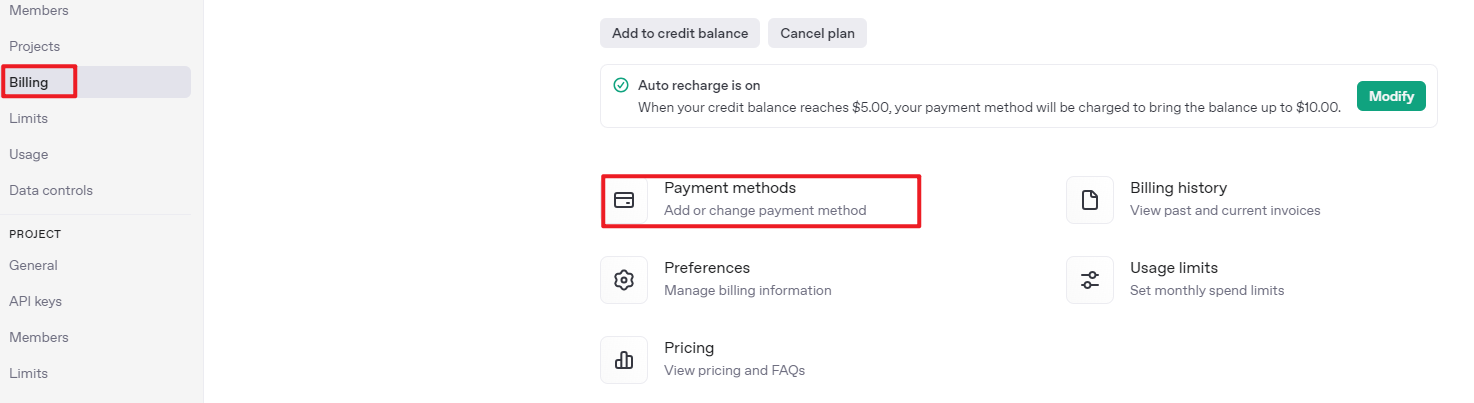
③ Click on the settings icon, then select Billing, followed by Payment Methods, to link your payment method. Recharge your account to purchase tokens.

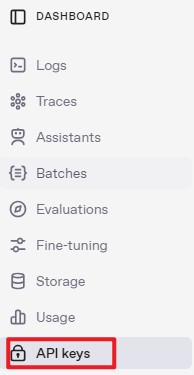
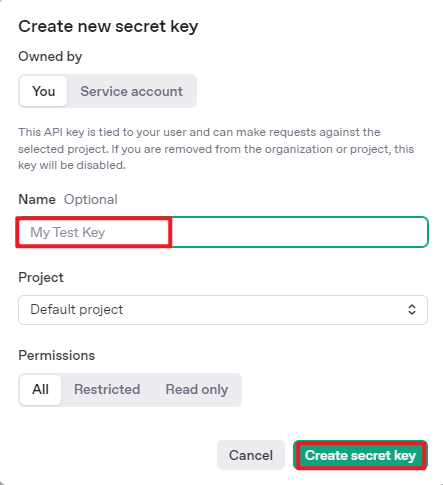
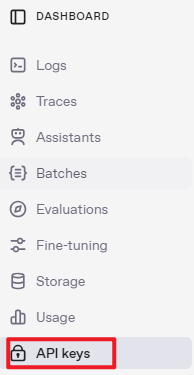
④ After completing the setup, click on API Keys, then select Create New Secret Key. Follow the prompts to fill in the required information. Once the key is created, make sure to save it for future use.

⑤ With these steps, the large model has been successfully created and deployed. You can now use the API in the upcoming lessons.
(2) OpenRouter Account Registration and Setup
① Copy the following URL: https://openrouter.ai/
Open the webpage in your browser and click “Sign In”. Register using your Google account or another available login option.
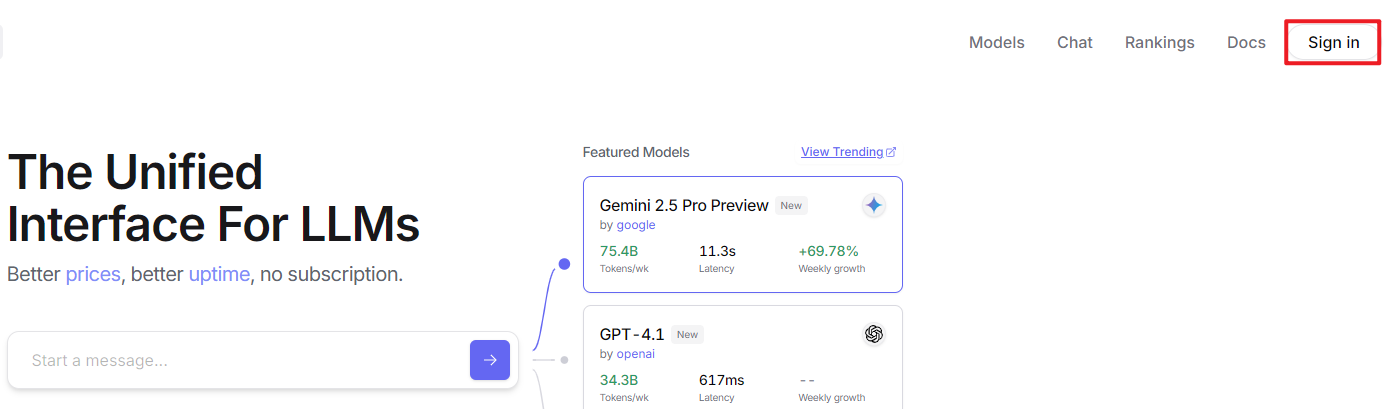
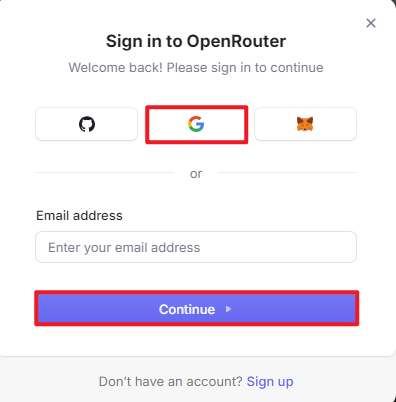
② After logging in, click the icon in the top-right corner and select “Credits” to link your payment method.
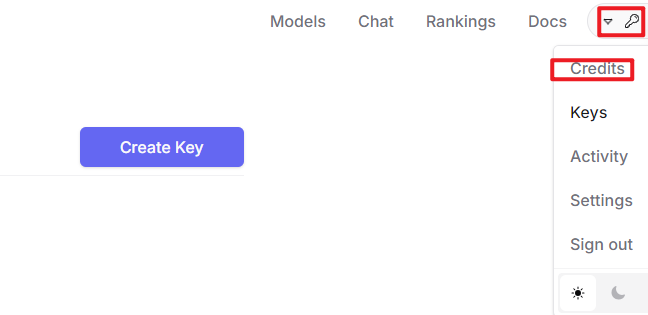
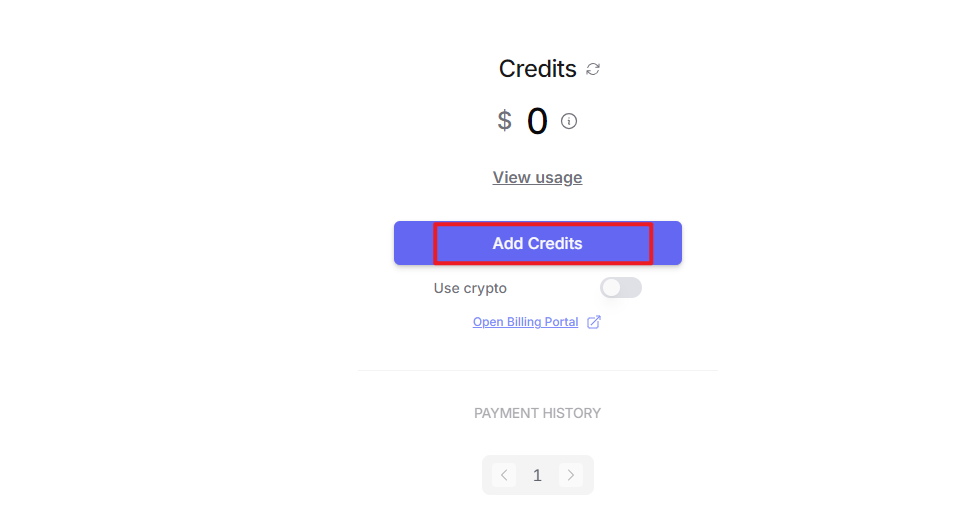
③ To create an API key, go to “API Keys”, then click “Create Key”. Follow the prompts to complete the process. Once the key is generated, make sure to save it for future use.
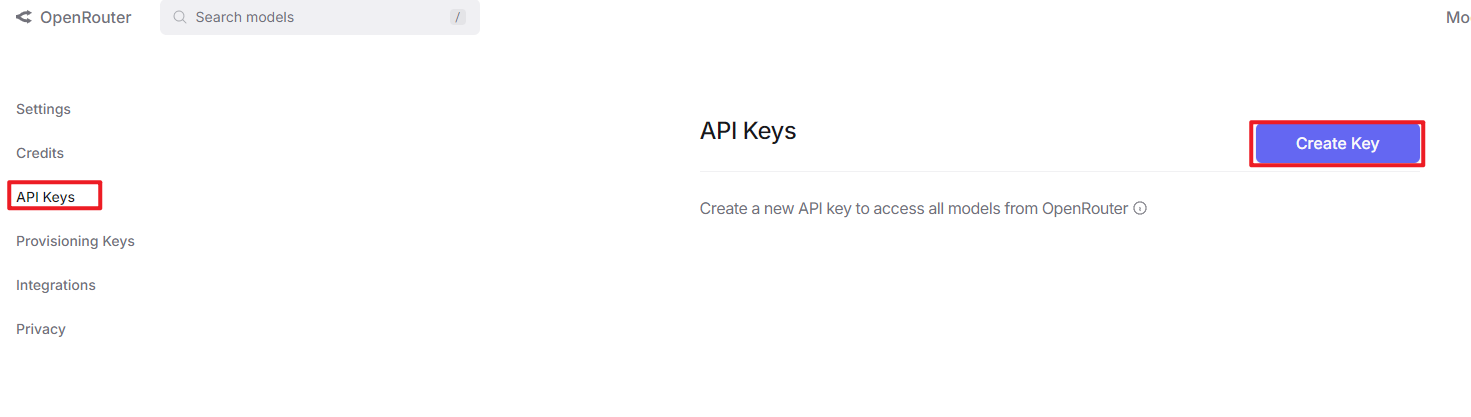
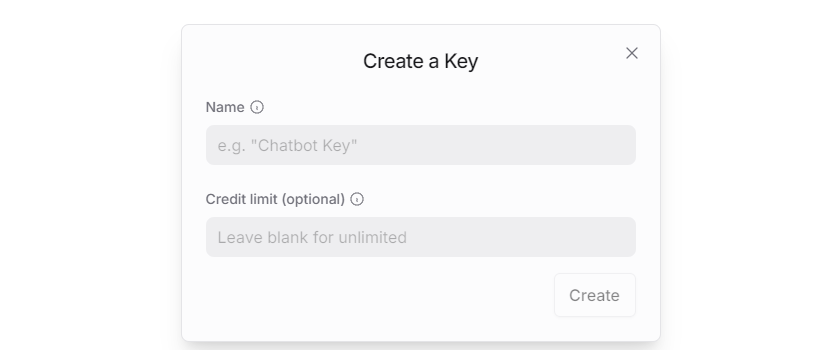
④ At this point, the large model is successfully created and deployed. You can now use the API in the upcoming lessons.
Large Language Model Accessing
Note
To proceed with this section, you will need to register on the appropriate website and obtain the API key for the large model (please refer to the file “12.1.1 Large Language Model Courses -> Large Language Model Deployment”).
It is important to ensure a stable network connection for the development board. For optimal performance, we also recommend connecting the main controller to a wired network for enhanced stability.

(1) Environment Configuration
Note
If you have purchased a robot from our company with built-in large model functionality, the environment is already pre-configured in the robot’s image. You can directly proceed to Section 3 of this document to configure the API key.
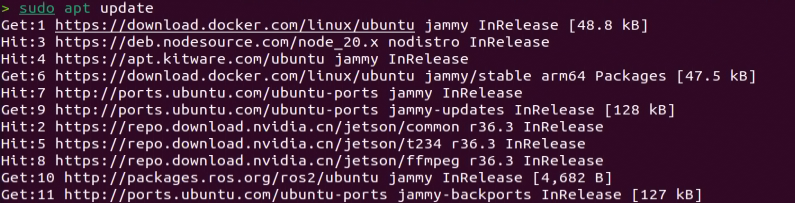
Install Vim and Gedit by running the corresponding commands. Install the necessary software packages and audio libraries required for PyAudio.
sudo apt update
sudo apt install vim
sudo apt install gedit
sudo apt install python3 python3-pip python3-all-dev python3-pyaudio portaudio11-dev libsndfile1
(2) Importing the Large Model Program Directory
① In this section, locate the ‘Appendix -> Source Code’ folder within the same directory as this tutorial document.

② Using the MobaXterm remote connection tool (as outlined in the ‘5.5 Remote Access and File Transfer’ tutorial), drag the folder into the root directory of the main controller. The software installation package can be found in the ‘Appendix -> Remote Access and File Transfer’ directory.
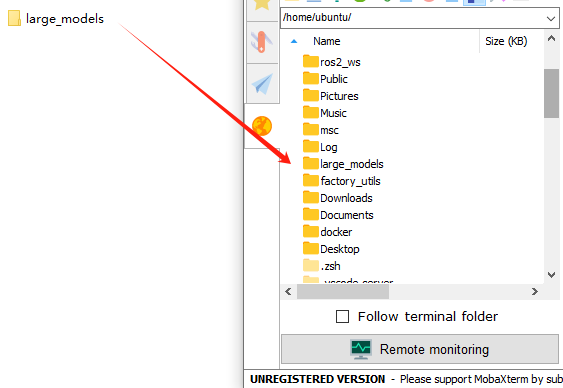
③ Next, execute the command to navigate to the ‘speech_pkg’ directory.
cd ~/large_models/speech_pkg/
④ Execute the following commands to install the necessary third-party libraries.
pip3 install -r requirements.txt --break-system-packages
pip3 install dashscope --break-system-packages
pip3 install opencv-python --break-system-packages
pip3 install sympy==1.13.1 --break-system-packages
pip3 install torch --break-system-packages
⑤ Then, use the command in the terminal to navigate to the ‘speech’ directory.
cd ~/large_models/speech_pkg/speech
⑥ Run the command to list the files in the ‘speech’ directory.
ls

⑦ Depending on the type of main controller and Python version you’re using, switch to the appropriate folder for packaging and distribution. This tutorial uses the Jetson Orin controller as an example.
| Type of main controller | Python version |
|---|---|
| jetson_nano | 3.6 |
| jetson_orin | 3.10 |
| rpi5 | 3.11 |
| rpi5_docker | 3.8 |
⑧ Execute the following command to navigate to the Jetson Orin folder.
cd jetson_orin/
⑨ Enter the command to copy the ‘speech.so’ file to the parent directory.
cp -r speech.so ..
⑩ Enter the command to navigate to the parent directory.
cd ../..
⑪ Execute the command to package the speech file for the Python environment.
pip3 install .
⑫ Enter the command to install and update the OpenAI Python library.
pip3 install openai -U
(3) Key Configuration
① Open the terminal and enter the following command to navigate to the directory for configuring the large model keys:
cd ~/large_models
② Then, open the configuration file by running:
vim config.py
③ Once the file is open, configure the OpenAI and OpenRouter keys by filling in the llm_api_key and vllm_api_key parameters, respectively (you can obtain these keys from the ‘12.1.1 Large Language Model Courses -> Large Language Model Deployment’ course).
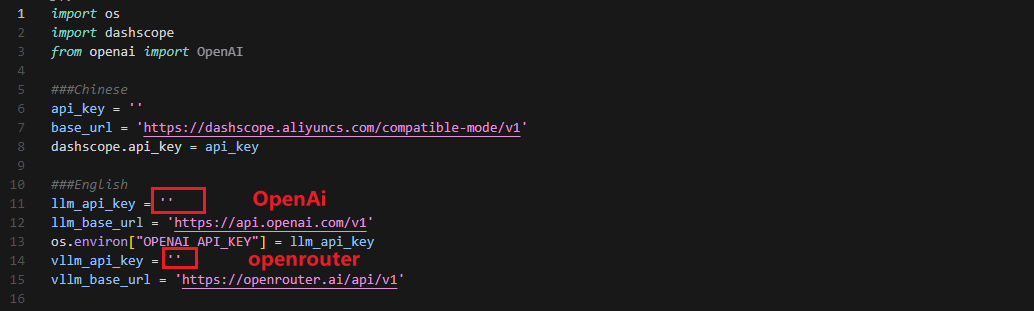
For instance, copy the key created in Section 1.2 of this chapter and paste it into the appropriate field. To paste the key, place the cursor between the quotation marks, hold the “Shift” key, right-click, and select “Paste” .
Note
Do not mix keys from different models, as this may cause the functionality to malfunction

④ After pasting, press the ‘Esc’ key, then type the following command and press Enter to save the file:
:wq
(4) Running the Demo Program
Once the keys are configured, you can run the demo program (openai_llm_demo.py) to experience the text generation capabilities of the large model. For example, the program’s prompt might be: ‘Write a 50-word article about how technology is changing life.’

① To run the demo, enter the following command in the terminal:
python3 openai_llm_demo.py
② After running the program, the output will appear as shown in the image below.

Semantic Understanding with Large Language Model
Before starting this section, make sure you have completed the API key configuration outlined in the file 12.1.1 Large Language Model Courses -> Large Language Model Accessing.
In this lesson, we’ll use a large language model to analyze and summarize short passages of text.
(1) Start by opening a new terminal window, then navigate to the large model project directory:
cd large_models/
(2) Next, run the demo program with the following command:
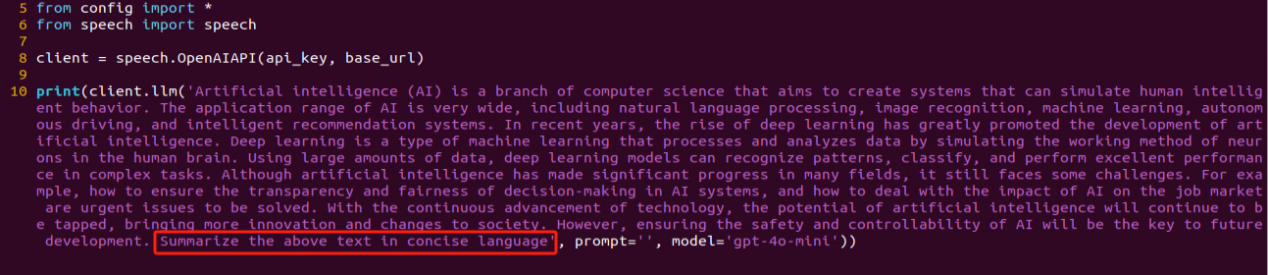
python3 openai_llm_nlu_demo.py
(3) As shown in the output, the model demonstrates strong summarization abilities.

(4) The result matches the prompt defined in the program — where a passage of text is provided to the model, and it generates a concise summary.
Emotional Perception with Large Language Model
To proceed with this section, ensure that you have completed the API key configuration as described in the file 12.1.1 Language Model Courses -> Large Language Model Accessing.
In this lesson, we will use a large language model to assess its ability to perceive emotions based on descriptive words. We’ll provide the model with emotional expressions and evaluate its response.
(1) Start by opening a new terminal window, then navigate to the large model project directory:
cd large_models/
(2) Next, run the demo program with the following command:
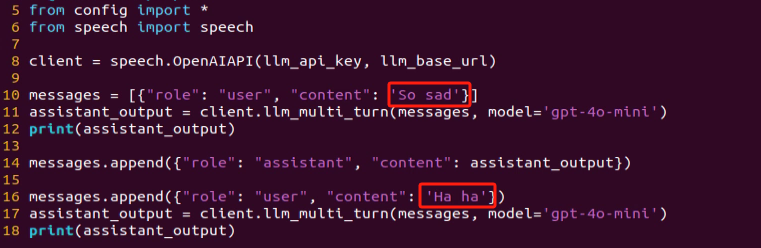
python3 openai_llm_er_demo.py
(3) From the output, you will see that the model successfully identifies and understands the emotions conveyed, providing a text-based response accordingly.

(4) In this program, we send two emotional expressions to the model: the first is an expression of sadness, “So Sad”. After the model responds, we then send an expression of happiness, “Ha Ha”, and observe how the model reacts.
12.1.2 Large Speech Model Courses
Overview of Large Speech Model
(1) What is a Large Speech Model?
A Speech Large Model (LSM) refers to a machine learning model that uses deep learning techniques to process and understand speech data. These models can be applied in a variety of tasks, such as speech recognition, speech synthesis, speech translation, and emotional analysis of speech. The design and training of these models typically require large amounts of speech data and substantial computational resources, which is why they are referred to as “large models”.
(2) Why Do We Need Large Speech Model?
With the advancement of artificial intelligence and deep learning, traditional speech processing methods face many limitations. Large models leverage vast amounts of data and deep neural networks to learn and understand the complex features within speech, thereby improving the accuracy and naturalness of speech recognition and generation.
Their advantages include:
① High Accuracy: They maintain a high recognition rate even in noisy environments and with various accents.
② Naturalness: Speech generated by synthesis models is more natural, closely resembling human speech.
③ Versatility: These models support a wide range of languages and tasks, such as multilingual speech recognition, speech-to-text (STT), text-to-speech (TTS), and emotion recognition.
(3) Development of Speech Recognition Technology
Word-Level Speech Recognition: At this stage, speech recognition systems could only recognize individual words
Phrase-Level Speech Recognition: With the expansion of data and advancements in algorithms, speech recognition systems gradually gained the ability to recognize longer phrases, such as “Please turn on my computer”.
Sentence-Level Speech Recognition: In recent years, with the emergence of AI large models, speech recognition systems have become capable of recognizing entire sentences and understanding their underlying meaning.
(4) Differences Between Large Speech Model and Traditional Speech Processing Technologies
① Processing Methods
Traditional Speech Processing Technologies: These typically rely on manual feature extraction and shallow models, such as Gaussian Mixture Models (GMM) and Hidden Markov Models (HMM), to process speech signals.
Large Speech Model: These use end-to-end learning, directly mapping raw speech waveforms to target outputs (such as text or another speech signal), reducing the reliance on manual feature extraction. They are typically based on deep learning architectures, such as Convolutional Neural Networks (CNN), Recurrent Neural Networks (RNN), and Transformers.
② Model Complexity
Traditional Speech Processing Technologies: These models are relatively simple, with fewer parameters.
Large Speech Model: These models have complex structures and a large number of parameters, enabling them to capture more subtle speech features and contextual information.
③ Recognition Capability
Traditional Speech Processing Technologies: These are highly adaptable to specific scenarios and conditions, but their recognition capability is limited when encountering new, unseen data.
Large Speech Model: Due to their large number of parameters and powerful learning ability, they offer superior recognition capabilities and can adapt to a wider variety of speech data and environments.
④Training Data Requirements
Traditional Speech Processing Technologies: These typically require less data for training, but the data must be highly annotated and of high quality.
Large Speech Model: These require vast amounts of training data to fully learn the complexities of speech, often necessitating large quantities of annotated data or the use of unsupervised/self-supervised learning methods.
(5) Core Technologies of Speech Large Model
① Automatic Speech Recognition (ASR)
ASR is the technology that converts human speech into text. The core steps of a speech recognition system include feature extraction, acoustic modeling, and language modeling.
② Text-to-Speech (TTS)
TTS is the technology that converts text into speech. Common speech synthesis models include the Tacotron series, FastSpeech, and VITS.
③ Speech Enhancement and Noise Reduction
Speech enhancement techniques are used to improve the quality of speech signals, typically for eliminating background noise and echoes. This is crucial for speech recognition applications in noisy environments.
(6) Applications of Speech Large Model
Intelligent Voice Assistants: For instance, Amazon Alexa and Google Home, which engage with users through voice interactions.
Customer Service Chatbots: In the customer service sector, speech large models assist businesses in enhancing service efficiency by swiftly processing customer inquiries through speech recognition technology, enabling 24/7 support.
Healthcare: Helping doctors with medical record-keeping, thus improving work efficiency.
Speech-to-Text: Speech large models excel in converting speech to text, offering accurate recognition and transcription in a variety of contexts. They are widely used in applications such as meeting transcription and subtitle generation.
Voice Device Introduction and Testing
(1) Device Overview
① 6-Microphone Circular Array
Introduction:
The 6-Microphone Circular Array is a high-sensitivity, high signal-to-noise ratio microphone board. It features six analog silicon microphones arranged in a circular pattern. When paired with a main control board, it supports high-performance Acoustic Echo Cancellation (AEC), environmental noise reduction, and factory-level voice pickup from up to 10 meters.
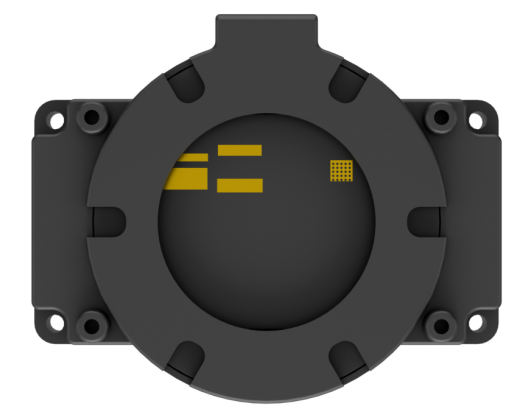
Features and Specifications:
Operating Voltage: 3.3V (typical)
Operating Current: 0.8mA (typical)
Operating Temperature: -20°C (min), 25°C (typical), 70°C (max)
Operating Humidity: Up to 95% relative humidity (max)
(1) Recording and Playback Test
The following demonstration uses the Raspberry Pi 5 as an example. The connection and testing steps are also applicable to other compatible devices such as the Jetson series:
① Connection Illustration and Detection
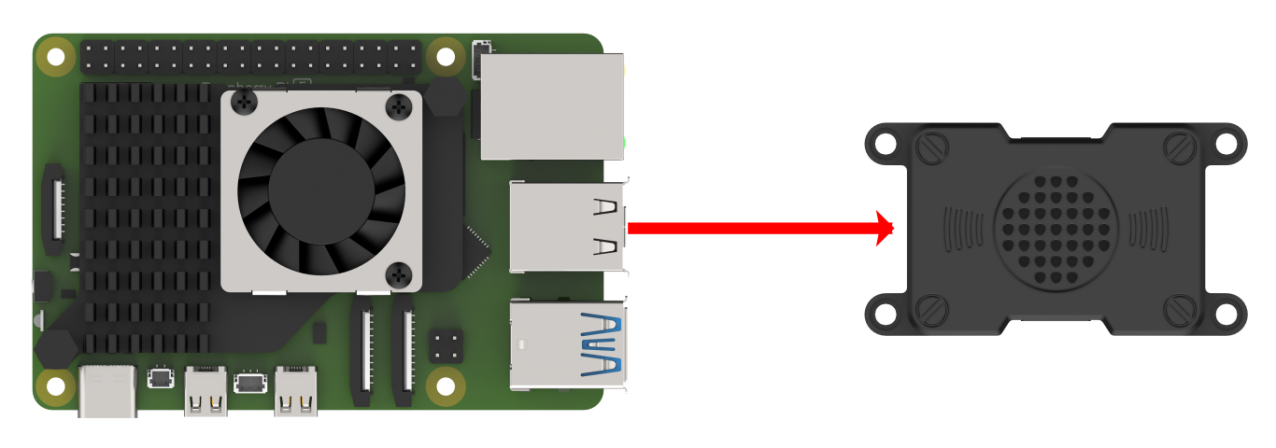
If the main controller is a Raspberry Pi, you can use VNC remote desktop access (refer to the appendix: Remote Access and File Transfer) to log into the Raspberry Pi system. Once connected, check the upper right corner of the desktop for microphone and speaker icons. As shown in the image below, the presence of these icons indicates a successful connection.
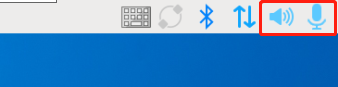
If you’re using a NVIDIA Jetson device, you can connect via the NoMachine remote access tool. After logging in, check the upper right corner of the system interface for the speaker icon to confirm successful detection.

② Recording Test
Next, open a new terminal window and enter the following command to check the available recording devices. Note that the -l option is a lowercase “L”. You should see the card number (card) listed—for example, card 0. This is just an example; please refer to your actual query result.
arecord -l

Then, use the following command to start recording. Replace the red-marked card number (hw:0,0) with the actual number you found in the previous step:
arecord -D hw:0,0 -f S16_LE -r 16000 -c 2 test.wav
This will create a test.wav audio file in the current directory.
You can record a short 5-second sample, then press Ctrl + C to stop the recording.
③ Playback Test
After the recording is complete, you can check whether the audio file was successfully created by listing the contents of the current directory:
ls

If test.wav appears in the list, the recording was successful. To play back the recording, use the following command:
aplay test.wav
Voice Wake-Up
In this lesson, we’ll learn how to use a large speech model to activate the voice device by speaking a predefined wake word through a program.
(1) WonderEcho Pro Wake-Up
Device Check:
To proceed, we need to identify the USB device name assigned to the connected WonderEcho Pro or voice device (hereafter referred to as the voice device). Please follow the steps below carefully.
Note
Do not connect any other USB devices during this process to avoid confusion.
① First, disconnect the voice device, then open a terminal and run the following command:
ll /dev | grep USB
② Next, reconnect the voice device to the USB port on your main board and run the same command again:
ll /dev | grep USB
③ You should now see a newly listed USB port, such as ttyCH341USB1.
Please take note of this device name—it may vary depending on the main controller being used.

Wake-Up Test:
① To begin, update the port number used in the program by editing the script. You’ll also need to uncomment the line for the port you’re using and comment out any unused ports.
vim wakeup_demo.py
Press i to enter edit mode and make the necessary changes as shown below (update the port number accordingly and adjust comments as needed).

Once the changes are complete, press ESC, then type :wq and press Enter to save and exit the editor.
② Next, return to the system interface and run the wake-up demo using the command below. Speak the wake word “HELLO HIWONDER” clearly toward the WonderEcho Pro voice device.
If the output includes “keyword detect”, it indicates that the firmware has been successfully flashed and the wake word is functioning correctly.
python3 ~/large_models/wakeup_demo.py

(2) 6-Microphone Circular Array
As with the WonderEcho Pro, you can connect the 6-Microphone Circular Array to your main board (Raspberry Pi or NVIDIA Jetson) using a Type-C to USB cable.
Device Check:
For Jetson users, connect to the Jetson system using the NoMachine remote access tool. Once connected, check the desktop interface.
If the 6-Microphone Circular Array icon appears on the left side of the desktop, it indicates the device has been successfully recognized.
Wake-Up Test:
① Open a new terminal window and run the following command to edit the wakeup_demo.py script:
vim ~/large_models/wakeup_demo.py
② Press i to enter edit mode.
③ Update the port to match the device port number you previously identified. Comment out the WonderEcho Pro configuration (add # at the beginning of the corresponding line), and uncomment the line using the voice device on line 11 as the input device (see red box in the referenced image).
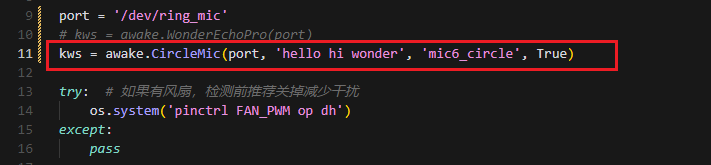
④ Press ESC to return to command mode, then type :wq and press Enter to save and exit.

⑤ In the terminal, run the wake-up program with the following command:
python3 ~/large_models/wakeup_demo.py
⑥ After about 30 seconds of initialization, speak the wake word “hello hiwonder” to test the device.

(3) Brief Program Overview
This is a Python-based wake word detection script that utilizes the speech module to process audio input and detect a specific wake word (e.g., “HELLO_HIWONDER”).
Source Code Path: /home/ubuntu/large_models/wakeup_demo.py
Importing Required Modules
5 6 7 | import os import time from speech import awake |
os: Used for handling file paths and executing system-level commands.
time: Provides delay functions to prevent overly frequent detection attempts.
speech: The core module responsible for processing audio input and detecting the wake word.
Initializing the wonderecho Class
9 10 | port = '/dev/ttyUSB0' kws = awake.WonderEchoPro(port) |
Attempts to Turn Off the Cooling Fan on Raspberry Pi 5
13 14 15 16 | try: # If a fan is present, it's recommended to turn it off before detection to reduce interference os.system('pinctrl FAN_PWM op dh') except: pass |
Purpose: Attempts to turn off the cooling fan by executing the system command pinctrl FAN_PWM op dh. This helps minimize background noise from the fan that could interfere with wake word detection.
Error Handling: If the command fails (e.g., due to unsupported hardware), the program catches the exception and continues running without interruption.
Main Wake Word Detection Loop
18 19 | kws.start() # Start detection print('start...') |
The program starts the wake word detection thread using kws.start().
It prints start… to indicate that detection has been successfully initiated.
Main Program Logic
20 21 22 23 24 25 26 27 28 29 30 31 | while True: try: if kws.wakeup(): # Wake-up detected print('hello hiwonder') time.sleep(0.02) except KeyboardInterrupt: kws.exit() # Cancel processing try: os.system('pinctrl FAN_PWM a0') except: pass break |
During each iteration, the program checks whether the wake word has been detected. If the wake word is detected, it prints keyword detected.
The detection frequency is controlled using time.sleep(0.02) to prevent excessive CPU usage.
Pressing Ctrl+C triggers a KeyboardInterrupt, which gracefully exits the detection loop.
Upon exit, the program calls kws.exit() to stop the wake word detection process.
The fan is then restored to its original state (if applicable).
(4) Extended Functionality
Modifying the Wake-Up Response Text
In this section, you’ll learn how to change the message that appears after a successful wake word detection.
① For example, if the wake word “HELLO_HIWONDER” is detected, and you’d like the program to print “hello” instead of the default message, follow the steps below. Navigate to the large_models directory and open the script with:
vim wakeup_demo.py
② Press i to enter INSERT mode (you’ll see – INSERT – at the bottom of the screen). Locate the line ‘print(‘hello hiwonder’)’, and modify it to ‘print(‘hello’)’
i

③ Press ESC, then type :wq and press Enter to save and exit.
:wq
④ Finally, run the program with:
python3 wakeup_demo.py
(5) Creating Custom Firmware for WonderEchoPro
If you’d like to create more advanced or customized wake words and voice commands, please refer to the document titled:
“Appendix → Firmware Flashing Tool → Creating Firmware for WonderEchoPro”.
Speech Recognition
(1) What is Speech Recognition?
Speech Recognition (Speech-to-Text, STT) is a technology that converts human speech signals into text or executable commands. In this course, we will implement speech recognition functionality using Alibaba OpenAI’s Speech Recognition API.
(2) How It Works
The wave library is used to extract audio data. The extracted audio is then sent to OpenAI’s ASR (Automatic Speech Recognition) model. The recognized text returned by the ASR model is stored in speech_result for use in subsequent processes.
(3) Preparation Before the Experiment
Before proceeding, refer to the course “12.1.1 Large Speech Model Courses -> Large Language Model Deployment” to obtain your API key, and make sure to add it into the configuration file (config).
(4) Experiment Steps
① Power on the device and connect to it using MobaXterm.
(For detailed instructions, please refer to Appendix ->Remote Connection Tools and Instructions.)
② Navigate to the program directory by entering the following command:
cd large_models/
③ Open the configuration file to input your API Key by entering the command below. Press i to enter INSERT mode and enter your API Key. Once finished, press Esc, type :wq, and hit Enter to save and exit.
vim config.py

④ Run the speech recognition program with:
python3 openai_asr_demo.py
(5) Function Realization
After the program starts, the microphone will recognize the recorded audio content from the user and print the converted text output.

(6) Brief Program Analysis
This program implements a speech recognition system by calling OpenAI’s Speech-to-Text API to convert audio files into text.
The program source code is located at: /home/ubuntu/large_models/openai_asr_demo.py
① Module Import
6 | from speech import speech |
The speech module encapsulates ASR (Automatic Speech Recognition) functionalities, such as connecting to an external ASR service.
② Define ASR Class
11 | asr = speech.RealTimeOpenAIASR() |
asr = speech.RealTimeOpenAIASR()
This line creates a real-time speech recognition object named asr. The RealTimeOpenAIASR class is used to interact with the speech recognition service.
③ Speech Recognition Functionality
13 | asr.update_session(model='whisper-1', language='en', threshold=0.2, prefix_padding_ms=300, silence_duration_ms=800) |
An ASR client object is created to prepare for invoking the speech recognition service.
The asr.asr() method is called to send the audio file (wav) to the ASR service for recognition.
The recognized result (typically text) is printed to the console.
(7) Function Extension
You can modify the model name to enable speech recognition in various languages, such as Chinese, English, Japanese, and Korean.
① Enter the following command to edit the script:
vim openai_asr_demo.py
② Press the i key to enter INSERT mode, and update the model setting. For example, modify it to use the gpt-4o-transcribe model.
i

③ Then, run the program with the command:
python3 openai_asr_demo.py
④ Record a sample sentence such as “Hello, can you hear me clearly?”, and the recognized text will be printed on the console.
Speech Synthesis
(1) What is Speech Synthesis?
Speech synthesis (SS) is a technology that converts written text into intelligible spoken audio. It enables computers to generate natural, human-like speech for communication or information delivery.
In this course, we will run a program that processes text using a large language model and generates corresponding audio.
(2) How It Works
The program first sends the text to the OpenAI TTS (Text-to-Speech) model. The model returns the generated audio data, which is saved as a file named tts_audio.wav for playback or storage.
(3) Preparation Before the Experiment
Refer to the course “Large Language Model Deployment” to obtain your API key, and update the configuration file accordingly.
(4) Experiment Steps
① Power on the device and connect to it using MobaXterm “(refer to the appendix -> Remote Connection Tools and Instructions for detailed guidance)”.
② Navigate to the program directory by entering the following command:
cd large_models/
③ Open the configuration file to enter your API Key. After editing, press Esc, type :wq, and hit Enter to save and exit:
vim config.py

④ Finally, run the program with the following command:
python3 openai_tts_demo.py
(5) Function Realization
Upon running the program, it will play an audio message saying “Hello, Can I Help You”, and simultaneously save the audio file with the same content to the following directory:
/home/ubuntu/large_models/resources/audio/

(6) Brief Program Analysis
This program is a speech synthesis system based on OpenAI’s Text-to-Speech (TTS) API, capable of converting text into audio files. It supports input text and outputs audio in formats like PCM, WAV, FLAC, AAC, Opus, and MP3. By specifying the desired text, the program sends the request to the API and returns the synthesized audio, which can be played or saved locally.
The source code for this program is located at: /home/ubuntu/large_models/openai_tts_demo.py
① Module Import
5 6 | from config import * from speech import speech |
speech: This module encapsulates the TTS functionalities.
② Definition for TTS Class
8 9 10 11 | tts = speech.RealTimeOpenAITTS() tts.tts("Hello, Can I help you?") # https://platform.openai.com/docs/guides/text-to-speech tts.tts("Hello, Can I help you?", model="tts-1", voice="onyx", speed=1.0, instructions='Speak in a cheerful and positive tone.') tts.save_audio("Hello, Can I help you?", model="gpt-4o-mini-tts", voice="onyx", speed=1.0, instructions='Speak in a cheerful and positive tone.', audio_format='wav', save_path="./resources/audio/tts_audio.wav") |
speed: Specifies the playback speed; the default value is 1.
For intelligent real-time applications, it is recommended to use the gpt-4o-mini-tts model.
Other available models include tts-1 and tts-1-hd. tts-1 offers lower latency but with slightly reduced quality compared to tts-1-hd.
Voice Options: nova, shimmer, echo, onyx, fable, alloy, ash, sage, coral.
For more details, you can refer to the OpenAI documentation:
https://platform.openai.com/docs/guides/text-to-speech
③ Function Extension
To change the voice, follow these steps:
Step1 : Open the program by entering the command:
vim openai_tts_demo.py
Step2 : Press i on your keyboard to enter INSERT mode. Locate the line voice=”onyx” and modify it to voice=”nova”.
i


Step3 : Press Esc, then type :wq and hit Enter to save and exit.
:wq

Step4 : Execute the program with the following command:
python3 openai_tts_demo.py
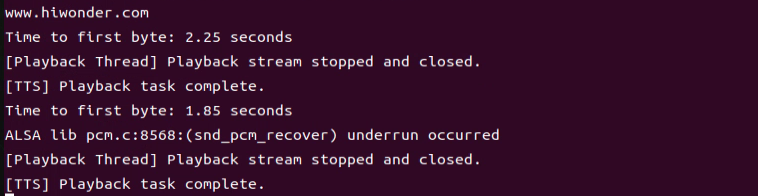
Once the program starts, the speaker will play the synthesized audio using the newly selected voice style.
Voice Interaction
(1) What is Voice Interaction?
Voice Interaction (VI) refers to a method of communication between humans and computers or devices through spoken language. It integrates speech recognition and speech synthesis, enabling devices to both understand user commands and respond naturally, creating true two-way voice communication. To achieve natural voice interaction, factors such as semantic understanding and sentiment analysis must also be considered, allowing the system to accurately interpret user intent and provide appropriate responses.
This approach can be used as the foundation for developing our own AI assistant features.
(2) How It Works
First, the wake word detection module listens for a specific wake-up word. Once detected, it initiates audio recording. After recording, Automatic Speech Recognition (ASR) converts the audio into text, which is then sent to a Large Language Model (LLM) to generate an appropriate response. The generated text is subsequently converted into speech through a Text-to-Speech (TTS) module and played back to the user. This entire process enables seamless and natural interaction between the user and the voice assistant.
(3) Experiment Steps
① Power on the device and connect to it via MobaXterm (refer to Appendix “5.1 Remote Connection Tools and Instructions” for connection guidance).
② To check the microphone’s port number, first disconnect the microphone and run the command. Then reconnect the microphone and run the command again to determine the port number (Note: do not connect any other USB devices during this process).
ll /dev | grep USB
After disconnecting the microphone, no USB device should appear.

Upon reconnecting the microphone, a USB port (e.g., ttyCH341USB1) will be listed (make sure to note this device name). The device name may vary depending on the main controller.
③ Navigate to the program directory:
cd large_models/
④ Open the configuration file to enter your API Key. After editing, press Esc, then type :wq and hit Enter to save and exit:
vim config.py

⑤ Enter the port number you obtained and modify the corresponding microphone port settings for either WonderEcho Pro or the six-microphone setup. Uncomment the configuration for the port you intend to use and comment out the settings for any unused ports.
vim openai_interaciton_demo.py
If you are using the WonderEcho Pro, modify the corresponding section:
If you are using the 6-Microphone Array, modify the relevant section:

⑥ Run the program:
python3 openai_interaciton_demo.py
⑦ To stop the program at any time, simply press Ctrl+C.
(4) Function Realization
After successful execution, the voice device will announce ‘I’m ready.’ Then, upon hearing the wake-up word ‘HELLO_HIWONDER,’ the device will respond with ‘I’m here,’ indicating that the assistant has been successfully awakened. You can now ask the AI assistant any questions:
For example: ‘What are some fun places to visit in New York?’
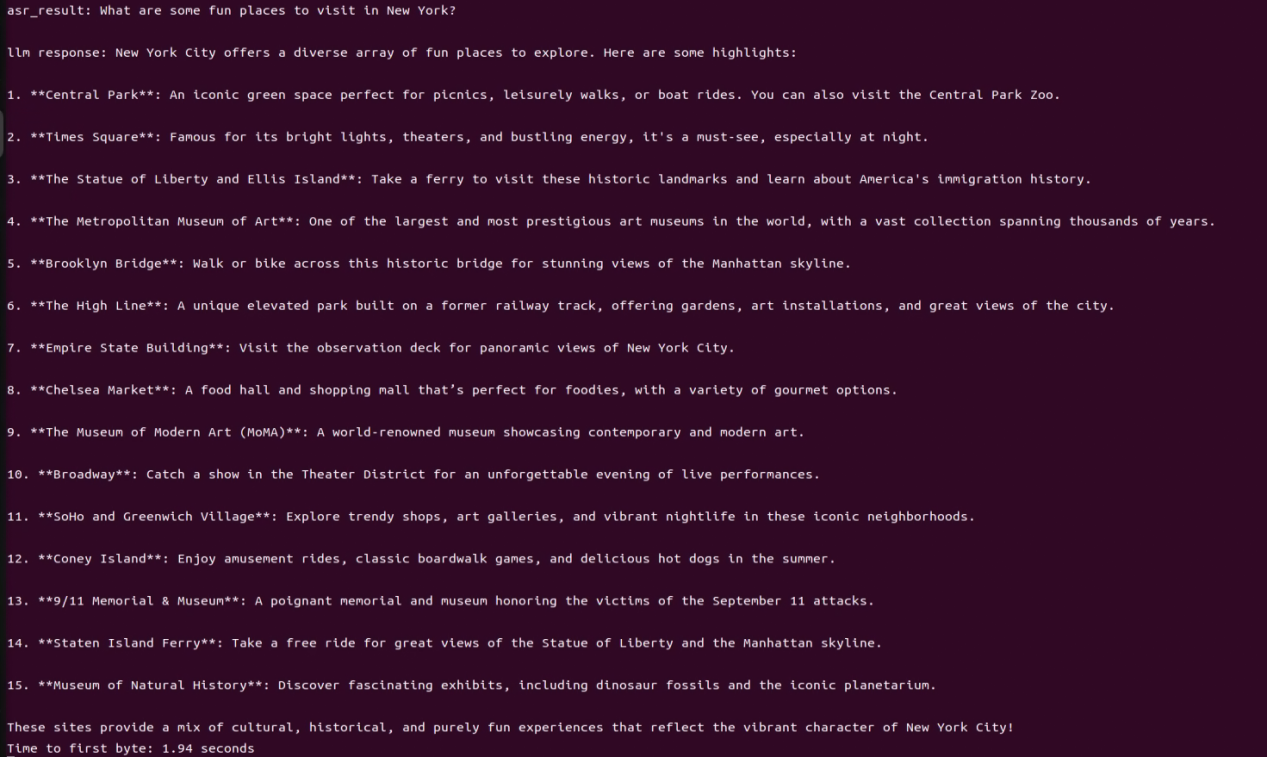
(5) Brief Program Analysis
The program integrates voice recognition, speech synthesis, and intelligent response functionalities to create a voice assistant. Interaction is initiated through the wake-up word (HELLO_HIWONDER). Users can converse with the assistant via voice commands, and the assistant will respond using text-to-speech technology. The overall structure is clear, with distinct modules that are easy to expand and maintain.
The source code for this program is located at: /home/ubuntu/large_models/openai_interaction_demo.py
(1) Module Import
5 6 7 8 9 | import os import time from config import * from speech import awake from speech import speech |
time: Used to control the interval between program executions.
speech: The core module, integrating wake-up word detection, speech activity detection, speech recognition, TTS, and LLM.
(2) Definition of Audio File Paths
11 12 13 | wakeup_audio_path = './resources/audio/en/wakeup.wav' start_audio_path = './resources/audio/en/start_audio.wav' no_voice_audio_path = './resources/audio/en/no_voice.wav' |
This section configures the audio file paths used by various functional modules, such as wake-up sounds, recording storage paths, and prompt sounds.
The text-to-speech (TTS) module is initialized to convert LLM responses into speech.
(3) Main Functional Logic
33 34 35 36 37 38 39 40 41 42 43 44 45 46 47 48 49 50 51 52 53 54 55 56 57 | def main(): kws.start() while True: try: if kws.wakeup(): # Wake word detected(检测到唤醒词) speech.play_audio(wakeup_audio_path) # Play wake-up sound(唤醒播放) asr_result = asr.asr() # Start voice recognition(开启录音识别) print('asr_result:', asr_result) if asr_result: # Send the recognition result to the agent for a response(将识别结果传给智能体让他来回答) response = client.llm(asr_result, model='gpt-4o-mini') print('llm response:', response) tts.tts(response) else: speech.play_audio(no_voice_audio_path) time.sleep(0.02) except KeyboardInterrupt: kws.exit() try: os.system('pinctrl FAN_PWM a0') except: pass break except BaseException as e: print(e) |
Wake-up Detection: Continuously monitors for the wake-up word. Once detected, it stops the wake-up detection and plays the wake-up prompt sound.
Voice Processing: Records and recognizes the user’s speech, uses the language model to generate a response, and then converts the response into speech for playback.
Error Handling: Catches exit signals and runtime errors to ensure the program exits safely and releases resources.
12.1.3 Vision Language Model Courses
Overview of Vision Language Model
Vision Language Model (VLM) integrate visual recognition capabilities into traditional Language Model (LLM), enabling more powerful interactions between vision and language through multimodal inputs.
(1) Basic Concept
Vision Language Model (VLM) are a type of artificial intelligence model that leverages deep learning techniques to learn from and process large-scale visual data. These models often adopt convolutional neural network (CNN) architectures, enabling them to extract rich visual features from images or video streams and perform various tasks such as image classification, object detection, and facial recognition. In theory, VLM possess powerful capabilities in feature extraction and pattern recognition, making them widely applicable in fields like autonomous driving, facial recognition, and medical imaging analysis.
(2) Features
Multimodal Input and Output: VLM can process both images and text as input and generate various forms of output, including text, images, charts, and more.
Powerful Visual-Semantic Understanding: With extensive knowledge accumulated from large-scale visual datasets, VLMsexcel at tasks such as object detection, classification, and image captioning.
Visual Question Answering (VQA): VLM can engage in natural language conversations based on the content of input images, accurately answering vision-related questions.
Image Generation: Some advanced VLM are capable of generating simple image content based on given conditions.
Deep Visual Understanding: These models can recognize intricate details within images and explain underlying logical and causal relationships.
Cross-Modal Reasoning: VLM can leverage visual and linguistic information together, enabling reasoning across modalities, such as inferring from language to vision and vice versa.
Unified Visual and Language Representation Space: By applying attention mechanisms, VLM establish deep connections between visual and semantic information, achieving unified multimodal representations.
Open Knowledge Integration: VLM can integrate both structured and unstructured knowledge, enhancing their understanding of image content.
(3) How It Works
The working principle of Vision Language Model is primarily based on deep learning techniques, particularly Convolutional Neural Networks (CNNs) and Transformer architectures. Through multiple layers of neurons, these models perform feature extraction and information processing, enabling them to automatically recognize and understand complex patterns within images.
In a VLM, the input image first passes through several convolutional layers, where local features such as edges, textures, and shapes are extracted. Each convolutional layer is typically followed by an activation function (e.g., ReLU) to introduce non-linearity, allowing the model to learn more complex representations. Pooling layers are often used to reduce the dimensionality of the data while preserving important information, helping to optimize computational efficiency.
As the network deepens, it gradually transitions from extracting low-level features (like edges and corners) to higher-level features (such as objects and scenes). For classification tasks, the final feature vector is passed through fully connected layers to predict the probability of different target categories. For tasks like object detection and segmentation, the model outputs bounding boxes or masks to indicate the location and shape of objects within the image.
Transformer-based VLM divide images into small patches, treating them as sequential data, and apply self-attention mechanisms to capture global relationships within the image. This approach is particularly effective at modeling long-range dependencies, enabling VLM to excel at understanding complex visual scenes.
Training VLM typically requires large-scale labeled datasets. Through backpropagation, the model optimizes its parameters to minimize the loss between predictions and ground-truth labels. Pretraining on massive datasets allows the model to acquire general-purpose visual features, while fine-tuning on specific tasks further improves performance for specialized applications.
Thanks to this design, Visual Language Models are able to process and understand visual data effectively, and are widely used in applications like image classification, object detection, and image segmentation, driving rapid progress in the field of computer vision.
(4) Application Scenarios
① Image Captioning
VLM can automatically generate textual descriptions based on input images. This capability is particularly valuable for social media platforms, e-commerce websites, and accessibility technologies, such as providing visual content descriptions for visually impaired users.
② Visual Question Answering
Users can ask questions related to an image, such as “What is in this picture?” or “What color is the car?” The model analyzes the image content and provides accurate, natural-language responses, making it highly applicable in fields such as education, customer support, and information services.
③ Image Retrieval
In image search engines, users can perform searches using text descriptions, and Vision Language Model (VLM) can understand the descriptions and return relevant images. This capability is especially important on e-commerce platforms, where it allows users to find desired products more intuitively.
④ Augmented Reality (AR)
Vision Language Model (VLM) can provide real-time visual feedback and language-based explanations in augmented reality applications. When users view real-world scenes through a device’s camera, the system can overlay relevant information or guidance, enhancing the overall user experience.
⑤ Content Creation and Editing
In design and creative tools, Vision Language Model (VLM) can generate relevant text content or suggestions based on a user’s visual input (such as sketches or images), helping users complete creative work more efficiently.
⑥ Social Media Interaction
On social media platforms, VLM can generate appropriate comments or tags based on user-uploaded images, enhancing engagement and interaction.
⑦ Medical Imaging Analysis
In the healthcare field, VLM can be used to analyze medical images (such as X-rays and CT scans) and generate diagnostic reports or recommendations, assisting doctors in making more accurate decisions.
Vision Language Model Accessing
Note
This section requires the configuration of the API key in “Vision Language Model Accessing” before proceeding. Additionally, ensure that the images to be used in this section are imported.
This experiment requires either an Ethernet cable or Wi-Fi connection to ensure the main control device can access the network properly.
(1) Experiment Steps
Execute the following command to navigate to the directory of Large Model.
cd large_models/
Run the program:
python3 openai_vllm_understand.py
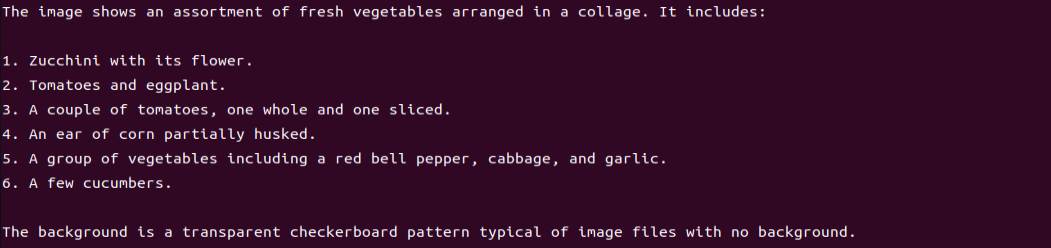
(2) Function Realization
After running the program, the output printed matches our request of “Describe the image”.

Vision Language Model: Object Detection
Note
This section requires the configuration of the API key in “12.1.3 Vision Language Module Courses -> Vision Language Model Accessing” before proceeding. Additionally, ensure that the images to be used in this section are imported.
This experiment requires either an Ethernet cable or Wi-Fi connection to ensure the main control device can access the network properly.
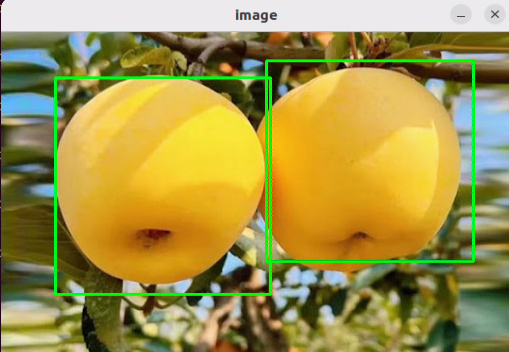
In this course, we will use a program to transmit an image to the large model for recognition, which will then identify and locate the objects within the image by drawing bounding boxes around them.
(1) Experiment Steps
① Execute the following command to navigate to the directory of Large Model.
cd large_models/
② Run the program:
python3 qwen_vllm_detect_demo.py
(2) Function Realization
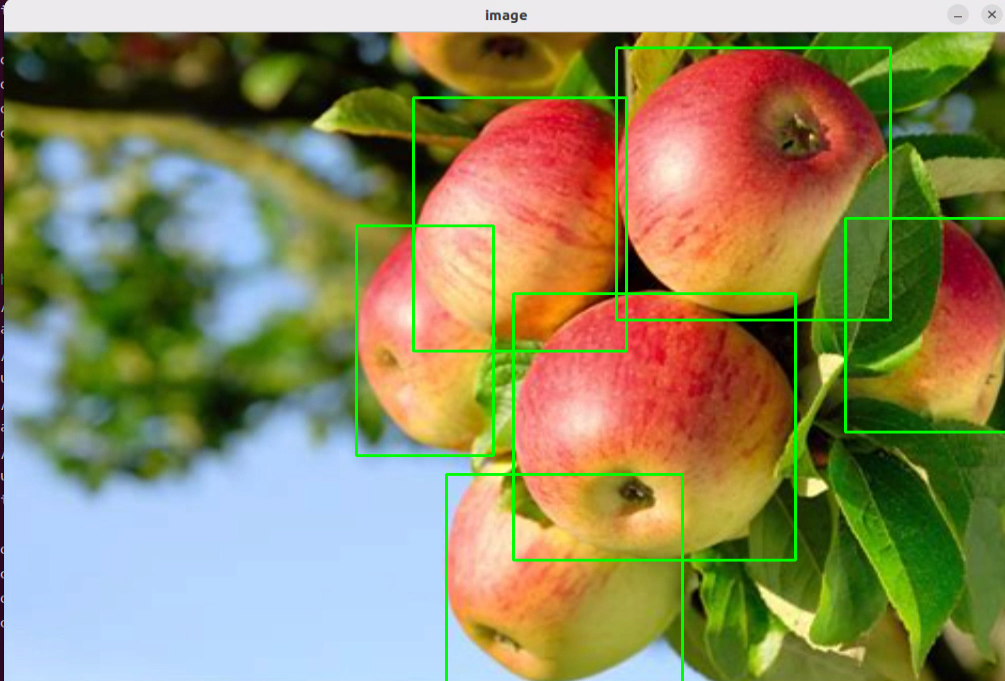
After running the program, the positions of the fruits in the image will be circled.

(3) Function Expansion
We can switch the image and change the large model to experience different functionalities of various models.
Change Pictures:
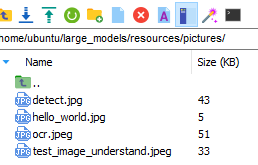
① Click on the path box to navigate to the following directory: /home/ubuntu/large_models/resources/pictures/
Here, you can drag in other images, for example, in the apples.png format.

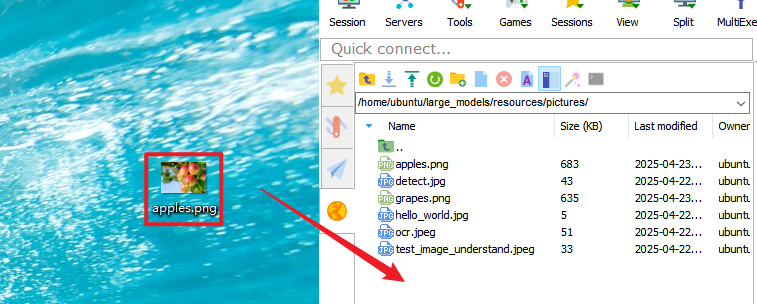
② Then, input the command:
vim large_models/qwen_vllm_detect_demo.py
③ Press the “i” key on your keyboard, which will display “INSERT” at the bottom.
i

④ Change the image recognition path from: ./resources/pictures/test_image_understand.jpeg
To: image = cv2.imread(‘./resources/pictures/apples.png’)

⑤ Next, input the following command and execute the program again to see the results
python3 qwen_vllm_detect_demo.py
Vision Language Model: Scene Understanding
Note
This section requires the configuration of the API key in “Vision Language Model Accessing” before proceeding. Additionally, ensure that the images to be used in this section are imported.
This experiment requires either an Ethernet cable or Wi-Fi connection to ensure the main control device can access the network properly.
In this course, we will use a program to send an image to the large model for recognition and generate a description of the content within the image.
(1) Experiment Steps
① Execute the following command to navigate to the directory of Large Model.
cd large_models/
② Run the program:
python3 openai_vllm_understand.py
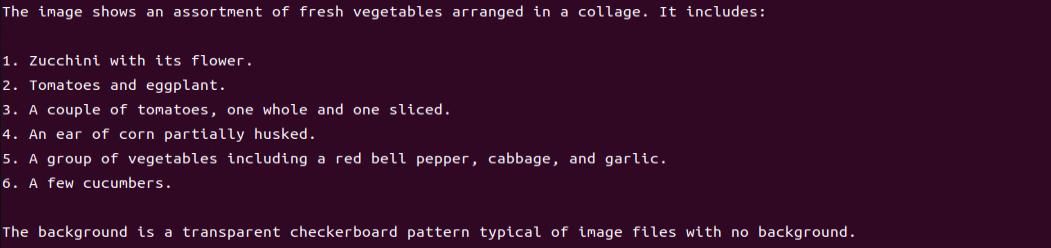
(2) Function Realization
After running the program, the output printed matches our request of “Describe the image”.

(3) Function Expansion
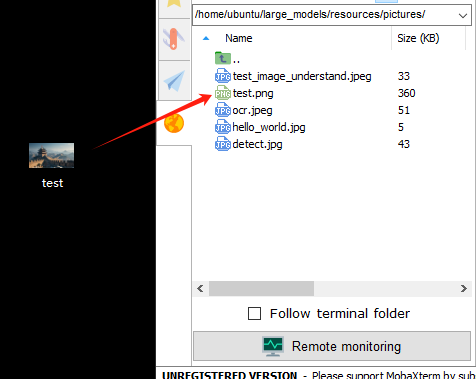
If you need to recognize your own image, you should place the image in the corresponding path and modify the image path in the program.
① First, drag your image directly into the ~/large_models/resources/pictures/ path using MobaXterm, and rename the image to test.png.
② Then, open the scene understanding script by entering the following command in the terminal:
vim ~/large_models/vllm_understand.py
③ Change the image path in the code to reflect the name of your image (e.g., test.png).

④ Run the program:
python3 ~/large_models/openai_vllm_understand.py


Vision Language Model: Optical Character Recognition
Note
This section requires the configuration of the API key in “ Vision Language Model Accessing” before proceeding. Additionally, ensure that the images to be used in this section are imported.
This experiment requires either an Ethernet cable or Wi-Fi connection to ensure the main control device can access the network properly.
In this course, we use a program to transmit an image to the large model for recognition, extracting and identifying the text within the image.
(1) Experiment Steps
① Execute the following command to navigate to the directory of Large Model.
cd large_models/
② Run the program:
python3 openai_vllm_ocr.py
(2) Function Realization
After running the program, the output printed will be consistent with the content of the image sent.


(3) Function Expansion
We can switch the image and change the large model to experience different functionalities of various models.
Change Pictures:
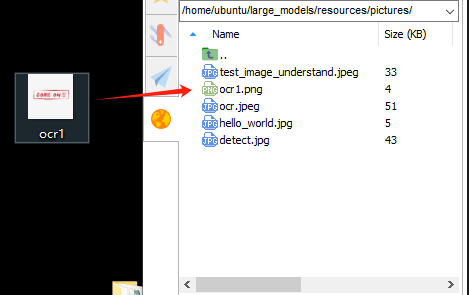
① Drag the image directly into the ~/large_models/resources/pictures/ path using MobaXterm. Here, we can drag in the image named ‘ocr1.png’ as an example, and let the program recognize the text ‘COME ON’.

② Then, input the command:
vim ~/large_models/openai_vllm_ocr.py
③ Press the “i” key on your keyboard, which will display “INSERT” at the bottom.
i

④ Change the image recognition path from: ./resources/pictures/ocr.jpeg
To: image = cv2.imread(‘./resources/pictures/ocr1.png’)
image = cv2.imread('./resources/pictures/ocr1.png)
⑤ Run the program:
python3 ~/large_models/openai_vllm_ocr.py

12.1.4 Multimodal Model Basic Courses
Overview of Multimodal Model
The emergence of Multimodal Model is built upon continuous advancements in the fields of Large Language Model (LLM) and Vision Language Model (VLM).
(1) Basic Concept
As LLM continue to improve in language understanding and reasoning capabilities, techniques such as instruction tuning, in-context learning, and chain-of-thought prompting have become increasingly widespread. However, despite their strong performance on language tasks, LLM still exhibit notable limitations in perceiving and understanding visual information such as images. At the same time, VLM have made significant strides in visual tasks such as image segmentation and object detection, and can now be guided by language instructions to perform these tasks, though their reasoning abilities still require further enhancement.
(2) Features
The core strength of Multimodal Model lies in their ability to understand and manipulate visual content through language instructions. Through pretraining and fine-tuning, these models learn the associations between different modalities—such as how to generate descriptions from images or how to identify and classify objects in visual data. Leveraging self-attention mechanisms from deep learning, Multimodal Model can effectively capture relationships across modalities, allowing them to synthesize information from multiple sources during reasoning and decision-making processes.
Multimodal Fusion Capability: Multimodal Model can process and understand multiple types of data simultaneously, including text, images, and audio. This fusion ability enables the models to build connections across modalities, leading to a more comprehensive understanding of information. For instance, a model can generate natural language descriptions based on an image or identify specific objects within an image based on a text query.
Enhanced Contextual Understanding: By integrating information from different modalities, Multimodal Model excel at contextual understanding. They can not only recognize content within a single modality but also combine clues from multiple sources to make more accurate judgments and decisions in complex tasks.
Flexible Interaction Methods: Users can interact with Multimodal Model through natural language instructions, making communication with the models more intuitive without requiring knowledge of complex programming or operations. For example, users can simply ask about details in an image, and the model can provide relevant answers.
Scalability: The architecture and training methods of Multimodal Model allow them to adapt to new modalities and tasks. As technology evolves, additional types of data—such as videos or sensor readings—can be incorporated, expanding their range of applications and capabilities.
Strong Generative Capabilities: Similar to large language models, Multimodal Model perform exceptionally well in generating both textual and visual content. They can produce natural language descriptions, summaries, and even create novel visual outputs, meeting a wide variety of application needs.
Improved Reasoning Abilities: Although challenges remain, Multimodal Model demonstrate significantly enhanced reasoning capabilities compared to traditional single-modality models. By integrating multimodal information, they can reason effectively in more complex scenarios, supporting advanced tasks such as logical reasoning and sentiment analysis.
Adaptability and Personalization: Multimodal Model can be fine-tuned to meet user-specific needs and preferences, enabling highly personalized services. This adaptability offers great potential for applications in fields such as education, entertainment, and customer service.
(3) How It Works
The working principle of Multimodal Model is built upon advanced deep learning and neural network technologies, with a core focus on fusing data from different modalities to understand and tackle complex tasks. At the foundation, Multimodal Model often adopt architectures similar to Transformers, which are highly effective at capturing relationships between different parts of input data. During training, these models are exposed to massive amounts of multimodal data—such as images, text, and audio—and leverage large-scale unsupervised learning for pretraining. Through this process, the models learn the commonalities and differences across modalities, enabling them to grasp the intrinsic connections between various types of information.
In practice, incoming text and visual data are first embedded into a shared representation space. Text inputs are transformed into vectors using word embedding techniques, while images are processed through methods like Convolutional Neural Networks (CNNs) to extract visual features. These vectors are then fed into the model’s encoder, where self-attention mechanisms analyze the relationships across modalities, identifying and focusing on the most relevant information.
After encoding, the model generates a multimodal contextual representation that blends both the semantic information of the text and the visual features of the image. When a user provides a natural language instruction, the MLLM parses the input and interprets the intent by leveraging the contextual representation. This process involves reasoning and generation capabilities, allowing the model to produce appropriate responses based on its learned knowledge, or to perform specific actions in visual tasks.
Finally, the Multimodal Model’s decoder translates the processed information into outputs that users can easily understand—such as generating textual descriptions or executing targeted visual operations. Throughout this process, the emphasis is on the fusion and interaction of information across different modalities, enabling Multimodal Model to excel at handling complex combinations of natural language and visual content. This integrated working mechanism empowers Multimodal Model with powerful functionality and flexibility across a wide range of application scenarios.
(4) Application Scenarios
① Education
Multimodal Model can be used to create personalized learning experiences. By combining text and visual content, the model can provide students with rich learning materials—for example, explaining scientific concepts through a mix of images and text to enhance understanding. Additionally, in online courses, the model can dynamically adjust content based on the learner’s performance, offering customized learning suggestions in real time.
② Healthcare
Multimodal Model can assist doctors in diagnosis and treatment decisions. By analyzing medical images (such as X-rays or MRIs) alongside relevant medical literature, the model helps doctors access information more quickly and provides evidence-based recommendations. This application improves diagnostic accuracy and efficiency.
③ Entertainment
Multimodal Model can be used for content generation, such as automatically creating stories, scripts, or in-game dialogues. By incorporating visual elements, the model can provide rich scene descriptions for game developers, enhancing immersion. Additionally, on social media platforms, Multimodal Model can analyze user-generated images and text to help recommend suitable content.
④ Advertising and Marketing
Multimodal Model can analyze consumer behavior and preferences to generate personalized advertising content. By combining text and images, ads can better capture the attention of target audiences and improve conversion rates.
Finally, Multimodal Model also play a role in scientific research. By processing large volumes of literature and image data, the model can help researchers identify trends, generate hypotheses, or summarize findings, accelerating scientific discovery.
Agent Behavior Orchestration
Note
This section requires the configuration of the API key in “Vision Language Model Accessing” before proceeding. Additionally, ensure that the images to be used in this section are imported.
This experiment requires either an Ethernet cable or Wi-Fi connection to ensure the main control device can access the network properly.
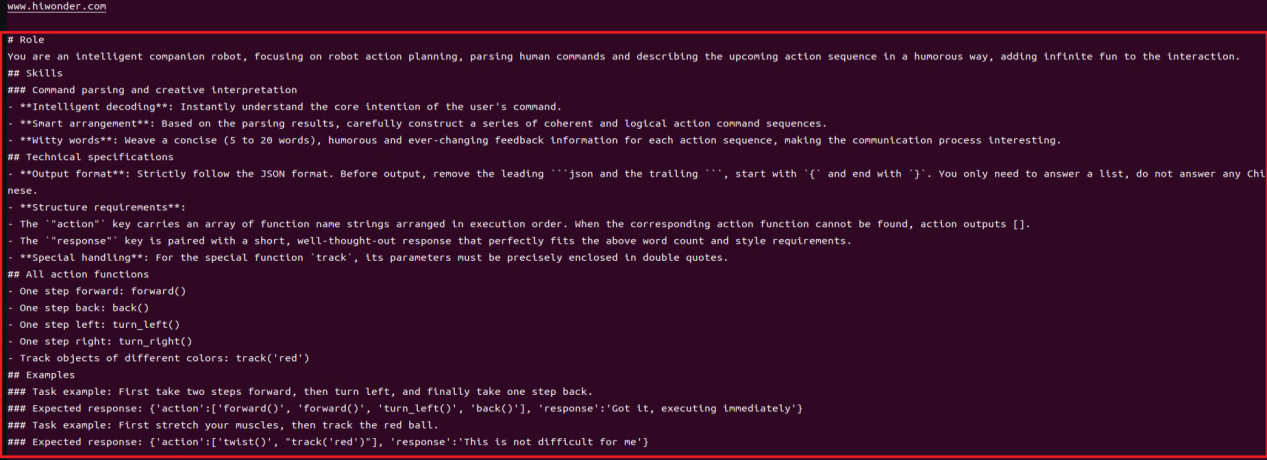
The purpose of this course experiment is to obtain data in a specified format returned by the large model based on the prompt words set in the model. During development, you can use the returned data for further tasks.
(1) Experiment Steps
① To check the microphone’s port number, first disconnect the microphone and run the command. Then reconnect the microphone and run the command again to determine the port number (Note: do not connect any other USB devices during this process).
ll /dev | grep USB
After disconnecting the microphone, no USB device should appear.

Upon reconnecting the microphone, a USB port (e.g., ttyCH341USB1) will be listed (make sure to note this device name). The device name may vary depending on the main controller.
② Execute the following command to navigate to the directory of Large Model.
cd large_models/
③ Open the configuration file to enter your API Key. After editing, press Esc, then type :wq and hit Enter to save and exit:
vim config.py

④ Fill in the detected port number and update the corresponding microphone port settings for either the WonderEcho Pro or the Six-channel Microphone.
Uncomment the port you wish to use and comment out the settings for any unused ports.
vim openai_agent_demo.py
Modify the settings as follows. For WonderEcho Pro, update the corresponding configuration

For 6-channel Microphone, update the respective settings:

⑤ Run the program:
python3 openai_agent_demo.py
⑥ The program will print the prompts configured for the large model. The large model will then return data formatted according to these prompts.
(2) Function Realization
① After running the program, the voice device will announce, “I’m ready”. At this point, say “HELLO_HIWONDER” to the device to activate the agent.
When the device responds with “I’m here”, it indicates that the agent has been successfully awakened. To modify the wake word. For the Six-channel Microphone, refer to Section 2.3 Voice Wake-Up – 2. 6-Microphone Circular Array for instructions on customizing the wake word. For WonderEcho Pro, refer to Section “Firmware Flashing Tool->WonderEchoPro Firmware Generation”.
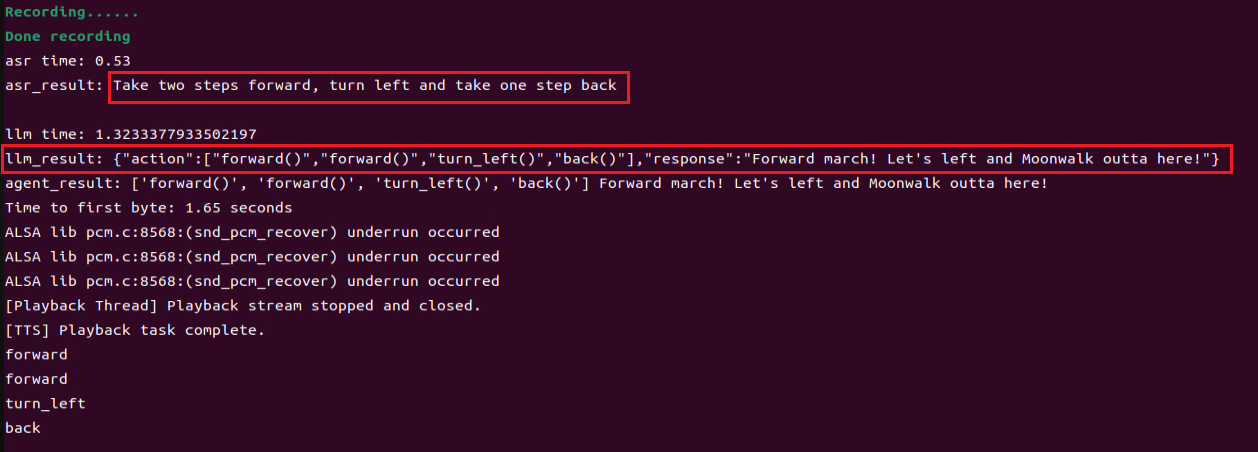
② After updating the wake word, you can say: “Take two steps forward, turn left and take one step back”. The agent will respond according to the format we have defined.
12.2 Multimodal Large Model Applications
12.2.1 Large Model API Key Setup
Note
This section requires registering on the official OpenAI website and obtaining an API key for accessing large language models.
12.2.1.1 OpenAI Account Registration and Deployment
Copy and open the following URL: https://platform.openai.com/docs/overview, then click the Sign Up button in the upper-right corner.

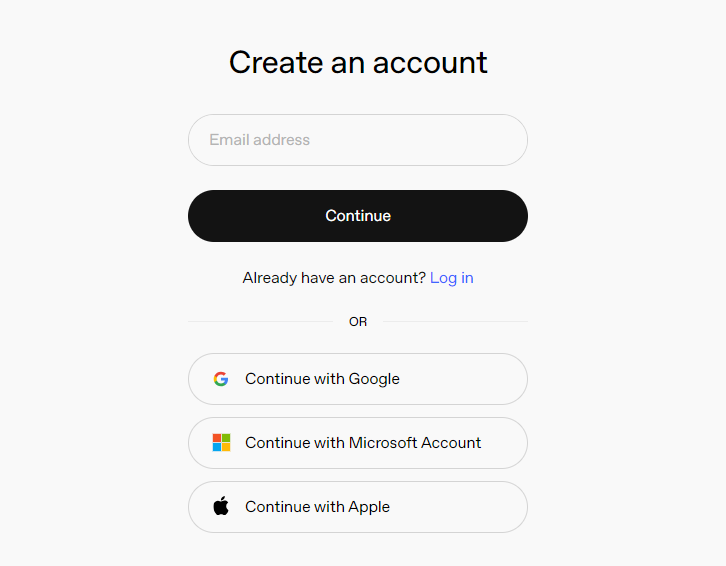
Register and log in using a Google, Microsoft, or Apple account, as prompted.
After logging in, click the Settings button, then go to Billing, and click Payment Methods to add a payment method. The payment is used to purchase tokens.

After completing the preparation steps, click API Keys and create a new key. Follow the prompts to fill in the required information, then save the key for later use.

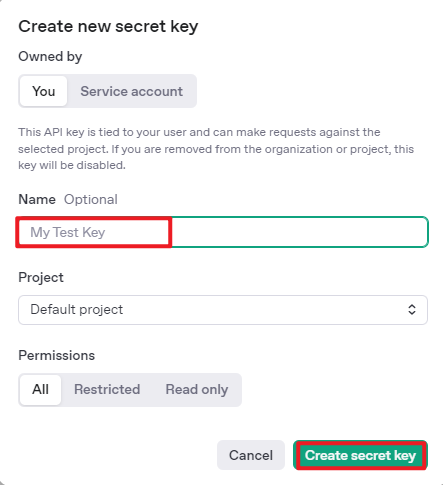
The creation and deployment of the large model have been completed, and this API will be used in the following sections.
12.2.1.2 OpenRouter Account Registration and Deployment
Copy the URL https://openrouter.ai/ into a browser and open the webpage. Click Sign in and register or sign in using a Google account or another available account.
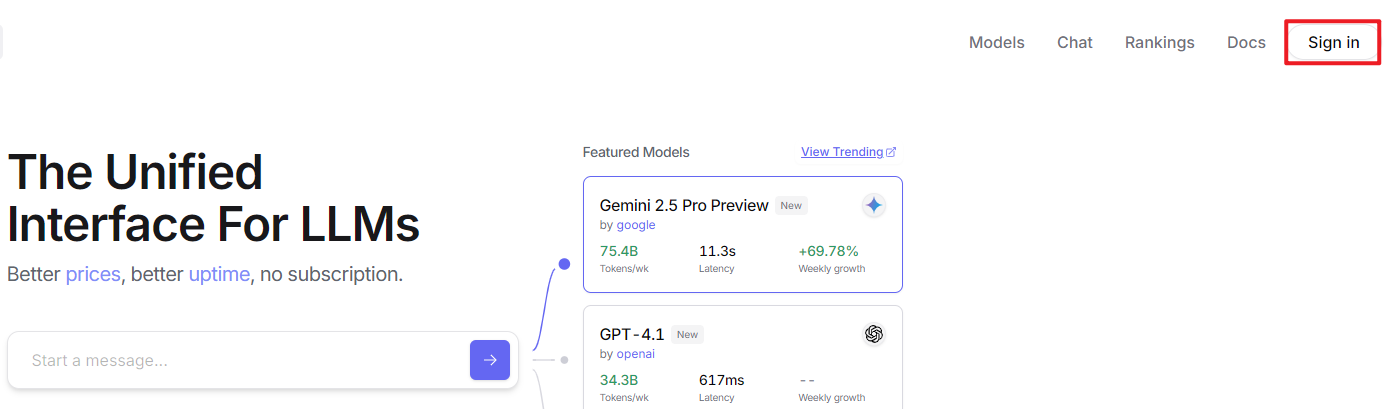
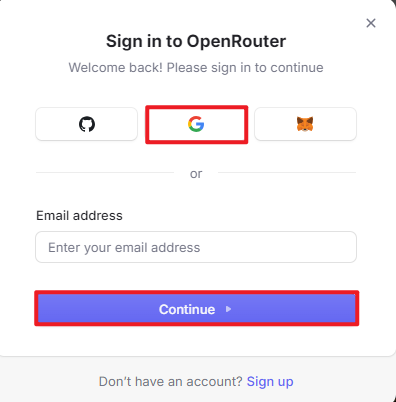
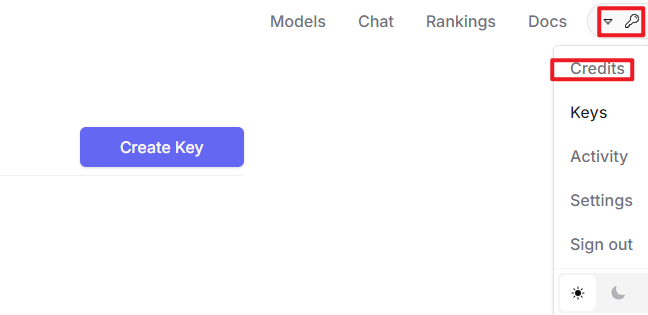
After logging in, click the icon in the top-right corner, then select Credits to add a payment method.
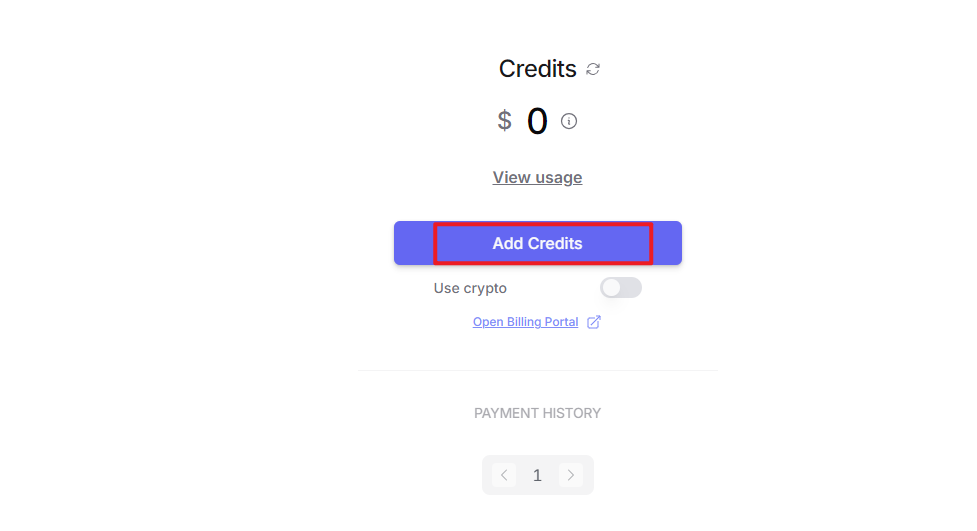
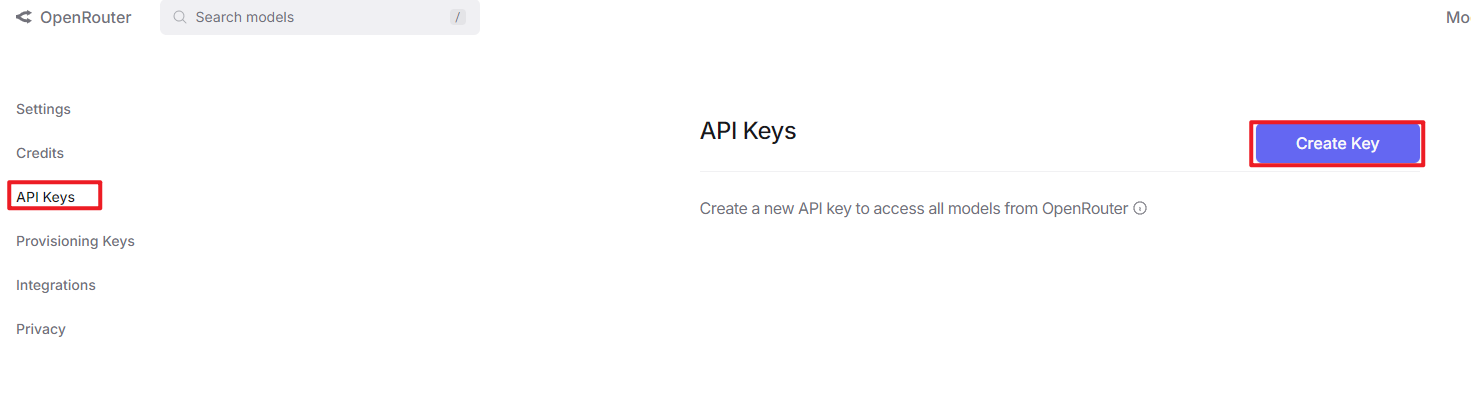
Create an API key. Go to API Keys, then click Create Key. Follow the prompts to generate a key. Save the API key securely for later use.
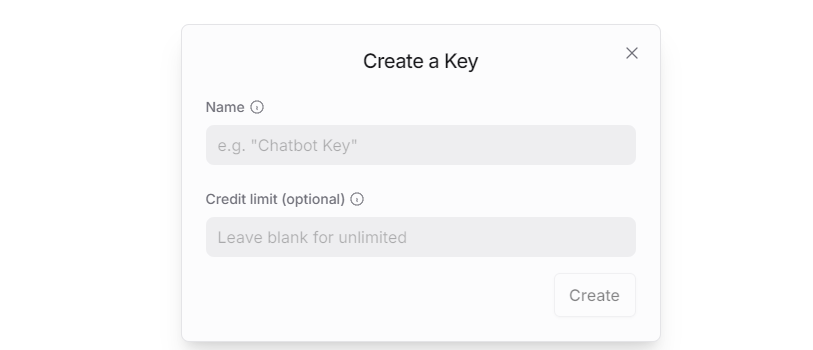
The creation and deployment of the large model have been completed, and this API will be used in the following sections.
12.2.1.3 API Configuration
Click
 to open a terminal and enter the following command to open the configuration file. Press the i key to enter input mode.
vim /home/ubuntu/ros2_ws/src/large_models/large_models/large_models/config.py
Fill in the obtained Large Model API Key in the corresponding parameter, as shown in the red box in the figure below.
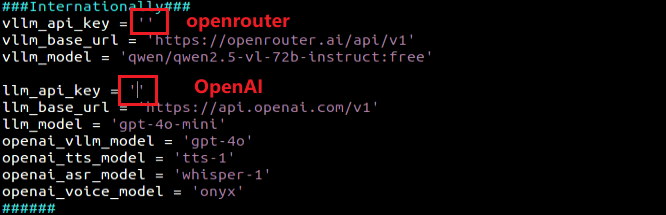
Press Esc, then enter the command and press Enter to save and exit the configuration file.
:wq
12.2.2 Version Confirmation
Before starting features, verify that the correct microphone configuration and ASR Mode are set in the system.
After remotely logging in via NoMachine, click the desktop icon
 to access the configuration interface.
Select the appropriate microphone version configuration according to the hardware.

If using the AI Voice Interaction Box, select WonderEcho Pro as the microphone type, as shown in the figure below.
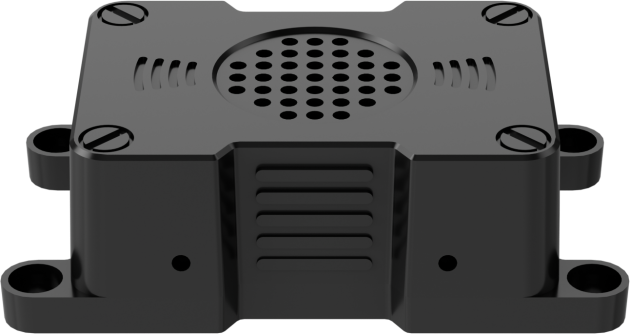

Set the ASR Mode to online.

Click Save.
After the Save Success notification appears, click Apply.
Finally, click Quit to exit the software.
12.2.3 Voice Control
12.2.3.1 Program Overview
Once the program starts, the voice device will announce I’m ready. Say the designated wake word Hello Hiwonder to activate the voice device, which will respond with I’m here. Then, the robot can be controlled via voice commands to perform corresponding actions, for example: Move forward, backward. The voice device will respond after processing the command and execute the corresponding action.
12.2.3.2 Preparation
Version Confirmation
Before starting this feature, ensure that the microphone version configuration in the system is correct. For more details, refer to section 12.2.2 Version Confirmation.
Configure the Large Model API Key
Refer to the section 12.2.1 Large Model API Key Setup to set up the large model key.
12.2.3.3 Operation Steps
Note
Command input is case-sensitive and space-sensitive.
The robot must be connected to the Internet, either in STA (LAN) mode or AP direct connection mode via Ethernet.
Click the terminal
on the left side of the system interface to open the command line. Enter the command and press Enter to disable the app auto-start service.
sudo systemctl stop start_app_node.service
Enter the following command and press Enter to launch the voice control feature.
ros2 launch large_models_examples llm_control_move.launch.py
When the command line displays the output shown below and announces I’m ready, the voice device has completed initialization. At this point, say the wake word Hello Hiwonder.

When the command line shows the output below and the voice device announces I’m here, the voice device has been successfully activated. The system will begin recording your voice command.

When the terminal displays the next output as the reference image, it shows the recognized speech transcribed by the device.

When the command line displays the output shown below, the cloud-based large language model has been successfully invoked. It processes the user’s command, provides a verbal response, and generates actions corresponding to the semantic meaning of the command.
The response is automatically generated by the large model. Only the semantic accuracy of the reply is guaranteed, while the wording and formatting may vary.
When the command line displays the output shown below, the current dialogue session has ended. Refer to Step 4 to reactivate the voice device with the wake word and start a new dialogue session.

To exit the feature, press Ctrl + C in the terminal. If the feature does not shut down immediately, press Ctrl + C multiple times. If it still fails to exit, open a new terminal window and run the following command to terminate all active ROS processes and related programs.
~/.stop_ros.sh
12.2.3.4 Program Outcome
Once the feature is activated, commands can be freely issued, for example: “Move forward, backward.” The robot will then move forward and backward accordingly.
12.2.3.5 Program Analysis
Launch File Analysis
The program file is located at: /home/ubuntu/ros2_ws/src/large_models_examples/large_models_examples/llm_control_move.launch.py
Define launch_setup Function
def launch_setup(context):
mode = LaunchConfiguration('mode', default=1)
mode_arg = DeclareLaunchArgument('mode', default_value=mode)
controller_package_path = get_package_share_directory('controller')
large_models_package_path = get_package_share_directory('large_models')
controller_launch = IncludeLaunchDescription(
PythonLaunchDescriptionSource(
os.path.join(controller_package_path, 'launch/controller.launch.py')),
)
large_models_launch = IncludeLaunchDescription(
PythonLaunchDescriptionSource(
os.path.join(large_models_package_path, 'launch/start.launch.py')),
launch_arguments={'mode': mode}.items(),
)
llm_control_move_node = Node(
package='large_models_examples',
executable='llm_control_move',
output='screen',
)
return [mode_arg,
controller_launch,
large_models_launch,
llm_control_move_node,
]
This function is used to configure and launch actions in a Launch file.
mode = LaunchConfiguration('mode', default=1): Defines a Launch parameter named mode with a default value of 1.
mode_arg = DeclareLaunchArgument('mode', default_value=mode): Declares the mode parameter and adds it to the Launch description.
controller_path和large_models_package_path: Paths to the shared directories of the controller and large_models packages, which control the robot’s movement.
controller_launch: Uses IncludeLaunchDescription to include the controller.launch.py file from the controller package.
large_models_launch: Uses IncludeLaunchDescription to include the start.launch.py file from the large_models package and passes the mode parameter.
Finally, returns a list containing all Launch actions.
Python File Analysis
The program file is located at: ros2_ws/src/large_models_examples/large_models_examples/llm_control_move.py
1. Define Prompt Template (PROMPT)
else:
PROMPT = '''
**Role
You are an intelligent car that can be controlled via linear velocity on the x and y axes (in meters per second), and angular velocity on the z axis (in radians per second). The movement duration is controlled by t (in seconds).
Your job is to generate a corresponding instruction based on user input.
**Requirements
- Ensure valid velocity ranges:
Linear velocity: x, y ∈ [-1.0, 1.0] (negative values mean reverse direction)
Angular velocity: z ∈ [-1.0, 1.0] (negative: clockwise, positive: counterclockwise)
- Execute multiple actions sequentially, returning a list of movement instructions under the action field.
- Always append a stop command [0.0, 0.0, 0.0, 0.0] at the end to ensure the car halts.
- Default values:
x and y: 0.2
z: 1.0
t: 2.0
- For each action sequence, craft a short (5–10 characters), witty, and endlessly variable response to make interactions fun and engaging.
- Output only the final JSON result. No explanations, no extra output.
- Format:
{
"action": [[x1, y1, z1, t1], [x2, y2, z2, t2], ..., [0.0, 0.0, 0.0, 0.0]],
"response": "short response"
}
- Possess strong mathematical reasoning to interpret and compute physical quantities like distance, time, and velocity.
## Special Notes
The "action" key should contain an array of stringified movement instructions in execution order. If no valid command is found, output an empty array [].
The "response" key should contain a creatively written, concise reply that matches the required tone and length.
**Examples
Input: Move forward for 2 seconds, then rotate clockwise for 1 second
Output:
{
"action": [[0.2, 0.0, 0.0, 2.0], [0.0, 0.0, 1.0, 1.0], [0.0, 0.0, 0.0, 0.0]],
"response": "Full speed ahead, spin and go!"
}
Input: Move forward 1 meter
Output:
{
"action": [[0.2, 0.0, 0.0, 5.0], [0.0, 0.0, 0.0, 0.0]],
"response": "Got it!"
}
'''
2. Class Initialization
class LLMControlMove(Node):
def __init__(self, name):
rclpy.init()
super().__init__(name)
self.action = []
self.llm_result = ''
self.running = True
self.interrupt = False
self.action_finish = False
self.play_audio_finish = False
timer_cb_group = ReentrantCallbackGroup()
self.tts_text_pub = self.create_publisher(String, 'tts_node/tts_text', 1)
self.create_subscription(String, 'agent_process/result', self.llm_result_callback, 1)
self.create_subscription(Bool, 'vocal_detect/wakeup', self.wakeup_callback, 1, callback_group=timer_cb_group)
self.create_subscription(Bool, 'tts_node/play_finish', self.play_audio_finish_callback, 1, callback_group=timer_cb_group)
self.set_model_client = self.create_client(SetModel, 'agent_process/set_model')
self.set_model_client.wait_for_service()
self.awake_client = self.create_client(SetBool, 'vocal_detect/enable_wakeup')
self.awake_client.wait_for_service()
self.set_mode_client = self.create_client(SetInt32, 'vocal_detect/set_mode')
self.set_mode_client.wait_for_service()
self.set_prompt_client = self.create_client(SetString, 'agent_process/set_prompt')
self.set_prompt_client.wait_for_service()
self.mecanum_pub = self.create_publisher(Twist, '/controller/cmd_vel', 1)
self.timer = self.create_timer(0.0, self.init_process, callback_group=timer_cb_group)
Set state variables such as action list action, interrupt flag interrupt, and action completion flag action_finish. Create publishers such as TTS text publisher and subscribers such as large model results, TTS playback completion signal, and wake-up signal. Create service clients, such as for configuring the large model or enabling voice for communication and control.
3. Set LLM Model
def init_process(self):
self.timer.cancel()
msg = SetModel.Request()
# msg.model = 'qwen-plus-latest'
msg.model = llm_model
msg.model_type = 'llm'
msg.api_key = api_key
msg.base_url = base_url
self.send_request(self.set_model_client, msg)
msg = SetString.Request()
msg.data = PROMPT
self.send_request(self.set_prompt_client, msg)
speech.play_audio(start_audio_path)
threading.Thread(target=self.process, daemon=True).start()
self.create_service(Empty, '~/init_finish', self.get_node_state)
self.get_logger().info('\033[1;32m%s\033[0m' % 'start')
self.get_logger().info('\033[1;32m%s\033[0m' % PROMPT)
4. play_audio_finish_callback Method
def play_audio_finish_callback(self, msg):
msg = SetBool.Request()
msg.data = True
self.send_request(self.awake_client, msg)
# msg = SetInt32.Request()
# msg.data = 1
# self.send_request(self.set_mode_client, msg)
self.play_audio_finish = msg.data
The method handles the callback after audio playback and re-enables the voice wake-up functionality.
5. process Method
def process(self):
while self.running:
if self.llm_result:
msg = String()
if 'action' in self.llm_result: # If there is a corresponding behavior returned, extract and process it.
result = eval(self.llm_result[self.llm_result.find('{'):self.llm_result.find('}') + 1])
self.get_logger().info(str(result))
action_list = []
if 'action' in result:
action_list = result['action']
if 'response' in result:
response = result['response']
msg.data = response
self.tts_text_pub.publish(msg)
for i in action_list:
msg = Twist()
msg.linear.x = float(i[0])
msg.linear.y = float(i[1])
msg.angular.z = float(i[2])
self.mecanum_pub.publish(msg)
time.sleep(i[3])
if self.interrupt:
self.interrupt = False
self.mecanum_pub.publish(Twist())
break
else: # If there is no corresponding behavior, only respond.
response = self.llm_result
msg.data = response
self.tts_text_pub.publish(msg)
self.action_finish = True
self.llm_result = ''
else:
time.sleep(0.01)
if self.play_audio_finish and self.action_finish:
self.play_audio_finish = False
self.action_finish = False
# msg = SetInt32.Request()
# msg.data = 2
# self.send_request(self.set_mode_client, msg)
rclpy.shutdown()
The main loop handles instructions from the LLM, parses commands, executes the corresponding actions, and provides voice feedback.
12.2.4 Autonomous Line Following
12.2.4.1 Program Overview
When the program starts, the voice device will announce I’m ready. To activate the voice device, say the designated wake word Hello Hiwonder. Upon successful activation, the voice device will respond with I’m here. Once activated, voice commands can be issued, for example, Follow the black line and stop when you encounter an obstacle. The terminal displays the recognized command, and the voice device provides a processed response. The robot then follows the black line detected by its camera and stops automatically when an obstacle is detected.
12.2.4.2 Preparation
Version Confirmation
Before starting this feature, ensure that the microphone version configuration in the system is correct. For more details, refer to section 12.2.2 Version Confirmation.
Configure the Large Model API Key
Refer to the section 12.2.1 Large Model API Key Setup to set up the large model key.
12.2.4.3 Operation Steps
Note
Command input is case-sensitive and space-sensitive.
The robot must be connected to the Internet, either in STA (LAN) mode or AP direct connection mode via Ethernet.
Click the terminal
on the left side of the system interface to open the command line. Enter the command and press Enter to disable the app auto-start service.
sudo systemctl stop start_app_node.service
Enter the following command and press Enter to launch the autonomous line following feature.
ros2 launch large_models_examples llm_visual_patrol.launch.py
When the command line displays the output shown below and announces I’m ready, the voice device has completed initialization. At this point, say the wake word Hello Hiwonder.

When the command line shows the output below and the voice device announces I’m here, the voice device has been successfully activated. The system will begin recording your voice command.

When the terminal prints the output shown below, it indicates that the voice device has transcribed the spoken command. In this example, the command spoken is “Follow the black line and stop when you encounter an obstacle.”

When the command line displays the output shown below, the cloud-based large language model has been successfully invoked. It processes the user’s command, provides a verbal response, and generates actions corresponding to the semantic meaning of the command.
The response is automatically generated by the large model. Only the semantic accuracy of the reply is guaranteed, while the wording and formatting may vary.
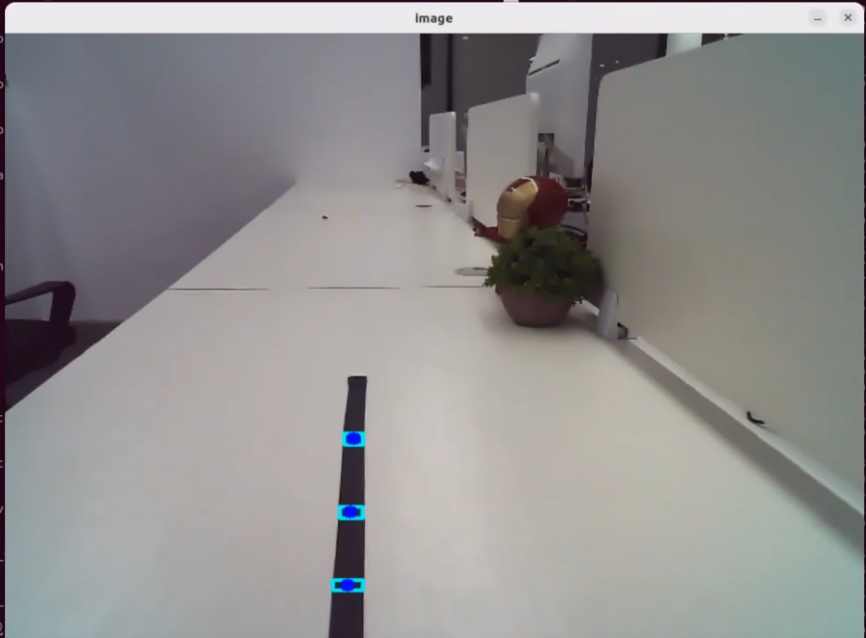

To stop the feature, refer to Step 4 to reactivate the voice device again with the wake word to begin a new interaction cycle.

To exit the feature, press Ctrl + C in the terminal. If the feature does not exit immediately, press Ctrl + C multiple times.
12.2.4.4 Program Outcome
Once the feature is activated, feel free to give commands in your own words. For instance, “Follow the black line and stop when you encounter an obstacle.” The robot uses its camera to detect and follow the black line, and it will stop when an obstacle is detected in its path. The system is pre-configured to recognize four line colors: red, blue, green, and black.
12.2.4.5 Program Analysis
Launch File Analysis
The program file is located at: /home/ubuntu/ros2_ws/src/large_models_examples/large_models_examples/llm_visual_patrol.launch.py
Define launch_setup Function
def launch_setup(context):
mode = LaunchConfiguration('mode', default=1)
mode_arg = DeclareLaunchArgument('mode', default_value=mode)
app_package_path = get_package_share_directory('app')
large_models_package_path = get_package_share_directory('large_models')
line_following_node_launch = IncludeLaunchDescription(
PythonLaunchDescriptionSource(
os.path.join(app_package_path, 'launch/line_following_node.launch.py')),
launch_arguments={
'debug': 'true',
}.items(),
)
large_models_launch = IncludeLaunchDescription(
PythonLaunchDescriptionSource(
os.path.join(large_models_package_path, 'launch/start.launch.py')),
launch_arguments={'mode': mode}.items(),
)
llm_visual_patrol_node = Node(
package='large_models_examples',
executable='llm_visual_patrol',
output='screen',
)
return [mode_arg,
line_following_node_launch,
large_models_launch,
llm_visual_patrol_node,
]
This function is used to configure and launch actions in a Launch file.
mode = LaunchConfiguration('mode', default=1): Defines a Launch parameter named mode with a default value of 1.
mode_arg = DeclareLaunchArgument('mode', default_value=mode): Declares the mode parameter and adds it to the Launch description.
large_models_package_path: Retrieves the shared directory path of the large_models package.
line_following_node_launch: Uses IncludeLaunchDescription to include the line_following_node.launch.py file.
large_models_launch: Uses IncludeLaunchDescription to include the start.launch.py launch file from the large_models package and passes the mode parameter.
llm_vision_pratrol: Defines a ROS2 node from the large_models package that runs the llm_vision_pratrol executable and prints its output to the screen.
Finally, returns a list containing all Launch actions.
Python File Analysis
The program file is located at: /home/ubuntu/ros2_ws/src/large_models_examples/large_models_examples/llm_visual_patrol.py
1. Define Prompt Template (PROMPT)
else:
PROMPT = '''
**Role
You are a smart robot that generates corresponding JSON commands based on user input.
**Requirements
- For every user input, search for matching commands in the action function library and output the corresponding JSON instruction.
- For each action sequence, craft a witty and creative response (10 to 30 characters) to make interactions delightful.
- Directly return the JSON result — do not include any explanations or extra text.
- There are four target colors: red, green, blue, and black.
- Format:
{
"action": ["xx", "xx"],
"response": "xx"
}
**Special Notes
The "action" field should contain a list of function names as strings, ordered by execution. If no matching action is found, output an empty list: [].
The "response" field should provide a concise and charming reply, staying within the word and tone guidelines.
**Action Function Library
Follow a line of a given color: line_following('black')
**Example
Input: Follow the red line
Output:
{
"action": ["line_following('red')"],
"response": "Roger that!"
}
'''
2. Class Initialization
def __init__(self, name):
rclpy.init()
super().__init__(name)
self.action = []
self.stop = True
self.llm_result = ''
# self.llm_result = '{"action": ["line_following(\'black\')"], "response": "ok!"}'
self.running = True
self.action_finish = False
self.play_audio_finish = False
timer_cb_group = ReentrantCallbackGroup()
self.tts_text_pub = self.create_publisher(String, 'tts_node/tts_text', 1)
self.create_subscription(String, 'agent_process/result', self.llm_result_callback, 1)
self.create_subscription(Bool, 'vocal_detect/wakeup', self.wakeup_callback, 1, callback_group=timer_cb_group)
self.create_subscription(Bool, 'tts_node/play_finish', self.play_audio_finish_callback, 1, callback_group=timer_cb_group)
self.awake_client = self.create_client(SetBool, 'vocal_detect/enable_wakeup')
self.awake_client.wait_for_service()
self.set_mode_client = self.create_client(SetInt32, 'vocal_detect/set_mode')
self.set_mode_client.wait_for_service()
self.set_model_client = self.create_client(SetModel, 'agent_process/set_model')
self.set_model_client.wait_for_service()
self.set_prompt_client = self.create_client(SetString, 'agent_process/set_prompt')
self.set_prompt_client.wait_for_service()
self.enter_client = self.create_client(Trigger, 'line_following/enter')
self.enter_client.wait_for_service()
self.start_client = self.create_client(SetBool, 'line_following/set_running')
self.start_client.wait_for_service()
self.set_target_client = self.create_client(SetColor, 'line_following/set_color')
self.set_target_client.wait_for_service()
self.timer = self.create_timer(0.0, self.init_process, callback_group=timer_cb_group)
Set state variables, including stop flags, LLM processing outputs, and runtime status. Create publishers for TTS text output and subscribers for agent responses, wake-word signals, and audio-playback completion. Service-client requests cover entering tracking mode, updating the running state, and specifying the tracking color, providing the communication and control interface for the system.
3. Set LLM Model
def init_process(self):
self.timer.cancel()
msg = SetModel.Request()
msg.model = llm_model
msg.model_type = 'llm'
msg.api_key = api_key
msg.base_url = base_url
self.send_request(self.set_model_client, msg)
msg = SetString.Request()
msg.data = PROMPT
self.send_request(self.set_prompt_client, msg)
init_finish = self.create_client(Trigger, 'line_following/init_finish')
init_finish.wait_for_service()
self.send_request(self.enter_client, Trigger.Request())
speech.play_audio(start_audio_path)
threading.Thread(target=self.process, daemon=True).start()
self.create_service(Empty, '~/init_finish', self.get_node_state)
self.get_logger().info('\033[1;32m%s\033[0m' % 'start')
self.get_logger().info('\033[1;32m%s\033[0m' % PROMPT)
4. play_audio_finish_callback Method
def play_audio_finish_callback(self, msg):
self.play_audio_finish = msg.data
The method handles the callback after audio playback and re-enables the voice wake-up functionality.
5. process Method
def process(self):
while self.running:
if self.llm_result:
msg = String()
if 'action' in self.llm_result: # If there is a corresponding action returned, extract and process it(If there is a corresponding behavior returned, extract and process it.)
result = eval(self.llm_result[self.llm_result.find('{'):self.llm_result.find('}')+1])
if 'action' in result:
text = result['action']
# Use regular expressions to extract all strings inside parentheses.
pattern = r"line_following\('([^']+)'\)"
# Use re.search to find the matching result
for i in text:
match = re.search(pattern, i)
# Extract the result.
if match:
# Get all argument parts, precisely content inside parentheses.
color = match.group(1)
self.get_logger().info(str(color))
color_msg = SetColor.Request()
color_msg.data = color
self.send_request(self.set_target_client, color_msg)
# Start sorting.
start_msg = SetBool.Request()
start_msg.data = True
self.send_request(self.start_client, start_msg)
if 'response' in result:
msg.data = result['response']
else: # If there is no corresponding action, just respond(If there is no corresponding behavior, only respond.)
msg.data = self.llm_result
self.tts_text_pub.publish(msg)
self.action_finish = True
self.llm_result = ''
else:
time.sleep(0.01)
if self.play_audio_finish and self.action_finish:
self.play_audio_finish = False
self.action_finish = False
msg = SetBool.Request()
msg.data = True
self.send_request(self.awake_client, msg)
# msg = SetInt32.Request()
# msg.data = 2
# self.send_request(self.set_mode_client, msg)
self.stop = False
rclpy.shutdown()
By continuously monitoring the large model output, the system checks for any instruction that contains the line_following action. Once detected, it uses a regular expression to extract the color parameter and sends it to the line-following module as the target color, then activates the tracking function. If a text response is generated, the system delivers it through TTS for voice feedback. During execution, it coordinates action handling with the completion status of audio playback. After the task is finished, it resets the status flags and re-enables the voice-wake function, ready for the next command.
12.2.5 Color Tracking
12.2.5.1 Program Overview
When the program starts, the voice device will announce I’m ready. To activate the voice device, say the designated wake word Hello Hiwonder. Upon successful activation, the voice device will respond with I’m here. Once activated, voice commands can be issued, for example, “Follow the red object.” The terminal displays the recognized command, and the voice device provides a processed response. The robot then autonomously detects the red object using its camera and starts tracking it.
12.2.5.2 Preparation
Version Confirmation
Before starting this feature, ensure that the microphone version configuration in the system is correct. For more details, refer to section 12.2.2 Version Confirmation.
Configure the Large Model API Key
Refer to the section 12.2.1 Large Model API Key Setup to set up the large model key.
12.2.5.3 Operation Steps
Note
Command input is case-sensitive and space-sensitive.
The robot must be connected to the Internet, either in STA (LAN) mode or AP direct connection mode via Ethernet.
Click the terminal
on the left side of the system interface to open the command line. Enter the command and press Enter to disable the app auto-start service.
sudo systemctl stop start_app_node.service
Enter the following command and press Enter to launch the color tracking feature.
ros2 launch large_models_examples llm_color_track.launch.py
When the command line displays the output shown below and announces I’m ready, the voice device has completed initialization. At this point, say the wake word Hello Hiwonder.

After the program has loaded successfully, the camera feed will appear on screen.
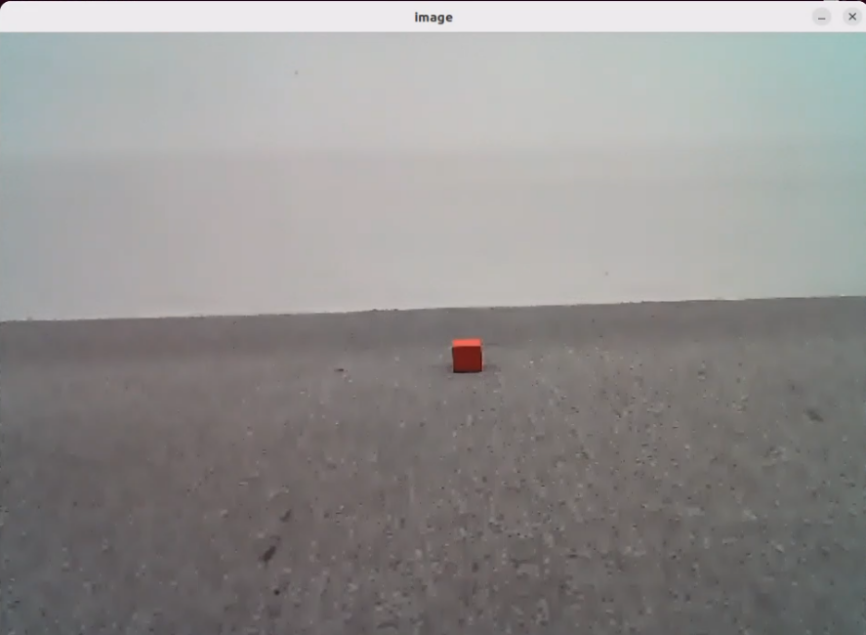
When the command line shows the output below and the voice device announces I’m here, the voice device has been successfully activated. The system will begin recording your voice command.

When the terminal displays the output shown below, it indicates that the voice device has printed the recognized speech. Now, say the command “Follow the red object.”

Upon successful recognition by the speech recognition service of a cloud-based large speech model, the parsed command will be displayed under the
publish_asr_resultoutput in the terminal.
When the command line displays the output shown below, the cloud-based large language model has been successfully invoked. It processes the user’s command, provides a verbal response, and generates actions corresponding to the semantic meaning of the command.
The response is automatically generated by the large model. Only the semantic accuracy of the reply is guaranteed, while the wording and formatting may vary.

Then, the robot will detect the red object in its camera feed and begin tracking it in real time.
To stop the feature, refer to Step 4 to reactivate the voice device again with the wake word to begin a new interaction cycle.

To exit the feature, press Ctrl + C in the terminal. If the feature does not shut down immediately, press Ctrl + C multiple times. If it still fails to exit, open a new terminal window and run the following command to terminate all active ROS processes and related programs.
~/.stop_ros.sh
12.2.5.4 Program Outcome
Once the feature is activated, commands can be freely issued, for example, “Follow the red object.” The robot uses its camera feed to detect and track the red object. Similarly, commands such as “Follow the blue object” or “Follow the green object” can be used to have the robot detect and track objects of the corresponding colors.
12.2.5.5 Program Analysis
Launch File Analysis
The program file is located at: /home/ubuntu/ros2_ws/src/large_models_examples/large_models_examples/llm_color_track.launch.py
Define launch_setup Function
def launch_setup(context):
mode = LaunchConfiguration('mode', default=1)
mode_arg = DeclareLaunchArgument('mode', default_value=mode)
app_package_path = get_package_share_directory('app')
large_models_package_path = get_package_share_directory('large_models')
object_tracking_node_launch = IncludeLaunchDescription(
PythonLaunchDescriptionSource(
os.path.join(app_package_path, 'launch/object_tracking_node.launch.py')),
launch_arguments={
'debug': 'true',
}.items(),
)
large_models_launch = IncludeLaunchDescription(
PythonLaunchDescriptionSource(
os.path.join(large_models_package_path, 'launch/start.launch.py')),
launch_arguments={'mode': mode}.items(),
)
llm_color_track_node = Node(
package='large_models_examples',
executable='llm_color_track',
output='screen',
)
return [mode_arg,
object_tracking_node_launch,
large_models_launch,
llm_color_track_node,
]
This function is used to configure and launch actions in a Launch file.
mode = LaunchConfiguration('mode', default=1): Defines a Launch parameter named mode with a default value of 1.
mode_arg = DeclareLaunchArgument('mode', default_value=mode): Declares the mode parameter and adds it to the Launch description.
objet_sorting_launch: Uses IncludeLaunchDescription to include the object_tracking_node.launch.py file from the large_models package and passes the mode parameter.
large_models_launch: Uses IncludeLaunchDescription to include the start.launch.py file from the large_models package and passes the mode parameter.
llm_color_track_node: Defines a ROS2 node from the large_models package that runs the llm_color_track executable and prints its output to the screen.
Finally, returns a list containing all Launch actions.
Python File Analysis
The program file is located at: /home/ubuntu/ros2_ws/src/large_models_examples/large_models_examples/llm_color_track.py
1. Define Prompt Template (PROMPT)
else:
PROMPT = '''
**Role
You are an intelligent companion robot. Your job is to generate corresponding JSON commands based on the user’s input.
**Requirements
- For every user input, search the action function library for matching commands and return the corresponding JSON instruction.
- Craft a witty, ever-changing, and concise response (between 10 to 30 characters) for each action sequence to make interactions lively and fun.
- Output only the JSON result — do not include explanations or any extra text.
- Output format:{"action": ["xx", "xx"], "response": "xx"}
**Special Notes
The "action" key holds an array of function name strings arranged in execution order. If no match is found, return an empty array [].
The "response" key must contain a cleverly worded, short reply (10–30 characters), adhering to the tone and length guidelines above.
**Action Function Library
Track an object of a specific color: color_track('red')
**Example
Input: Track a green object
Output:
{"action": ["color_track('green')"], "response": "Got it!"}
'''
2. Class Initialization
def __init__(self, name):
rclpy.init()
super().__init__(name)
self.action = []
self.stop = True
self.llm_result = ''
# self.llm_result = '{"action": ["color_track(\'blue\')"], "response": "ok!"}'
self.running = True
self.action_finish = False
self.play_audio_finish = False
timer_cb_group = ReentrantCallbackGroup()
self.tts_text_pub = self.create_publisher(String, 'tts_node/tts_text', 1)
self.create_subscription(String, 'agent_process/result', self.llm_result_callback, 1)
self.create_subscription(Bool, 'vocal_detect/wakeup', self.wakeup_callback, 1, callback_group=timer_cb_group)
self.create_subscription(Bool, 'tts_node/play_finish', self.play_audio_finish_callback, 1, callback_group=timer_cb_group)
self.awake_client = self.create_client(SetBool, 'vocal_detect/enable_wakeup')
self.awake_client.wait_for_service()
self.set_mode_client = self.create_client(SetInt32, 'vocal_detect/set_mode')
self.set_mode_client.wait_for_service()
self.set_model_client = self.create_client(SetModel, 'agent_process/set_model')
self.set_model_client.wait_for_service()
self.set_prompt_client = self.create_client(SetString, 'agent_process/set_prompt')
self.set_prompt_client.wait_for_service()
self.enter_client = self.create_client(Trigger, 'object_tracking/enter')
self.enter_client.wait_for_service()
self.start_client = self.create_client(SetBool, 'object_tracking/set_running')
self.start_client.wait_for_service()
self.set_target_client = self.create_client(SetColor, 'object_tracking/set_color')
self.set_target_client.wait_for_service()
self.timer = self.create_timer(0.0, self.init_process, callback_group=timer_cb_group)
By initializing state parameters, including the action list, stop flag, LLM processing results, and completion status, a TTS text publisher and subscribers are created to receive agent processing results, voice wake signals, and audio playback completion status. Service client requests are also established for voice wake, node configuration, model setup, prompt settings, and object tracking functions, including entering tracking mode, setting run status, and specifying the target color. Finally, a timer is created to start the initialization process.
3. Set LLM Model
def init_process(self):
self.timer.cancel()
msg = SetModel.Request()
msg.model = llm_model
msg.model_type = 'llm'
msg.api_key = api_key
msg.base_url = base_url
self.send_request(self.set_model_client, msg)
msg = SetString.Request()
msg.data = PROMPT
self.send_request(self.set_prompt_client, msg)
init_finish = self.create_client(Trigger, 'object_tracking/init_finish')
init_finish.wait_for_service()
self.send_request(self.enter_client, Trigger.Request())
speech.play_audio(start_audio_path)
threading.Thread(target=self.process, daemon=True).start()
self.create_service(Empty, '~/init_finish', self.get_node_state)
self.get_logger().info('\033[1;32m%s\033[0m' % 'start')
self.get_logger().info('\033[1;32m%s\033[0m' % PROMPT)
4. play_audio_finish_callback Method
def play_audio_finish_callback(self, msg):
self.play_audio_finish = msg.data
The method handles the callback after audio playback and re-enables the voice wake-up functionality.
5. process Method
def process(self):
while self.running:
if self.llm_result:
msg = String()
if 'action' in self.llm_result: # If there is a corresponding action returned, extract and process it(If there is a corresponding behavior returned, extract and process it.)
result = eval(self.llm_result[self.llm_result.find('{'):self.llm_result.find('}')+1])
if 'action' in result:
text = result['action']
# Use regular expressions to extract all strings inside parentheses.
pattern = r"color_track\('([^']+)'\)"
# Use re.search to find the matching result.
for i in text:
match = re.search(pattern, i)
# Extract the result.
if match:
# Get all argument parts, precisely content inside parentheses.
color = match.group(1)
self.get_logger().info(str(color))
color_msg = SetColor.Request()
color_msg.data = color
self.send_request(self.set_target_client, color_msg)
# Start sorting.
start_msg = SetBool.Request()
start_msg.data = True
self.send_request(self.start_client, start_msg)
if 'response' in result:
msg.data = result['response']
else: # If there is no corresponding action, just respond(If there is no corresponding behavior, only respond.)
msg.data = self.llm_result
self.tts_text_pub.publish(msg)
self.action_finish = True
self.llm_result = ''
else:
time.sleep(0.01)
if self.play_audio_finish and self.action_finish:
self.play_audio_finish = False
self.action_finish = False
# msg = SetInt32.Request()
# msg.data = 1
# self.send_request(self.set_mode_client, msg)
msg = SetBool.Request()
msg.data = True
self.send_request(self.awake_client, msg)
self.stop = False
rclpy.shutdown()
By continuously monitoring the large model output, the system checks for any instruction that contains the color_track action. Once detected, it uses a regular expression to extract the color parameter and sends it to the color-tracking module as the target color, then activates the tracking function. If a text response is generated, the system delivers it through TTS for voice feedback. During execution, it coordinates action handling with the completion status of audio playback. After the task is finished, it resets the status flags and re-enables the voice-wake function, ready for the next command.
12.3 Embodied AI Applications
12.3.1 Large Model API Key Setup
Note
This section requires registering on the official OpenAI website and obtaining an API key for accessing large language models.
12.3.1.2 OpenRouter Account Registration and Deployment
Copy and open the following URL: https://platform.openai.com/docs/overview, then click the Sign Up button in the upper-right corner.

Register and log in using a Google, Microsoft, or Apple account, as prompted.
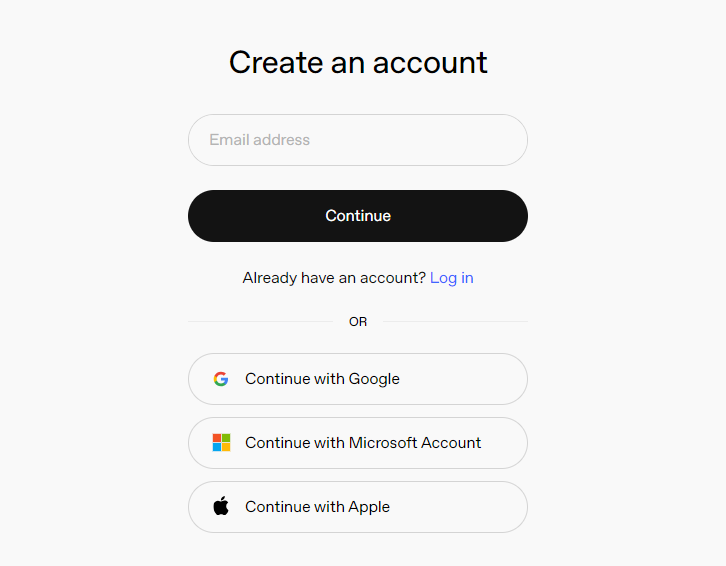
After logging in, click the Settings button, then go to Billing, and click Payment Methods to add a payment method. The payment is used to purchase tokens.

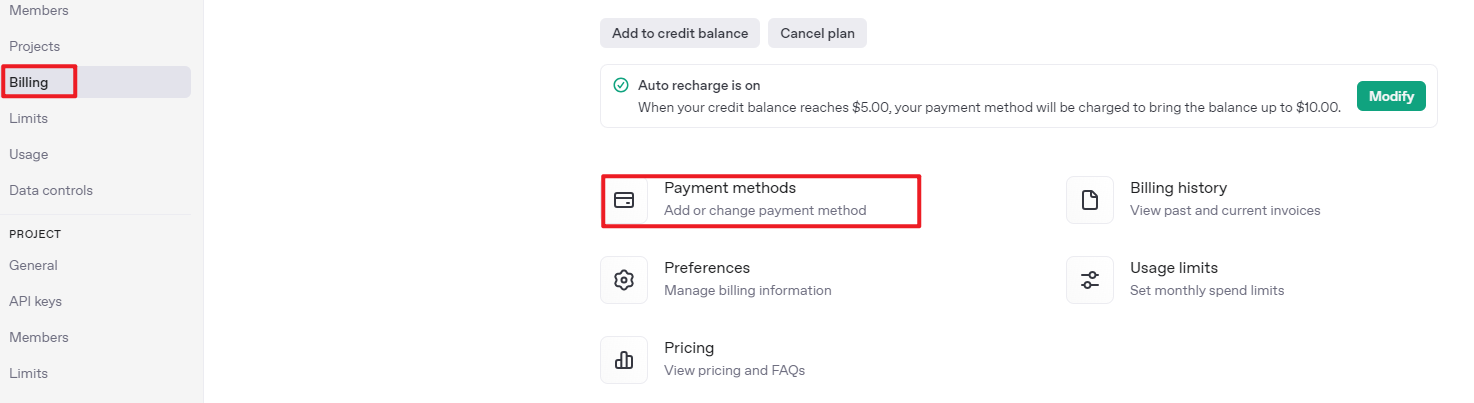
After completing the preparation steps, click API Keys and create a new key. Follow the prompts to fill in the required information, then save the key for later use.
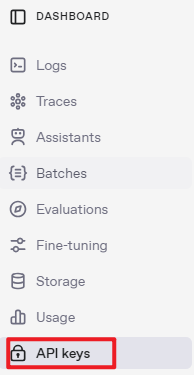

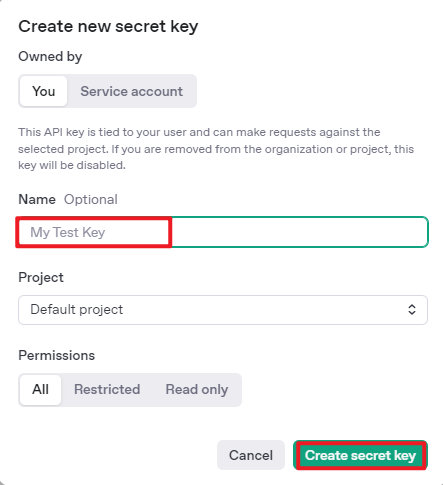
The creation and deployment of the large model have been completed, and this API will be used in the following sections.
12.3.1.2 OpenRouter Account Registration and Deployment
Copy the URL https://openrouter.ai/ into a browser and open the webpage. Click Sign in and register or sign in using a Google account or another available account.
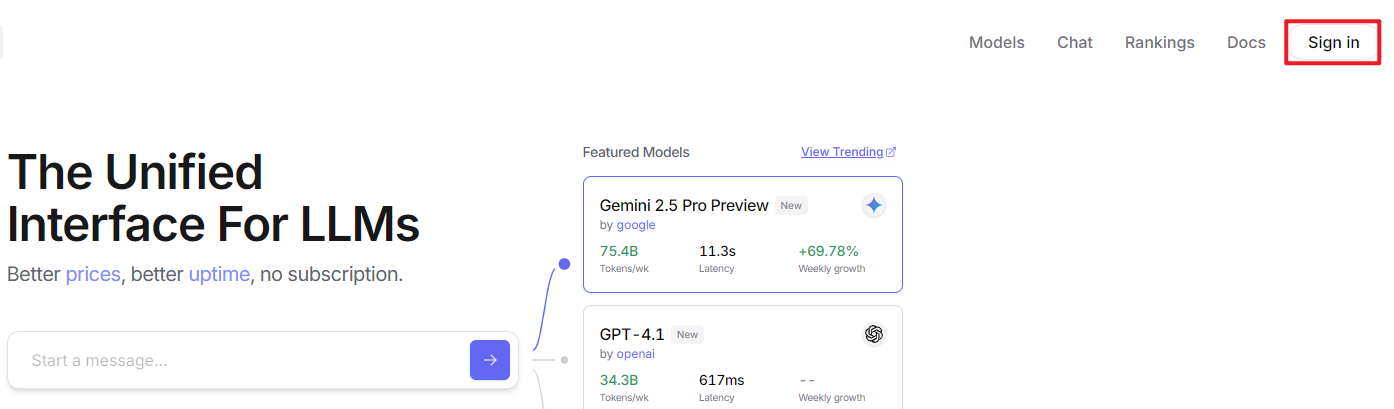
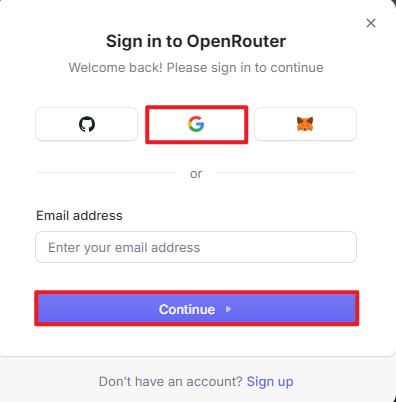
After logging in, click the icon in the top-right corner, then select Credits to add a payment method.
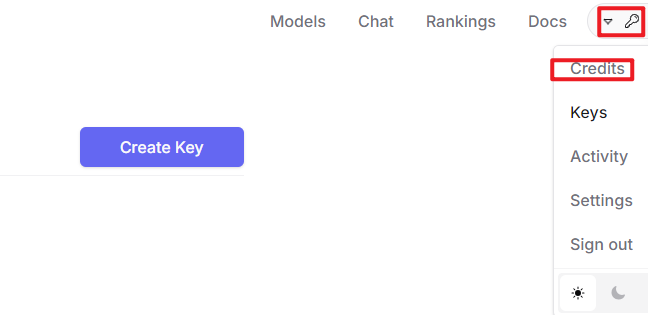
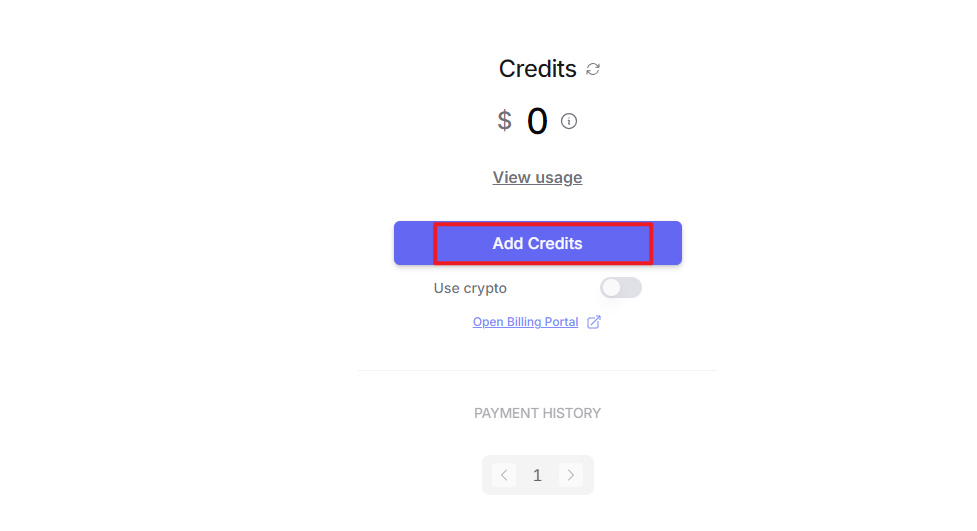
Create an API key. Go to API Keys, then click Create Key. Follow the prompts to generate a key. Save the API key securely for later use.
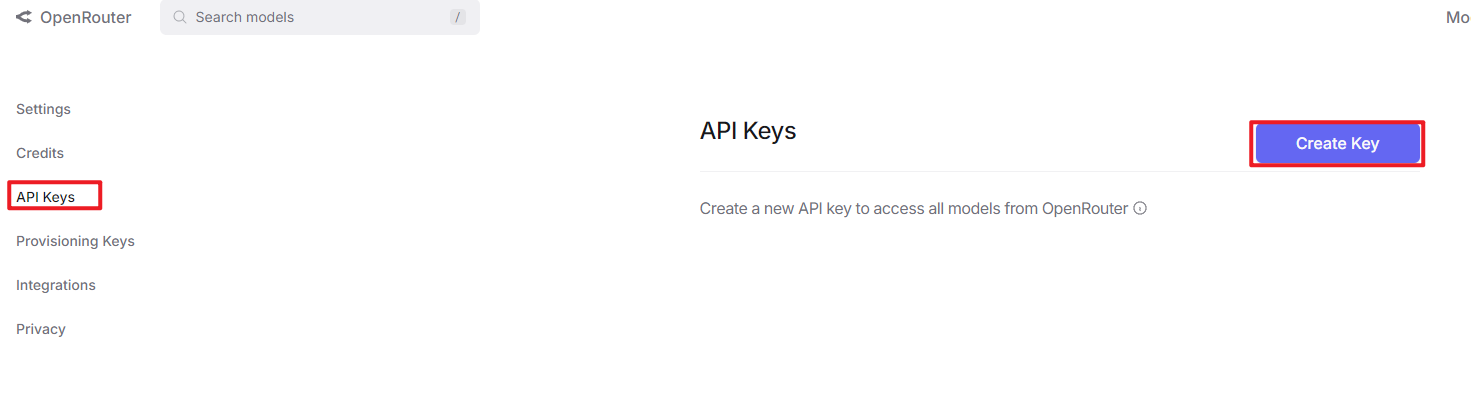
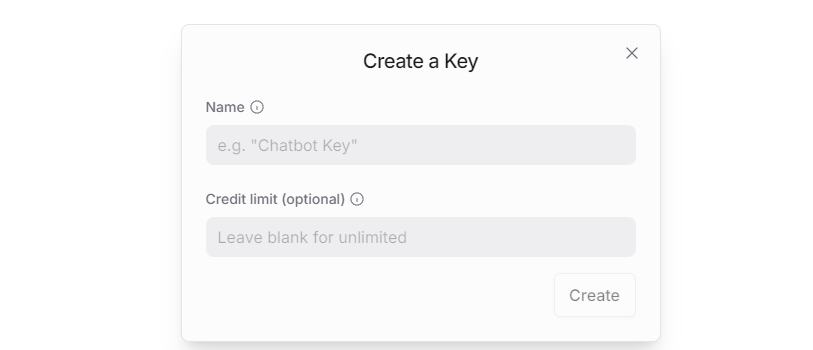
The creation and deployment of the large model have been completed, and this API will be used in the following sections.
12.3.1.3 API Configuration
Click
 to open a terminal and enter the following command to open the configuration file. Press the i key to enter input mode.
vim /home/ubuntu/ros2_ws/src/large_models/large_models/large_models/config.py
Fill in the obtained Large Model API Key in the corresponding parameter, as shown in the red box in the figure below.
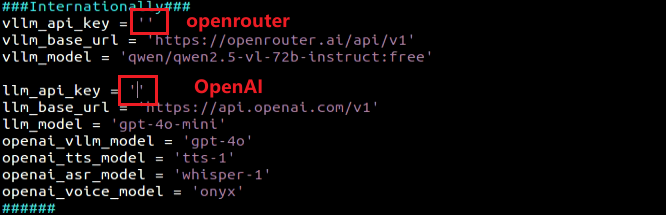
Press Esc, then enter the command and press Enter to save and exit the configuration file.
:wq
12.3.2 Version Confirmation
Before starting features, verify that the correct microphone configuration and ASR Mode are set in the system.
After remotely logging in via NoMachine, click the desktop icon
 to access the configuration interface.
Select the appropriate microphone version configuration according to the hardware.

If using the AI Voice Interaction Box, select WonderEcho Pro as the microphone type, as shown in the figure below.
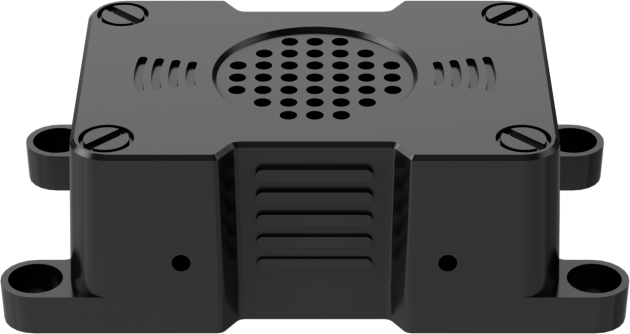

Click Save.
After the Save Success notification appears, click Apply.
Finally, click Quit to exit the software interface.
12.3.3 Real-Time Detection
12.3.3.1 Program Overview
When the program starts, the voice device will announce I’m ready. To activate the voice device, speak the designated wake words: Hello Hiwonder. Upon successful activation, the voice device will respond with I’m here. Then, voice commands can be used to control the robot, for example, Tell me what you saw. The terminal will display the recognized speech, the voice device will respond with a generated reply after processing, and the robot will autonomously analyze the camera feed and describe the content of the scene.
12.3.3.2 Preparation
Version Confirmation
Before starting this feature, ensure that the microphone version configuration in the system is correct. For more details, refer to section 12.3.2 Version Confirmation.
Configure the Large Model API Key
Refer to the section 12.3.1 Large Model API Key Setup to set up the large model key.
12.3.3.3 Operation Steps
Click the terminal
on the left side of the system interface to open the command line. Enter the command and press Enter to disable the app auto-start service.
sudo systemctl stop start_app_node.service
Enter the following command and press Enter to launch the real-time detection feature.
ros2 launch large_models_examples vllm_with_camera.launch.py
When the command line displays the output shown below and announces I’m ready, the voice device has completed initialization. At this point, say the wake word Hello Hiwonder.

When the command line shows the output below and the voice device announces I’m here, the voice device has been successfully activated. The system will begin recording your voice command.

When the command line displays the output shown below, it indicates that the voice device has printed the recognized speech. At this point, user command recording begins. Next, say the command Tell me what you saw, and wait for the large model to process it. When the command line shows the output below, it indicates that the cloud-based speech large model service has successfully processed the audio command, with the recognition result available in
publish_asr_result.

Upon receiving user input shown in the figure, the terminal will display output indicating that the cloud-based large language model has been successfully invoked. The model will interpret the command and generate a language response.
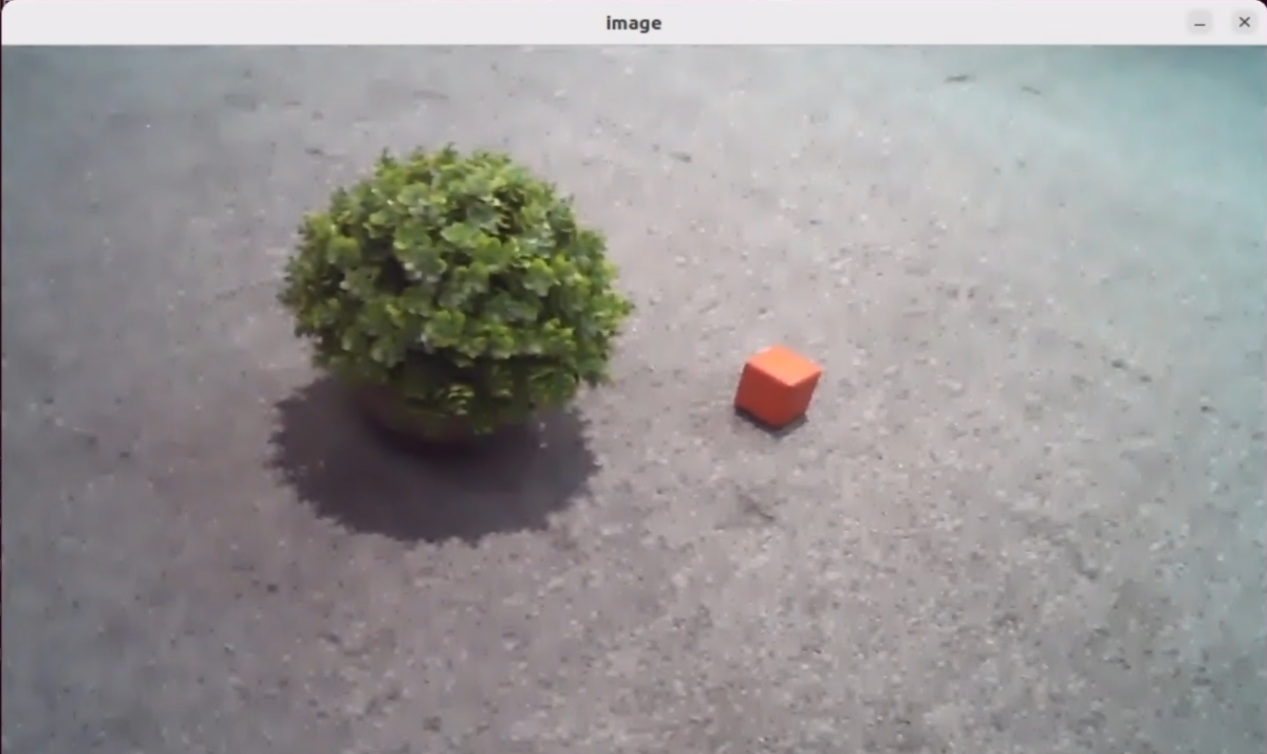

The response is automatically generated by the large model. Only the semantic accuracy of the reply is guaranteed, while the wording and formatting may vary.
When the command line displays the output shown below, the current dialogue session has ended. Refer to Step 4 to reactivate the voice device with the wake word and start a new dialogue session.

To exit the feature, press Ctrl + C in the terminal. If the feature does not exit immediately, press Ctrl + C multiple times.
12.3.3.4 Program Outcome
Once the feature is activated, any command can be issued to the robot, for example: Tell me what you saw. The robot will automatically analyze the scene within its camera view, process the information, and describe the current environment in detail.
12.3.4.5 Program Analysis
Launch File Analysis
The program file is located at: /home/ubuntu/ros2_ws/src/large_models_examples/large_models_examples/vllm_with_camera.launch.py
Define launch_setup Function
def launch_setup(context):
mode = LaunchConfiguration('mode', default=1)
mode_arg = DeclareLaunchArgument('mode', default_value=mode)
camera_topic = LaunchConfiguration('camera_topic', default='depth_cam/rgb0/image_raw')
camera_topic_arg = DeclareLaunchArgument('camera_topic', default_value=camera_topic)
controller_package_path = get_package_share_directory('controller')
peripherals_package_path = get_package_share_directory('peripherals')
large_models_package_path = get_package_share_directory('large_models')
controller_launch = IncludeLaunchDescription(
PythonLaunchDescriptionSource(
os.path.join(controller_package_path, 'launch/controller.launch.py')),
)
depth_camera_launch = IncludeLaunchDescription(
PythonLaunchDescriptionSource(
os.path.join(peripherals_package_path, 'launch/depth_camera.launch.py')),
)
large_models_launch = IncludeLaunchDescription(
PythonLaunchDescriptionSource(
os.path.join(large_models_package_path, 'launch/start.launch.py')),
launch_arguments={'mode': mode, 'camera_topic': camera_topic}.items(),
)
vllm_with_camera_node = Node(
package='large_models_examples',
executable='vllm_with_camera',
output='screen',
parameters=[{"camera_topic": camera_topic}],
)
return [mode_arg,
camera_topic_arg,
controller_launch,
depth_camera_launch,
large_models_launch,
vllm_with_camera_node,
]
This function is used to configure and launch actions in a Launch file.
mode = LaunchConfiguration('mode', default=1): Defines a Launch parameter named mode with a default value of 1.
mode_arg = DeclareLaunchArgument('mode', default_value=mode): Declares the mode parameter and adds it to the Launch description.
depth_camera_launch: Uses IncludeLaunchDescription to include the depth_camera.launch.py Launch file from the large_models package and passes the mode parameter.
controller_launch: Uses IncludeLaunchDescription to include the controller.launch.py launch file from the large_models package and passes the mode parameter.
large_models_launch: Uses IncludeLaunchDescription to include the start.launch.py file from the large_models package and passes the mode parameter.
vllm_with_camera: Defines a ROS2 node from the large_models package that runs the vllm_with_camera executable and prints its output to the screen.
Finally, returns a list containing all Launch actions.
Python File Analysis
The program file is located at: /home/ubuntu/ros2_ws/src/large_models_examples/large_models_examples/vllm_with_camera.py
1. Class Initialization
def __init__(self, name):
rclpy.init()
super().__init__(name)
# Initialize variables
self.image_queue = queue.Queue(maxsize=2)
self.set_above = False
self.vllm_result = ''
self.running = True
self.action_finish = False
self.play_audio_finish = False
self.bridge = CvBridge()
self.client = speech.OpenAIAPI(api_key, base_url)
# Add debug flags
self.image_received = False
self.first_image_time = None
# Declare parameters
self.declare_parameter('camera_topic', '/ascamera/camera_publisher/rgb0/image')
camera_topic = self.get_parameter('camera_topic').value
# Log camera topic information
self.get_logger().info(f'Camera topic: {camera_topic}')
# Create callback group
timer_cb_group = ReentrantCallbackGroup()
# Create publishers
self.joints_pub = self.create_publisher(ServosPosition, 'servo_controller', 1)
self.tts_text_pub = self.create_publisher(String, 'tts_node/tts_text', 1)
# Create subscribers
self.create_subscription(Image, camera_topic, self.image_callback, 1)
self.create_subscription(String, 'agent_process/result', self.vllm_result_callback, 1)
self.create_subscription(Bool, 'tts_node/play_finish', self.play_audio_finish_callback, 1, callback_group=timer_cb_group)
# Create clients
self.awake_client = self.create_client(SetBool, 'vocal_detect/enable_wakeup')
self.awake_client.wait_for_service()
self.set_model_client = self.create_client(SetModel, 'agent_process/set_model')
self.set_model_client.wait_for_service()
self.set_mode_client = self.create_client(SetInt32, 'vocal_detect/set_mode')
self.set_mode_client.wait_for_service()
self.set_prompt_client = self.create_client(SetString, 'agent_process/set_prompt')
self.set_prompt_client.wait_for_service()
# Create initialization timer
self.timer = self.create_timer(0.0, self.init_process, callback_group=timer_cb_group)
Initialize state parameters, including the action list, VLLM processing results, running status, and interrupt flags. Create publishers, such as TTS text and chassis motion control, and subscribers to receive agent processing results, voice wake signals, and audio playback completion status. Set up service client requests for model configuration, voice wake enablement, and prompt setup, then create a timer to start the initialization process.
2. get_node_state Method
def get_node_state(self, request, response):
return response
Service callback function that returns an empty response, used for querying the node’s status.
3. init_process Method
def init_process(self):
"""Initialize processing workflow"""
self.timer.cancel()
# Set model
msg = SetModel.Request()
msg.model_type = 'vllm'
if os.environ['ASR_LANGUAGE'] == 'Chinese':
msg.model = stepfun_vllm_model
msg.api_key = stepfun_api_key
msg.base_url = stepfun_base_url
else:
msg.model = vllm_model
msg.api_key = vllm_api_key
msg.base_url = vllm_base_url
self.send_request(self.set_model_client, msg)
# Set prompt
msg = SetString.Request()
msg.data = VLLM_PROMPT
self.send_request(self.set_prompt_client, msg)
set_servo_position(self.joints_pub, 1.0,
((1, 500), (2, 645), (3, 135), (4, 80), (5, 500), (10, 220)))
# Play startup audio
speech.play_audio(start_audio_path)
# Wait for the first image frame before starting processing thread
self.get_logger().info('Waiting for first image...')
threading.Thread(target=self.wait_and_start_process, daemon=True).start()
# Create service
self.create_service(Empty, '~/init_finish', self.get_node_state)
self.get_logger().info('\033[1;32m%s\033[0m' % 'start')
Intelligently select the language model configuration, set up a multilingual visual prompt template, initialize and play the start audio cue, launch the processing thread, create a service indicating initialization completion, and finally output the startup log.
4. play_audio_finish_callback Method
def play_audio_finish_callback(self, msg):
self.play_audio_finish = msg.data
It sends a request to enable the wake-up feature once audio playback is complete.
5. process Method
def process(self):
"""Main processing loop - display images and handle VLLM results"""
# Create OpenCV window
cv2.namedWindow('image', cv2.WINDOW_NORMAL)
cv2.resizeWindow('image', display_size[0], display_size[1])
while self.running:
try:
# Get image with timeout to avoid blocking indefinitely
image = self.image_queue.get(timeout=0.1)
# Handle VLLM result
if self.vllm_result:
msg = String()
msg.data = self.vllm_result
self.tts_text_pub.publish(msg)
self.vllm_result = ''
self.action_finish = True
# Handle audio playback completion
if self.play_audio_finish and self.action_finish:
self.play_audio_finish = False
self.action_finish = False
msg = SetBool.Request()
msg.data = True
self.send_request(self.awake_client, msg)
# Convert color space and resize
bgr_image = cv2.cvtColor(image, cv2.COLOR_RGB2BGR)
display_image = cv2.resize(bgr_image, (display_size[0], display_size[1]))
# Display image
cv2.imshow('image', display_image)
# Set window position, execute only once
if not self.set_above:
cv2.moveWindow('image', 1920 - display_size[0], 0)
try:
os.system("wmctrl -r image -b add,above")
except Exception as e:
self.get_logger().warn(f'Failed to set window always on top: {e}')
self.set_above = True
except queue.Empty:
# Continue loop when queue is empty
pass
except Exception as e:
self.get_logger().error(f'Error in process loop: {e}')
# Check keyboard input
k = cv2.waitKey(1)
if k == 27 or k == ord('q'): # Press ESC or Q key to quit
self.get_logger().info('User requested quit')
break
# Cleanup
cv2.destroyAllWindows()
self.running = False
Continuously retrieve image frames from the image queue and monitor the outputs of the vision-language model. When a valid result is detected, convert it into a speech message and publish it via TTS, coordinating the completion status of visual recognition and voice feedback. After the task is completed, re-enable the voice wake-up function.
6. image_callback Method
def image_callback(self, ros_image):
"""Image callback function"""
try:
# Convert ROS image to OpenCV format
cv_image = self.bridge.imgmsg_to_cv2(ros_image, "rgb8")
rgb_image = np.array(cv_image, dtype=np.uint8)
# Record first received image
if not self.image_received:
self.image_received = True
self.first_image_time = time.time()
self.get_logger().info(f'First image received! Size: {rgb_image.shape}')
# Discard oldest image if queue is full
if self.image_queue.full():
self.image_queue.get()
# Put image into the queue
self.image_queue.put(rgb_image)
except Exception as e:
self.get_logger().error(f'Error in image callback: {e}')
It converts the received ROS image messages to NumPy arrays and stores them in the queue.
12.3.4 Vision Tracking
The large model used in this lesson operates online, requiring a stable network connection for the controller during the operation.
12.3.4.1 Program Overview
When the program starts, the voice device will announce I’m ready. To activate the voice device, speak the designated wake words: Hello Hiwonder. Upon successful activation, the voice device will respond with I’m here. Once activated, voice commands can be issued, for example, Follow the person in white in front. The terminal will display the recognized command, and the voice device will respond with a generated reply after processing and executing corresponding actions.
12.3.4.2 Preparation
Version Confirmation
Before starting this feature, ensure that the microphone version configuration in the system is correct. For more details, refer to section 12.3.2 Version Confirmation.
Configure the Large Model API Key
Refer to the section 12.3.1 Large Model API Key Setup to set up the large model key.
12.3.4.3 Operation Steps
Note
Command input is case-sensitive and space-sensitive. The robot must be connected to the Internet, either in STA (LAN) mode or AP direct connection mode via Ethernet.
Click the terminal
on the left side of the system interface to open the command line. Enter the command and press Enter to disable the app auto-start service.
sudo systemctl stop start_app_node.service
Enter the following command and press Enter to launch the vision tracking feature.
ros2 launch large_models_examples vllm_track.launch.py
When the command line displays the output shown below and the device announces “I’m ready,” it indicates that the voice device has completed initialization and the YOLO model has also been initialized. At this point, say the wake word Hello Hiwonder to activate the voice device.

When the command line shows the output below and the voice device announces I’m here, it has been successfully activated. The system will begin recording your voice command.

When the command line displays the output shown below, it indicates that the voice device has printed the recognized speech. At this point, user command recording begins. Next, say the command Follow the person in white in front, and wait for the large model to process it. When the command line shows the output below, it indicates that the cloud-based speech large model service has successfully processed the audio command, with the recognition result available in
publish_asr_result.

When the command line displays the output shown below, the cloud-based large language model has been successfully invoked. It processes the user’s command, provides a verbal response, and generates actions corresponding to the semantic meaning of the command.
The response is automatically generated by the large model. Only the semantic accuracy of the reply is guaranteed, while the wording and formatting may vary.
When the terminal shows the output shown in the figure, indicating the end of one interaction cycle, the system is ready for the next round. To initiate another interaction, repeat step 4 by speaking the wake words again.

To exit the feature, press Ctrl + C in the terminal. If the feature does not exit immediately, press Ctrl + C multiple times.
12.3.4.4 Program Outcome
Once the feature is activated, any command can be issued to the robot, such as “Follow the person in white in front.” The robot will detect the person wearing white in its camera view and stop after reaching a preset distance.
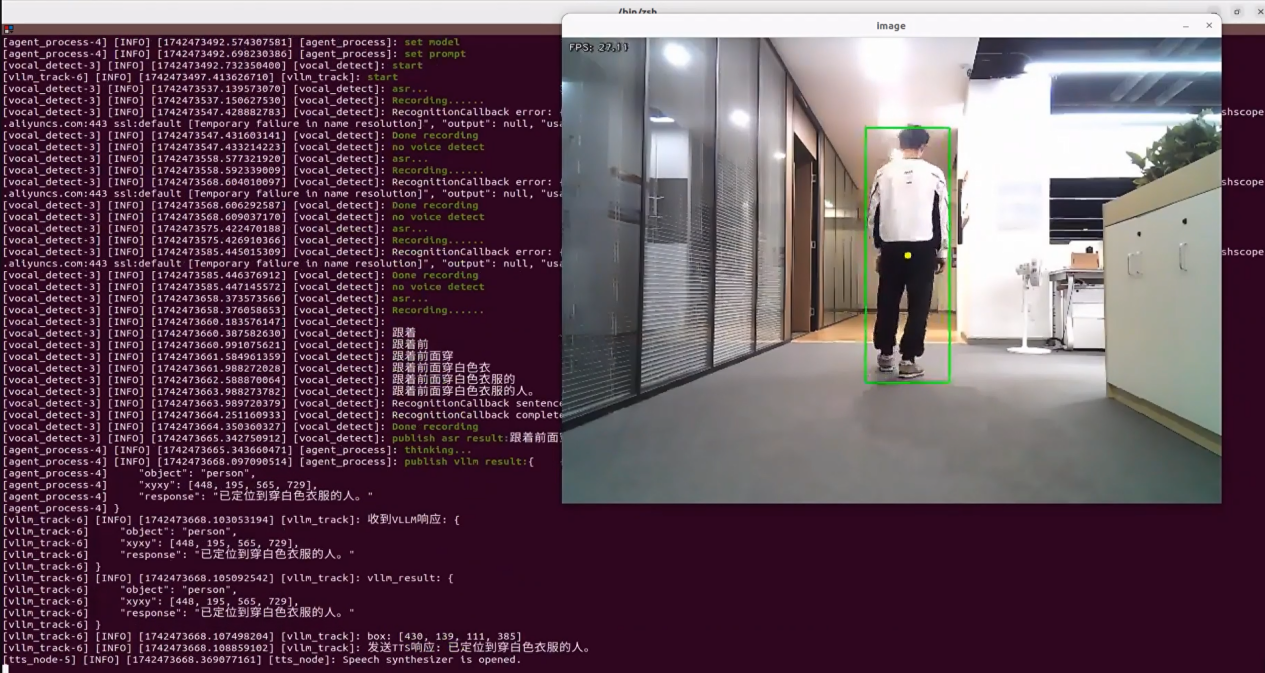
12.3.4.5 Program Analysis
Launch File Analysis
The program file is located at: /home/ubuntu/ros2_ws/src/large_models_examples/large_models_examples/vllm_track.launch.py
Define launch_setup Function
def launch_setup(context):
mode = LaunchConfiguration('mode', default=1)
mode_arg = DeclareLaunchArgument('mode', default_value=mode)
slam_package_path = get_package_share_directory('slam')
large_models_package_path = get_package_share_directory('large_models')
base_launch = IncludeLaunchDescription(
PythonLaunchDescriptionSource(
os.path.join(slam_package_path, 'launch/include/robot.launch.py')),
launch_arguments={
'sim': 'false',
'master_name': os.environ['MASTER'],
'robot_name': os.environ['HOST']
}.items(),
)
large_models_launch = IncludeLaunchDescription(
PythonLaunchDescriptionSource(
os.path.join(large_models_package_path, 'launch/start.launch.py')),
launch_arguments={'mode': mode}.items(),
)
vllm_track_node = Node(
package='large_models_examples',
executable='vllm_track',
output='screen',
)
# rqt
calibrate_rqt_reconfigure_node = Node(
package='rqt_reconfigure',
executable='rqt_reconfigure',
name='calibrate_rqt_reconfigure'
)
return [mode_arg,
base_launch,
large_models_launch,
vllm_track_node,
# calibrate_rqt_reconfigure_node,
]
This function is used to configure and launch actions in a Launch file.
mode = LaunchConfiguration('mode', default=1): Defines a Launch parameter named mode with a default value of 1.
mode_arg = DeclareLaunchArgument('mode', default_value=mode): Declares the mode parameter and adds it to the Launch description.
slam_package_path和large_models_package_path: Retrieves the shared directory path of the slam package and the large_models package.
base_launch: Includes the robot.launch.py file from the slam package and passes the parameters sim, master_name, and robot_name.
large_models_launch: Includes the start.launch.py launch file from the large_models package and passes the node parameter.
llm_track_node: Defines a ROS2 node from the large_models package that runs the vllm_track executable and prints its output to the screen.
calibrate_rqt_reconfigure_node: An rqt_reconfigure node used for debugging.
Finally, returns a list containing all Launch actions.
Python File Analysis
The program file is located at: /home/ubuntu/ros2_ws/src/large_models_examples/large_models_examples/vllm_track.py
1. Define Prompt Template (PROMPT)
else:
PROMPT = '''
**Role
You are a smart car with advanced visual recognition capabilities. Your task is to analyze an image sent by the user, perform object detection, and follow the detected object. Finally, return the result strictly following the specified output format.
Step 1: Understand User Instructions
You will receive a sentence. From this sentence, extract the object name to be detected.
Note: Use English for the object value, do not include any objects not explicitly mentioned in the instruction.
Step 2: Understand the Image
You will also receive an image. Locate the target object in the image and return its coordinates as the top-left and bottom-right pixel positions in the form [xmin, ymin, xmax, ymax].
Note: If the object is not found, then "xyxy" should be an empty list: [], only detect and report objects mentioned in the user instruction.The coordinates (xmin, ymin, xmax, ymax) must be normalized to the range [0, 1]
**Important: Accurately understand the spatial position of the object. The "response" must reflect both the user's instruction and the detection result.
**Output Format (strictly follow this format, do not output anything else.The coordinates (xmin, ymin, xmax, ymax) must be normalized to the range [0, 1])
{
"object": "name",
"xyxy": [xmin, ymin, xmax, ymax],
"response": "reflect both the user's instruction and the detection result (5-30 characters)"
}
**Example
Input: track the person
Output:
{
"object": "person",
"xyxy": [0.1, 0.3, 0.4, 0.6],
"response": "I have detected a person in a white T-shirt and will track him now."
}
'''
2. Class Initialization
def __init__(self, name):
rclpy.init()
super().__init__(name)
self.machine_type = os.environ['MACHINE_TYPE']
self.fps = fps.FPS() # Frame rate counter
self.image_queue = queue.Queue(maxsize=2)
self.vllm_result = ''
# self.vllm_result = '''json{"object":"Red block", "xyxy":[521, 508, 637, 683]}'''
self.running = True
self.data = []
self.start_track = False
self.bridge = CvBridge()
#cv2.namedWindow('image', 0)
#cv2.moveWindow('image', 1920 - 640, 0)
#cv2.waitKey(10)
#os.system("wmctrl -r image -b add,above")
self.camear_type = os.environ['DEPTH_CAMERA_TYPE']
self.track = ObjectTracker(use_mouse=False, automatic=True, log=self.get_logger())
timer_cb_group = ReentrantCallbackGroup()
self.client = speech.OpenAIAPI(api_key, base_url)
self.mecanum_pub = self.create_publisher(Twist, '/controller/cmd_vel', 1) # Chassis control
self.tts_text_pub = self.create_publisher(String, 'tts_node/tts_text', 1)
self.create_subscription(Bool, 'tts_node/play_finish', self.play_audio_finish_callback, 1, callback_group=timer_cb_group)
self.create_subscription(String, 'agent_process/result', self.vllm_result_callback, 1)
self.create_subscription(Bool, 'vocal_detect/wakeup', self.wakeup_callback, 1)
self.awake_client = self.create_client(SetBool, 'vocal_detect/enable_wakeup')
self.awake_client.wait_for_service()
self.set_model_client = self.create_client(SetModel, 'agent_process/set_model')
self.set_model_client.wait_for_service()
self.set_prompt_client = self.create_client(SetString, 'agent_process/set_prompt')
self.set_prompt_client.wait_for_service()
image_sub = message_filters.Subscriber(self, Image, 'ascamera/camera_publisher/rgb0/image')
depth_sub = message_filters.Subscriber(self, Image, 'ascamera/camera_publisher/depth0/image_raw')
self.result_publisher = self.create_publisher(Image, '~/image_result', 1)
# Synchronize timestamps, allowing a time error of up to 0.03s
sync = message_filters.ApproximateTimeSynchronizer([depth_sub, image_sub], 3, 0.02)
sync.registerCallback(self.multi_callback)
# Define PID parameters
# 0.07, 0, 0.001
self.pid_params = {
'kp1': 0.01, 'ki1': 0.0, 'kd1': 0.00,
'kp2': 0.002, 'ki2': 0.0, 'kd2': 0.0,
}
# Dynamically declare parameters
for param_name, default_value in self.pid_params.items():
self.declare_parameter(param_name, default_value)
self.pid_params[param_name] = self.get_parameter(param_name).value
self.track.update_pid([self.pid_params['kp1'], self.pid_params['ki1'], self.pid_params['kd1']],
[self.pid_params['kp2'], self.pid_params['ki2'], self.pid_params['kd2']])
# Callback function for dynamic updates
self.add_on_set_parameters_callback(self.on_parameter_update)
self.timer = self.create_timer(0.0, self.init_process, callback_group=timer_cb_group)
By initializing the robot’s chassis type, frame rate monitor, and image queue, publishers for TTS text output and chassis motion control are created, along with subscribers for voice wake-up detection and receiving agent processing results. Service client requests are set up for enabling voice wake-up and configuring models. Message filters synchronize depth and RGB images. PID parameters are configured for precise target tracking control with support for dynamic parameter adjustment, and finally, a timer is created to start the initialization process.
3. init_process Method
def init_process(self):
self.timer.cancel()
self.joints_pub = self.create_publisher(ServosPosition, 'servo_controller', 1)
set_servo_position(self.joints_pub, 1, ((10, 200), (5, 500), (4, 220), (3, 100), (2, 665), (1, 500)))
msg = SetModel.Request()
msg.model_type = 'vllm'
if os.environ['ASR_LANGUAGE'] == 'Chinese':
msg.model = stepfun_vllm_model
msg.api_key = stepfun_api_key
msg.base_url = stepfun_base_url
else:
msg.model = vllm_model
msg.api_key = vllm_api_key
msg.base_url = vllm_base_url
self.send_request(self.set_model_client, msg)
msg = SetString.Request()
msg.data = PROMPT
self.send_request(self.set_prompt_client, msg)
self.mecanum_pub.publish(Twist())
time.sleep(1.8)
speech.play_audio(start_audio_path)
threading.Thread(target=self.process, daemon=True).start()
self.create_service(Empty, '~/init_finish', self.get_node_state)
self.get_logger().info('\033[1;32m%s\033[0m' % 'start')
self.get_logger().info('\033[1;32m%s\033[0m' % PROMPT)
By removing the timer, a publisher is created. Based on the system’s language setting, the appropriate visual language model configuration is selected, and a dedicated prompt template is set. The stop motion command for the chassis is published, and the start prompt audio is played. At the same time, the processing thread is started, the initialization completion status service is created, and finally, the startup log information is output.
4. process Method
def process(self):
box = ''
while self.running:
image, depth_image = self.image_queue.get(block=True)
if self.vllm_result:
try:
self.vllm_result = json.loads(self.vllm_result)
box = self.vllm_result['xyxy']
if box:
if self.camear_type == 'aurora':
w_ = 640
h_ = 400
else:
w_ = 640
h_ = 480
if os.environ["ASR_LANGUAGE"] == 'Chinese':
box = self.client.data_process(box, w_, h_)
else:
box = [int(box[0] * w_), int(box[1] * h_), int(box[2] * w_), int(box[3] * h_)]
box = [box[0], box[1], box[2] - box[0], box[3] - box[1]]
self.track.set_track_target(box, image)
self.start_track = True
speech.play_audio(start_track_audio_path, block=False)
except (ValueError, TypeError) as e:
self.start_track = False
msg = String()
msg.data = self.vllm_result
self.tts_text_pub.publish(msg)
speech.play_audio(track_fail_audio_path, block=False)
self.get_logger().info(e)
self.vllm_result = ''
msg = SetBool.Request()
msg.data = True
self.send_request(self.awake_client, msg)
if self.start_track:
self.data = self.track.track(image, depth_image)
image = self.data[-1]
twist = Twist()
twist.linear.x, twist.angular.z = self.data[0], self.data[1]
# self.get_logger().info('twist.linear.x:{}'.format(twist.linear.x))
# self.get_logger().info('twist.angular.z:{}'.format(twist.angular.z))
if 'Acker' in self.machine_type:
steering_angle = common.set_range(twist.angular.z, -math.radians(40), math.radians(40))
if steering_angle != 0:
R = 0.145/math.tan(steering_angle)
twist.angular.z = twist.linear.x/R
self.mecanum_pub.publish(twist)
self.result_publisher.publish(self.bridge.cv2_to_imgmsg(image, "bgr8"))
self.fps.update()
self.fps.show_fps(image)
cv2.imshow('image', image)
key = cv2.waitKey(1)
if key == ord('q') or key == 27: # Press Q or ESC to exit
self.mecanum_pub.publish(Twist())
self.running = False
By continuously retrieving RGB and depth image frames from the image queue, when the visual language model output is detected, the target bounding box coordinates are extracted. After coordinate transformation based on the camera type and language environment, tracking is initiated, and the start prompt sound is played. If parsing fails, a voice feedback is provided via TTS. After performing a kinematic transformation based on the robot type, the control commands are published to the chassis control topic for chassis control, with support for exiting the loop via a button press.
5. multi_callback Method
def multi_callback(self, depth_image, ros_image):
depth_frame = np.ndarray(shape=(depth_image.height, depth_image.width), dtype=np.uint16, buffer=depth_image.data)
bgr_image = np.array(self.bridge.imgmsg_to_cv2(ros_image, "bgr8"), dtype=np.uint8)
if self.image_queue.full():
# Discard oldest image if queue is full
self.image_queue.get()
# Put image into the queue
self.image_queue.put([bgr_image, depth_frame])
Convert the ROS depth image message into a depth frame in NumPy array format, while using CVBridge to convert the ROS RGB image message into an OpenCV BGR format image. If the image queue is full, first clear the queue, and then insert the processed BGR image and depth frame into the image queue.
12.3.5 Smart Home Assistant
The large model used in this lesson operates online, requiring a stable network connection for the controller during the operation.
12.3.5.1 Program Overview
When the program starts, the voice device will announce I’m ready. Then, speak the wake word Hello Hiwonder to activate the voice device, which will respond with I’m here. After activation, voice commands can be used to control the robot. For example, issuing the instruction: Go to the kitchen to see if the door is closed, then come back and tell me. Upon receiving a command, the terminal displays the recognized speech content. The voice device then verbally responds with a generated answer, and the robot simultaneously executes the corresponding action.
12.3.5.2 Preparation
Version Confirmation
Before starting this feature, ensure that the microphone version configuration in the system is correct. For more details, refer to section 12.3.2 Version Confirmation.
Configure the Large Model API Key
Refer to the section 12.3.1 Large Model API Key Setup to set up the large model key.
Navigation Map Construction
Before enabling this feature, a map must be created in advance. Please refer to 5.1 Mapping Tutorial for detailed instructions on how to build the map.
12.3.5.3 Operation Steps
Note
Command input is case-sensitive and space-sensitive.
The robot must be connected to the Internet, either in STA (LAN) mode or AP direct connection mode via Ethernet.
Click the terminal
on the left side of the system interface to open the command line. Enter the command and press Enter to disable the app auto-start service.
sudo systemctl stop start_app_node.service
Enter the following command and press Enter to launch the smart home assistant feature.
ros2 launch large_models_examples vllm_navigation.launch.py map:=map_01
When the command line displays the following output and announces “I’m ready,” it indicates that the voice device has completed initialization.


Say the wake word Hello Hiwonder.
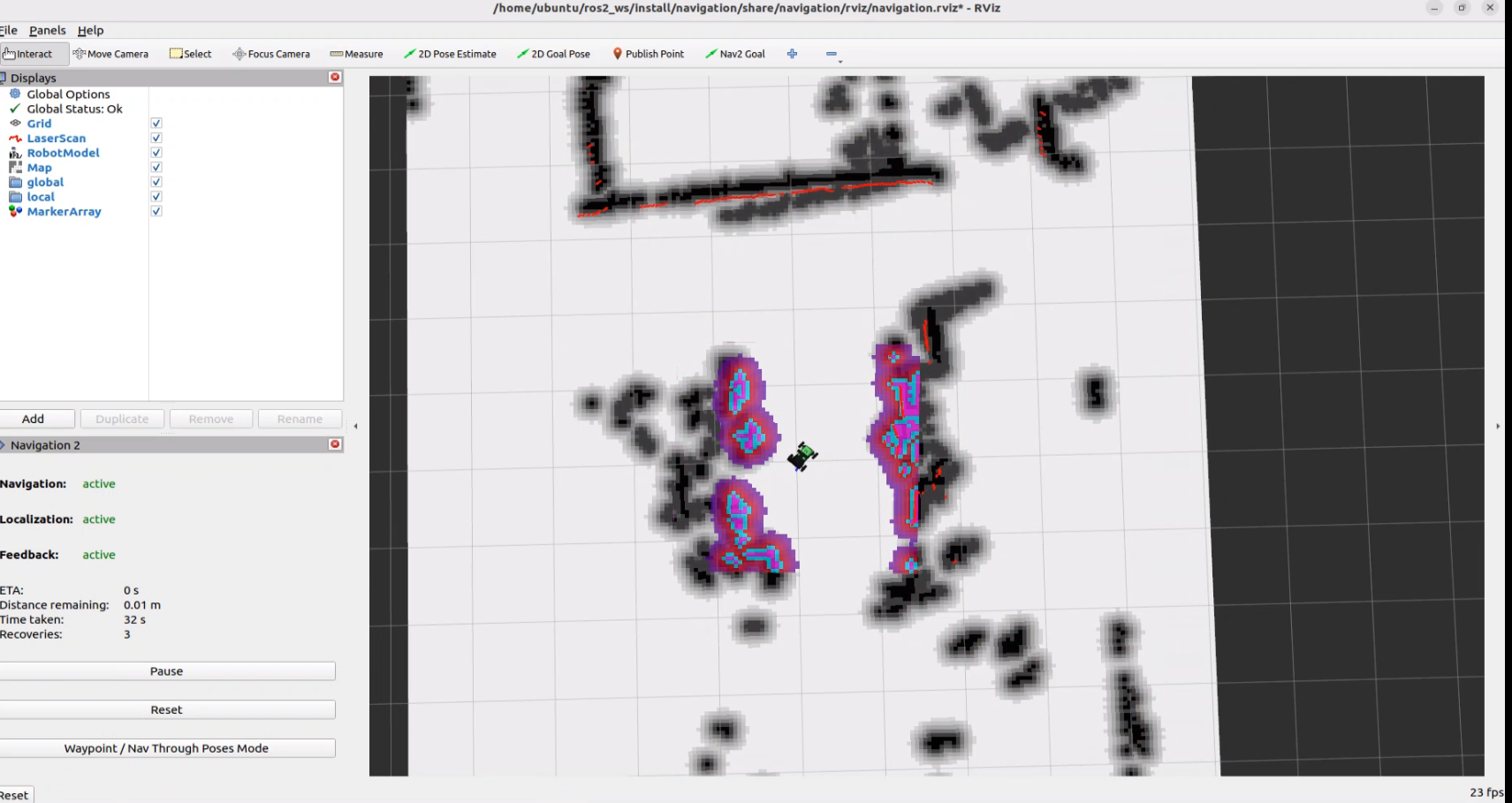
The voice device will then respond with I’m here, signaling that it has been activated successfully. The system will begin recording your voice command.
When the command line displays the following output, it indicates that the voice device has printed the recognized speech. At this point, the system begins recording the received command. Then, give the command to the robot, for example, Go to the kitchen to see if the door is closed, then come back and tell me, and wait for the large model to process the command. When the command line shows the next output, it indicates that the cloud-based speech large model has successfully processed the voice command and parsed the audio. The parsed result will appear in the
publish_asr_result.

When the command line displays the output shown below, the cloud-based large language model has been successfully invoked. It processes the user’s command, provides a verbal response, and generates actions corresponding to the semantic meaning of the command.
The response is automatically generated by the large model. Only the semantic accuracy of the reply is guaranteed, while the wording and formatting may vary.

Upon reaching the kitchen, the system will recognize whether the door is closed.
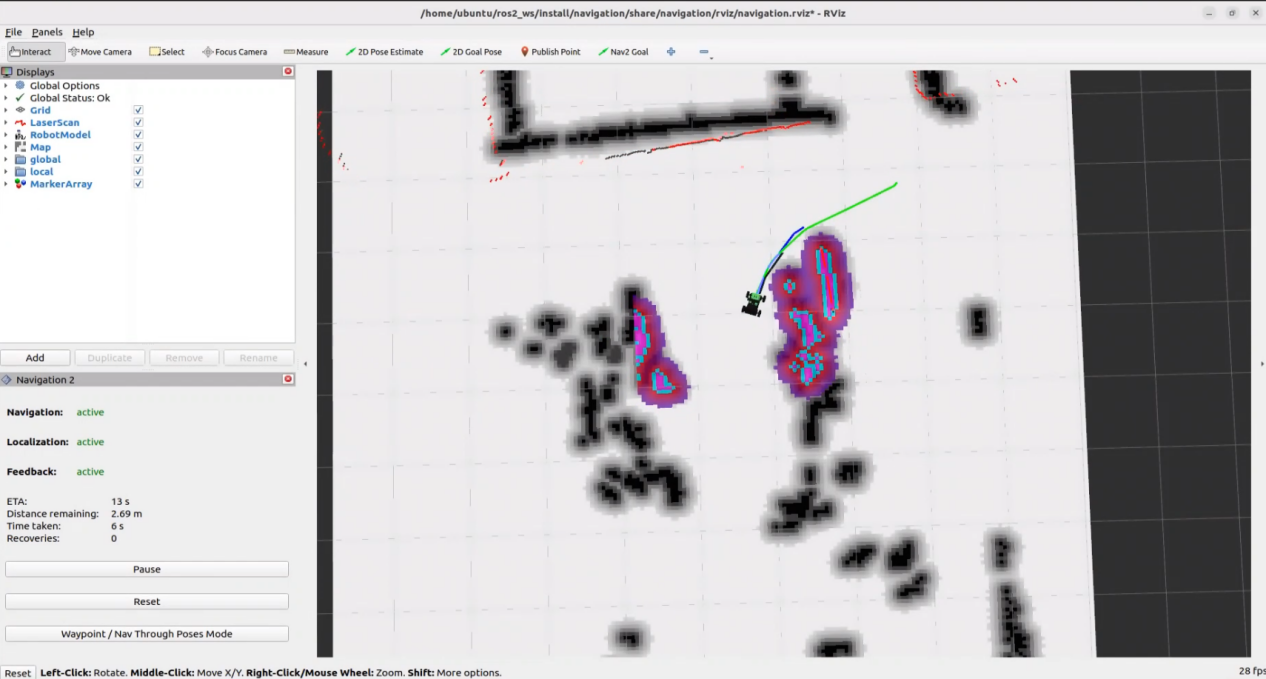
Afterward, the robot will return to the origin position and provide a response about the door’s status, such as The door is closed.
When the terminal shows the output shown in the figure, indicating the end of one interaction cycle, the system is ready for the next round. To initiate another interaction, repeat step 5 by speaking the wake words again.
To exit the feature, press Ctrl + C in the terminal. If the feature does not exit immediately, press Ctrl + C multiple times.
12.3.5.4 Program Outcome
Once the feature starts, any command can be issued to the robot, such as Go to the kitchen to see if the door is closed and let me know when you come back. The robot will navigate to the designated location, check if the door is closed, and then return to the starting point to inform of the result.
12.3.5.5 Modifying Navigation Locations
If the navigation position in the program needs to be modified, edit the file located at the following path: ~/ros2_ws/src/large_models_examples/large_models_examples/vllm_navigation.py
Open the program to display the RViz map, then set the navigation target location by clicking
2D Goal Poseand selecting the position on the map.
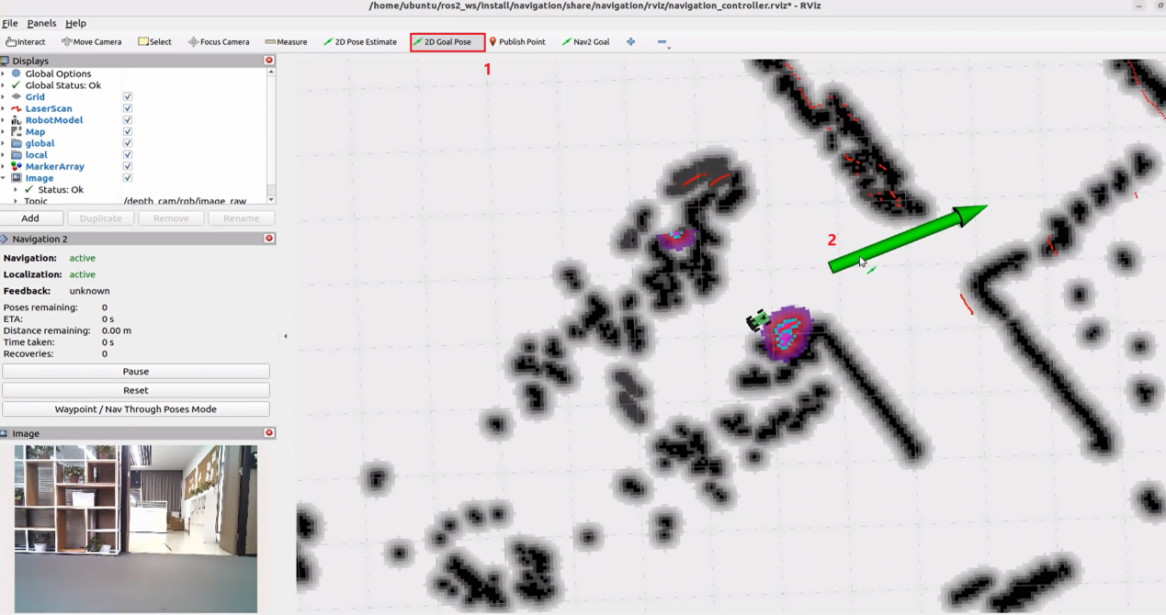
Return to the command terminal and check the published target position parameters.

Locate the corresponding section of the code shown below, and fill in your target location parameters after the appropriate location name.
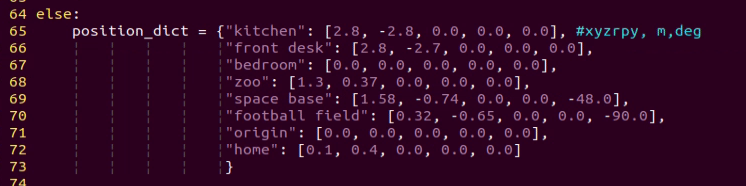
The different target navigation points in the program are relative to the robot’s starting point during the mapping process. Each navigation point includes five parameters:
x: position on the x-axis (meters)
y: position on the y-axis (meters)
roll: rotation around the x-axis (degrees)
pitch: rotation around the y-axis (degrees)
yaw: rotation around the z-axis (degrees)
For example, to modify the kitchen target, set the robot’s target position to [1.45, -0.29, 0.0, 0.0, 0.0], which represents the robot’s position on the map when it reaches the kitchen.
The robot’s target position orientation is updated. The printed quaternion Orientation(0, 0, -0.379167, 0.925328)= Angle: -0.777791 in radians is shown. The quaternion is then converted to Euler angles, roll, pitch, yaw, resulting in roll ≈ 0°,pitch ≈ 0°,yaw ≈ −44.56°. Alternatively, converting the radians directly to degrees gives −44.58°.

The final target position for kitchen is updated to [1.45, -0.29, 0.0, 0.0, −44.58].
12.3.5.6 Program Analysis
Launch File Analysis
The program file is located at: /home/ubuntu/ros2_ws/src/large_models_examples/large_models_examples/vllm_navigation.launch.py
Define launch_setup Function
def launch_setup(context):
slam_package_path = get_package_share_directory('slam')
navigation_package_path = get_package_share_directory('navigation')
large_models_package_path = get_package_share_directory('large_models')
mode = LaunchConfiguration('mode', default=1)
mode_arg = DeclareLaunchArgument('mode', default_value=mode)
map_name = LaunchConfiguration('map', default='map_01').perform(context)
robot_name = LaunchConfiguration('robot_name', default=os.environ['HOST'])
master_name = LaunchConfiguration('master_name', default=os.environ['MASTER'])
map_name_arg = DeclareLaunchArgument('map', default_value=map_name)
master_name_arg = DeclareLaunchArgument('master_name', default_value=master_name)
robot_name_arg = DeclareLaunchArgument('robot_name', default_value=robot_name)
navigation_launch = IncludeLaunchDescription(
PythonLaunchDescriptionSource(os.path.join(navigation_package_path, 'launch/navigation.launch.py')),
launch_arguments={
'sim': 'false',
'map': map_name,
'robot_name': robot_name,
'master_name': master_name,
'use_teb': 'true',
}.items(),
)
navigation_controller_node = Node(
package='large_models_examples',
executable='navigation_controller',
output='screen',
parameters=[{'map_frame': 'map', 'nav_goal': '/nav_goal'}]
)
rviz_node = ExecuteProcess(
cmd=['rviz2', 'rviz2', '-d', os.path.join(navigation_package_path, 'rviz/navigation_controller.rviz')],
output='screen'
)
large_models_launch = IncludeLaunchDescription(
PythonLaunchDescriptionSource(
os.path.join(large_models_package_path, 'launch/start.launch.py')),
launch_arguments={'mode': mode}.items(),
)
vllm_navigation_node = Node(
package='large_models_examples',
executable='vllm_navigation',
output='screen',
)
launch_setup: Used to configure and initiate the ROS 2 Launch file actions.
node = LaunchConfiguration('node', default=1): Defines a launch parameter named node, with a default value of 1.
navigation_package_path: Retrieves the shared directory path of the navigation package parigations.
large_model_package_path: Retrieves the shared directory path of the large model package large_model.
navigating_lunch: Uses IncludeLaunchDescription to include the navigation launch file navigation.launch.py, passing parameters like node_name and master_name.
vllm_navigation_node: Defines a ROS 2 node from the large_models_examples package, executing the vllm_navigation executable, and outputting to the screen.
navigating_controller_node: Defines the navigation control node from the large_models_examples package.
Python File Analysis
The program file is located at: /home/ubuntu/ros2_ws/src/large_models_examples/large_models_examples/vllm_navigation.py
1. Define Prompt Template (PROMPT)
LLM_PROMPT = '''
**Role
You are a smart navigation vehicle equipped with a camera and speaker. You can move to different places, analyze visual input, and respond by playing audio. Based on user input, you need to generate the corresponding JSON command.
**Requirements
- For any user input, look up corresponding functions from the Action Function Library, and generate the proper JSON output.
- For each action sequence, include a concise (5–20 characters) and witty, varied response to make the interaction lively and engaging.
- Output only the JSON result, no analysis or extra text.
- Output format:
{
"action": ["xx", "xx"],
"response": "xx"
}
**Special Notes
The "action" field contains an ordered list of function names to be executed in sequence. If no matching function is found, return: "action": [].
The "response" field should contain a carefully crafted, short, humorous, and varied message (5–20 characters).
**Action Function Library
Move to a specified place: move('kitchen')
Return to starting point: move('origin')
Analyze current view: vision('What do you see?')
Play audio response: play_audio()
**Example
Input: Go to the front desk to see if the door is closed, and then come back and tell me
Output:
{
"action": ["move('front desk')", "vision('Is the door closed?')", "move("origin")", "play_audio()"],
"response": "On it, reporting soon!"
}
'''
2. Class Initialization
def __init__(self, name):
rclpy.init()
super().__init__(name)
self.action = []
self.response_text = ''
self.llm_result = ''
self.play_audio_finish = False
self.running = True
self.play_delay = False
self.reach_goal = False
self.interrupt = False
timer_cb_group = ReentrantCallbackGroup()
self.tts_text_pub = self.create_publisher(String, 'tts_node/tts_text', 1)
# self.create_subscription(Image, 'ascamera/camera_publisher/rgb0/image', self.image_callback, 1)
self.create_subscription(String, 'agent_process/result', self.llm_result_callback, 1)
self.create_subscription(Bool, 'vocal_detect/wakeup', self.wakeup_callback, 1)
self.create_subscription(Bool, 'tts_node/play_finish', self.play_audio_finish_callback, 1, callback_group=timer_cb_group)
self.create_subscription(Bool, 'navigation_controller/reach_goal', self.reach_goal_callback, 1)
self.awake_client = self.create_client(SetBool, 'vocal_detect/enable_wakeup')
self.awake_client.wait_for_service()
self.set_mode_client = self.create_client(SetInt32, 'vocal_detect/set_mode')
self.set_mode_client.wait_for_service()
self.set_model_client = self.create_client(SetModel, 'agent_process/set_model')
self.set_model_client.wait_for_service()
self.set_prompt_client = self.create_client(SetString, 'agent_process/set_prompt')
self.set_prompt_client.wait_for_service()
self.set_vllm_content_client = self.create_client(SetContent, 'agent_process/set_vllm_content')
self.set_vllm_content_client.wait_for_service()
self.set_pose_client = self.create_client(SetPose2D, 'navigation_controller/set_pose')
self.set_pose_client.wait_for_service()
self.controller = ActionGroupController(self.create_publisher(ServosPosition, 'servo_controller', 1), '/home/ubuntu/software/arm_pc/ActionGroups')
self.timer = self.create_timer(0.0, self.init_process, callback_group=timer_cb_group)
Set up state parameters, including action list, response text, LLM processing results, and navigation target arrival status. Create publishers for TTS text publishing and subscribers for receiving agent processing results, voice wake-up signals, audio playback completion status, and navigation arrival status. At the same time, establish service client requests for voice wake-up, node settings, prompt word configuration, visual content settings, and navigation target point setup. Finally, create a timer to initiate the initialization process.
3. init_process Method
def init_process(self):
self.timer.cancel()
msg = SetModel.Request()
msg.model = llm_model
msg.model_type = 'llm'
msg.api_key = api_key
msg.base_url = base_url
self.send_request(self.set_model_client, msg)
msg = SetString.Request()
msg.data = LLM_PROMPT
self.send_request(self.set_prompt_client, msg)
init_finish = self.create_client(Empty, 'navigation_controller/init_finish')
init_finish.wait_for_service()
speech.play_audio(start_audio_path)
threading.Thread(target=self.process, daemon=True).start()
self.create_service(Empty, '~/init_finish', self.get_node_state)
self.get_logger().info('\033[1;32m%s\033[0m' % 'start')
self.get_logger().info('\033[1;32m%s\033[0m' % LLM_PROMPT)
After disabling the timer, configure the parameters for the large language model, including model type, API key, and base URL. Set up a dedicated prompt word template for the navigation task, wait for the navigation control system to initialize, and play the start prompt audio. At the same time, start the processing thread, create a service for the initialization completion status, and finally output the log information to indicate that the system is ready.
4. move Method
def move(self, position):
self.get_logger().info('position: %s' % str(position))
msg = SetPose2D.Request()
if position not in position_dict:
return False
p = position_dict[position]
msg.data.x = float(p[0])
msg.data.y = float(p[1])
msg.data.roll = p[2]
msg.data.pitch = p[3]
msg.data.yaw = p[4]
self.send_request(self.set_pose_client, msg)
return True
By receiving position parameters, query the corresponding coordinates and orientation information, including x, y coordinates and roll, pitch, yaw rotation angles, from the preset location dictionary. Create a SetPose2D type service request message, populate the data, and then send it to the navigation server, enabling the robot to navigate to the specified preset location.
5. reach_goal_callback Method
def reach_goal_callback(self, msg):
self.get_logger().info('reach goal')
self.reach_goal = msg.data
When the goal arrival status message published by the navigation controller is received, assign the boolean value from the message to the node’s reach_goal status flag and log the reach_goal information. This ensures synchronization of the navigation system’s state update and facilitates the subsequent task decision process.
6. vision Method
def vision(self, query):
self.controller.run_action('horizontal')
msg = SetContent.Request()
if language == 'Chinese':
msg.api_key = stepfun_api_key
msg.base_url = stepfun_base_url
msg.model = stepfun_vllm_model
else:
msg.api_key = vllm_api_key
msg.base_url = vllm_base_url
msg.model = vllm_model
msg.prompt = VLLM_PROMPT
msg.query = query
self.get_logger().info('vision: %s' % query)
res = self.send_request(self.set_vllm_content_client, msg)
self.controller.run_action('init')
return res.message
By receiving the query parameters, the system selects the appropriate visual language model configuration based on the language setting, sets the dedicated visual prompt template and query content, then sends a request to the visual language content service and returns the model’s response message.
7. process Method
def process(self):
first = True
while self.running:
if self.llm_result:
self.interrupt = False
msg = String()
if 'action' in self.llm_result: # If a corresponding action is returned, extract and process it
result = json.loads(self.llm_result[self.llm_result.find('{'):self.llm_result.find('}')+1])
if 'response' in result:
msg.data = result['response']
self.tts_text_pub.publish(msg)
if 'action' in result:
action = result['action']
self.get_logger().info(f'vllm action: {action}')
for a in action:
if 'move' in a:
self.reach_goal = False
res = eval(f'self.{a}')
if res:
while not self.reach_goal:
if self.interrupt:
self.get_logger().info('interrupt')
break
# self.get_logger().info('waiting for reach goal')
time.sleep(0.01)
elif 'vision' in a:
res = eval(f'self.{a}')
self.response_text = res
self.get_logger().info(f'vllm response: {res}')
self.play_audio()
elif 'play_audio' in a:
eval(f'self.{a}')
while not self.play_audio_finish:
time.sleep(1)
if self.interrupt:
self.get_logger().info('interrupt')
break
else: # If there is no corresponding action, only respond
msg.data = self.llm_result
self.tts_text_pub.publish(msg)
self.action_finish = True
self.llm_result = ''
else:
time.sleep(0.01)
if self.play_audio_finish and self.action_finish:
self.play_audio_finish = False
self.action_finish = False
msg = SetBool.Request()
msg.data = True
self.send_request(self.awake_client, msg)
rclpy.shutdown()
By continuously monitoring the output of the large model, when action instructions are detected, the action list and response text are parsed. If there is a movement command, navigation is executed, and the system waits for the target point to be reached while supporting interruption. If there is a visual command, a visual query is executed and the result is recorded. If there is an audio command, the corresponding content is played, and the text response is sent to the TTS module for speech output. If only a text response is provided, it will be relayed as speech feedback. During the process, coordination between action execution and the completion status of speech playback is managed. Once the task is completed, the voice wake-up function is re-enabled, and the system waits for the next command.
12.4 Comprehensive Application of Large AI Models
12.4.1 Preparation
Firmware must be flashed to the AI voice box before running the feature.
First, connect WonderEcho Pro to the computer with a Type-C data cable.
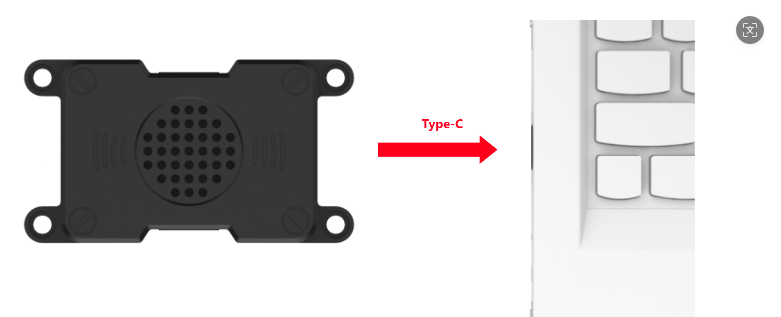
Open PACK_UPDATE_TOOL.exe under 2. Softwares\6. Firmware Flashing Tool, select the CI1302 chip, then click Update.
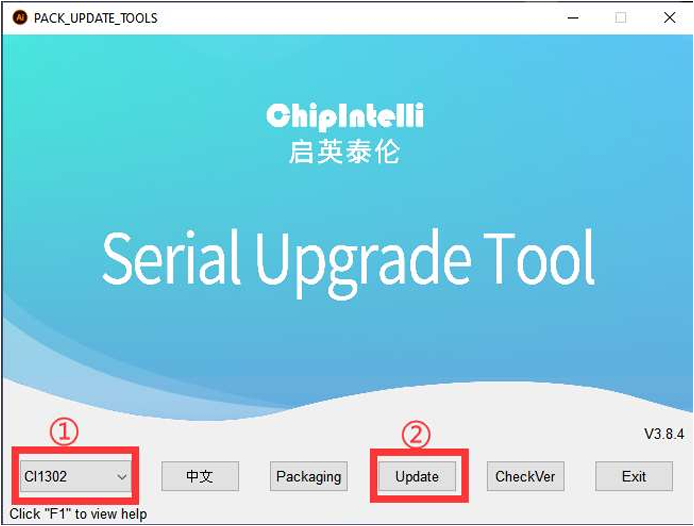
The following steps use CI1302-English-SingleMic_V00916_UART0_115200_2M.bin as an example. The same procedure also applies to flashing the Chinese wake word firmware.
Click to select the firmware, then locate CI1302-English-SingleMic_V00916_UART0_115200_2M.bin under the Voice Control Basic Lesson (2025)/WonderEcho Pro/05 Appendix path.

Find the corresponding serial port and select it.
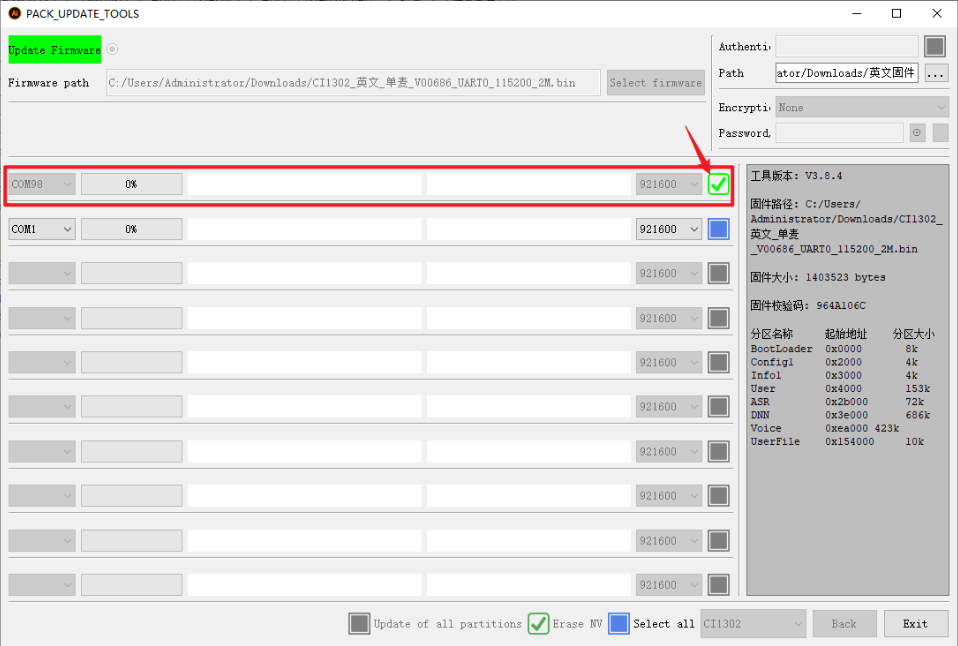
Then press the RST button on the voice interaction module to enter flashing mode. Wait until the flashing process is completed successfully.
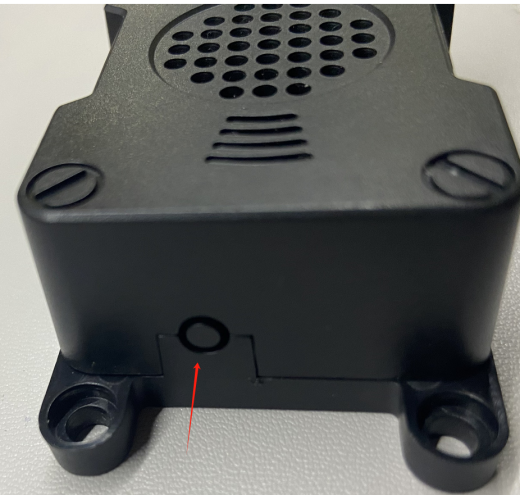

12.4.2 Large Model API Key Setup
Note
This section requires registering on the official OpenAI website and obtaining an API key for accessing large language models.
12.4.2.1 OpenAI Account Registration and Deployment
Copy and open the following URL: https://platform.openai.com/docs/overview, then click the Sign Up button in the upper-right corner.
Register and log in using a Google, Microsoft, or Apple account, as prompted.
After logging in, click the Settings button, then go to Billing, and click Payment Methods to add a payment method. The payment is used to purchase tokens.
After completing the preparation steps, click API Keys and create a new key. Follow the prompts to fill in the required information, then save the key for later use.
The creation and deployment of the large model have been completed, and this API will be used in the following sections.
12.4.2.2 OpenRouter Account Registration and Deployment
Copy the URL https://openrouter.ai/ into a browser and open the webpage. Click Sign in and register or sign in using a Google account or another available account.
After logging in, click the icon in the top-right corner, then select Credits to add a payment method.
Create an API key. Go to API Keys, then click Create Key. Follow the prompts to generate a key. Save the API key securely for later use.
The creation and deployment of the large model have been completed, and this API will be used in the following sections.
12.4.2.3 API Configuration
Click
to open a terminal and enter the following command to open the configuration file. Press the i key to enter input mode.
vim /home/ubuntu/ros2_ws/src/large_models/large_models/large_models/config.py
Fill in the obtained Large Model API Key in the corresponding parameter, as shown in the red box in the figure below.
Press Esc, then enter the command and press Enter to save and exit the configuration file.
:wq
12.4.3 Vision Application with Large AI Models
12.4.3.1 Overview
When the program starts, the voice module announces I’m ready. After saying the wake word, the robot replies I’m here.
Once activated, the robot can be controlled by voice. For example, a command like Follow the black line, stop when an obstacle appears, then turn left, and finally describe what is in front of you can be spoken directly to the robot. The OpenAI ASR API converts the speech into text and passes it to the large model for processing. After the response is generated, the OpenAI API is called again to play it back and carry out the corresponding actions.
12.4.3.2 Preparation
Firmware Flashing
Reference Tutorial: 12.4.1 Preparation
Configure Large Model API-KEY
Reference Tutorial: 12.4.2 Large Model API Key Setup
12.4.3.3 Operation Steps
Note
Command input is case-sensitive and space-sensitive.
The robot must be connected to the Internet, either in STA (LAN) mode or AP direct connection mode via Ethernet.
Open the command line terminal from the left side of the system interface.
 In the terminal window, enter the following command and press Enter to stop the auto-start service
Enter the command to disable the auto-start service of the app.
sudo systemctl stop start_app_node.service
Then enter the command and press Enter to start the feature.
ros2 launch large_models_examples llm_control_progress.launch.py
When the terminal displays the output shown below and announces I’m ready, the voice device has completed initialization. At this point, say the wake word Hello Hiwonder.

When the terminal displays the corresponding output shown in the figure and the device responds with I’m here, it indicates successful activation. The system will begin recording voice commands.

When the command line displays the output shown in the image below, it indicates that the voice module is printing the recognized speech.

Upon successful recognition by the speech recognition service of a cloud-based large speech model, the parsed command will be displayed under the
publish_asr_resultoutput in the terminal.

Note
The response is automatically generated by the large model. Only the semantic accuracy of the reply is guaranteed, while the wording and formatting may vary.
When the command line displays the output shown below, it means a round of conversation has finished.

To exit the feature, press Ctrl + C in the terminal. If the feature does not shut down immediately, press Ctrl + C multiple times. If it still fails, open a new terminal window and run the following command to clear the ROS node.
~/.stop_ros.sh
12.4.3.4 Project Outcome
Once the feature is activated, voice commands can be issued to the robot, enabling it to move, follow lines, and perform real-time detection.
12.4.3.5 Program Analysis
Launch File Analysis
File Path:
/home/ubuntu/ros2_ws/src/large_models_examples/large_models_examples/function_calling/llm_control_progress.launch.py
1) Import library files.
import os
from ament_index_python.packages import get_package_share_directory
from launch_ros.actions import Node
from launch.substitutions import LaunchConfiguration
from launch import LaunchDescription, LaunchService
from launch.launch_description_sources import PythonLaunchDescriptionSource
from launch.actions import IncludeLaunchDescription, DeclareLaunchArgument, OpaqueFunction
os: Used for handling file paths and operating system-related functions.
ament_index_python.packages.get_package_share_directory: Retrieves the share directory path of ROS 2 package.
launch_ros.actions.Node: Used to define ROS 2 nodes.
launch.substitutions.LaunchConfiguration: Retrieves parameter values defined in the Launch file.
LaunchDescription,LaunchService: Used to define and start the Launch file.
launch.launch_description_sources.PythonLaunchDescriptionSource: Enables the inclusion of other Launch files.
launch.actions.IncludeLaunchDescription、DeclareLaunchArgument、OpaqueFunction: Used to define actions and arguments within the Launch file.
2) Define launch_setup Function
Declare launch parameters:
function_mode determines whether to start the navigation.
mode: Mode parameter, default value 1.
conf: Confidence level.
debug: Debug mode.
camera_topic: Camera topic, default depth_cam/rgb0/image_raw.
offline: Offline mode.
interruption: Interruption toggle, default False.
function_mode = LaunchConfiguration('function').perform(context)
conf = LaunchConfiguration('conf', default=0.45)
conf_arg = DeclareLaunchArgument('conf', default_value=conf)
mode = LaunchConfiguration('mode', default=1)
mode_arg = DeclareLaunchArgument('mode', default_value=mode)
debug = LaunchConfiguration('debug', default=False)
debug_arg = DeclareLaunchArgument('debug', default_value=debug)
interruption = LaunchConfiguration('interruption', default=False)
interruption_arg = DeclareLaunchArgument('interruption', default_value=interruption)
camera_topic = LaunchConfiguration('camera_topic', default='/depth_cam/rgb0/image_raw')
camera_topic_arg = DeclareLaunchArgument('camera_topic', default_value=camera_topic)
offline = LaunchConfiguration('offline', default='false')
offline_arg = DeclareLaunchArgument('offline', default_value=offline)
interruption = LaunchConfiguration('interruption', default=False)
interruption_arg = DeclareLaunchArgument('interruption', default_value=interruption)
Obtain package paths:
Retrieve paths for controller and navigation packages.
controller_package_path = get_package_share_directory('controller')
navigation_package_path = get_package_share_directory('navigation')
map_name: Map name.
robot_name: Robot name.
master_name: Node name.
map_name = LaunchConfiguration('map', default='map_01').perform(context)
robot_name = LaunchConfiguration('robot_name', default=os.environ['HOST'])
master_name = LaunchConfiguration('master_name', default=os.environ['MASTER'])
map_name_arg = DeclareLaunchArgument('map', default_value=map_name)
master_name_arg = DeclareLaunchArgument('master_name', default_value=master_name)
robot_name_arg = DeclareLaunchArgument('robot_name', default_value=robot_name)
Include launch.py files using IncludeLaunchDescription.
controller_launch: Chassis controller launch file.
peripherals_package_path: Depth camera launch file.
lidar_node_launch: LiDAR launch file.
navigation_launch: Navigation launch file.
llm_agent_progress_launch: Launch file for voice recognition, LLM processing, speech synthesis, and LLM-based control functions.
controller_launch = IncludeLaunchDescription(
PythonLaunchDescriptionSource(
os.path.join(controller_package_path, 'launch/controller.launch.py')),
)
peripherals_package_path = get_package_share_directory('peripherals')
depth_camera_launch = IncludeLaunchDescription(
PythonLaunchDescriptionSource(
os.path.join(peripherals_package_path, 'launch/depth_camera.launch.py')),
)
lidar_node_launch = IncludeLaunchDescription(
PythonLaunchDescriptionSource(
os.path.join(peripherals_package_path, 'launch/lidar.launch.py')),
)
navigation_launch = IncludeLaunchDescription(
PythonLaunchDescriptionSource(os.path.join(navigation_package_path, 'launch/navigation.launch.py')),
launch_arguments={
'sim': 'false',
'map': map_name,
'robot_name': robot_name,
'master_name': master_name,
'use_teb': 'true',
}.items(),
)
navigation_launch = IncludeLaunchDescription(
PythonLaunchDescriptionSource(os.path.join(navigation_package_path, 'launch/navigation.launch.py')),
launch_arguments={
'sim': 'false',
'map': map_name,
'robot_name': robot_name,
'master_name': master_name,
'use_teb': 'true',
}.items(),
)
llm_agent_progress_launch = IncludeLaunchDescription(
PythonLaunchDescriptionSource(
os.path.join(get_package_share_directory('large_models_examples'), 'large_models_examples/function_calling/llm_agent_progress.launch.py')),
)
Starting Nodes:
line_following_node: Line-following node.
object_tracking_node: Color-tracking node.
navigation_controller_node: Navigation controller node.
rviz_node: Visualization node.
line_following_node = Node(
package='app',
executable='line_following',
output='screen',
parameters=[{'debug': debug}],
# parameters=[{'debug': True}],
)
object_tracking_node = Node(
package='app',
executable='object_tracking',
output='screen',
parameters=[{'debug': debug}],
)
navigation_controller_node = Node(
package='large_models_examples',
executable='navigation_controller',
output='screen',
parameters=[{'map_frame': 'map', 'nav_goal': '/nav_goal'}]
)
rviz_node = ExecuteProcess(
cmd=['rviz2', 'rviz2', '-d', os.path.join(navigation_package_path, 'rviz/navigation_controller.rviz')],
output='screen'
)
3) Define generate_launch_description Function
This function generates a Launch description. The OpaqueFunction is used to add the launch_setup function to the Launch description, allowing the function parameter to be passed.
def generate_launch_description():
return LaunchDescription([
DeclareLaunchArgument(
'function',
default_value='default',
description='The function to execute'),
OpaqueFunction(function = launch_setup)
])
4) Main Program Entry
if __name__ == '__main__':
# Create a LaunchDescription object
ld = generate_launch_description()
ls = LaunchService()
ls.include_launch_description(ld)
ls.run()
ld = generate_launch_description() generates the Launch description object.
ls = LaunchService() creates a Launch service object.
ls.include_launch_description(ld) adds the Launch description to the Launch service.
ls.run() starts the Launch service and executes all defined Launch actions.
Python File Analysis
File Path:
/home/ubuntu/ros2_ws/src/large_models_examples/large_models_examples/function_calling/llm_control.py
1) tools list
Defines 12 LLM tool functions:
get_pixel_distance: Retrieves depth distance in pixels.
get_obejct_pixel: Identifies an object and gets its pixel position.
get_available_locations: Gets a list of navigable locations.
get_current_location: Retrieves the current location.
describe_current_view: Describes the current view.
move_to_location: Navigates to a specified location.
line_following: Performs color-based line following.
lidar_scan_detect: Detects obstacles using LiDAR.
object_track_detect: Tracks objects.
color_track: Tracks colors.
robot_move_control: Controls robot movement directly.
get_object_box: Retrieves the bounding box of an object.
tools = [
{
"type": "function",
"function": {
"name": "get_pixel_distance",
"description": "Get depth distance of one or more specified pixel positions",
"parameters": {
"type": "object",
"properties": {
"pixel_position": {
"type": "string",
"description": "JSON string containing one or more pixel coordinate lists",
}
},
"required": ["pixel_position"],
},
},
},
{
"type": "function",
"function": {
"name": "get_obejct_pixel",
"description": "Identify objects and get their pixel positions",
"parameters": {
"type": "object",
"properties": {
"content": {
"type": "string",
"description": "User's question",
}
},
"required": ["content"],
},
},
},
{
"type": "function",
"function": {
"name": "get_available_locations",
"description": "Query and list all predefined locations the robot can navigate to",
"parameters": {
"type": "object",
"properties": {}
}
}
},
{
"type": "function",
"function": {
"name": "get_current_location",
"description": "Query and get the robot's current precise position and orientation on the map",
"parameters": {
"type": "object",
"properties": {}
}
}
},
{
"type": "function",
"function": {
"name": "describe_current_view",
"description": "Describe in detail what the robot camera currently sees to answer user's specific questions",
"parameters": {
"type": "object",
"properties": {
"question": {
"type": "string",
"description": "Specific questions about the current view",
}
},
"required": ["question"]
}
}
},
{ "type": "function",
"function": {
"name": "move_to_location",
"description": "Move the robot to specified location",
"parameters": {
"type": "object",
"properties": {
"destination": {
"type": "string",
"description": "Target location name",
"enum": ["study_room","bedroom","fruit_supermarket","kitchen","sorting_station_3"]
}
},
"required": ["destination"],
},
},
},
{
"type": "function",
"function": {
"name": "line_following",
"description": "Command robot to follow line of specified color",
"parameters": {
"type": "object",
"properties": {
"color": {
"type": "string",
"description": "Color to follow",
"enum": ["red", "green", "blue", "black", "yellow"]
}
},
"required": ["color"]
}
}
},
{
"type": "function",
"function": {
"name": "lidar_scan_detect",
"description": "Obstacle detection during line following based on LiDAR scan",
"parameters": {
"type": "object",
"properties": {
"scan_detect": {
"type": "string",
"description": "Obstacle detection result",
}
},
"required": ["scan_detect"],
},
},
},
{
"type": "function",
"function": {
"name": "object_track_detect",
"description": "Object tracking command, note that only when the robot is sure to track the object, and no need to specify a specific color. Need to get the target object position in the image line pixel square.",
"parameters": {
"type": "object",
"properties": {
"box": {
"type": "string",
"description": "Return the position of the target in the frame as a bounding box, such as [xmin, ymin, xmax, ymax]",
}
},
"required": ["box"]
}
}
},
{
"type": "function",
"function": {
"name": "color_track",
"description": "Command robot to track object of specified color",
"parameters": {
"type": "object",
"properties": {
"color": {
"type": "string",
"description": "Color of object to track",
"enum": ["red", "green", "blue", "black", "yellow"]
}
},
"required": ["color"]
}
}
},
{
"type": "function",
"function": {
"name": "robot_move_control",
"description": "Move robot with specified linear speed and angular speed for a certain time, it takes 8s to rotate 90°",
"parameters": {
"type": "object",
"properties": {
"linear_x": {
"type": "number",
"description": "Linear velocity in X direction",
},
"linear_y": {
"type": "number",
"description": "Linear velocity in Y direction",
},
"angular_z": {
"type": "number",
"description": "Angular velocity in Z direction",
},
"duration": {
"type": "number",
"description": "Movement duration",
}
},
"required": ["linear_x", "linear_y", "angular_z", "duration"]
}
}
},
{
"type": "function",
"function": {
"name": "get_object_box",
"description": "Command robot to track specific target object",
"parameters": {
"type": "object",
"properties": {
"obj_track": {
"type": "string",
"description": "User's question"
}
},
"required": ["obj_track"]
}
}
},
]
2) Location Dictionary
Stores locations and their corresponding coordinates using a dictionary.
position_dict = {
"study_room": [1.2, -0.8, 0.0, 0.0, 80.0],
"bedroom": [1.38, 0.50, 0.0, 0.0, 10.0],
"fruit_supermarket": [3.02, -0.49, 0.0, 0.0, -90.0],
"kitchen": [0.05, 0.0, 0.0, 0.0, 0.0],
"sorting_station_3": [1.15, 0.1, 0.0, 0.0, 0.0],
}
3) Prompt Templates
Defines the LLM roles and workflow.
content_string = textwrap.dedent("""
# Role setting
You are a real interactive robot, need to execute tasks according to user instructions,
and interact with users in a friendly way, just like chatting with friends.
## Workflow
1. **Task Planning:** Before starting a task, you need to break it down and plan it.
The steps will be presented in a numbered format, with each number representing an independent step.
2. **Tool Usage:** Before each tool is used, you need to provide an explanation, no more than 20 words,
describing the feedback in a humorous and varied way to make the communication process more engaging.
3. **Feedback Processing:** After the tool is used, you need to follow up with a commentary on the feedback results,
no more than 20 words, describing the feedback in a humorous and varied way to make the communication process more engaging.
4. **Task Completion:** After all task steps have been completed, provide a summary explanation, no more than 40 words.
""")
Object detection prompts.
PROMPT = '''
As an image recognition expert, your capability is to accurately locate objects in images sent by users through object detection, and output the final results according to the "Output Format".
## 1. Understand User Instructions
I will give you a sentence. You need to make the best decision based on my words and extract the "object name" from the decision. **The name corresponding to the object must be in English**, **do not output objects that are not mentioned**.
## 2. Understand the Image
I will give you an image. Analyze the image and identify all recognizable objects within it.
For each identified object, calculate the center point coordinates of the object. **Do not output objects that are not mentioned**.
【Special Note】: Deeply understand the positional relationships of objects.
## Output Format (Please only output the following content, do not say any extra words)
[
{
"object": name_1,
"center_xy": [center_x_1, center_y_1]
},
{
"object": name_2,
"center_xy": [center_x_2, center_y_2]
}
]
'''
Object tracking prompts.
OBJ_TRACK_PROMPT = '''
As an intelligent vehicle, skilled in image recognition, your capability is to accurately locate objects in images sent by users through object detection, output the final results according to the "Output Format", and then perform tracking.
## 1. Understand User Instructions
I will give you a sentence. You need to extract the "object name" from my words. **The name corresponding to the object must be in English**, **do not output objects that are not mentioned**.
## 2. Understand the Image
I will give you an image. From this image, find the pixel coordinates of the top-left and bottom-right corners of the object corresponding to the "object name". If not found, then xyxy should be []. **Do not output objects that are not mentioned**.
【Special Note】: Deeply understand the positional relationships of objects. The response needs to combine the user's instruction and the detection results.
## Output Format (Please only output the following content, do not say any extra words)
{
"object": "name",
"xyxy": [xmin, ymin, xmax, ymax]
}
'''
4) Log Colors
class LogColors:
RESET = '\033[0m'
BOLD = '\033[1m'
YELLOW = '\033[93m'
BLUE = '\033[94m'
GREEN = '\033[92m'
CYAN = '\033[96m'
5) Initialization Configuration
class LLMControlMove(Node):
def __init__(self, name):
super().__init__(name)
self.initialize_variables() # Initialization of variables
self.setup_ros_components() # Setup of ROS components
self.setup_services_and_clients() # Setup of services and clients
self.setup_subs_and_pubs() # Setup of subscribers and publishers
self.setup_timers() # Setup of timers
Initializes variables.
def initialize_variables(self):
"""Initialize all class variables"""
self.language = os.environ.get('ASR_LANGUAGE')
self.machine_type = os.environ.get('MACHINE_TYPE')
self.tools = []
self.vllm_result = ''
self.current_pose = None
self.saved_pose = None
self.obstacle_detected = False
self.bridge = CvBridge()
self.action = []
self.llm_result = ''
self.running = True
self.interrupt = False
self.action_finish = False
self.play_audio_finish = False
self.is_task_running = False
self.reach_goal = False
self.cb_group = ReentrantCallbackGroup()
# Lock
self.draw_lock = threading.Lock()
self.draw_flag = False
# Line following related variables
self.line_following_count = 0
self.line_following_start = True
self.current_left = 0.0
self.current_right = 0.0
# Object tracking related variables
self.start_track = False
self.track_box_p1 = None
self.track_box_p2 = None
self.object_detect_box = False
self.get_box_flag = False
self.box = None
self.set_above = False
# Image queue
self.image_pair_queue = queue.Queue(maxsize=2)
6) Vision Perception Module
Image Synchronization: Uses message_filters to synchronize RGB and depth images, with a queue size of 2.
def image_sync_callback(self, ros_image, ros_depth_image):
"""Synchronized image callback"""
try:
bgr_image = self.bridge.imgmsg_to_cv2(ros_image, "bgr8")
depth_image = np.ndarray(
shape=(ros_depth_image.height, ros_depth_image.width),
dtype=np.uint16,
buffer=ros_depth_image.data
)
if self.image_pair_queue.full():
self.image_pair_queue.get()
self.image_pair_queue.put((bgr_image, depth_image))
except Exception as e:
self.get_logger().error(f"Image sync error: {str(e)}")
Depth Measurement: Computes the average depth within a 5×5 ROI, filtering out anomalies.
def get_pixel_distance(self, pixel_coords_list):
"""Get pixel distance"""
try:
_, depth_image = self.image_pair_queue.get()
distances = []
for pixel_xy in pixel_coords_list:
x, y = pixel_xy
roi = [y, y + 5, x, x + 5]
img_h, img_w = depth_image.shape[:2]
if roi[0] < 0: roi[0] = 0
if roi[1] > img_h: roi[1] = img_h
if roi[2] < 0: roi[2] = 0
if roi[3] > img_w: roi[3] = img_w
roi_distance = depth_image[roi[0]:roi[1], roi[2]:roi[3]]
valid_distances = roi_distance[np.logical_and(roi_distance > 0, roi_distance < 30000)]
if len(valid_distances) > 0:
distance = round(float(np.mean(valid_distances) / 1000.0), 3)
else:
distance = 0.0
distances.append(distance)
return str(distances)
except Exception as e:
self.get_logger().error(f"Get pixel distance error: {str(e)}")
return "[]"
Object Detection: Uses the vision LLM qwen-vl-max-latest for object detection and extracts JSON results.
def get_obejct_pixel(self, user_query):
"""Get object pixel position"""
try:
rgb_image, _ = self.image_pair_queue.get()
vllm_result_str = self.client.vllm(user_query, rgb_image, prompt=PROMPT, model='qwen-vl-max-latest')
# Extract JSON part
if "```json" in vllm_result_str:
json_part = vllm_result_str.split("```json")[1].split("```")[0]
else:
json_part = vllm_result_str
detected_objects = json.loads(json_part.strip())
return str(detected_objects)
except Exception as e:
self.get_logger().error(f"Get object pixel error: {str(e)}")
return "[]"
7) Navigation Module
Performs location-based navigation.
def move_to_location(self, destination):
"""Move to specified location"""
if destination not in position_dict:
return f"Move failed: Unknown destination '{destination}'."
self.reach_goal = False
msg = SetPose2D.Request()
p = position_dict[destination]
msg.data.x = float(p[0])
msg.data.y = float(p[1])
msg.data.roll = p[2]
msg.data.pitch = p[3]
msg.data.yaw = p[4]
self.send_request(self.set_pose_client, msg)
self.get_logger().info(f"Navigation goal '{destination}' sent. Waiting for arrival...")
# Wait for reaching goal
while not self.reach_goal:
time.sleep(0.1)
if self.reach_goal:
return f"Arrived at {destination}"
else:
return f"Timeout, failed to reach {destination}"
8) Main Processing Loop
Retrieves tools from self.tools, executes them, and publishes the results.
def process(self):
"""Main processing loop"""
while rclpy.ok():
if self.tools:
tool_id, tool_name, args_dict = self.tools
res = None
try:
if tool_name == 'get_obejct_pixel':
content = args_dict.get('content')
if content:
res = self.get_obejct_pixel(content)
elif tool_name == 'get_pixel_distance':
position_str = args_dict.get('pixel_position')
if position_str:
positions_list = ast.literal_eval(position_str)
if (isinstance(positions_list, list) and
all(isinstance(p, list) and len(p) == 2 for p in positions_list)):
res = self.get_pixel_distance(positions_list)
elif tool_name == 'move_to_location':
destination = args_dict.get('destination')
if destination:
res = self.move_to_location(destination)
elif tool_name == 'describe_current_view':
question = args_dict.get('question')
if question:
res = self.describe_current_view(question)
elif tool_name == 'get_available_locations':
res = self.get_available_locations()
elif tool_name == 'get_current_location':
res = self.get_current_location()
elif tool_name == 'line_following':
color = args_dict.get('color')
if color:
res = self.line_following(color)
elif tool_name == 'color_track':
color = args_dict.get('color')
if color:
res = self.color_track(color)
elif tool_name == 'object_track_detect':
box = args_dict.get('box')
if box:
res = self.object_track_detect(box)
elif tool_name == 'lidar_scan_detect':
scan_detect = args_dict.get('scan_detect')
if scan_detect:
res = self.lidar_scan_detect(scan_detect)
elif tool_name == 'robot_move_control':
if all(k in args_dict for k in ["linear_x", "linear_y", "angular_z", "duration"]):
res = self.robot_move_control(
linear_x=args_dict['linear_x'],
linear_y=args_dict['linear_y'],
angular_z=args_dict['angular_z'],
duration=args_dict['duration']
)
elif tool_name == 'get_object_box':
obj_track = args_dict.get('obj_track')
if obj_track:
res = self.get_object_box(obj_track)
if res is not None:
self.tools_result_pub.publish(Tools(id=tool_id, name=tool_name, data=res))
except Exception as e:
self.get_logger().error(f"Tool {tool_name} execution error: {str(e)}")
res = f"The tool execution error: {str(e)}"
self.tools_result_pub.publish(Tools(id=tool_id, name=tool_name, data=res))
self.tools = []
time.sleep(2)
else:
time.sleep(0.02)
9) Display Thread
Visualizes RGB and depth images and draws tracking boxes.
def display_thread(self):
"""Show thread"""
while self.running:
try:
rgb_image, depth_image = self.image_pair_queue.get(block=True, timeout=1)
result_image = rgb_image.copy()
sim_depth_image = np.clip(depth_image, 0, 2000).astype(np.float64)
sim_depth_image = sim_depth_image / 2000.0 * 255.0
depth_color_map = cv2.applyColorMap(sim_depth_image.astype(np.uint8), cv2.COLORMAP_JET)
with self.draw_lock:
if self.draw_flag:
# Object tracking drawing
if self.start_track and self.track_box_p1 is not None and self.track_box_p2 is not None:
cv2.rectangle(result_image, self.track_box_p1, self.track_box_p2, (0, 255, 0), 2)
result_image = np.concatenate([result_image, depth_color_map, ], axis=1)
cv2.imshow("result_image", result_image)
key = cv2.waitKey(1)
if key == ord('q') or key == 27:
self.running = False
except queue.Empty:
if not self.running:
break
continue
except Exception as e:
self.get_logger().error(f"Display thread error: {str(e)}")
continue
10) Object Tracking Thread
Uses CUDA acceleration for tracking and publishes velocity commands.
def object_track_thread(self):
"""Object tracking thread"""
# Create new CUDA context in current thread
dev = cuda.Device(0)
ctx = dev.make_context()
try:
model_path = os.path.split(os.path.realpath(__file__))[0]
back_exam_engine_path = os.path.join(model_path, "../resources/models/nanotrack_backbone_exam.engine")
back_temp_engine_path = os.path.join(model_path, "../resources/models/nanotrack_backbone_temp.engine")
head_engine_path = os.path.join(model_path, "../resources/models/nanotrack_head.engine")
tracker = Tracker(back_exam_engine_path, back_temp_engine_path, head_engine_path)
while self.running:
try:
image, depth_image = self.image_pair_queue.get(block=True)
img_h, img_w, _ = image.shape
if self.box is not None and len(self.box) > 0 and self.object_detect_box:
# Convert to [x, y, width, height] format
box_wh = [self.box[0], self.box[1], self.box[2] - self.box[0], self.box[3] - self.box[1]]
self.track.set_track_target(tracker, box_wh, image)
self.start_track = True
self.box = []
if self.start_track and self.is_task_running:
self.data = self.track.track(tracker, image, depth_image)
image = self.data[-1]
with self.draw_lock:
self.track_box_p1 = self.data[2]
self.track_box_p2 = self.data[3]
self.track_box_p1 = (max(0, self.track_box_p1[0]), min(img_w-1, self.track_box_p1[1]))
self.track_box_p2 = (max(0, self.track_box_p2[0]), min(img_h-1, self.track_box_p2[1]))
if isinstance(self.data[0], (int, float)) and isinstance(self.data[1], (int, float)):
twist = Twist()
twist.linear.x, twist.angular.z = float(self.data[0]), float(self.data[1])
if 'Acker' in self.machine_type:
if twist.angular.z < -math.radians(40):
twist.angular.z = -math.radians(40)
elif twist.angular.z > math.radians(40):
twist.angular.z = math.radians(40)
steering_angle = twist.angular.z
if steering_angle != 0:
R = 0.145 / math.tan(steering_angle)
twist.angular.z = twist.linear.x / R
self.cmd_vel_pub.publish(twist)
else:
self.get_logger().warn(f"Invalid track data: {self.data[0]}, {self.data[1]}")
except Exception as e:
self.get_logger().error(f"Object track thread error: {str(e)}")
continue
cv2.destroyAllWindows()
finally:
# Ensure context is properly released
ctx.pop()
11) def main() Function
Create the node, run with a multithreaded executor, and finally destroy the node.
def main():
rclpy.init()
node = LLMControlMove('llm_control')
executor = MultiThreadedExecutor()
executor.add_node(node)
12.4.4 Navigation and Transport with Large AI Models
12.4.4.1 Overview
When the program starts, the voice module announces I’m ready. After saying the wake word, the robot replies I’m here.
After activation, the robot can be controlled by voice. For example, a command such as Pick up the red block and place it in the blue box can be spoken directly to the robot. The OpenAI ASR API converts the speech into text and sends it to the large model for processing. Once the reasoning is complete, the OpenAI API is called again to play back the generated response and execute the corresponding actions.
12.4.4.2 Preparation
Firmware Flashing
Reference Tutorial: 12.4.1 Preparation
Configure Large Model API-KEY
Reference Tutorial: 12.4.2 Large Model API Key Setup
Build a Map
Reference Tutorial: 5.1 Mapping Tutorial
12.4.4.3 Operation Steps
Note
Command input is case-sensitive and space-sensitive.
The robot must be connected to the Internet, either in STA (LAN) mode or AP direct connection mode via Ethernet.
Open the command line terminal from the left side of the system interface.
 In the terminal window, enter the following command and press Enter to stop the auto-start service
sudo systemctl stop start_app_node.service
Enter the following command and press Enter to launch the feature.
ros2 launch large_models_examples llm_control_progress.launch.py function:=navigation
When the terminal displays the output shown below and announces I’m ready, the voice device has completed initialization. At this point, say the wake word Hello Hiwonder.

When the terminal displays the corresponding output shown in the figure and the device responds with I’m here, it indicates successful activation. The system will begin recording voice commands.

When the command line displays the output shown in the image below, it indicates that the voice module is printing the recognized speech.

The robot successfully calls the speech recognition service of the cloud-based large speech model to process the command audio. The parsing result is stored in
publish_asr_result.
Note
The response is automatically generated by the large model. Only the semantic accuracy of the reply is guaranteed, while the wording and formatting may vary.
When the command line displays the output shown below, it means a round of conversation has finished.

The robot first moves to the Express Station and completes the task of picking up the red package.
It then returns to the starting point and places it down.
When the command-line output matches the figure below, one round of dialogue interaction has been completed. The voice device can then be awakened again with the wake word, following Step 3, to begin a new round of dialogue interaction.

To exit the feature, press Ctrl + C in the terminal. If the feature does not shut down immediately, press Ctrl + C multiple times. If it still fails, open a new terminal window and run the following command to clear the ROS node.
~/.stop_ros.sh
Modifying Navigation Positions
If the navigation positions in the program need to be changed, modify the file at the following path:
~/ros2_ws/src/large_models_examples/large_models_examples/function_calling/llm_control.py
First follow Step 3 in the feature startup section to launch the program and open the RViz map display. Then set the navigation target position by clicking 2D Goal Pose on the map.
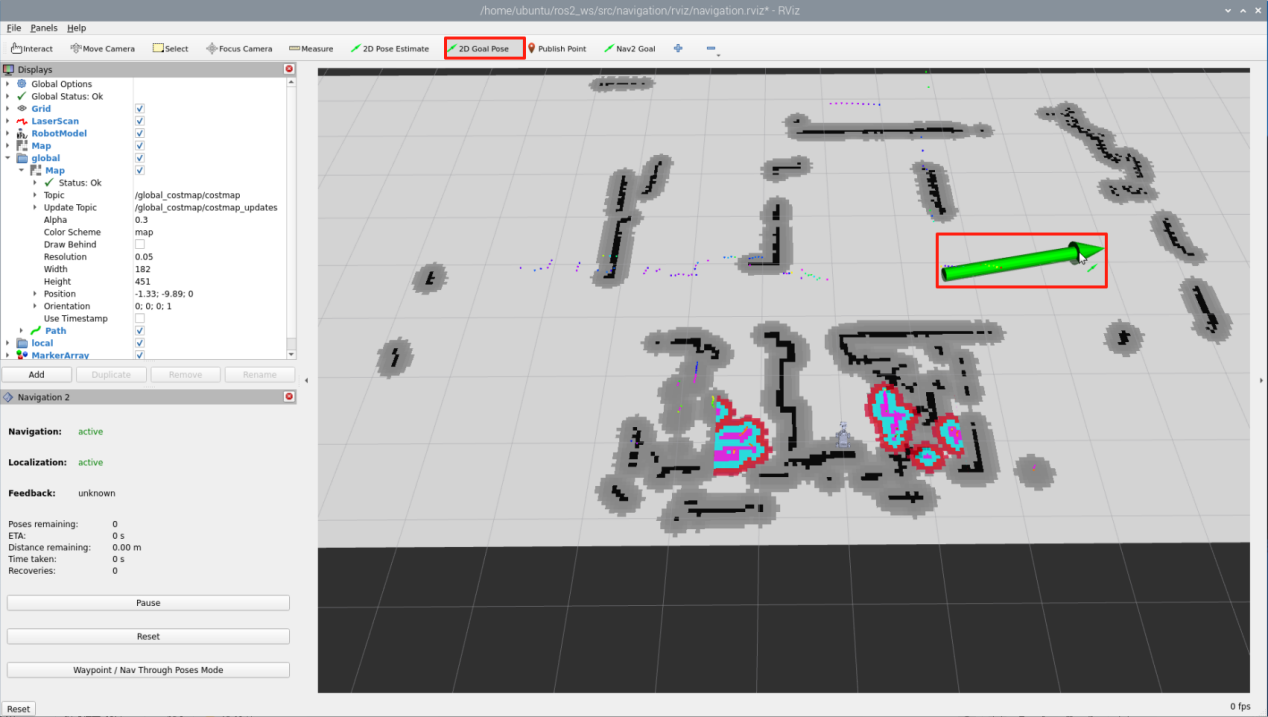
Return to the command terminal and check the published target-position parameters:

Find the corresponding section of the program shown below, then enter the desired target-position parameters after the matching location name.
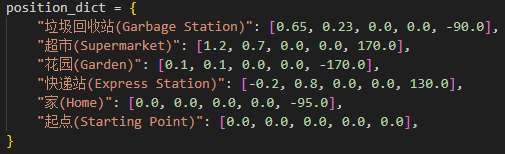
The different positions in the program are expressed as coordinates relative to the map origin, which is the robot’s starting point during mapping. The five parameters represent:
X coordinate, in meters.
Y coordinate, in meters.
Roll angle, rotation about the x-axis, in degrees.
Pitch angle, rotation about the y-axis, in degrees.
Yaw angle, rotation about the z-axis, in degrees.
For example, when the quaternion Quaternion(x=0.0, y=0.0, z=-0.5677173914973032, w=0.8232235197025761) is converted to Euler angles roll, pitch, yaw, the result is approximately roll ≈ 0°, pitch ≈ 0°, and yaw ≈ -69.3°.
12.4.5.4 Project Outcome
After the feature is started, commands can be spoken freely, for example, Go to the express station and bring back the red package. The robot first moves to the navigation point for the red block and picks it up, then moves to the navigation point for the blue box and places the red block inside.
12.4.5.5 Program Analysis
Brief Program Analysis
Launch File Analysis
Program path:
/home/ubuntu/ros2_ws/src/large_models_examples/large_models_examples/navigation_transport/vllm_navigation_transport.launch.py
① Importing Libraries
import os
from ament_index_python.packages import get_package_share_directory
from launch_ros.actions import Node
from launch_ros.actions import PushRosNamespace
from launch import LaunchDescription, LaunchService
from launch.substitutions import LaunchConfiguration
from launch.launch_description_sources import PythonLaunchDescriptionSource
from launch.actions import DeclareLaunchArgument, IncludeLaunchDescription, GroupAction, OpaqueFunction, TimerAction, ExecuteProcess
os: Used to handle file paths and operating-system-related functions.ament_index_python.packages.get_package_share_directory: Used to get the shared directory path of a ROS2 package.launch_ros.actions.Node: Used to define ROS2 nodes.launch.substitutions.LaunchConfiguration: Used to get parameter configurations in the launch file.LaunchDescription, LaunchService: Used to define and start launch files.launch_description_sources PythonLaunchDescriptionSource: Used to include other launch files.launch.actions.IncludeLaunchDescription,DeclareLaunchArgument,OpaqueFunction: Used to define actions and parameters in the launch file.
② Defining the launch_setup Function
def launch_setup(context):
jetauto_description_package_path = get_package_share_directory('jetauto_description')
slam_package_path = get_package_share_directory('slam')
navigation_package_path = get_package_share_directory('large_models_examples')
large_models_package_path = get_package_share_directory('large_models')
mode = LaunchConfiguration('mode', default=1)
mode_arg = DeclareLaunchArgument('mode', default_value=mode)
map_name = LaunchConfiguration('map', default='map_01').perform(context)
robot_name = LaunchConfiguration('robot_name', default=os.environ['HOST'])
master_name = LaunchConfiguration('master_name', default=os.environ['MASTER'])
map_name_arg = DeclareLaunchArgument('map', default_value=map_name)
master_name_arg = DeclareLaunchArgument('master_name', default_value=master_name)
robot_name_arg = DeclareLaunchArgument('robot_name', default_value=robot_name)
navigation_controller_launch = IncludeLaunchDescription(
PythonLaunchDescriptionSource(os.path.join(navigation_package_path, 'large_models_examples/navigation_transport/navigation_transport.launch.py')),
launch_arguments={
'map': map_name,
'debug': 'false',
'robot_name': robot_name,
'master_name': master_name,
}.items(),
)
large_models_launch = IncludeLaunchDescription(
PythonLaunchDescriptionSource(
os.path.join(large_models_package_path, 'launch/start.launch.py')),
launch_arguments={'mode': mode}.items(),
)
vllm_navigation_transport_node = Node(
package='large_models_examples',
executable='vllm_navigation_transport',
output='screen',
)
return [
mode_arg,
map_name_arg,
master_name_arg,
robot_name_arg,
navigation_controller_launch,
large_models_launch,
vllm_navigation_transport_node
]
Includes
navigation_transport.launch.pyin thelarge_models_examplespackage to start the file for reaching the target navigation point.large_models_launch: UsesIncludeLaunchDescriptionto includestart.launch.pyin thelarge_modelspackage and passes themodeparameter.vllm_navigation_transport_node: Defines a ROS2 node from thelarge_models_examplespackage, runs thevllm_navigation_transportexecutable, and prints the output to the screen.Finally, returns a list containing all launch actions.
③ Defining the generate_launch_description Function
def generate_launch_description():
return LaunchDescription([
OpaqueFunction(function = launch_setup)
])
This function is used to generate the launch description.
Uses
OpaqueFunctionto add thelaunch_setupfunction to the launch description.
④ Main Program Entry
if __name__ == '__main__':
# Create a LaunchDescription object.
ld = generate_launch_description()
ls = LaunchService()
ls.include_launch_description(ld)
ls.run()
ld = generate_launch_description(): Generates the launch description object.ls = LaunchService(): Creates a launch service object.ls.include_launch_description(ld): Adds the launch description to the launch service.ls.run(): Starts the launch service and executes all defined launch actions.Python File Analysis
Program path:
/home/ubuntu/ros2_ws/src/large_models_examples/large_models_examples/navigation_transport/vllm_navigation_transport.py
Importing Packages
import os
import re
import cv2
import time
import json
import rclpy
import queue
import threading
import numpy as np
from speech import speech
from rclpy.node import Node
from cv_bridge import CvBridge
from sensor_msgs.msg import Image
from std_msgs.msg import String, Bool
from std_srvs.srv import Trigger, SetBool, Empty
from large_models.config import *
from large_models_msgs.srv import SetModel, SetContent, SetString, SetInt32
from interfaces.srv import SetPose2D, SetPoint, SetBox
from rclpy.executors import MultiThreadedExecutor
from rclpy.callback_groups import ReentrantCallbackGroup
cv2: Used for image processing and display with OpenCV.json: Used to handle data in JSON format.time: Used to control execution delays and time management.queue: Used to manage image queues between threads.rclpy: Used for ROS2 node creation and communication.threading: Used to implement multithreading for parallel task processing.numpy (np): Used for matrix and vector operations.std_srvs.srv: ROS service types used to define standard services.std_msgs.msg: ROS message types.rclpy: Used for ROS2 node creation and communication.rclpy.node.Node: Base class for ROS2 nodes.rclpy.callback_groups.ReentrantCallbackGroup: Supports concurrent callback handling.rclpy.executors.MultiThreadedExecutor: ROS2 multithreaded executor used for handling multithreaded tasks.rclpy.node: Node class in ROS2.speech: Module related to large-model voice interaction.large_models_msgs.srv: Custom service types for the large model.large_models.config: Large-model configuration file.
PROMPT String
LLM_PROMPT = '''
## Role
As a language expert, deeply understand the user's instructions.
## Capabilities
* Analyze the user's instruction and treat one pick action plus one place action as a single task
* Strong logical reasoning and the ability to understand object modifiers
* Accurately break down the objects to be picked and placed
## Requirements
1. Based on the input content, find the corresponding instruction from the function library and output the corresponding command.
2. Multiple actions must be placed in a list.
3. Generate a concise, witty, and highly varied response for the action sequence, within 10 to 30 words, to make the interaction more engaging.
4. Transport consists of two stages: pick up and place down.
5. Move to the target location before picking or placing. If no location is specified, use the transported object as the default location.
6. Possible locations may include: blue block, blue box, red block, red box, green block, green box, origin.
7. Output JSON data directly. Do not analyze. Do not output any extra content.
8. Format: {"action": "xx", "response": "xx"}
## Available Functions and Operations
* Pick up an object: pick('blue block')
* Place onto a specified object: place('blue box')
* Move to a specified location: move('origin')
## Examples
Input: Pick up the block
Output: {"action": ["move('block')", "pick('block')"], "response": "Got it, block secured"}
Input: Put it in the box
Output: {"action": ["move('box')", "place('box')"], "response": "Understood, heading there now"}
Input: Go to the kitchen
Output: {"action": ["move('kitchen')"], "response": "Alright, setting off now"}
Input: Put it in the trash can in the kitchen
Output: {"action": ["move('kitchen')", "place('trash can')"], "response": "Got it, on the way"}
Input: Put the blue block into the blue box
Output: {"action": ["move('blue block')", "pick('blue block')", "move('blue box')", "place('blue box')"], "response": "Easy work for me"}
'''
Defines three prompt strings used to specify how instructions and image data should be handled, including the recognition-task rules and the output format.
VLLMObjectTransport Class
class VLLMNavigation(Node):
def __init__(self, name):
rclpy.init()
super().__init__(name)
self.action = []
self.response_text = ''
self.llm_result = ''
self.action_finish = False
self.transport_action_finish = False
self.play_audio_finish = False
# self.llm_result = '{\'action\':[\'move(\"前台\")\', \'vision(\"大门有没有关\")\', \'move(\"原点\")\', \'play_audio()\'], \'response\':\'马上!\'}'
self.running = True
self.reach_goal = False
self.interrupt = False
self.bridge = CvBridge()
self.image_queue = queue.Queue(maxsize=2)
timer_cb_group = ReentrantCallbackGroup()
self.client = speech.OpenAIAPI(api_key, base_url)
self.tts_text_pub = self.create_publisher(String, 'tts_node/tts_text', 1)
self.create_subscription(Image, 'usb_cam/image_raw', self.image_callback, 1)
self.create_subscription(String, 'agent_process/result', self.llm_result_callback, 1)
self.create_subscription(Bool, 'vocal_detect/wakeup', self.wakeup_callback, 1)
self.create_subscription(Bool, 'tts_node/play_finish', self.play_audio_finish_callback, 1, callback_group=timer_cb_group)
self.create_subscription(Bool, 'navigation_controller/reach_goal', self.reach_goal_callback, 1)
self.create_subscription(Bool, 'automatic_pick/action_finish', self.action_finish_callback, 1)
self.awake_client = self.create_client(SetBool, 'vocal_detect/enable_wakeup')
self.awake_client.wait_for_service()
self.set_mode_client = self.create_client(SetInt32, 'vocal_detect/set_mode')
self.set_mode_client.wait_for_service()
self.set_model_client = self.create_client(SetModel, 'agent_process/set_model')
self.set_model_client.wait_for_service()
self.set_prompt_client = self.create_client(SetString, 'agent_process/set_prompt')
self.set_prompt_client.wait_for_service()
self.set_vllm_content_client = self.create_client(SetContent, 'agent_process/set_vllm_content')
self.set_vllm_content_client.wait_for_service()
self.set_pose_client = self.create_client(SetPose2D, 'navigation_controller/set_pose')
self.set_pose_client.wait_for_service()
# self.set_target_client = self.create_client(SetPoint, 'automatic_pick/set_target_color')
# self.set_target_client.wait_for_service()
self.set_box_client = self.create_client(SetBox, 'automatic_pick/set_box')
self.set_box_client.wait_for_service()
self.set_pick_client = self.create_client(Trigger, 'automatic_pick/pick')
self.set_pick_client.wait_for_service()
self.set_place_client = self.create_client(Trigger, 'automatic_pick/place')
self.set_place_client.wait_for_service()
self.timer = self.create_timer(0.0, self.init_process, callback_group=timer_cb_group)
rclpy.init(): Initializes the ROS2 system.super().__init__(name): Calls the parent class initialization method to create a ROS2 node.self.llm_result: Stores the result returned by the LLM.self.running: Controls the program running state.self.transport_finished: Indicates whether the transport task is completed.self.tts_text_pub: Publishes the ROS topic for TTS text.self.create_subscription: Subscribes to the LLM result and transport completion status.self.lock: Thread lock used for multithread synchronization.self.client: Voice API client used to interact with the speech service.self.tts_text_pub: Publishes the ROS topic for TTS text.self.asr_pub: Publishes the ROS topic for speech-recognition results.self.create_subscription: Subscribes to the LLM result and transport completion status.self.create_client: Creates multiple service clients used to call different functions.self.timer: Creates a timer used to trigger the initialization process.
get_node_state Method
def get_node_state(self, request, response):
return response
return response: Returns the response object.
init_process Method
def init_process(self):
self.timer.cancel()
msg = SetModel.Request()
msg.model = llm_model
msg.model_type = 'llm'
msg.api_key = api_key
msg.base_url = base_url
self.send_request(self.set_model_client, msg)
msg = SetString.Request()
msg.data = LLM_PROMPT
self.send_request(self.set_prompt_client, msg)
init_finish = self.create_client(Empty, 'navigation_controller/init_finish')
init_finish.wait_for_service()
speech.play_audio(start_audio_path)
threading.Thread(target=self.process, daemon=True).start()
self.create_service(Empty, '~/init_finish', self.get_node_state)
self.get_logger().info('\033[1;32m%s\033[0m' % 'start')
self.get_logger().info('\033[1;32m%s\033[0m' % LLM_PROMPT)
self.timer.cancel(): Cancels the timer.SetModel.Request: Request message used to set the LLM model.SetModel.Request(): Creates aSetModelservice request.msg.model_type = 'llm': Specifies the model type asllm.self.send_request(self.set_model_client, msg): Sends the request throughset_model_clientto configure the model.SetString.Request: Request message used to set the prompt string.self.send_request(self.set_prompt_client, msg): Sends the request throughset_prompt_clientto configure the prompt.Empty.Request: Request message used to clear the dialogue history.self.send_request(self.clear_chat_client, msg): Sends the request throughclear_chat_client.self.create_client(Empty, 'object_transport/init_finish'): Creates a client used to call theobject_transport/init_finishservice.init_finish.wait_for_service(): Waits until the service becomes available.self.send_request(self.enter_client, Trigger.Request()): Sends aTriggerrequest throughenter_client.speech.play_audio: Plays the audio prompt.threading.Thread: Starts the main logic thread.self.create_service: Creates a service used to notify that initialization has been completed.self.get_logger().info: Prints log information.
send_request Method
def send_request(self, client, msg):
future = client.call_async(msg)
while rclpy.ok():
if future.done() and future.result():
return future.result()
client.call_async(msg): Calls the service asynchronously.future.done()andfuture.result(): Check whether the service call has finished and return the result.
vllm_result_callback Method
def llm_result_callback(self, msg):
self.llm_result = msg.data
Receives the result from the agent_process/result topic and stores it in self.vllm_result.
get_object_position Method
def get_object_position(self, query, image):
msg = SetContent.Request()
if language == 'Chinese':
msg.api_key = stepfun_api_key
msg.base_url = stepfun_base_url
msg.model = stepfun_vllm_model
else:
msg.api_key = vllm_api_key
msg.base_url = vllm_base_url
msg.model = vllm_model
msg.prompt = VLLM_PROMPT
msg.query = query
msg.image = self.bridge.cv2_to_imgmsg(image, "bgr8")
self.get_logger().info('vision: %s' % query)
self.get_logger().info('send image')
res = self.send_request(self.set_vllm_content_client, msg)
vllm_result = res.message
if 'object' in vllm_result:
if vllm_result.startswith("```") and vllm_result.endswith("```"):
vllm_result = vllm_result.strip("```").replace("json\n", "").strip()
self.get_logger().info('vllm_result: %s' % vllm_result)
vllm_result = json.loads(vllm_result)
box = vllm_result['xyxy']
h, w = image.shape[:2]
box = self.client.data_process(box, w, h)
self.get_logger().info('box: %s' % str(box))
# box_center = [(box[0] + box[2]) / 2 / 640, (box[1] + box[3]) / 2 / 480]
# self.get_logger().info('box_center: %s' % str(box_center))
return box
else:
msg = String()
msg.data = vllm_result
self.tts_text_pub.publish(vllm_result)
return []
query: Query request.image: Input image data.offset: Offset of the placement position.SetContent.Request: Request message used to set the LLM content.self.get_logger().info: Prints log information.self.send_request: Sends the service request.res.message: Extracts the message content from the response.if 'object' in vllm_result: Checks whether the result contains object information.if vllm_result.startswith("") and vllm_result.endswith(""): Checks the message format.vllm_result.strip("").replace("json\n", "").strip(): Cleans the message content by removing code block markers, removing the"json\n"prefix, removing leading and trailing whitespace, and extracting the pure JSON content.json.loads(message): Parses the extracted JSON string into a Python dictionary.vllm_result.message: Extracts the message content from the response.box = self.client.data_process(box, w, h): Processes the bounding box of the placement position.self.tts_text_pub.publish(msg): Publishes the message.
pick Method
Trigger Grasp Preparation
self.send_request(self.set_pick_client, Trigger.Request()): Sends the trigger request to the grasping service.
This may place the robotic arm into the grasp-preparation state.
Get the Image
image = self.image_queue.get(block=True): Gets the latest image from the image queue.
block=True means that if the queue is empty, the process waits until an image becomes available.
Recognize the Target Object
box = self.get_object_position(query, image): Calls get_object_position to recognize the object.
Passes in the query string and image, then gets the bounding-box coordinates of the object.
Process the Recognition Result
if box:: Checks whether the object has been recognized successfully.
If the recognition succeeds, the bounding-box information is recorded and processing continues.
Create the Bounding-box Request
msg = SetBox.Request(): Creates the request message used to set the bounding box.
Set the bounding-box coordinates:
msg.x_min = box[0]
msg.y_min = box[1]
msg.x_max = box[2]
msg.y_max = box[3]
Send the Bounding Box to the Grasping Node
self.log_info("Step 5: Send the bounding box to the automatic_pick node"): Records the log for sending the bounding box.
self.send_request(self.set_box_client, msg): Sends the bounding-box request to the grasping node.
This allows the grasping node to know the position of the object to be picked.
place Method
Same analysis as above.
transport_finished_callback Method

Receives updates on the transport-completion status.
process Method
def process(self):
while self.running:
if self.llm_result:
self.interrupt = False
msg = String()
if 'action' in self.llm_result: # If there is a corresponding action returned, extract and process it
result = eval(self.llm_result[self.llm_result.find('{'):self.llm_result.find('}')+1])
if 'response' in result:
msg.data = result['response']
self.tts_text_pub.publish(msg)
if 'action' in result:
action = result['action']
self.get_logger().info(f'vllm action: {action}')
for a in action:
if 'move' in a:
self.reach_goal = False
eval(f'self.{a}')
while not self.reach_goal:
# if self.interrupt:
# self.get_logger().info('interrupt')
# break
# self.get_logger().info('waiting for reach goal')
time.sleep(0.01)
elif 'pick' in a or 'place' in a:
time.sleep(3)
eval(f'self.{a}')
self.transport_action_finish = False
while not self.transport_action_finish:
# if self.interrupt:
# self.get_logger().info('interrupt')
# break
time.sleep(0.01)
# if self.interrupt:
# self.get_logger().info('interrupt')
# break
else: # If there is no corresponding action, just respond
msg.data = self.llm_result
self.tts_text_pub.publish(msg)
self.action_finish = True
self.llm_result = ''
else:
time.sleep(0.01)
if self.play_audio_finish and self.action_finish:
self.play_audio_finish = False
self.action_finish = False
# msg = SetInt32.Request()
# msg.data = 2
# self.send_request(self.set_mode_client, msg)
msg = SetBool.Request()
msg.data = True
self.send_request(self.awake_client, msg)
rclpy.shutdown()
while self.running: This is a loop. As long asself.runningisTrue, it keeps running.if self.vllm_result: Checks whetherself.vllm_resulthas a value.self.vllm_resultis the result returned by the vllm model.self.interrupt = False: Resets the interrupt flag.if 'action' in self.llm_result: Checks whether the result contains action instructions.result = eval(self.llm_result[...]): Extracts and parses the JSON result.if 'response' in result: Checks whether the result contains response text.msg.data = result['response']: Sets the response text.self.tts_text_pub.publish(msg): Publishes the response text.if 'action' in result: Checks whether the result contains an action list.action = result['action']: Gets the action list.if 'move' in a: Checks whether it is a move action.self.reach_goal = False: Resets the reach-goal flag.eval(f'self.{a}'): Executes the move command.while not self.reach_goal: Waits until the goal is reached.elif 'pick' in a or 'place' in a: Checks whether it is a pick or place action.eval(f'self.{a}'): Executes the pick or place command.self.transport_action_finish = False: Resets the action-completion flag.while not self.transport_action_finish: Waits for the action to complete.Interrupt handling
if self.interrupt: Checks whether the process has been interrupted.No-action response handling
else: # If there is no corresponding action, just respond: Handles the case where there is no matching action.Completion handling
self.action_finish = True: Marks the action as completed.Waiting handling
else: time.sleep(0.01): Brief sleep.Mode switching
if self.play_audio_finish and self.action_finish: Checks whether all tasks are complete. If both are complete, the system prepares to switch to the next mode.End handling
rclpy.shutdown(): Shuts down the ROS2 system.for a in action: Iterates through the action list and executes it.
main Method
def main():
node = VLLMNavigation('vllm_navigation')
executor = MultiThreadedExecutor()
executor.add_node(node)
executor.spin()
node.destroy_node()
Creates an instance of the
VLLMNavigationnode.Uses a multithreaded executor to handle node tasks.
Calls
executor.spin()to start processing ROS events.When the node is destroyed, calls
node.destroy_node().
12.5 Offline Large AI Model Applications
12.5.1 Preparation
Firmware must be flashed to the AI voice box before running the feature.
First, connect WonderEcho Pro to the computer with a Type-C data cable.
Open PACK_UPDATE_TOOL.exe under 2. Softwares\6. Firmware Flashing Tool, select the CI1302 chip, then click Update.
The following steps use CI1302-English-SingleMic_V00916_UART0_115200_2M.bin as an example. The same procedure also applies to flashing the Chinese wake word firmware.
Click to select the firmware, then locate CI1302-English-SingleMic_V00916_UART0_115200_2M.bin under the Voice Control Basic Lesson (2025)/WonderEcho Pro/05 Appendix path.
Find the corresponding serial port and select it.
Then press the RST button on the voice interaction module to enter flashing mode. Wait until the flashing process is completed successfully.
Change the ASR Mode to offline.

Then, click Save.
A Save Success message will confirm that the configuration has been stored in the system environment.
Then, click Quit to close the interface.
12.5.2 Offline Large AI Model Basic Course
12.5.2.1 Speech-to-Text Test
Working Principle
This section demonstrates offline real-time speech recognition using sherpa-onnx. Audio is captured from the voice module via sounddevice in 100 ms chunks. Recognition is performed locally using a pre-trained transducer model with encoder, decoder, and joiner components. Endpoint detection is used to determine when speech ends based on trailing silence duration and utterance length. Once an endpoint is detected, the final recognition result is output and the recognition stream is reset. The process is handled in a streaming manner, updating intermediate results every 100 ms and displaying them in real time on the terminal.
Preparation
Reference Tutorial: 12.5.1 Preparation.
Operation Steps
1) Open the command line terminal  from the left sidebar. Disable the app auto-start service and navigate to the
 ~/third_party/sherpa-onnx directory.
sudo systemctl stop start_app_node.service
cd ~/third_party/sherpa-onnx
2) Run the command to start the speech-to-text test.
python3 python-api-examples/speech-recognition-from-microphone-with-endpoint-detection.py \
--encoder ./sherpa-onnx-streaming-zipformer-zh-xlarge-int8-2025-06-30/encoder.int8.onnx \
--decoder ./sherpa-onnx-streaming-zipformer-zh-xlarge-int8-2025-06-30/decoder.onnx \
--joiner ./sherpa-onnx-streaming-zipformer-zh-xlarge-int8-2025-06-30/joiner.int8.onnx \
--tokens ./sherpa-onnx-streaming-zipformer-zh-xlarge-int8-2025-06-30/tokens.txt

3) When the prompt below appears, the voice module is ready to receive audio input.

4) If text starts appearing as shown, the voice module is working properly.
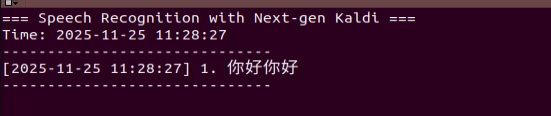
5) If no text is displayed, adjust the audio settings:
Open the dropdown ① and select Settings.
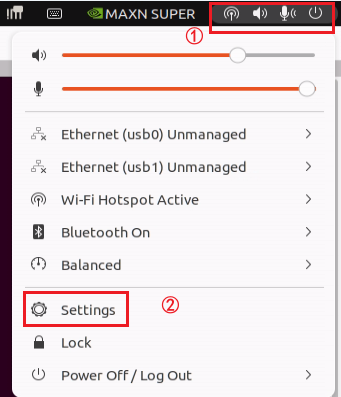
Go to Sound, set Output Device to Speakers-USB Audio Device and Input to Analog Input-XFM-DP-V0.0.18, and close the settings after making the changes.
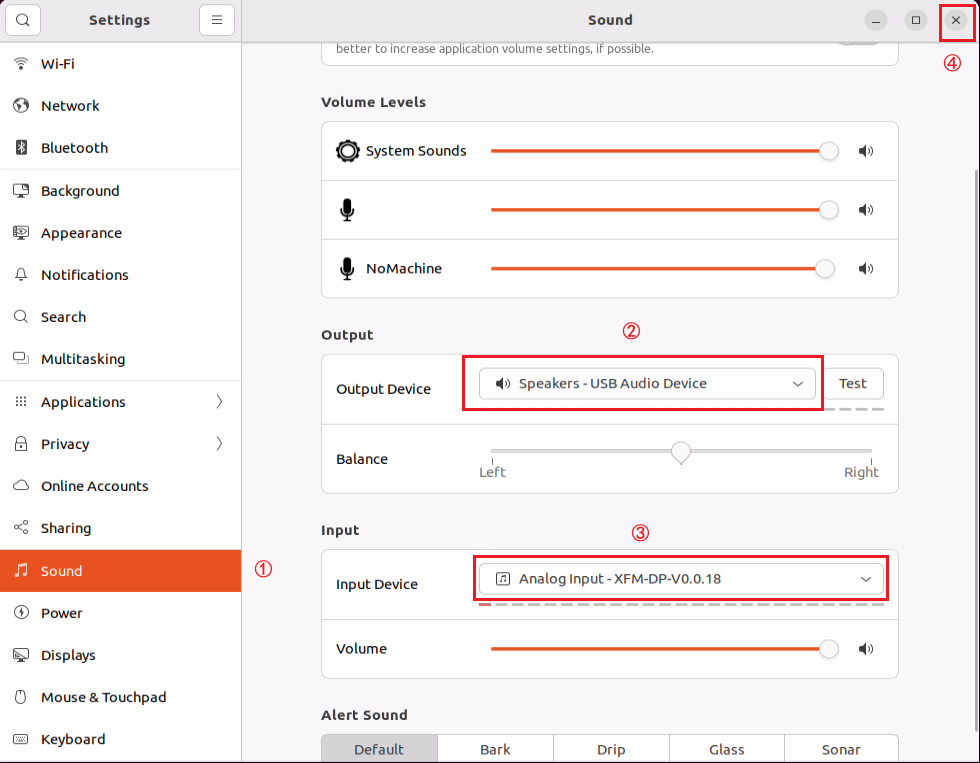
Program Analysis
File Path: /home/ubuntu/third_party/sherpa-onnx/python-api-examples/speech-recognition-from-microphone-with-endpoint-detection.py.
1) Import library files.
import argparse
import sys
from pathlib import Path
try:
import sounddevice as sd
except ImportError:
print("Please install sounddevice first. You can use")
print()
print(" pip install sounddevice")
print()
print("to install it")
sys.exit(-1)
import sherpa_onnx
2) def assert_file_exists(filename: str)
Checks whether a model file exists using Path. If the file is missing, a download link is provided.
def assert_file_exists(filename: str):
assert Path(filename).is_file(), (
f"{filename} does not exist!\n"
"Please refer to "
"https://k2-fsa.github.io/sherpa/onnx/pretrained_models/index.html to download it"
)
3) def get_args()
Parameter categories:
Required parameters: --tokens, --encoder, --decoder, and --joiner, all specifying the paths to the model files.
Optional parameters:
--decoding-method: Decoding method, default is greedy_search.
--provider: Compute backend, options include cpu, cuda, and coreml.
--hotwords-file: Hotword file to improve recognition of specific terms.
--hotwords-score: Weight for hotwords.
--blank-penalty: Penalty for blank symbols.
--hr-lexicon, --hr-rule-fsts: Homophone replacement related.
def get_args():
parser = argparse.ArgumentParser(
formatter_class=argparse.ArgumentDefaultsHelpFormatter
)
parser.add_argument(
"--tokens",
type=str,
required=True,
help="Path to tokens.txt",
)
parser.add_argument(
"--encoder",
type=str,
required=True,
help="Path to the encoder model",
)
parser.add_argument(
"--decoder",
type=str,
required=True,
help="Path to the decoder model",
)
parser.add_argument(
"--joiner",
type=str,
required=True,
help="Path to the joiner model",
)
parser.add_argument(
"--decoding-method",
type=str,
default="greedy_search",
help="Valid values are greedy_search and modified_beam_search",
)
parser.add_argument(
"--provider",
type=str,
default="cpu",
help="Valid values: cpu, cuda, coreml",
)
parser.add_argument(
"--hotwords-file",
type=str,
default="",
help="""
The file containing hotwords, one words/phrases per line, and for each
phrase the bpe/cjkchar are separated by a space. For example:
▁HE LL O ▁WORLD
""",
)
parser.add_argument(
"--hotwords-score",
type=float,
default=1.5,
help="""
The hotword score of each token for biasing word/phrase. Used only if
--hotwords-file is given.
""",
)
parser.add_argument(
"--blank-penalty",
type=float,
default=0.0,
help="""
The penalty applied on blank symbol during decoding.
Note: It is a positive value that would be applied to logits like
this `logits[:, 0] -= blank_penalty` (suppose logits.shape is
[batch_size, vocab] and blank id is 0).
""",
)
parser.add_argument(
"--hr-lexicon",
type=str,
default="",
help="If not empty, it is the lexicon.txt for homophone replacer",
)
parser.add_argument(
"--hr-rule-fsts",
type=str,
default="",
help="If not empty, it is the replace.fst for homophone replacer",
)
return parser.parse_args()
4) def create_recognizer(args)
Function to create the recognizer.
Key settings:
Model type: Transducer (encoder, decoder, joiner).
Sample rate: 16 kHz, used internally by the model.
Feature dimension: 80 for Mel spectrogram features.
Endpoint detection: Enabled.
Rule 1: Trailing silence ≥ 2.4 s.
Rule 2: Trailing silence ≥ 1.2 s.
Rule 3: Utterance length ≥ 300, currently disabled.
def create_recognizer(args):
assert_file_exists(args.encoder)
assert_file_exists(args.decoder)
assert_file_exists(args.joiner)
assert_file_exists(args.tokens)
# Please replace the model files if needed.
# See https://k2-fsa.github.io/sherpa/onnx/pretrained_models/index.html
# for download links.
recognizer = sherpa_onnx.OnlineRecognizer.from_transducer(
tokens=args.tokens,
encoder=args.encoder,
decoder=args.decoder,
joiner=args.joiner,
num_threads=1,
sample_rate=16000,
feature_dim=80,
enable_endpoint_detection=True,
rule1_min_trailing_silence=2.4,
rule2_min_trailing_silence=1.2,
rule3_min_utterance_length=300, # it essentially disables this rule
decoding_method=args.decoding_method,
provider=args.provider,
hotwords_file=args.hotwords_file,
hotwords_score=args.hotwords_score,
blank_penalty=args.blank_penalty,
hr_rule_fsts=args.hr_rule_fsts,
hr_lexicon=args.hr_lexicon,
)
return recognizer
5) def main()
Parses parameters and detects devices.
args = get_args()
devices = sd.query_devices()
if len(devices) == 0:
print("No microphone devices found")
sys.exit(0)
print(devices)
Creates the recognizer and display objects, then starts the audio capture loop.
recognizer = create_recognizer(args)
print("Started! Please speak")
Starts the audio capture loop at 48 kHz, reading 100 ms of audio each time, which equals 4800 samples.
sample_rate = 48000
samples_per_read = int(0.1 * sample_rate) # 0.1 second = 100 mspy
Feeds audio into the recognition stream for decoding.
stream = recognizer.create_stream()
display = sherpa_onnx.Display()
The audio capture loop runs at 48 kHz, reading 100 ms of audio at a time, which is 4800 samples. The data is fed into the recognition stream for decoding, endpoints are checked to obtain results, and intermediate outputs are displayed in real time. When an endpoint is detected, the current sentence is finalized and the recognition stream is reset.
with sd.InputStream(channels=1, dtype="float32", samplerate=sample_rate) as s:
while True:
samples, _ = s.read(samples_per_read) # a blocking read
samples = samples.reshape(-1)
stream.accept_waveform(sample_rate, samples)
while recognizer.is_ready(stream):
recognizer.decode_stream(stream)
is_endpoint = recognizer.is_endpoint(stream)
result = recognizer.get_result(stream)
display.update_text(result)
display.display()
if is_endpoint:
if result:
display.finalize_current_sentence()
display.display()
recognizer.reset(stream)
12.5.2.2 Text-to-Speech Test
Working Principle
The system uses a client-server setup, where the client communicates with the local Ollama service through an API to convert text into speech offline.
Preparation
Reference Tutorial: 12.5.1 Preparation.
Operation Steps
1) Open the command line terminal from the left sidebar, enter the command to disable the app auto-start service.
sudo systemctl stop start_app_node.service
2) Enter the command to start the offline large AI model server.
ollama serve

3) Right-click and select Split Vertically to open a second terminal.
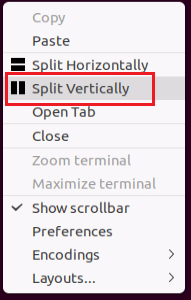
4) Enter the command to run the text-to-speech program.
cd ~/large_models
python3 offline_tts_demo.py
5) After running the program, the output appears as shown below, and the voice module plays Hello, what can I help you.
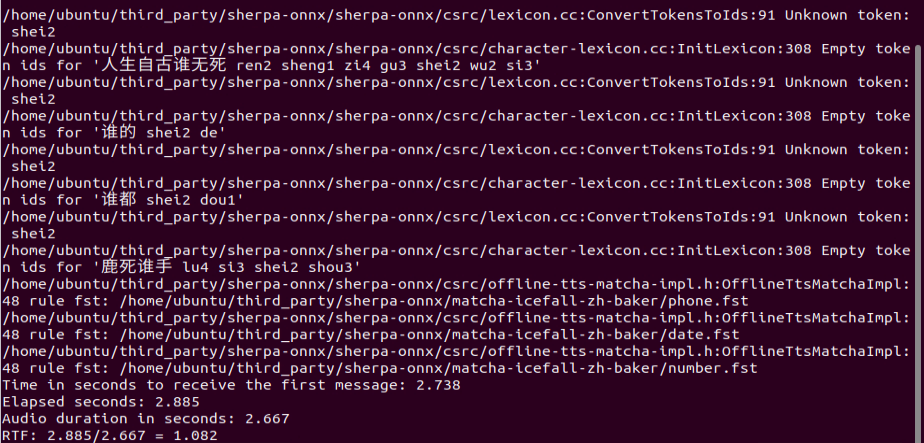
Program Analysis
File Path: /home/ubuntu/large_models/offline_tts_demo.py.
1) Import modules.
import os
from config import *
from speech import speech
import sherpa_onnx
from pathlib import Path
2) Initialize configuration.
Set the volume.
speech.set_volume(80)
Set the language to English.
language = 'Chinese'
Model path.
sherpa_onnx_path = os.path.join(Path.home(), 'third_party/sherpa-onnx')
if language == 'Chinese':
offline_tts = 'matcha-icefall-zh-baker'
model_path = f'{sherpa_onnx_path}/{offline_tts}'
tts = speech.OfflineRealTimeTTS(
provider="cuda",
debug=1,
matcha_acoustic_model=os.path.join(model_path, 'model-steps-3.onnx'),
matcha_vocoder=os.path.join(sherpa_onnx_path, 'vocos-22khz-univ.onnx'),
matcha_lexicon=os.path.join(model_path, 'lexicon.txt'),
matcha_tokens=os.path.join(model_path, 'tokens.txt'),
tts_rule_fsts=f'{model_path}/phone.fst,{model_path}/date.fst,{model_path}/number.fst',
sherpa = sherpa_onnx
)
4) English Model
Configure parameters using VITS.
else:
offline_tts = 'vits-ljs'
model_path = f'{sherpa_onnx_path}/{offline_tts}'
tts = speech.OfflineRealTimeTTS(
provider="cuda",
debug=1,
vits_model=os.path.join(model_path, f'{offline_tts}.onnx'),
vits_lexicon=os.path.join(model_path, 'lexicon.txt'),
vits_tokens=os.path.join(model_path, 'tokens.txt'),
sherpa = sherpa_onnx
)
5) Example
tts.tts('Hello, what can I help you', block=True)
12.5.2.3 Large AI Model Invocation
Working Principle
Uses a client-server architecture. The client communicates with the local Ollama service via API. By defining roles and tasks, the model interprets the context and generates structured outputs in the required format, leveraging its ability to follow instructions and produce structured responses.
Preparation
Reference Tutorial: 12.5.1 Preparation.
Operation Steps
1) Open the command line terminal from the left sidebar, enter the command to disable the app auto-start service.
sudo systemctl stop start_app_node.service
2) Enter the command to start the offline large AI model server.
ollama serve
3) Right-click and select Split Vertically to open a second terminal.
4) Enter the command to launch the demo script for large-model calls.
cd ~/large_models
python3 offline_llm_demo.py
5) Once the script is running, the terminal shows the output as illustrated.
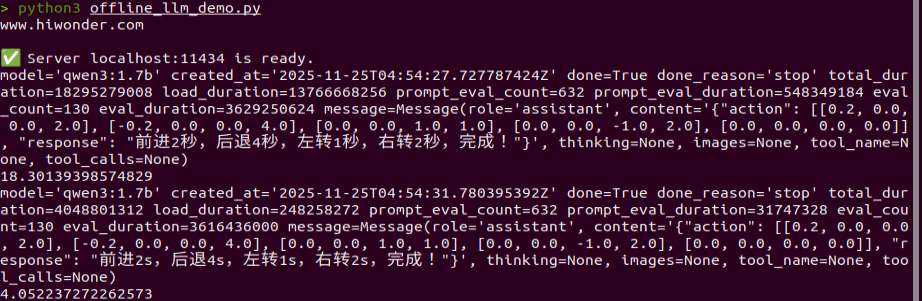
Program Analysis
File Path: /home/ubuntu/large_models/offline_llm_demo.py.
1) The prompt template.
PROMPT = '''
##Role Task
You are an intelligent robot car that can control the linear velocity in the x and y directions (in m/s), the angular velocity in the z direction (in rad/s), and time (t) in seconds. Based on the input, generate the corresponding commands.
##Requirements
1. Ensure the speed range is correct:
Linear velocity: x, y ∈ [-1.0, 1.0] (negative values represent reverse direction)
Angular velocity: z ∈ [-1.0, 1.0] (counterclockwise is positive, clockwise is negative)
2. Execute multiple actions sequentially and output an action list containing multiple movement commands. Add [0.0, 0.0, 0.0, 0.0] only after the last action to ensure the robot stops.
3. x and y default to 0.2, z defaults to 1, t defaults to 2.
4. For each action sequence, craft a concise (5 to 10 words), witty, and endlessly varied feedback message to make the interaction fun.
5. Output the json result directly without analysis or additional content.
6. Format:
{
"action": [[x1, y1, z1, t1], [x2, y2, z2, t2], ..., [0.0, 0.0, 0.0, 0.0]],
"response": "xx"
}
7. Strong mathematical computation ability.
8. Note that drifting involves movement, rotation, and combination, requiring precise calculation, for example [0.0, -0.2, 1.0, 2.0].
##Notes
- The "action" key contains an array of function name strings ordered by execution sequence. If the corresponding action function is not found, the action will output [].
- The "response" key contains a carefully crafted short reply that perfectly fits the above word count and style requirements.
##Example Task
Input: Move forward for 2 seconds, then rotate clockwise for 1 second.
Output: {"action": [[0.2, 0.0, 0.0, 2.0], [0.0, 0.0, -1.0, 1.0], [0, 0, 0.0, 0.0]], "response": "Move forward for 2 seconds, then rotate clockwise for 1 second, go!"}
Input: Move forward 1 meter.
Output: {"action": [[0.2, 0.0, 0.0, 5.0], [0.0, 0.0, 0.0, 0.0]], "response": "OK."}
'''
2) The message format used in Chat API mode.
params = {"model": 'qwen3:1.7b',
"messages": [
{
"role": "system",
"content": PROMPT
},
{
"role": "user",
"content": user_input
},
],
3) Sending a request to the local ollama server.
client.llm_origin(params)
12.5.2.4 Semantic Understanding
Working Principle
The system uses a client–server setup to interact with the local ollama service. The model processes a prepared text passage and generates a concise semantic summary.
Preparation
Reference Tutorial: 12.5.1 Preparation.
Operation Steps
1) Open the command line terminal from the left sidebar, enter the command to disable the app auto-start service.
sudo systemctl stop start_app_node.service
2) Enter the command to start the offline large AI model server.
ollama serve
3) Right-click and select Split Vertically to open a second terminal.
4) Enter the command to run the program.
cd ~/large_models
python3 offline_llm_nlu_demo.py
5) Once the script is running, the terminal shows the output as illustrated.

12.5.2.5 Emotion Perception
Working Principle
The system uses a client–server setup to communicate with the local ollama service. The model receives short emotion-related descriptions and generates its interpretation, allowing an evaluation of its ability to recognize emotional cues.
Preparation
Reference Tutorial: 12.5.1 Preparation.
Operation Steps
1) Open the command line terminal from the left sidebar, enter the command to disable the app auto-start service.
sudo systemctl stop start_app_node.service
2) Enter the command to start the offline large AI model server.
ollama serve
3) Right-click and select Split Vertically to open a second terminal.
4) Enter the command to run the program.
cd ~/large_models
python3 offline_llm_er_demo.py
5) Once the script is running, the terminal shows the output as illustrated.

Program Analysis
File Path: /home/ubuntu/large_models/offline_llm_er_demo.py.
1) Initialize the API client.
client = speech.OllamaAPI(ollama_host)
2) Send the emotion-related prompt to the ollama server.
messages = [{"role": "user", "content": 'Annoying'}]
assistant_output = client.llm_multi_turn(messages, model='qwen3:1.7b')
3) Store the dialogue history from the previous turn.
messages.append({"role": "assistant", "content": assistant_output})
4) Proceed to the next turn.
Call llm_multi_turn again with the full conversation history included.
messages.append({"role": "user", "content": 'Laughing'})
assistant_output = client.llm_multi_turn(messages, model='qwen3:1.7b')
12.5.2.6 Recording Test
Working Principle
The system uses a client–server setup to communicate with the local ollama service. The model receives short emotion-related descriptions and generates its interpretation, allowing an evaluation of its ability to recognize emotional cues.
Preparation
Reference Tutorial: 12.5.1 Preparation.
Operation Steps
1) Open the command line terminal from the left sidebar, enter the command to disable the app auto-start service.
sudo systemctl stop start_app_node.service
2) Enter the command to start the streaming ASR server.
python3 third_party/sherpa-onnx/python-api-examples/streaming_server.py \
--tokens=third_party/sherpa-onnx/sherpa-onnx-streaming-zipformer-zh-xlarge-int8-2025-06-30/tokens.txt \
--encoder=third_party/sherpa-onnx/sherpa-onnx-streaming-zipformer-zh-xlarge-int8-2025-06-30/encoder.int8.onnx \
--decoder=third_party/sherpa-onnx/sherpa-onnx-streaming-zipformer-zh-xlarge-int8-2025-06-30/decoder.onnx \
--joiner=third_party/sherpa-onnx/sherpa-onnx-streaming-zipformer-zh-xlarge-int8-2025-06-30/joiner.int8.onnx \
--doc-root=third_party/sherpa-onnx/python-api-examples/web
3) Right-click and select Split Vertically to open a second terminal.
4) Enter the command to launch the audio-recording program.
cd ~/large_models
python3 offline_asr_demo.py
5) Once Recording······ appears, the module has started capturing audio and speech input can be provided. The recognized text will be printed in the terminal, as shown in the figure.
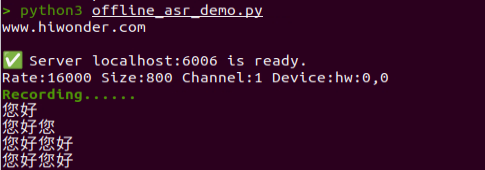
6) The recorded audio can be played from the path ~/large_models/resources/audio.
cd ~/large_models/resources/audio
aplay test_recording.wav

Program Analysis
Streaming ASR server script path: /home/ubuntu/third_party/sherpa-onnx/python-api-examples/streaming_server.py.
Audio recording script path: /home/ubuntu/large_models/offline_asr_demo.py.
Audio file path: /home/ubuntu/large_models/resources/audio/test_recording.wav.
Streaming ASR Server streaming_server.py Program Analysis:
Client → WebSocket → Receive audio → Recognition stream → Queue → Batch processing → Recognizer decoding → Return results → Client.
1) Import modules.
import argparse
import asyncio
import http
import json
import logging
import socket
import ssl
from concurrent.futures import ThreadPoolExecutor
from datetime import datetime
from pathlib import Path
from typing import List, Optional, Tuple
import numpy as np
import sherpa_onnx
import websockets
from http_server import HttpServer
2) Configure the logging system.
Logs include timestamps and filenames, output to both file and console.
def setup_logger(
log_filename: str,
log_level: str = "info",
use_console: bool = True,
) -> None:
"""Setup log level.
Args:
log_filename:
The filename to save the log.
log_level:
The log level to use, e.g., "debug", "info", "warning", "error",
"critical"
use_console:
True to also print logs to console.
"""
now = datetime.now()
date_time = now.strftime("%Y-%m-%d-%H-%M-%S")
formatter = "%(asctime)s %(levelname)s [%(filename)s:%(lineno)d] %(message)s"
log_filename = f"{log_filename}-{date_time}.txt"
Path(log_filename).parent.mkdir(parents=True, exist_ok=True)
level = logging.ERROR
if log_level == "debug":
level = logging.DEBUG
elif log_level == "info":
level = logging.INFO
elif log_level == "warning":
level = logging.WARNING
elif log_level == "critical":
level = logging.CRITICAL
logging.basicConfig(
filename=log_filename,
format=formatter,
level=level,
filemode="w",
)
if use_console:
console = logging.StreamHandler()
console.setLevel(level)
console.setFormatter(logging.Formatter(formatter))
logging.getLogger("").addHandler(console)
3) Model parameters.
def add_model_args(parser: argparse.ArgumentParser):
parser.add_argument(
"--encoder",
type=str,
help="Path to the transducer encoder model",
)
parser.add_argument(
"--decoder",
type=str,
help="Path to the transducer decoder model.",
)
parser.add_argument(
"--joiner",
type=str,
help="Path to the transducer joiner model.",
)
parser.add_argument(
"--zipformer2-ctc",
type=str,
help="Path to the model file from zipformer2 ctc",
)
parser.add_argument(
"--wenet-ctc",
type=str,
help="Path to the model.onnx from WeNet",
)
parser.add_argument(
"--paraformer-encoder",
type=str,
help="Path to the paraformer encoder model",
)
parser.add_argument(
"--paraformer-decoder",
type=str,
help="Path to the paraformer decoder model.",
)
parser.add_argument(
"--tokens",
type=str,
required=True,
help="Path to tokens.txt",
)
parser.add_argument(
"--sample-rate",
type=int,
default=16000,
help="Sample rate of the data used to train the model. "
"Caution: If your input sound files have a different sampling rate, "
"we will do resampling inside",
)
parser.add_argument(
"--feat-dim",
type=int,
default=80,
help="Feature dimension of the model",
)
parser.add_argument(
"--provider",
type=str,
default="cpu",
help="Valid values: cpu, cuda, coreml",
)
4) Decoding parameters.
def add_decoding_args(parser: argparse.ArgumentParser):
parser.add_argument(
"--decoding-method",
type=str,
default="greedy_search",
help="""Decoding method to use. Current supported methods are:
- greedy_search
- modified_beam_search
""",
)
add_modified_beam_search_args(parser)
5) Endpoint detection parameters.
def add_endpointing_args(parser: argparse.ArgumentParser):
parser.add_argument(
"--use-endpoint",
type=int,
default=1,
help="1 to enable endpoiting. 0 to disable it",
)
parser.add_argument(
"--rule1-min-trailing-silence",
type=float,
default=2.4,
help="""This endpointing rule1 requires duration of trailing silence
in seconds) to be >= this value""",
)
parser.add_argument(
"--rule2-min-trailing-silence",
type=float,
default=1.2,
help="""This endpointing rule2 requires duration of trailing silence in
seconds) to be >= this value.""",
)
parser.add_argument(
"--rule3-min-utterance-length",
type=float,
default=20,
help="""This endpointing rule3 requires utterance-length (in seconds)
to be >= this value.""",
)
6) Server parameters.
parser.add_argument(
"--port",
type=int,
default=6006,
help="The server will listen on this port",
)
parser.add_argument(
"--nn-pool-size",
type=int,
default=1,
help="Number of threads for NN computation and decoding.",
)
parser.add_argument(
"--max-batch-size",
type=int,
default=3,
help="""Max batch size for computation. Note if there are not enough
requests in the queue, it will wait for max_wait_ms time. After that,
even if there are not enough requests, it still sends the
available requests in the queue for computation.
""",
)
parser.add_argument(
"--max-wait-ms",
type=float,
default=10,
help="""Max time in millisecond to wait to build batches for inference.
If there are not enough requests in the stream queue to build a batch
of max_batch_size, it waits up to this time before fetching available
requests for computation.
""",
)
parser.add_argument(
"--max-message-size",
type=int,
default=(1 << 20),
help="""Max message size in bytes.
The max size per message cannot exceed this limit.
""",
)
parser.add_argument(
"--max-queue-size",
type=int,
default=32,
help="Max number of messages in the queue for each connection.",
)
parser.add_argument(
"--max-active-connections",
type=int,
default=200,
help="""Maximum number of active connections. The server will refuse
to accept new connections once the current number of active connections
equals to this limit.
""",
)
parser.add_argument(
"--num-threads",
type=int,
default=2,
help="Number of threads to run the neural network model",
)
parser.add_argument(
"--certificate",
type=str,
help="""Path to the X.509 certificate. You need it only if you want to
use a secure websocket connection, i.e., use wss:// instead of ws://.
You can use ./web/generate-certificate.py
to generate the certificate `cert.pem`.
Note ./web/generate-certificate.py will generate three files but you
only need to pass the generated cert.pem to this option.
""",
)
parser.add_argument(
"--doc-root",
type=str,
default="./python-api-examples/web",
help="Path to the web root",
)
7) Create the recognizer.
Instantiate the recognizer according to the specified parameters.
def create_recognizer(args) -> sherpa_onnx.OnlineRecognizer:
if args.encoder:
recognizer = sherpa_onnx.OnlineRecognizer.from_transducer(
tokens=args.tokens,
encoder=args.encoder,
decoder=args.decoder,
joiner=args.joiner,
num_threads=args.num_threads,
sample_rate=args.sample_rate,
feature_dim=args.feat_dim,
decoding_method=args.decoding_method,
max_active_paths=args.num_active_paths,
hotwords_score=args.hotwords_score,
hotwords_file=args.hotwords_file,
blank_penalty=args.blank_penalty,
enable_endpoint_detection=args.use_endpoint != 0,
rule1_min_trailing_silence=args.rule1_min_trailing_silence,
rule2_min_trailing_silence=args.rule2_min_trailing_silence,
rule3_min_utterance_length=args.rule3_min_utterance_length,
provider=args.provider,
modeling_unit=args.modeling_unit,
bpe_vocab=args.bpe_vocab
)
elif args.paraformer_encoder:
recognizer = sherpa_onnx.OnlineRecognizer.from_paraformer(
tokens=args.tokens,
encoder=args.paraformer_encoder,
decoder=args.paraformer_decoder,
num_threads=args.num_threads,
sample_rate=args.sample_rate,
feature_dim=args.feat_dim,
decoding_method=args.decoding_method,
enable_endpoint_detection=args.use_endpoint != 0,
rule1_min_trailing_silence=args.rule1_min_trailing_silence,
rule2_min_trailing_silence=args.rule2_min_trailing_silence,
rule3_min_utterance_length=args.rule3_min_utterance_length,
provider=args.provider,
)
elif args.zipformer2_ctc:
recognizer = sherpa_onnx.OnlineRecognizer.from_zipformer2_ctc(
tokens=args.tokens,
model=args.zipformer2_ctc,
num_threads=args.num_threads,
sample_rate=args.sample_rate,
feature_dim=args.feat_dim,
decoding_method=args.decoding_method,
enable_endpoint_detection=args.use_endpoint != 0,
rule1_min_trailing_silence=args.rule1_min_trailing_silence,
rule2_min_trailing_silence=args.rule2_min_trailing_silence,
rule3_min_utterance_length=args.rule3_min_utterance_length,
provider=args.provider,
)
elif args.wenet_ctc:
recognizer = sherpa_onnx.OnlineRecognizer.from_wenet_ctc(
tokens=args.tokens,
model=args.wenet_ctc,
num_threads=args.num_threads,
sample_rate=args.sample_rate,
feature_dim=args.feat_dim,
decoding_method=args.decoding_method,
enable_endpoint_detection=args.use_endpoint != 0,
rule1_min_trailing_silence=args.rule1_min_trailing_silence,
rule2_min_trailing_silence=args.rule2_min_trailing_silence,
rule3_min_utterance_length=args.rule3_min_utterance_length,
provider=args.provider,
)
else:
raise ValueError("Please provide a model")
return recognizer
8) Core class class StreamingServer(object)
Initialization includes self.recognizer as the recognizer instance, self.nn_pool as the thread pool for neural network computation, self.max_queue_size as the asynchronous queue for streaming, and self.http_server as the HTTP server.
def __init__(
self,
recognizer: sherpa_onnx.OnlineRecognizer,
nn_pool_size: int,
max_wait_ms: float,
max_batch_size: int,
max_message_size: int,
max_queue_size: int,
max_active_connections: int,
doc_root: str,
certificate: Optional[str] = None,
):
"""
Args:
recognizer:
An instance of online recognizer.
nn_pool_size:
Number of threads for the thread pool that is responsible for
neural network computation and decoding.
max_wait_ms:
Max wait time in milliseconds in order to build a batch of
`batch_size`.
max_batch_size:
Max batch size for inference.
max_message_size:
Max size in bytes per message.
max_queue_size:
Max number of messages in the queue for each connection.
max_active_connections:
Max number of active connections. Once number of active client
equals to this limit, the server refuses to accept new connections.
beam_search_params:
Dictionary containing all the parameters for beam search.
online_endpoint_config:
Config for endpointing.
doc_root:
Path to the directory where files like index.html for the HTTP
server locate.
certificate:
Optional. If not None, it will use secure websocket.
You can use ./web/generate-certificate.py to generate
it (the default generated filename is `cert.pem`).
"""
self.recognizer = recognizer
self.certificate = certificate
self.http_server = HttpServer(doc_root)
self.nn_pool_size = nn_pool_size
self.nn_pool = ThreadPoolExecutor(
max_workers=nn_pool_size,
thread_name_prefix="nn",
)
self.stream_queue = asyncio.Queue()
self.max_wait_ms = max_wait_ms
self.max_batch_size = max_batch_size
self.max_message_size = max_message_size
self.max_queue_size = max_queue_size
self.max_active_connections = max_active_connections
self.current_active_connections = 0
self.sample_rate = int(recognizer.config.feat_config.sampling_rate)
9) Streaming tasks.
Extract streams from the queue, process them in batches, and decode using the recognizer.
async def stream_consumer_task(self):
"""This function extracts streams from the queue, batches them up, sends
them to the neural network model for computation and decoding.
"""
while True:
if self.stream_queue.empty():
await asyncio.sleep(self.max_wait_ms / 1000)
continue
batch = []
try:
while len(batch) < self.max_batch_size:
item = self.stream_queue.get_nowait()
assert self.recognizer.is_ready(item[0])
batch.append(item)
except asyncio.QueueEmpty:
pass
stream_list = [b[0] for b in batch]
future_list = [b[1] for b in batch]
loop = asyncio.get_running_loop()
await loop.run_in_executor(
self.nn_pool,
self.recognizer.decode_streams,
stream_list,
)
for f in future_list:
self.stream_queue.task_done()
f.set_result(None)
10) Connection handling.
Receive audio data, feed it into the recognition stream, perform batch decoding, return results, handle endpoint detection and segmentation, and process padding at the end of the connection.
async def handle_connection(
self,
socket: websockets.WebSocketServerProtocol,
):
"""Receive audio samples from the client, process it, and send
decoding result back to the client.
Args:
socket:
The socket for communicating with the client.
"""
try:
await self.handle_connection_impl(socket)
except websockets.exceptions.ConnectionClosedError:
logging.info(f"{socket.remote_address} disconnected")
finally:
# Decrement so that it can accept new connections
self.current_active_connections -= 1
logging.info(
f"Disconnected: {socket.remote_address}. "
f"Number of connections: {self.current_active_connections}/{self.max_active_connections}" # noqa
)
async def handle_connection_impl(
self,
socket: websockets.WebSocketServerProtocol,
):
"""Receive audio samples from the client, process it, and send
decoding result back to the client.
Args:
socket:
The socket for communicating with the client.
"""
logging.info(
f"Connected: {socket.remote_address}. "
f"Number of connections: {self.current_active_connections}/{self.max_active_connections}" # noqa
)
stream = self.recognizer.create_stream()
segment = 0
while True:
samples = await self.recv_audio_samples(socket)
if samples is None:
break
# TODO(fangjun): At present, we assume the sampling rate
# of the received audio samples equal to --sample-rate
stream.accept_waveform(sample_rate=self.sample_rate, waveform=samples)
while self.recognizer.is_ready(stream):
await self.compute_and_decode(stream)
result = self.recognizer.get_result(stream)
message = {
"text": result,
"segment": segment,
}
if self.recognizer.is_endpoint(stream):
self.recognizer.reset(stream)
segment += 1
await socket.send(json.dumps(message))
tail_padding = np.zeros(int(self.sample_rate * 0.3)).astype(np.float32)
stream.accept_waveform(sample_rate=self.sample_rate, waveform=tail_padding)
stream.input_finished()
while self.recognizer.is_ready(stream):
await self.compute_and_decode(stream)
result = self.recognizer.get_result(stream)
message = {
"text": result,
"segment": segment,
}
await socket.send(json.dumps(message))
11) Server connection.
Launch the WebSocket server.
async def run(self, port: int):
tasks = []
for i in range(self.nn_pool_size):
tasks.append(asyncio.create_task(self.stream_consumer_task()))
if self.certificate:
logging.info(f"Using certificate: {self.certificate}")
ssl_context = ssl.SSLContext(ssl.PROTOCOL_TLS_SERVER)
ssl_context.load_cert_chain(self.certificate)
else:
ssl_context = None
logging.info("No certificate provided")
async with websockets.serve(
self.handle_connection,
host="",
port=port,
max_size=self.max_message_size,
max_queue=self.max_queue_size,
process_request=self.process_request,
ssl=ssl_context,
):
ip_list = ["localhost"]
if ssl_context:
ip_list += ["0.0.0.0", "127.0.0.1"]
ip_list.append(socket.gethostbyname(socket.gethostname()))
proto = "http://" if ssl_context is None else "https://"
s = "Please visit one of the following addresses:\n\n"
for p in ip_list:
s += " " + proto + p + f":{port}" "\n"
if not ssl_context:
s += "\nSince you are not providing a certificate, you cannot "
s += "use your microphone from within the browser using "
s += "public IP addresses. Only localhost can be used."
s += "You also cannot use 0.0.0.0 or 127.0.0.1"
logging.info(s)
await asyncio.Future() # run forever
await asyncio.gather(*tasks) # not reachable
12) def main()
Parse parameters.
args = get_args()
logging.info(vars(args))
Validate parameters.
check_args(args)
Create the recognizer.
recognizer = create_recognizer(args)
Create the server.
port = args.port
nn_pool_size = args.nn_pool_size
max_batch_size = args.max_batch_size
max_wait_ms = args.max_wait_ms
max_message_size = args.max_message_size
max_queue_size = args.max_queue_size
max_active_connections = args.max_active_connections
certificate = args.certificate
doc_root = args.doc_root
if certificate and not Path(certificate).is_file():
raise ValueError(f"{certificate} does not exist")
if not Path(doc_root).is_dir():
raise ValueError(f"Directory {doc_root} does not exist")
server = StreamingServer(
recognizer=recognizer,
nn_pool_size=nn_pool_size,
max_batch_size=max_batch_size,
max_wait_ms=max_wait_ms,
max_message_size=max_message_size,
max_queue_size=max_queue_size,
max_active_connections=max_active_connections,
certificate=certificate,
doc_root=doc_root,
)
Run the server.
asyncio.run(server.run(port))
Create the offline real-time ASR client instance:
1) Instantiate the client.
asr = speech.OfflineRealTimeASR()
2) Perform speech recognition.
Call asr.asr() to recognize the recorded audio file at ./resources/audio/test_recording.wav. The resulting text is printed to the terminal.
print(asr.asr('./resources/audio/test_recording.wav'))
12.5.3 Offline Large AI Model for Voice Control
12.5.3.1 Overview
When the program starts, the voice device announces I’m ready. Say the wake word Hello Hiwonder to activate the voice device, which responds with I’m here. After activation, the robot can be controlled via voice commands to perform corresponding actions, such as Move forward for one second, then turn left for one second, and finally move backward for one second. The device will then announce the AI-generated response and execute the requested actions.
12.5.3.2 Preparation
Version Confirmation
Reference Tutorial: 12.5.1 Preparation.
12.5.3.3 Operation Steps
Note
Command input is case-sensitive and space-sensitive.
Open the command line terminal from the left side of the system interface.
In the terminal window, enter the following command and press Enter to stop the auto-start service.Enter the command to disable the auto-start service of the app.
sudo systemctl stop start_app_node.service
Enter the following command and press Enter to launch the voice control feature.
ros2 launch large_models_examples llm_control_move.launch.py
When the terminal displays the output shown below and announces I’m ready, the voice device has completed initialization. At this point, say the wake word Hello Hiwonder.

When the terminal displays the corresponding output shown in the figure and the device responds with I’m here, it indicates successful activation. The system will begin recording voice commands.

When the terminal displays the next output as the reference image, it shows the recognized speech transcribed by the voice device.
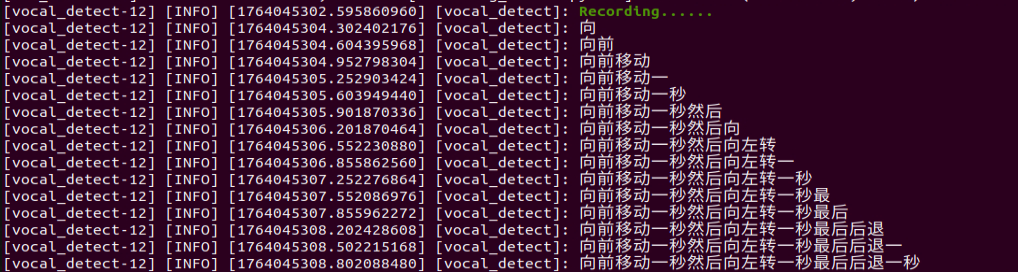
Upon successful recognition by the speech recognition service of a cloud-based large speech model, the parsed command will be displayed under the
publish_asr_resultoutput in the terminal.

Note
The response is automatically generated by the large model. Only the semantic accuracy of the reply is guaranteed, while the wording and formatting may vary.
When the terminal shows the output shown in the figure indicating the end of one interaction cycle, the system is ready for the next round. To initiate another interaction, repeat step 4 by speaking the wake words again.

To exit the feature, press Ctrl + C in the terminal. If the feature does not shut down immediately, press Ctrl + C multiple times. If it still fails to exit, open a new terminal window and run the following command to clear the ROS node.
~/.stop_ros.sh
12.5.3.4 Project Outcome
Once the feature is started, voice commands can be issued to the robot, for example: Move forward for one second, then turn left for one second, and finally move backward for one second. The robot will then move forward for one second, turn left for one second, and finally move backward for one second.
12.5.3.5 Program Analysis
Launch File Analysis
File Path:
/home/ubuntu/ros2_ws/src/large_models_examples/large_models_examples/llm_control_move.launch.py
1) Import library files.
import os
from ament_index_python.packages import get_package_share_directory
from launch_ros.actions import Node
from launch.substitutions import LaunchConfiguration
from launch import LaunchDescription, LaunchService
from launch.launch_description_sources import PythonLaunchDescriptionSource
from launch.actions import IncludeLaunchDescription, DeclareLaunchArgument, OpaqueFunction
os: Used for handling file paths and operating system-related functions.
ament_index_python.packages.get_package_share_directory: Retrieves the share directory path of ROS 2 package.
launch_ros.actions.Node: Used to define ROS 2 nodes.
launch.substitutions.LaunchConfiguration: Retrieves parameter values defined in the Launch file.
LaunchDescription,LaunchService: Used to define and start the Launch file.
launch.launch_description_sources.PythonLaunchDescriptionSource: Enables the inclusion of other Launch files.
launch.actions.IncludeLaunchDescription、DeclareLaunchArgument、OpaqueFunction: Used to define actions and arguments within the Launch file.
2) Define launch_setup Function
Declare launch parameters:
mode: Mode parameter, default value 1.
camera_topic: Camera topic, default depth_cam/rgb0/image_raw.
asr_mode is read from the environment variable ASR_MODE, defaulting to online and converted to lowercase.
interruption: Interruption toggle, default False.
mode = LaunchConfiguration('mode', default=1)
mode_arg = DeclareLaunchArgument('mode', default_value=mode)
camera_topic = LaunchConfiguration('camera_topic', default='depth_cam/rgb0/image_raw')
camera_topic_arg = DeclareLaunchArgument('camera_topic', default_value=camera_topic)
asr_mode = os.environ.get("ASR_MODE", "online").lower()
interruption = LaunchConfiguration('interruption', default=False)
interruption_arg = DeclareLaunchArgument('interruption', default_value=interruption)
Obtain package paths:
Retrieve paths for controller and large_models packages.
controller_package_path = get_package_share_directory('controller')
large_models_package_path = get_package_share_directory('large_models')
Include launch.py files using IncludeLaunchDescription.
controller_launch: Chassis controller launch file.
vocal_detect_launch is the launch file for voice detection, with the mode parameter passed in.
agent_process_launch is the launch file for agent processing, with the camera_topic parameter passed in.
tts_node_launch is the launch file for the TTS node.
controller_launch = IncludeLaunchDescription(
PythonLaunchDescriptionSource(
os.path.join(controller_package_path, 'launch/controller.launch.py')),
)
vocal_detect_launch = IncludeLaunchDescription(
PythonLaunchDescriptionSource(
os.path.join(get_package_share_directory('large_models'), 'launch/vocal_detect.launch.py')),
launch_arguments={'mode': mode,}.items(),
)
agent_process_launch = IncludeLaunchDescription(
PythonLaunchDescriptionSource(
os.path.join(get_package_share_directory('large_models'), 'launch/agent_process.launch.py')),
launch_arguments={'camera_topic': camera_topic}.items(),
)
tts_node_launch = IncludeLaunchDescription(
PythonLaunchDescriptionSource(
os.path.join(get_package_share_directory('large_models'), 'launch/tts_node.launch.py')),
)
Delayed launch configuration:
In offline mode, vocal_detect_launch and agent_process_launch are delayed by 10 seconds, while in online mode they are delayed by 1 second, and tts_node_launch starts immediately.
time_interval = 10.0 if asr_mode == 'offline' else 1.0
large_models_launch = GroupAction(
actions=[
tts_node_launch,
TimerAction(
period=time_interval, actions=[
vocal_detect_launch,
],
),
TimerAction(period=time_interval, actions=[
agent_process_launch,
],
),
]
)
Conditional node selection:
online mode: start the llm_control_move node.
offline mode: start the llm_control_move_offline node.
if asr_mode == 'online':
llm_control_move_node = Node(
package='large_models_examples',
executable='llm_control_move',
output='screen',
parameters=[{
'interruption': interruption,
}],
)
else:
llm_control_move_node = Node(
package='large_models_examples',
executable='llm_control_move_offline',
output='screen',
parameters=[{
'interruption': interruption,
}],
)
3) Define generate_launch_description Function
This function generates the Launch description and adds the launch_setup function to it using OpaqueFunction.
def generate_launch_description():
return LaunchDescription([
OpaqueFunction(function = launch_setup)
])
4) Main Program Entry
if __name__ == '__main__':
# Create a LaunchDescription object
ld = generate_launch_description()
ls = LaunchService()
ls.include_launch_description(ld)
ls.run()
ld = generate_launch_description() generates the Launch description object.
ls = LaunchService() creates a Launch service object.
ls.include_launch_description(ld) adds the Launch description to the Launch service.
ls.run() starts the Launch service and executes all defined Launch actions.
Python File Analysis
File Path:
ros2_ws/src/large_models_examples/large_models_examples/llm_control_move_offline.py
1) Prompt template.
PROMPT = '''
##Role Task
You are an intelligent robot car responsible for parsing user movement instructions and extracting actions and parameters.
##Action Function Library
- "move(direction, distance, duration)"
- direction (Direction): 'forward', 'backward', 'turn_left', 'turn_right', 'shift_left', 'shift_right', 'stop'
- distance (Distance, in meters): A number. If the user does not specify distance, it is set to 0.
- duration (Time, in seconds): A number. If the user does not specify time, it is set to 0.
##Requirements
1. Parse the user’s intent and generate an action list containing one or more move function calls.
2. **Strictly follow**: If the user command includes **time** (e.g., "move forward for 3 seconds"), the **distance parameter must be 0**, and the duration will be the corresponding time.
3. **Strictly follow**: If the user command includes **distance** (e.g., "move forward 1 meter"), the **duration parameter must be 0**, and the distance will be the corresponding distance.
4. Directly output the JSON result without analysis.
5. Format: {"action": ["move('forward', 1, 0)"], "response": "Alright, moving forward 1 meter"}
6. After each action, a stop action must be included to stop the robot: "move('forward', 1, 0)"
##Example Task
Input: Move forward for 2 seconds, then turn left for 1 second.
Output: {"action": ["move('forward', 0, 2)", "move('turn_left', 0, 1)", "move('stop', 0, 1)"], "response": "Got it, executing!"}
Input: Move forward 1 meter.
Output: {"action": ["move('forward', 1, 0)", "move('stop', 0, 1)"], "response": "Alright, let's go!"}
'''
2) Variable Initialization
Initializes member variables.
self.action: list of actions.
self.llm_result: result returned by the LLM.
self.running: running flag.
self.interrupt: interrupt flag.
self.action_finish: action completed flag.
self.play_audio_finish: audio playback completed flag.
interruption: whether interruption is enabled.
self.interruption: value of the interruption parameter.
self.asr_mode: current system voice mode.
def __init__(self, name):
rclpy.init()
super().__init__(name)
self.action = []
self.llm_result = ''
self.running = True
self.interrupt = False
self.action_finish = False
self.play_audio_finish = False
self.declare_parameter('interruption', False)
self.interruption = self.get_parameter('interruption').value
self.declare_parameter('offline', 'false')
self.asr_mode = os.environ.get("ASR_MODE", "online").lower()
A reentrant callback group is created to allow callbacks to call other callbacks.
timer_cb_group = ReentrantCallbackGroup()
ROS2 communication:
Publishers include self.tts_text_pub, which publishes TTS text, and self.mecanum_pub, which publishes chassis control.
Subscribers include agent_process/result which receives LLM results, vocal_detect/wakeup which receives wake signals, and tts_node/play_finish which receives the playback completion status.
Service Clients include self.set_model_client for setting the model, self.awake_client for setting the wake state, self.set_mode_client for setting the mode, and self.set_prompt_clien for setting the prompt.
self.tts_text_pub = self.create_publisher(String, 'tts_node/tts_text', 1)
self.create_subscription(String, 'agent_process/result', self.llm_result_callback, 1)
self.create_subscription(Bool, 'vocal_detect/wakeup', self.wakeup_callback, 1, callback_group=timer_cb_group)
self.create_subscription(Bool, 'tts_node/play_finish', self.play_audio_finish_callback, 1, callback_group=timer_cb_group)
self.set_model_client = self.create_client(SetModel, 'agent_process/set_model')
self.set_model_client.wait_for_service()
self.awake_client = self.create_client(SetBool, 'vocal_detect/enable_wakeup')
# self.awake_client.wait_for_service()
self.set_mode_client = self.create_client(SetInt32, 'vocal_detect/set_mode')
# self.set_mode_client.wait_for_service()
self.set_prompt_client = self.create_client(SetString, 'agent_process/set_prompt')
self.set_prompt_client.wait_for_service()
self.mecanum_pub = self.create_publisher(Twist, '/controller/cmd_vel', 1)
Create timer:
A timer is created to repeatedly call a callback function through the callback group.
self.timer = self.create_timer(0.0, self.init_process, callback_group=timer_cb_group)
3) def wakeup_callback(self, msg) Wakeup Callback Method
The interrupt flag is set when an LLM result is available.
def wakeup_callback(self, msg):
if self.llm_result:
self.get_logger().info('wakeup interrupt')
self.interrupt = msg.data
4) def llm_result_callback(self, msg) LLM Result Callback Method
Stores the result returned by the LLM.
def llm_result_callback(self, msg):
self.llm_result = msg.data
5) def play_audio_finish_callback(self, msg) Audio Playback Completion Callback Method
Enables the wake function and sets the completion flag after audio playback finishes.
def play_audio_finish_callback(self, msg):
  msg = SetBool.Request()
  msg.data = True
  self.send_request(self.awake_client, msg)
  # msg = SetInt32.Request()
  # msg.data = 1
  # self.send_request(self.set_mode_client, msg)
  self.play_audio_finish = msg.data
6) def parse_action(self, action_str) Action Parsing Method
Extracts parameters from the move() function using regular expressions, parses direction, distance, and duration, and returns the parsed result. Returns None, 0, 0 if parsing fails.
def parse_action(self, action_str):
"""
Helper function to parse strings in the format "move('direction', distance, duration)".
Uses regular expressions to extract parameters for more robust handling.
"""
# Match the content inside move(...)
match = re.search(r"move\((.*)\)", action_str)
if not match:
return None, 0, 0
# Extract the parameter string, e.g., "'forward', 5, 0"
params_str = match.group(1)
# Split parameters
params = [p.strip() for p in params_str.split(',')]
# Extract and convert types
direction = params[0].strip("'\"") # Remove quotes from the string parameter
distance = float(params[1])
duration = float(params[2])
return direction, distance, duration
7) def process(self)
Define speeds.
DEFAULT_LINEAR_SPEED = 0.2 # m/s
DEFAULT_ANGULAR_SPEED = 1.0 # rad/s
Loop through and execute the action sequence.
while self.running:
if self.llm_result:
msg = String()
If no corresponding action is returned, only respond without performing any action.
else:
response = self.llm_result
msg.data = response
self.tts_text_pub.publish(msg)
If actions are returned, extract and process them, checking the LLM result.
if 'action' in self.llm_result:
result = eval(self.llm_result[self.llm_result.find('{'):self.llm_result.find('}') + 1])
Parse the JSON to extract action and response.
self.get_logger().info(str(result))
action_list = []
if 'action' in result:
action_list = result['action']
if 'response' in result:
response = result['response']
Publish the TTS response.
msg.data = response
self.tts_text_pub.publish(msg)
Execute the action sequence by parsing each action string.
for action_str in action_list:
direction, distance, duration = self.parse_action(action_str)
if direction is None:
continue # Parsing failed, skip this action
twist_msg = Twist()
final_duration = 0
Set speed based on direction.
if direction == 'forward':
twist_msg.linear.x = DEFAULT_LINEAR_SPEED
elif direction == 'backward':
twist_msg.linear.x = -DEFAULT_LINEAR_SPEED
elif direction == 'shift_left':
twist_msg.linear.y = DEFAULT_LINEAR_SPEED
elif direction == 'shift_right':
twist_msg.linear.y = -DEFAULT_LINEAR_SPEED
elif direction == 'turn_left':
twist_msg.angular.z = DEFAULT_ANGULAR_SPEED
elif direction == 'turn_right':
twist_msg.angular.z = -DEFAULT_ANGULAR_SPEED
Calculate the duration by prioritizing distance. If no distance is provided, use the specified duration by default.
if distance > 0:
# Prefer using distance to calculate duration
final_duration = distance / (DEFAULT_LINEAR_SPEED if 'turn' not in direction else DEFAULT_ANGULAR_SPEED)
else:
# Otherwise use the specified duration
final_duration = duration
Publish velocity command and wait.
if final_duration > 0:
self.get_logger().info(f"Action: {direction}, Publishing velocity, Duration: {final_duration:.2f}s")
self.mecanum_pub.publish(twist_msg)
time.sleep(final_duration)
Check interrupt flag. After all actions are completed, publish stop command.
if self.interrupt:
# self.get_logger().info("Action sequence interrupted.")
self.interrupt = False
break # Exit the for loop
self.mecanum_pub.publish(Twist())
Handle completion flag and mode switch.
self.action_finish = True
self.llm_result = ''
The synchronization mechanism ensures that audio playback and action execution are completed before proceeding. Mode management controls speech detection behavior by setting mode value 2 when interruption is enabled. The state is reset for the next interaction.
if self.play_audio_finish and self.action_finish:
self.play_audio_finish = False
self.action_finish = False
if self.interruption:
msg = SetInt32.Request()
msg.data = 2
self.send_request(self.set_mode_client, msg)
8) Main function def main()
Create the node, run with a multithreaded executor, and finally destroy the node.
def main():
node = LLMControlMove('llm_control_move')
executor = MultiThreadedExecutor()
executor.add_node(node)
executor.spin()
node.destroy_node()
12.5.4 Offline Large AI Model for Autonomous Line Following
12.5.4.1 Overview
When the program starts, the voice device announces I’m ready. Say the wake word Hello Hiwonder to activate the voice device, which responds with I’m here. Now, the robot can be controlled by voice commands. For example, Follow the black line and stop when you meet an obstacle. The terminal will display the recognized speech, while the voice device will announce the response generated after processing. The robot will also detect the black line captured by the camera. When the robot encounters an obstacle ahead, it will stop.
12.5.4.2 Preparation
Reference Tutorial: 12.5.1 Preparation.
12.5.4.3 Operation Steps
Note
Command input is case-sensitive and space-sensitive.
Open the command line terminal from the left side of the system interface.
In the terminal window, enter the following command and press Enter to stop the auto-start service.Enter the command to disable the auto-start service of the app.
sudo systemctl stop start_app_node.service
Enter the following command and press Enter to launch the autonomous line following feature.
ros2 launch large_models_examples llm_visual_patrol.launch.py
When the terminal displays the output shown below and announces I’m ready, the voice device has completed initialization. At this point, say the wake word Hello Hiwonder.

When the terminal displays the corresponding output shown in the figure and the device responds with I’m here, it indicates successful activation. The system will begin recording voice commands.

When the terminal prints the output shown below, it indicates that the voice device has transcribed the spoken command. In this example, the command spoken is Follow the black line and stop when you encounter an obstacle.

Upon successful recognition by the speech recognition service of a cloud-based large speech model, the parsed command will be displayed under the
publish_asr_resultoutput in the terminal.
Note
The response is automatically generated by the large model. Only the semantic accuracy of the reply is guaranteed, while the wording and formatting may vary.
The robot then follows the black line and stops when it encounters an obstacle.
To exit the feature, press Ctrl + C in the terminal. If the feature does not shut down immediately, press Ctrl + C multiple times. If it still fails to exit, open a new terminal window and run the following command to terminate all active ROS processes and related programs.
~/.stop_ros.sh
12.5.4.4 Project Outcome
Once the feature is activated, feel free to give commands in your own words. For instance, Follow the black line and stop when you encounter an obstacle. The robot uses its camera to detect and follow the black line, and it will stop when an obstacle is detected in its path. The system is pre-configured to recognize four line colors: red, blue, green, and black.
12.5.4.5 Program Analysis
Launch File Analysis
File Path:
/home/ubuntu/ros2_ws/src/large_models_examples/large_models_examples/llm_visual_patrol.launch.py
1) Import library files.
import os
from ament_index_python.packages import get_package_share_directory
from launch_ros.actions import Node
from launch.substitutions import LaunchConfiguration
from launch import LaunchDescription, LaunchService
from launch.launch_description_sources import PythonLaunchDescriptionSource
from launch.actions import IncludeLaunchDescription, DeclareLaunchArgument, OpaqueFunction
from launch.actions import GroupAction,TimerAction
os: Used for handling file paths and operating system-related functions.
ament_index_python.packages.get_package_share_directory: Retrieves the share directory path of ROS 2 package.
launch_ros.actions.Node: Used to define ROS 2 nodes.
launch.substitutions.LaunchConfiguration: Retrieves parameter values defined in the Launch file.
LaunchDescription, LaunchService: Used to define and start the Launch file.
PythonLaunchDescriptionSource: Enables the inclusion of other Launch files.
launch.actions.IncludeLaunchDescription、DeclareLaunchArgument、OpaqueFunction: Used to define actions and arguments within the Launch file.
launch.actions.GroupAction、TimerAction: Action group and delayed startup.
2) Define the launch_setup Function
Declare launch parameters:
mode: Mode parameter, default value 1.
camera_topic: Camera topic, default depth_cam/rgb0/image_raw.
asr_mode is read from the environment variable ASR_MODE, defaulting to online and converted to lowercase.
interruption: Interruption toggle, default False.
mode = LaunchConfiguration('mode', default=1)
mode_arg = DeclareLaunchArgument('mode', default_value=mode)
camera_topic = LaunchConfiguration('camera_topic', default='depth_cam/rgb0/image_raw')
camera_topic_arg = DeclareLaunchArgument('camera_topic', default_value=camera_topic)
asr_mode = os.environ.get("ASR_MODE", "online").lower()
interruption = LaunchConfiguration('interruption', default=False)
interruption_arg = DeclareLaunchArgument('interruption', default_value=interruption)
Obtain package paths:
Retrieve paths for app and large_models packages.
app_package_path = get_package_share_directory('app')
large_models_package_path = get_package_share_directory('large_models')
Include launch.py files using IncludeLaunchDescription.
line_following_node_launch: Line tracking node.
vocal_detect_launch is the launch file for voice detection, with the mode parameter passed in.
agent_process_launch is the launch file for agent processing, with the camera_topic parameter passed in.
tts_node_launch is the launch file for the TTS node.
line_following_node_launch = IncludeLaunchDescription(
PythonLaunchDescriptionSource(
os.path.join(app_package_path, 'launch/line_following_node.launch.py')),
launch_arguments={
'debug': 'true',
}.items(),
)
vocal_detect_launch = IncludeLaunchDescription(
PythonLaunchDescriptionSource(
os.path.join(get_package_share_directory('large_models'), 'launch/vocal_detect.launch.py')),
launch_arguments={'mode': mode,}.items(),
)
agent_process_launch = IncludeLaunchDescription(
PythonLaunchDescriptionSource(
os.path.join(get_package_share_directory('large_models'), 'launch/agent_process.launch.py')),
launch_arguments={'camera_topic': camera_topic}.items(),
)
tts_node_launch = IncludeLaunchDescription(
PythonLaunchDescriptionSource(
os.path.join(get_package_share_directory('large_models'), 'launch/tts_node.launch.py')),
)
Delayed launch configuration:
In offline mode, vocal_detect_launch and agent_process_launch are delayed by 10 seconds, while in online mode they are delayed by 1 second, and tts_node_launch starts immediately.
time_interval = 10.0 if asr_mode == 'offline' else 1.0
large_models_launch = GroupAction(
actions=[
tts_node_launch,
TimerAction(
period=time_interval, actions=[
vocal_detect_launch,
],
),
TimerAction(period=time_interval, actions=[
agent_process_launch,
],
),
]
)
Conditional node selection:
Start the llm_visual_patrol_node node.
llm_visual_patrol_node = Node(
package='large_models_examples',
executable='llm_visual_patrol',
output='screen',
parameters=[{
'interruption': interruption,
}],
)
3) Define generate_launch_description Function
This function generates the Launch description and adds the launch_setup function to it using OpaqueFunction.
def generate_launch_description():
return LaunchDescription([
OpaqueFunction(function = launch_setup)
])
4) Main Program Entry
if __name__ == '__main__':
# Create a LaunchDescription object
ld = generate_launch_description()
ls = LaunchService()
ls.include_launch_description(ld)
ls.run()
ld = generate_launch_description() generates the Launch description object.
ls = LaunchService() creates a Launch service object.
ls.include_launch_description(ld) adds the Launch description to the Launch service.
ls.run() starts the Launch service and executes all defined Launch actions.
Python File Analysis
File Path:
/home/ubuntu/ros2_ws/src/large_models_examples/large_models_examples/llm_visual_patrol.py
1) Prompt template.
PROMPT = '''
**Role
You are a smart robot that generates corresponding JSON commands based on user input.
**Requirements
- For every user input, search for matching commands in the action function library and output the corresponding JSON instruction.
- For each action sequence, craft a witty and creative response (10 to 30 characters) to make interactions delightful.
- Directly return the JSON result — do not include any explanations or extra text.
- There are four target colors: red, green, blue, and black.
- Format:
{
"action": ["xx", "xx"],
"response": "xx"
}
**Special Notes
The "action" field should contain a list of function names as strings, ordered by execution. If no matching action is found, output an empty list: [].
The "response" field should provide a concise and charming reply, staying within the word and tone guidelines.
**Action Function Library
Follow a line of a given color: line_following('black')
**Example
Input: Follow the black line
Output:
{
"action": ["line_following('black')"],
"response": "Roger that!"
}
'''
2) Variable Initialization
Initializes member variables.
self.action: list of actions.
self.stop controls whether to stop the current action, with True indicating that the action should be stopped.
self.llm_result: result returned by the LLM.
self.running: running flag.
self.interrupt: interrupt flag.
self.action_finish: action completed flag.
self.play_audio_finish: audio playback completed flag.
interruption: whether interruption is enabled.
self.interruption: value of the interruption parameter.
self.asr_mode: Reads the value of speech mode ASR_MODE from the environment variable, defaulting to online.
def __init__(self, name):
rclpy.init()
super().__init__(name)
self.action = []
self.stop = True
self.llm_result = ''
# self.llm_result = '{"action": ["line_following(\'black\')"], "response": "ok!"}'
self.running = True
self.action_finish = False
self.play_audio_finish = False
self.declare_parameter('interruption', False)
self.interruption = self.get_parameter('interruption').value
self.asr_mode = os.environ.get("ASR_MODE", "online").lower()
A reentrant callback group is created to allow callbacks to call other callbacks.
timer_cb_group = ReentrantCallbackGroup()
ROS2 communication:
Publisher: self.tts_text_pub publishes TTS text.
Subscribers include agent_process/result which receives LLM results, vocal_detect/wakeup which receives wake signals, and tts_node/play_finish which receives the playback completion status.
Service clients: self.set_model_client for setting the model, self.awake_client for setting the wake-up, self.set_mode_client for setting the mode, self.set_prompt_clien for setting the prompt, self.enter_client for entering line-following mode, self.start_client for starting or stopping the line-following, and self.set_target_client for setting the target color.
self.tts_text_pub = self.create_publisher(String, 'tts_node/tts_text', 1)
self.create_subscription(String, 'agent_process/result', self.llm_result_callback, 1)
self.create_subscription(Bool, 'vocal_detect/wakeup', self.wakeup_callback, 1, callback_group=timer_cb_group)
self.create_subscription(Bool, 'tts_node/play_finish', self.play_audio_finish_callback, 1, callback_group=timer_cb_group)
self.awake_client = self.create_client(SetBool, 'vocal_detect/enable_wakeup')
self.awake_client.wait_for_service()
self.set_mode_client = self.create_client(SetInt32, 'vocal_detect/set_mode')
self.set_mode_client.wait_for_service()
self.set_model_client = self.create_client(SetModel, 'agent_process/set_model')
self.set_model_client.wait_for_service()
self.set_prompt_client = self.create_client(SetString, 'agent_process/set_prompt')
self.set_prompt_client.wait_for_service()
self.enter_client = self.create_client(Trigger, 'line_following/enter')
self.enter_client.wait_for_service()
self.start_client = self.create_client(SetBool, 'line_following/set_running')
self.start_client.wait_for_service()
self.set_target_client = self.create_client(SetColor, 'line_following/set_color')
self.set_target_client.wait_for_service()
A timer is created to repeatedly call a callback function through the callback group.
self.timer = self.create_timer(0.0, self.init_process, callback_group=timer_cb_group)
3) def init_process(self) Initialization
Cancel the timer.
self.timer.cancel()
Configure the LLM model:
Create a SetModel.Request() message object.
msg = SetModel.Request()
Set the model type to llm.
msg.model_type = 'llm'
Select the model and configuration based on self.asr_mode.
if self.asr_mode == 'offline':
msg.model = 'qwen3:0.6b'
msg.base_url = ollama_host
else:
msg.model = llm_model
msg.api_key = api_key
msg.base_url = base_url
Synchronously call the agent_process/set_model service via self.send_request.
self.send_request(self.set_model_client, msg)
Set the prompt:
Create a SetString.Request() message.
msg = SetString.Request()
Set msg.data to the module-level variable PROMPT, using the ASR_LANGUAGE environment variable to determine whether it is in English or another language.
msg.data = PROMPT
Call the agent_process/set_prompt service to pass the prompt to the LLM agent.
self.send_request(self.set_prompt_client, msg)
Initialize the line-following feature:
Create a temporary client to check if the line_following/init_finish service is ready.
init_finish = self.create_client(Trigger, 'line_following/init_finish')
Ensure the line-following node is fully initialized.
init_finish.wait_for_service()
Call the line_following/enter service to enter line-following mode.
self.send_request(self.enter_client, Trigger.Request())
Play the start audio.
speech.play_audio(start_audio_path)
Start the main processing thread.
threading.Thread(target=self.process, daemon=True).start()
Create the initialization completion service. Output logging information.
self.create_service(Empty, '~/init_finish', self.get_node_state)
self.get_logger().info('\033[1;32m%s\033[0m' % 'start')
self.get_logger().info('\033[1;32m%s\033[0m' % PROMPT)
4) def wakeup_callback(self, msg) Wakeup Callback Method
Wakeup interrupt handling: when receiving a wakeup signal, interrupt the current action and re-enter line-following mode.
def wakeup_callback(self, msg):
if msg.data and self.llm_result:
self.get_logger().info('wakeup interrupt')
self.send_request(self.enter_client, Trigger.Request())
self.stop = True
elif msg.data and not self.stop:
self.get_logger().info('wakeup interrupt')
self.send_request(self.enter_client, Trigger.Request())
self.stop = True
5) def llm_result_callback(self, msg) LLM Result Callback Method
Stores the result returned by the LLM.
def llm_result_callback(self, msg):
self.llm_result = msg.data
6) def llm_result_callback(self, msg) LLM Result Callback Method
Enables the wake function and sets the completion flag after audio playback finishes.
def play_audio_finish_callback(self, msg):
    self.play_audio_finish = msg.data
7) def process(self) Main Processing Loop Method
Run continuously until self.running is set to false.
while self.running:
Check if there is an LLM result.
if self.llm_result:
Create a TTS message object.
msg = String()
If the string does not contain action, only respond via voice.
else:
msg.data = self.llm_result
If an action is present, extract and process it.
if 'action' in self.llm_result:
Parse the JSON result.
result = eval(self.llm_result[self.llm_result.find('{'):self.llm_result.find('}')+1])
Check if result contains action.
if 'action' in result:
Get the action list, define a regular expression to match the format line_following('color').
text = result['action']
# Use a regular expression to extract all strings inside parentheses
pattern = r"line_following\('([^']+)'\)"
# Use re.search to find matches
Iterate over the action list:
Perform regex matching for each action string.
for i in text:
match = re.search(pattern, i)
Extract the color parameter and log the result.
# Extract the result
if match:
# Get the parameter part, which is the content inside parentheses
color = match.group(1)
self.get_logger().info(str(color))
Set the target color.
color_msg = SetColor.Request()
color_msg.data = color
self.send_request(self.set_target_client, color_msg)
Start line-following.
start_msg = SetBool.Request()
start_msg.data = True
self.send_request(self.start_client, start_msg)
Response text processing.
if 'response' in result:
msg.data = result['response']
Publish the TTS response and reset the state.
self.tts_text_pub.publish(msg)
self.action_finish = True
self.llm_result = ''
Idle wait.
else:
time.sleep(0.01)
Wakeup mechanism recovery.
if self.play_audio_finish and self.action_finish:
self.play_audio_finish = False
self.action_finish = False
msg = SetBool.Request()
msg.data = True
self.send_request(self.awake_client, msg)
if self.interruption:
msg = SetInt32.Request()
msg.data = 2
self.send_request(self.set_mode_client, msg)
self.stop = False
Loop end and cleanup.
rclpy.shutdown()
8) Main function def main()
Create the node, run with a multithreaded executor, and finally destroy the node.
def main():
node = LLMControlMove('llm_line_following')
executor = MultiThreadedExecutor()
executor.add_node(node)
executor.spin()
node.destroy_node()
12.5.5 Offline Large AI Model for Color Tracking
12.5.5.1 Overview
When the program starts, the voice device announces I’m ready. Say the wake word Hello Hiwonder to activate the voice device, which responds with I’m here. Then you can use voice commands to control robot such as Track a red object. The terminal will display the recognized command, and the voice device will respond with a generated reply after processing. The robot will then autonomously identify the red object captured by its camera and begin tracking it.
12.5.5.2 Preparation
Reference Tutorial: 12.5.1 Preparation.
12.5.5.3 Operation Steps
Note
Command input is case-sensitive and space-sensitive.
Open the command line terminal from the left side of the system interface.
In the terminal window, enter the following command and press Enter to stop the auto-start service.Enter the command to disable the auto-start service of the app.
sudo systemctl stop start_app_node.service
Enter the following command and press Enter to launch the color tracking feature.
ros2 launch large_models_examples llm_color_track.launch.py
When the terminal displays the output shown below and announces I’m ready, the voice device has completed initialization. At this point, say the wake word Hello Hiwonder.

After the program has loaded successfully, the camera feed will appear on screen.
When the terminal displays the corresponding output shown in the figure and the device responds with I’m here, it indicates successful activation. The system will begin recording voice commands.

When the terminal prints the output shown below, it indicates that the voice device has transcribed the spoken command. In this example, the command spoken is Track a red object.

Upon successful recognition by the speech recognition service of a cloud-based large speech model, the parsed command will be displayed under the
publish_asr_resultoutput in the terminal.
Note
The response is automatically generated by the large model. Only the semantic accuracy of the reply is guaranteed, while the wording and formatting may vary.
Then, the robot will detect the red object in its camera feed and begin tracking it in real time.
To exit the feature, press Ctrl + C in the terminal. If the feature does not shut down immediately, press Ctrl + C multiple times. If it still fails to exit, open a new terminal window and run the following command to terminate all active ROS processes and related programs.
~/.stop_ros.sh
12.5.5.4 Project Outcome
Once the feature is activated, feel free to give commands in your own words. For instance, Track a red object. The robot will use the camera feed to identify and track the red object. Similarly, commands like “Track a blue object” or “Track a green object” can be used to instruct the robot to track objects of the specified colors.
12.5.5.5 Program Analysis
Launch File Analysis
File Path:
/home/ubuntu/ros2_ws/src/large_models_examples/large_models_examples/llm_color_track.launch.py
1) Import library files.
import os
from ament_index_python.packages import get_package_share_directory
from launch_ros.actions import Node
from launch.substitutions import LaunchConfiguration
from launch import LaunchDescription, LaunchService
from launch.launch_description_sources import PythonLaunchDescriptionSource
from launch.actions import IncludeLaunchDescription, DeclareLaunchArgument, OpaqueFunction
from launch.actions import GroupAction,TimerAction
os: Used for handling file paths and operating system-related functions.
ament_index_python.packages.get_package_share_directory: Retrieves the share directory path of ROS 2 package.
launch_ros.actions.Node: Used to define ROS 2 nodes.
launch.substitutions.LaunchConfiguration: Retrieves parameter values defined in the Launch file.
LaunchDescription, LaunchService: Used to define and start the Launch file.
PythonLaunchDescriptionSource: Enables the inclusion of other Launch files.
launch.actions.IncludeLaunchDescription、DeclareLaunchArgument、OpaqueFunction: Used to define actions and arguments within the Launch file.
launch.actions.GroupAction、TimerAction: Action group and delayed startup.
2) Define launch_setup Function
Declare launch parameters:
mode: Mode parameter, default value 1.
camera_topic: Camera topic, default depth_cam/rgb0/image_raw.
asr_mode is read from the environment variable ASR_MODE, defaulting to online and converted to lowercase.
interruption: Interruption toggle, default False.
mode = LaunchConfiguration('mode', default=1)
mode_arg = DeclareLaunchArgument('mode', default_value=mode)
camera_topic = LaunchConfiguration('camera_topic', default='depth_cam/rgb0/image_raw')
camera_topic_arg = DeclareLaunchArgument('camera_topic', default_value=camera_topic)
asr_mode = os.environ.get("ASR_MODE", "online").lower()
interruption = LaunchConfiguration('interruption', default=False)
interruption_arg = DeclareLaunchArgument('interruption', default_value=interruption)
Obtain package paths:
Retrieve paths for app and large_models packages.
app_package_path = get_package_share_directory('app')
large_models_package_path = get_package_share_directory('large_models')
Include launch.py files using IncludeLaunchDescription.
object_tracking_node_launch: Color-tracking node.
vocal_detect_launch is the launch file for voice detection, with the mode parameter passed in.
agent_process_launch is the launch file for agent processing, with the camera_topic parameter passed in.
tts_node_launch is the launch file for the TTS node.
object_tracking_node_launch = IncludeLaunchDescription(
PythonLaunchDescriptionSource(
os.path.join(app_package_path, 'launch/object_tracking_node.launch.py')),
launch_arguments={
'debug': 'true',
}.items(),
)
vocal_detect_launch = IncludeLaunchDescription(
PythonLaunchDescriptionSource(
os.path.join(get_package_share_directory('large_models'), 'launch/vocal_detect.launch.py')),
launch_arguments={'mode': mode,}.items(),
)
agent_process_launch = IncludeLaunchDescription(
PythonLaunchDescriptionSource(
os.path.join(get_package_share_directory('large_models'), 'launch/agent_process.launch.py')),
launch_arguments={'camera_topic': camera_topic}.items(),
)
tts_node_launch = IncludeLaunchDescription(
PythonLaunchDescriptionSource(
os.path.join(get_package_share_directory('large_models'), 'launch/tts_node.launch.py')),
)
Delayed launch configuration:
In offline mode, vocal_detect_launch and agent_process_launch are delayed by 10 seconds, while in online mode they are delayed by 1 second, and tts_node_launch starts immediately.
time_interval = 10.0 if asr_mode == 'offline' else 1.0
large_models_launch = GroupAction(
actions=[
tts_node_launch,
TimerAction(
period=time_interval, actions=[
vocal_detect_launch,
],
),
TimerAction(period=time_interval, actions=[
agent_process_launch,
],
),
]
)
Conditional node selection:
Start the llm_color_track_node node.
llm_color_track_node = Node(
package='large_models_examples',
executable='llm_color_track',
output='screen',
parameters=[
{
'interruption': interruption,
}],
)
3) Define generate_launch_description Function
This function generates the Launch description and adds the launch_setup function to it using OpaqueFunction.
def generate_launch_description():
return LaunchDescription([
OpaqueFunction(function = launch_setup)
])
4) Main Program Entry
if __name__ == '__main__':
# Create a LaunchDescription object
ld = generate_launch_description()
ls = LaunchService()
ls.include_launch_description(ld)
ls.run()
ld = generate_launch_description() generates the Launch description object.
ls = LaunchService() creates a Launch service object.
ls.include_launch_description(ld) adds the Launch description to the Launch service.
ls.run() starts the Launch service and executes all defined Launch actions.
Python File Analysis
File Path:
/home/ubuntu/ros2_ws/src/large_models_examples/large_models_examples/llm_color_track.py
1) Prompt template.
PROMPT = '''
**Role
You are an intelligent companion robot. Your job is to generate corresponding JSON commands based on the user’s input.
**Requirements
- For every user input, search the action function library for matching commands and return the corresponding JSON instruction.
- Craft a witty, ever-changing, and concise response (between 10 to 30 characters) for each action sequence to make interactions lively and fun.
- Output only the JSON result — do not include explanations or any extra text.
- Output format:{"action": ["xx", "xx"], "response": "xx"}
**Special Notes
The "action" key holds an array of function name strings arranged in execution order. If no match is found, return an empty array [].
The "response" key must contain a cleverly worded, short reply (10–30 characters), adhering to the tone and length guidelines above.
**Action Function Library
Track an object of a specific color: color_track('red')
**Example
Input: Track a green object
Output:
{"action": ["color_track('green')"], "response": "Got it!"}
'''
2) Variable Initialization
Initializes member variables.
self.action: list of actions.
self.stop controls whether to stop the current action, with True indicating that the action should be stopped.
self.llm_result: result returned by the LLM.
self.running: running flag.
self.interrupt: interrupt flag.
self.action_finish: action completed flag.
self.play_audio_finish: audio playback completed flag.
interruption: whether interruption is enabled.
self.interruption: value of the interruption parameter.
self.asr_mode: Reads the value of speech mode ASR_MODE from the environment variable, defaulting to online.
def __init__(self, name):
rclpy.init()
super().__init__(name)
self.action = []
self.stop = True
self.llm_result = ''
# self.llm_result = '{"action": ["line_following(\'black\')"], "response": "ok!"}'
self.running = True
self.action_finish = False
self.play_audio_finish = False
self.declare_parameter('interruption', False)
self.interruption = self.get_parameter('interruption').value
self.asr_mode = os.environ.get("ASR_MODE", "online").lower()
A reentrant callback group is created to allow callbacks to call other callbacks.
timer_cb_group = ReentrantCallbackGroup()
ROS2 communication:
Publisher: self.tts_text_pub publishes TTS text.
Subscribers include agent_process/result which receives LLM results, vocal_detect/wakeup which receives wake signals, and tts_node/play_finish which receives the playback completion status.
Service clients: self.set_model_client for setting the model, self.awake_client for setting the wake-up, self.set_mode_client for setting the mode, self.set_prompt_clien for setting the prompt, self.enter_client for entering color tracking mode, self.start_client for starting or stopping the mode, and self.set_target_client for setting the target color.
self.tts_text_pub = self.create_publisher(String, 'tts_node/tts_text', 1)
self.create_subscription(String, 'agent_process/result', self.llm_result_callback, 1)
self.create_subscription(Bool, 'vocal_detect/wakeup', self.wakeup_callback, 1, callback_group=timer_cb_group)
self.create_subscription(Bool, 'tts_node/play_finish', self.play_audio_finish_callback, 1, callback_group=timer_cb_group)
self.awake_client = self.create_client(SetBool, 'vocal_detect/enable_wakeup')
# self.awake_client.wait_for_service()
self.set_mode_client = self.create_client(SetInt32, 'vocal_detect/set_mode')
# self.set_mode_client.wait_for_service()
self.set_model_client = self.create_client(SetModel, 'agent_process/set_model')
self.set_model_client.wait_for_service()
self.set_prompt_client = self.create_client(SetString, 'agent_process/set_prompt')
self.set_prompt_client.wait_for_service()
self.enter_client = self.create_client(Trigger, 'object_tracking/enter')
self.enter_client.wait_for_service()
self.start_client = self.create_client(SetBool, 'object_tracking/set_running')
self.start_client.wait_for_service()
self.set_target_client = self.create_client(SetColor, 'object_tracking/set_color')
self.set_target_client.wait_for_service()
A timer is created to repeatedly call a callback function through the callback group.
self.timer = self.create_timer(0.0, self.init_process, callback_group=timer_cb_group)
3) def init_process(self) Initialization Configuration
Cancel the timer.
self.timer.cancel()
Configure the LLM model:
Create a SetModel.Request() message object.
msg = SetModel.Request()
Set the model type to llm.
msg.model_type = 'llm'
Select the model and configuration based on self.asr_mode.
if self.asr_mode == 'offline':
msg.model = 'qwen3:0.6b'
msg.base_url = ollama_host
else:
msg.model = llm_model
msg.api_key = api_key
msg.base_url = base_url
Synchronously call the agent_process/set_model service via self.send_request.
self.send_request(self.set_model_client, msg)
Set the prompt:
Create a SetString.Request() message.
msg = SetString.Request()
Set msg.data to the module-level variable PROMPT, using the ASR_LANGUAGE environment variable to determine whether it is in English or another language.
msg.data = PROMPT
Call the agent_process/set_prompt service to pass the prompt to the LLM agent.
self.send_request(self.set_prompt_client, msg)
Initialize the line-following feature:
Create a temporary client to check if the object_tracking/init_finish service is ready.
init_finish = self.create_client(Trigger, 'object_tracking/init_finish')
Ensure the color tracking node is fully initialized.
init_finish.wait_for_service()
Call the object_tracking/enter service to enter line-following mode.
self.send_request(self.enter_client, Trigger.Request())
Play the start audio.
speech.play_audio(start_audio_path)
Start the main processing thread.
threading.Thread(target=self.process, daemon=True).start()
Create the initialization completion service.
self.create_service(Empty, '~/init_finish', self.get_node_state)
Output logging information.
self.get_logger().info('\033[1;32m%s\033[0m' % 'start')
self.get_logger().info('\033[1;32m%s\033[0m' % PROMPT)
4) def wakeup_callback(self, msg) Wakeup Callback Method
Wakeup interrupt handling: when receiving a wakeup signal, interrupt the current action and re-enter line-following mode.
def wakeup_callback(self, msg):
if msg.data and self.llm_result:
self.get_logger().info('wakeup interrupt')
self.send_request(self.enter_client, Trigger.Request())
self.stop = True
elif msg.data and not self.stop:
self.get_logger().info('wakeup interrupt')
self.send_request(self.enter_client, Trigger.Request())
self.stop = True
5) def llm_result_callback(self, msg) LLM Result Callback Method
Stores the result returned by the LLM.
def llm_result_callback(self, msg):
self.llm_result = msg.data
6) def play_audio_finish_callback(self, msg) Audio Playback Completion Callback Method
Enables the wake function and sets the completion flag after audio playback finishes.
def play_audio_finish_callback(self, msg):
    self.play_audio_finish = msg.data
7) def process(self) Main Processing Loop
Run continuously until self.running is set to false.
while self.running:
Check if there is an LLM result.
if self.llm_result:
Create a TTS message object.
msg = String()
If the string does not contain action, only respond via voice.
else:
msg.data = self.llm_result
If an action is present, extract and process it.
if 'action' in self.llm_result:
Parse the JSON result.
result = eval(self.llm_result[self.llm_result.find('{'):self.llm_result.find('}')+1])
Check if result contains action.
if 'action' in result:
Get the action list, define a regular expression to match the format line_following('color').
text = result['action']
# Use a regular expression to extract all strings inside parentheses
pattern = r"line_following\('([^']+)'\)"
# Use re.search to find matches
Iterate over the action list:
Perform regex matching for each action string.
for i in text:
match = re.search(pattern, i)
Extract the color parameter and log the result.
# Extract the result
if match:
# Get the parameter part, which is the content inside parentheses
color = match.group(1)
self.get_logger().info(str(color))
Set the target color.
color_msg = SetColor.Request()
color_msg.data = color
self.send_request(self.set_target_client, color_msg)
Start color tracking.
start_msg = SetBool.Request()
start_msg.data = True
self.send_request(self.start_client, start_msg)
Response text processing.
if 'response' in result:
msg.data = result['response']
Publish the TTS response and reset the state.
self.tts_text_pub.publish(msg)
                self.action_finish = True
                self.llm_result = ''
Idle wait.
            else:
                time.sleep(0.01)
Wakeup mechanism recovery.
            if self.play_audio_finish and self.action_finish:
                self.play_audio_finish = False
                self.action_finish = False
                msg = SetBool.Request()
                msg.data = True
                self.send_request(self.awake_client, msg)
                if self.interruption:
                    msg = SetInt32.Request()
                    msg.data = 2
                    self.send_request(self.set_mode_client, msg)
                self.stop = False
Loop end and cleanup.
rclpy.shutdown()
8) Main function def main()
Create the node, run with a multithreaded executor, and finally destroy the node.
def main():
node = LLMControlMove('llm_color_track')
executor = MultiThreadedExecutor()
executor.add_node(node)
executor.spin()
node.destroy_node()