2. Chassis Motion Control Course
2.1 Motion Control
2.1.1 IMU Calibration
Note
The robot is factory-calibrated and generally does not require recalibration. This section is provided for reference only. If the robot deviates significantly during navigation—for example, drifting noticeably to one side while moving forward and unable to drive in a straight line, follow the tutorial below to perform calibration.
Calibration is intended to reduce errors. Some hardware deviations are inevitable, so the goal is to adjust the settings to achieve a performance that is relatively accurate and meets the needs.
If deviations occur during use, the IMU, linear velocity, and angular velocity should be recalibrated. After calibration, the robot can perform all its functions correctly.
The IMU, Inertial Measurement Unit, is a device that measures an object’s three-axis orientation, angular velocity, and acceleration. The gyroscope and accelerometer are the main components of the IMU, providing a total of six degrees of freedom to measure angular velocity and acceleration in 3D space.
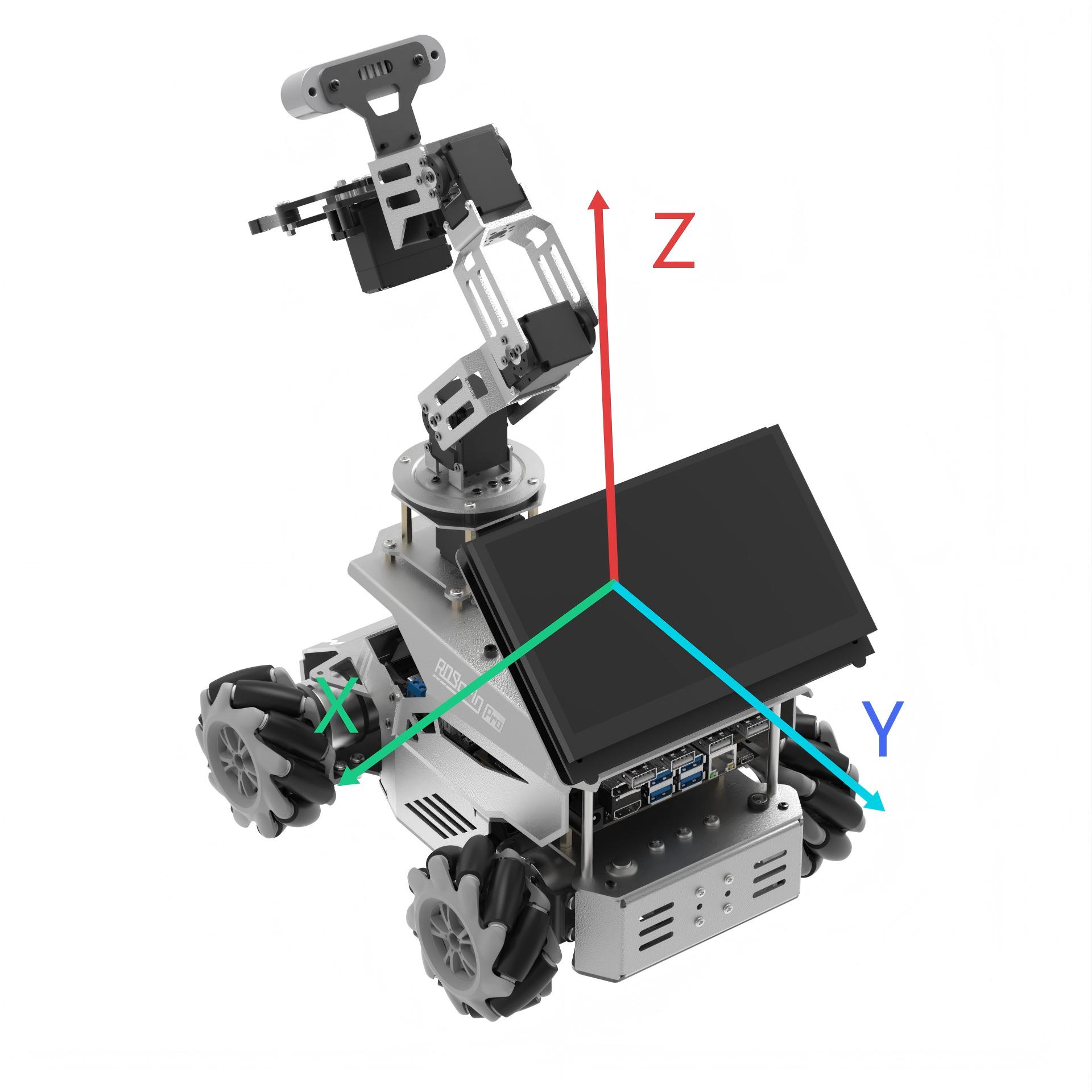
The figure above shows the positive directions of the IMU x, y, and z axes. This coordinate relationship can be used as a reference during calibration. After the node receives the first IMU message, it prompts for the IMU to be held in a specific orientation, then records the measurement after Enter is pressed. After all six orientations are completed, the node calculates the calibration parameters and writes them to the specified YAML file. The detailed steps are as follows:
Note
The input command should be case sensitive, and the keywords can be complemented by the Tab key.
Power on the robot and connect it through NoMachine. For connection details, refer to 1.7 Development Environment Setup.
Click the terminal icon
 in the system desktop to open a command-line window.
Enter the following command and press Enter to stop the app auto-start service.
sudo systemctl stop start_app_node.service
Next, enter the command and press Enter to start the chassis control node:
ros2 launch ros_robot_controller ros_robot_controller.launch.py
Then, open a new terminal, enter the command, and press Enter to start the IMU calibration:
ros2 run imu_calib do_calib --ros-args -r imu:=/ros_robot_controller/imu_raw --param output_file:=/home/ubuntu/ros2_ws/src/calibration/config/imu_calib.yaml
When the command line terminal displays the following prompt, it indicates that calibration of the IMU’s X-axis angular velocity offset in the positive direction is ready to start. Next, tilt the robot to the side so that the orientation matches the figure below, ensuring both the direction and angle are correct. Then, press Enter to execute.

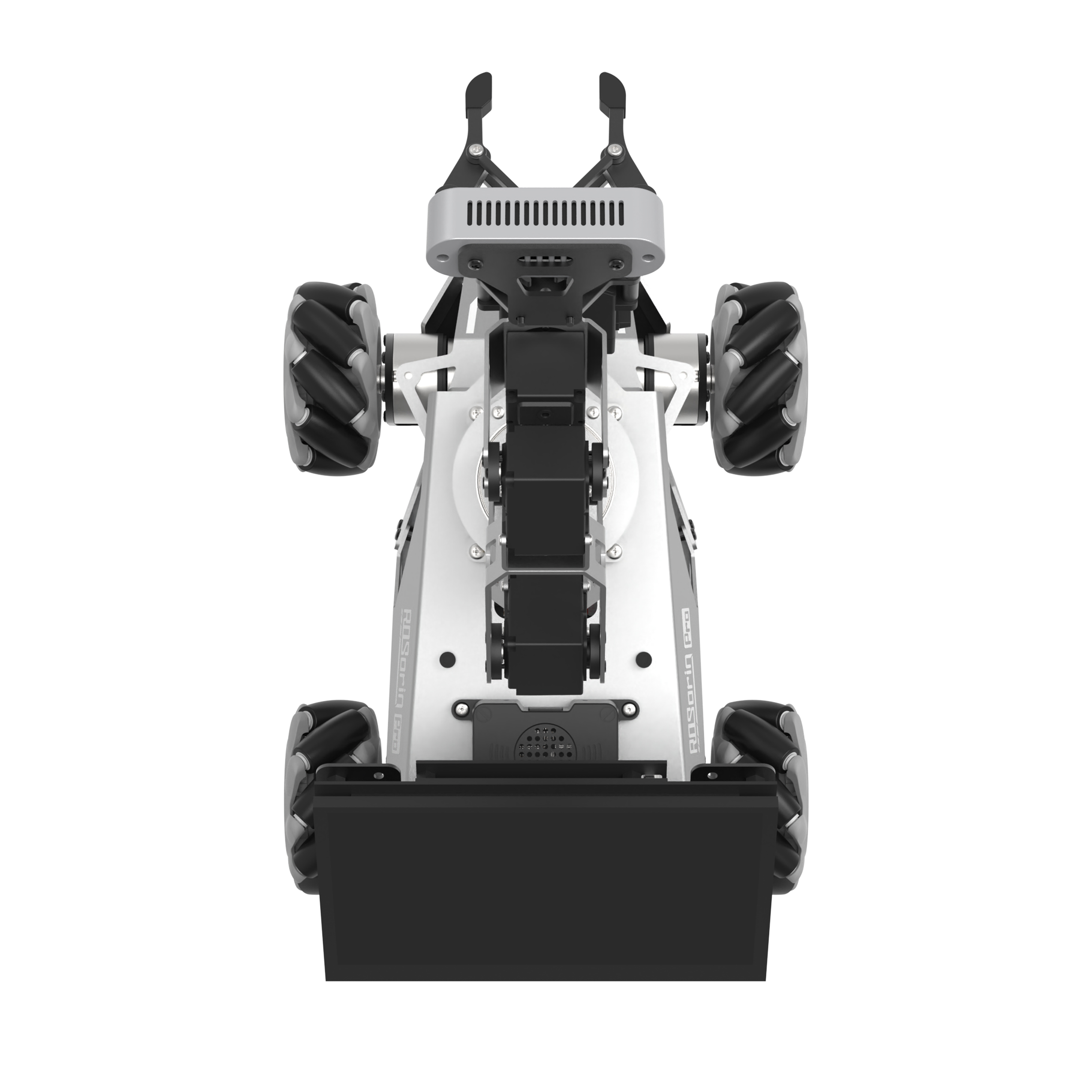
After each orientation is successfully calibrated, the following prompts will appear:

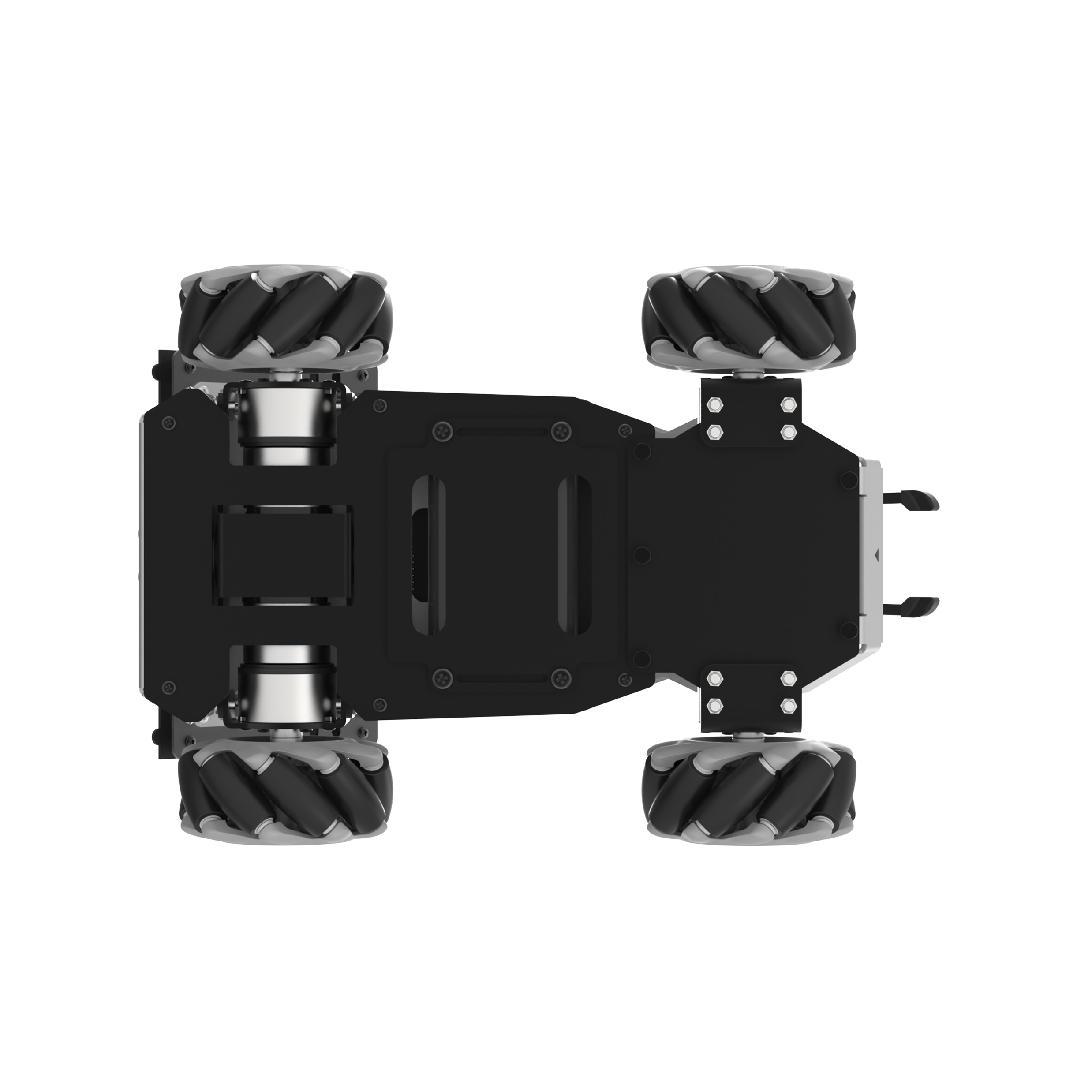
When the command line terminal displays the following prompt, it indicates that calibration of the IMU’s X-axis angular velocity offset in the negative direction is ready to start. Next, tilt the robot to the side so that the orientation matches the figure below, ensuring both the direction and angle are correct. Then, press Enter to execute.

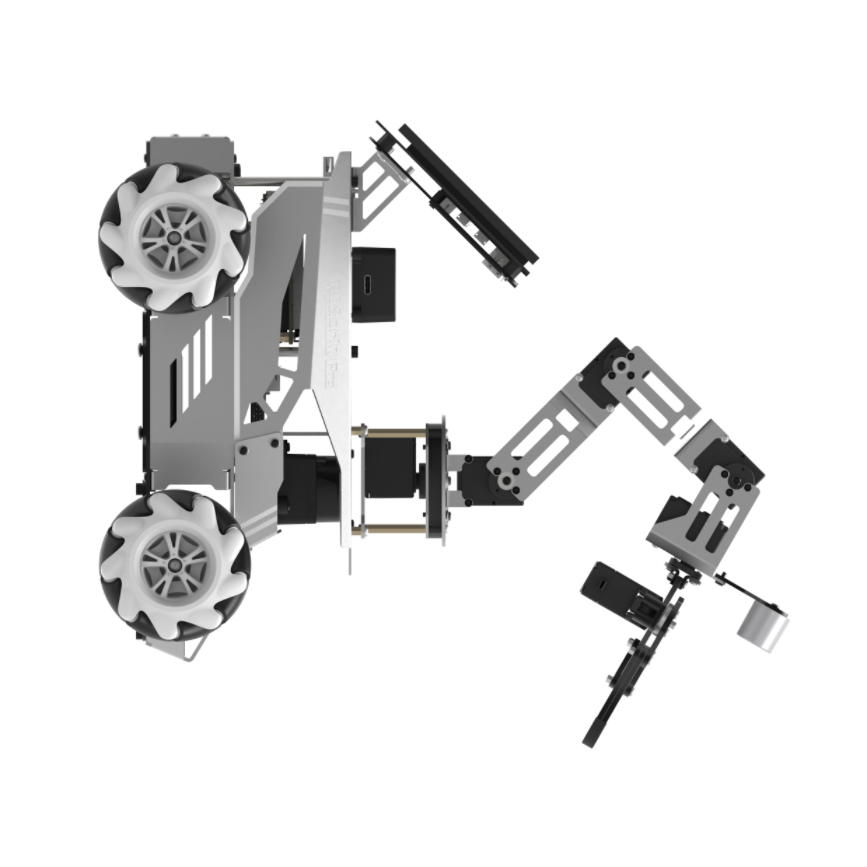
Next, when the command line terminal displays the following prompt, it indicates that calibration of the IMU’s Y-axis angular velocity offset in the positive direction is ready to start. Place the robot upright according to the orientation shown in the figure below, ensuring the direction and angle match the diagram. Then, press Enter to execute.

When the command line terminal shows the next prompt, it indicates that calibration of the IMU’s Y-axis angular velocity offset in the negative direction is ready to start. Position the robot face-down following the orientation shown in the diagram, making sure its direction and angle match the reference. Then, press Enter to proceed.

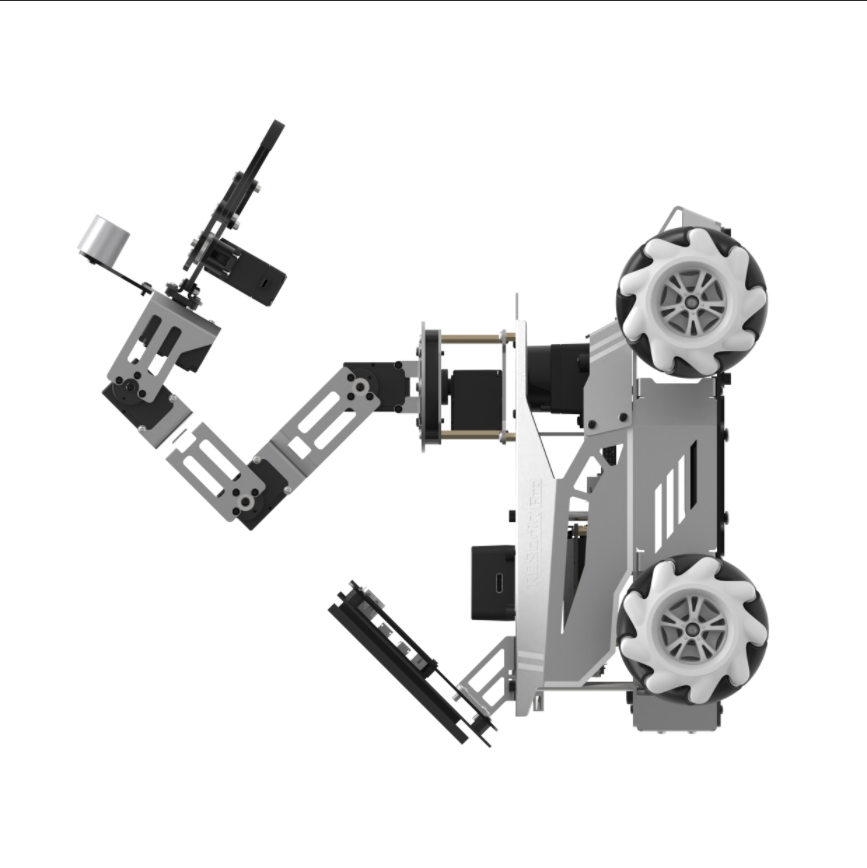
When the command line terminal displays the next prompt, it indicates that calibration of the IMU’s Z-axis angular velocity offset in the positive direction is ready to start. Pick up the robot, hold it upright facing upward, keep it steady, and press Enter to continue. Hold the robot in the orientation shown in the image, making sure the direction and angle match the diagram, then press Enter to proceed.

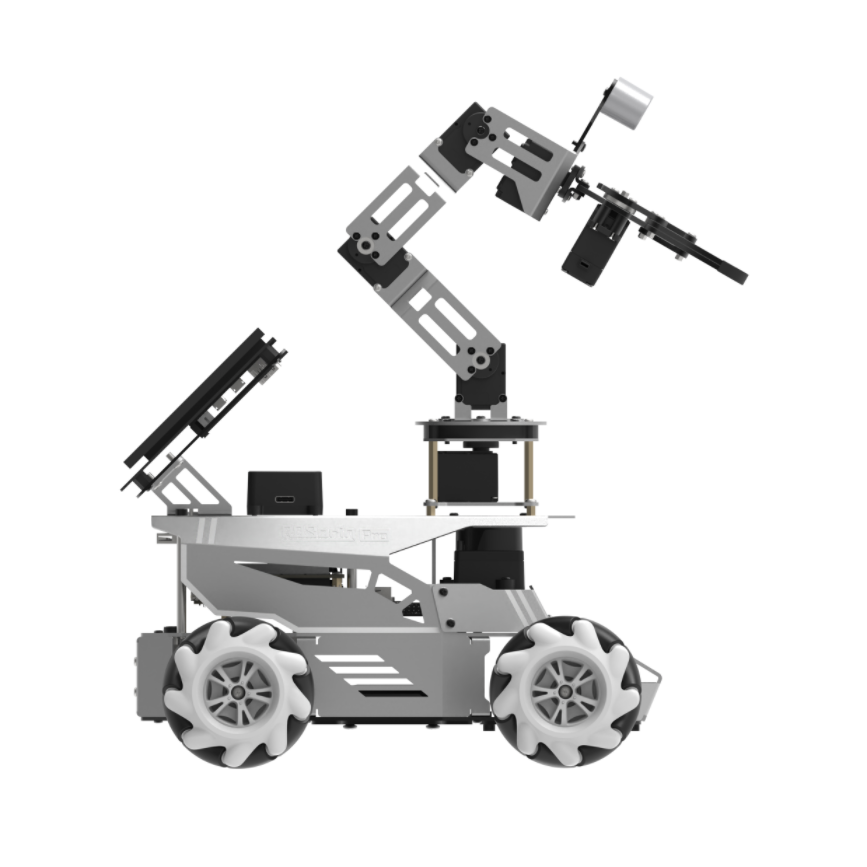
The terminal will then display a prompt indicating that the negative Z-axis gyroscope offset can be calibrated. Position the robot as shown in the diagram, ensuring its orientation and angle match the reference, and press Enter to continue.

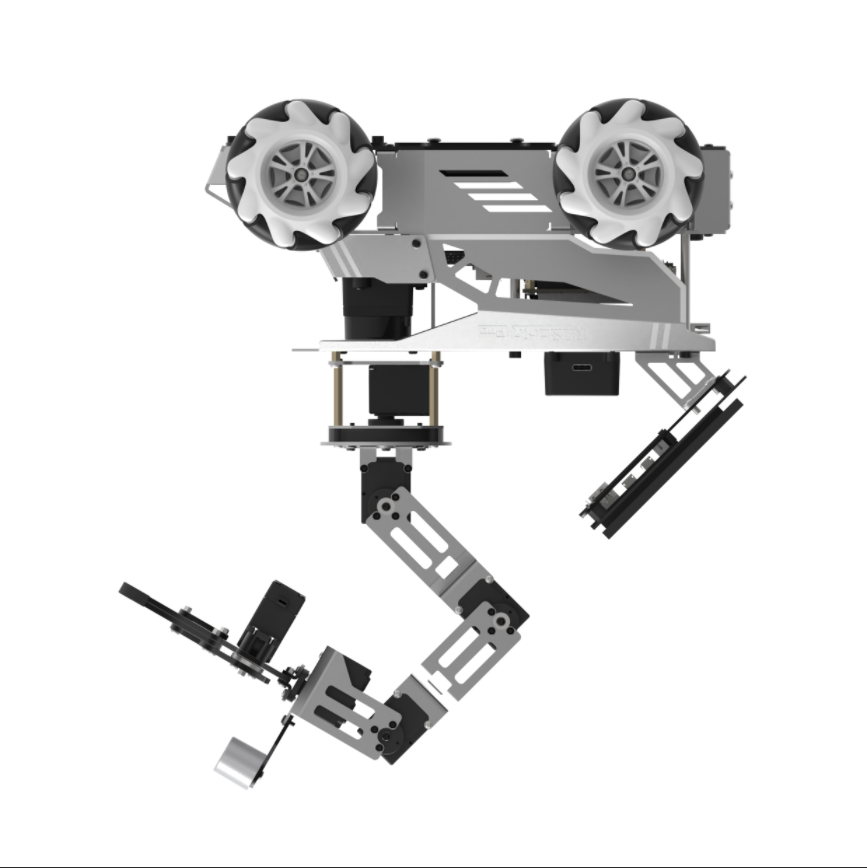
When the following message appears, the calibration is complete. Press Ctrl + C to exit.

After calibration, run the following command to view the calibrated model:
ros2 launch peripherals imu_view.launch.py
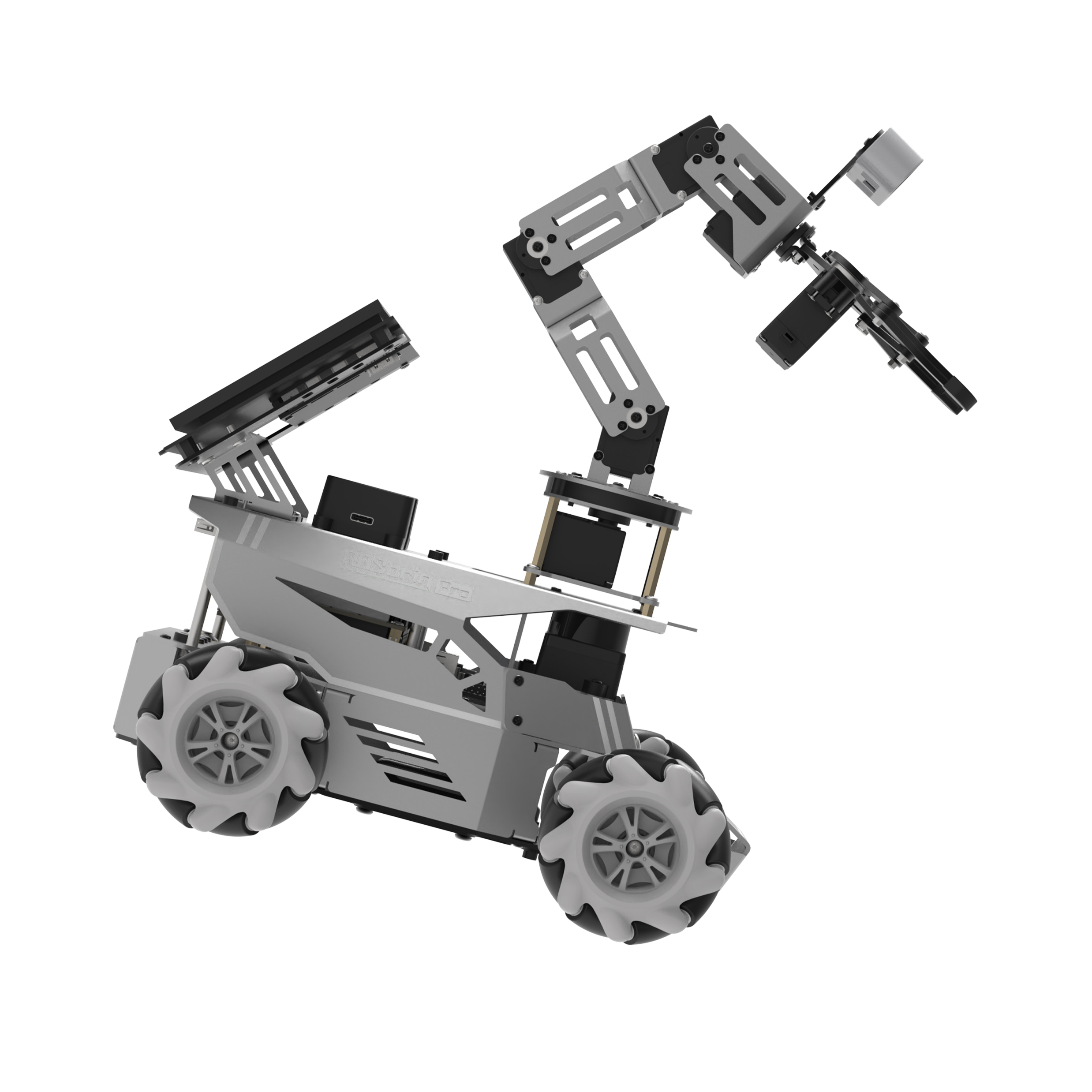
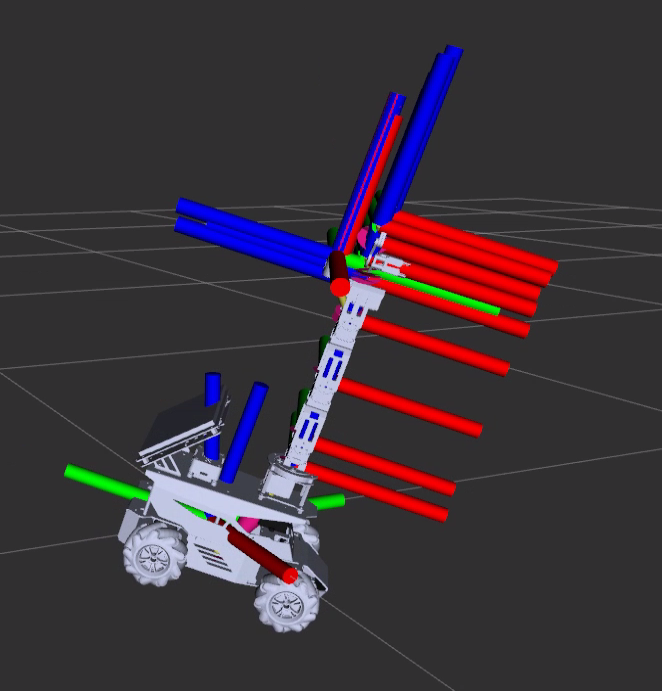
Gently tilt the robot to check whether the model’s tilt direction matches the actual movement. Refer to the example below. If both directions align, the IMU calibration results are considered accurate.
2.1.2 Angular Velocity Calibration
When the robot shows noticeable deviation in turning points or turning angles during mapping, navigation, or routine driving, angular-velocity calibration is required. The process is as follows:
Note
Commands must be entered with correct capitalization. The Tab key can be used to auto-complete keywords.
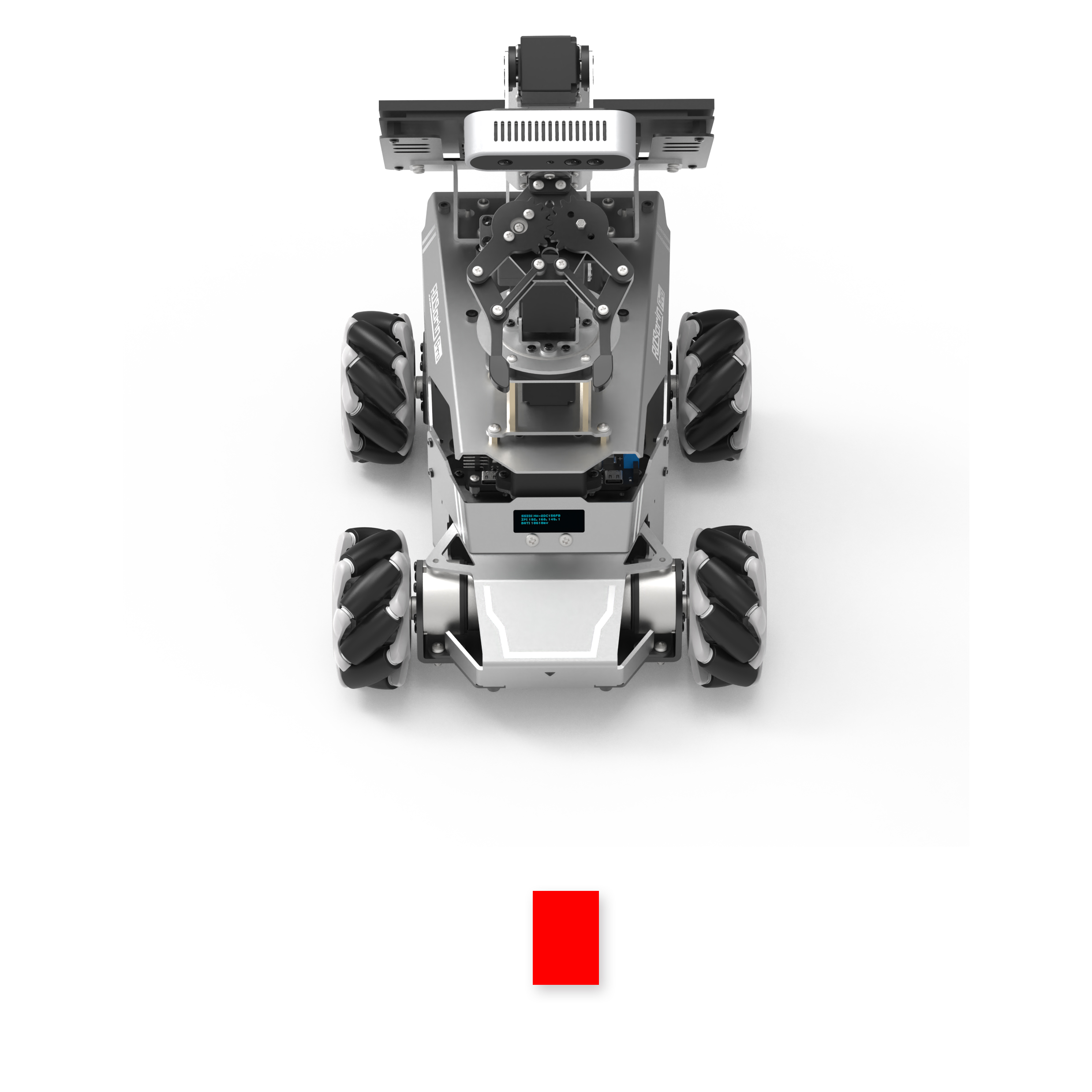
Place the robot on a flat surface and apply a piece of tape—or position another marker—at the center of its front side, as shown below.
Power on the robot and connect it with the remote access tool by following 1.7.2 AP Mode Connection Steps.
Click the terminal icon
on the system desktop.Enter the following command and press Enter to stop the app auto-start service.
sudo systemctl stop start_app_node.service
Before starting the calibration, navigate to the calibration configuration file directory and open the configuration file.
cd ~/ros2_ws/src/driver/controller/config && vim calibrate_params.yaml
Set the angular velocity parameter to 1.0 before proceeding with the calibration.

After editing, press ESC, type
:wq, and press Enter to save and exit.Next, enter the command and press Enter to start the chassis control node:
ros2 launch ros_robot_controller ros_robot_controller.launch.py
Then, open a new terminal, enter the command, and press Enter to start the angular velocity calibration:
ros2 launch calibration angular_calib.launch.py
Then, click calibrate_angular on the left to open the calibration interface, as shown below.
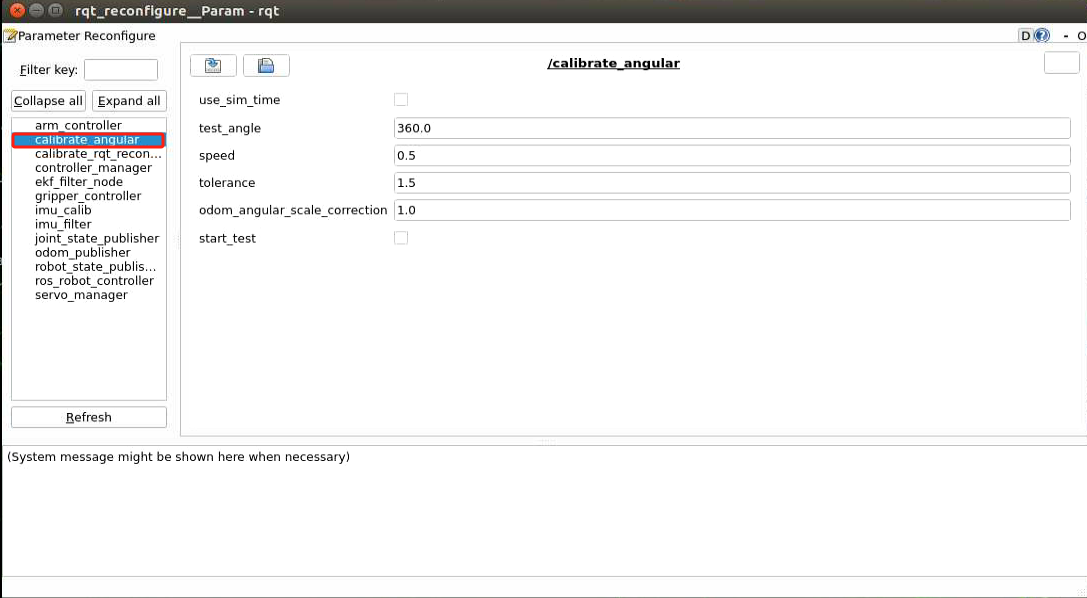
The meanings of the parameters on the left side of the interface are as follows:
(1) test_angle – The rotation angle for testing, 360° by default.
(2) speed – The linear speed, default is 0.15 m/s.
(3) tolerance – The allowable error. A smaller error value results in more noticeable oscillation when the robot reaches its target position.
(4) odom_angule_scale_correction – The odometry angle scaling ratio.
(5) start_test – Button to start testing the odometry angle scaling.
Make sure the robot is properly aligned, then check start_test. The robot will rotate in place. If it cannot complete a full rotation or shows deviation, adjust the odom_angle_scale_correction value, which scales the motor rotation during turning. It is recommended to adjust in increments of 0.01 and repeat the test until the robot can rotate exactly one full turn, then record this value.
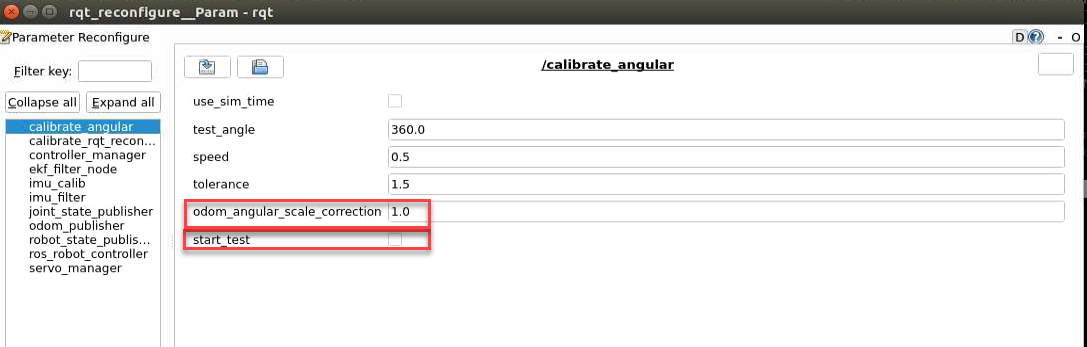
If the rotation angle exceeds one full turn, it indicates a deviation in the robot’s angular velocity. To correct it, increase the odom_angular_scale_correction parameter in the input field next to the slider, adjusting by 0.01 each time. For example, changing 1.0 to 1.01. Conversely, if the rotation angle is less than one full turn, decrease the parameter odom_angular_scale_correction.
When the robot completes exactly one full turn, the calibration is correct. Record the current value of odom_angular_scale_correction.
After calibration, open the calibration configuration file to save the corrected parameter:
cd ~/ros2_ws/src/driver/controller/config && vim calibrate_params.yaml
Press the key i to enter edit mode and modify the value of angular_correctqion_factor to the calibrated value of odom_angule_scale_correction.

After editing, press ESC, type
:wq, and press Enter to save and exit.
2.1.3 Linear Velocity Calibration
Note
Commands must be entered with correct capitalization. The Tab key can be used to auto-complete keywords.
Place the robot on a flat, open surface. Attach a start marker, such as tape, directly in front of the platform, and place an end marker about 1 meter ahead, as shown below.
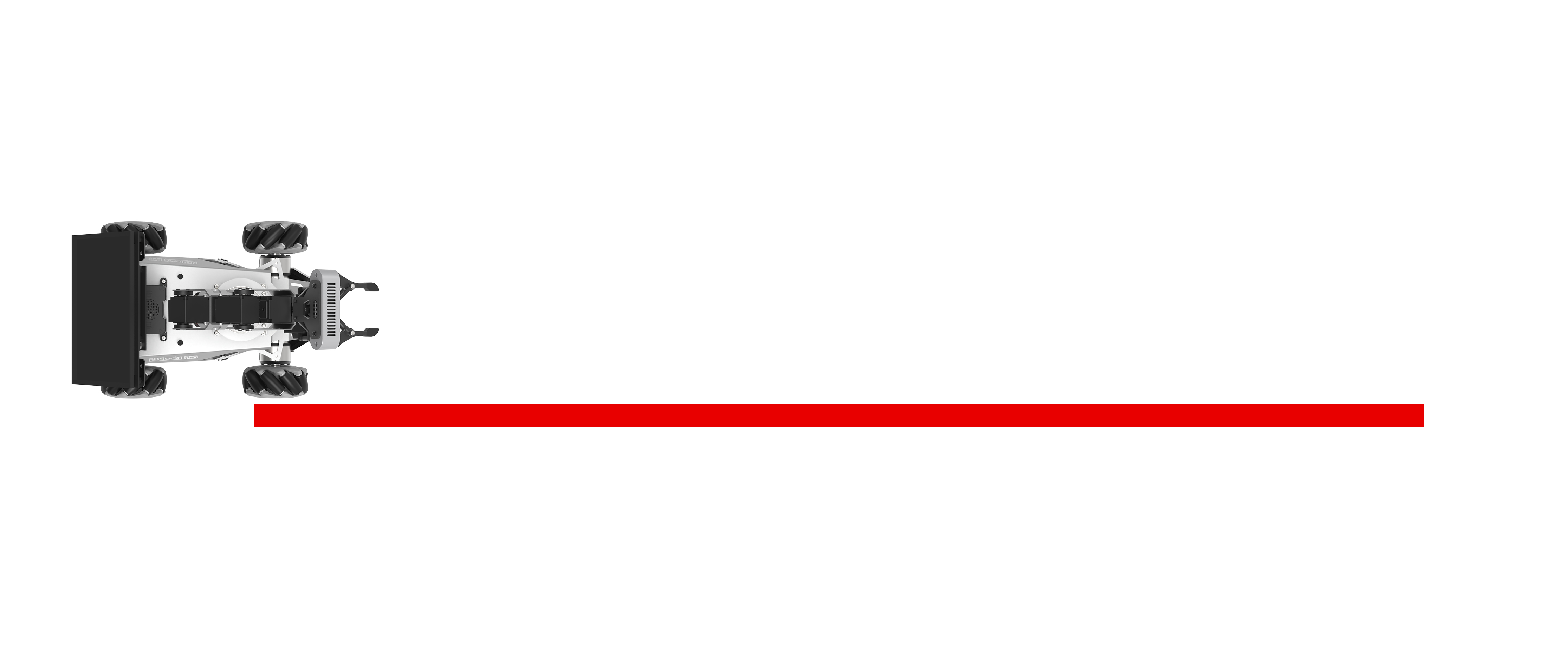
Power on the robot and connect it with the remote access tool by following 1.7.2 AP Mode Connection Steps.
Click the terminal icon
in the system desktop to open a command-line window.Enter the following command and press Enter to stop the app auto-start service.
sudo systemctl stop start_app_node.service
Before starting the calibration, navigate to the calibration configuration file directory and open the configuration file.
cd ~/ros2_ws/src/driver/controller/config && vim calibrate_params.yaml
Change the linear velocity parameter
linear_correction_factorto 1.0 before proceeding with the calibration.

After editing, press ESC, type
:wq, and press Enter to save and exit.Next, enter the command and press Enter to start the chassis control node:
ros2 launch ros_robot_controller ros_robot_controller.launch.py
Then, open a new terminal, enter the command, and start the linear velocity calibration:
ros2 launch calibration linear_calib.launch.py
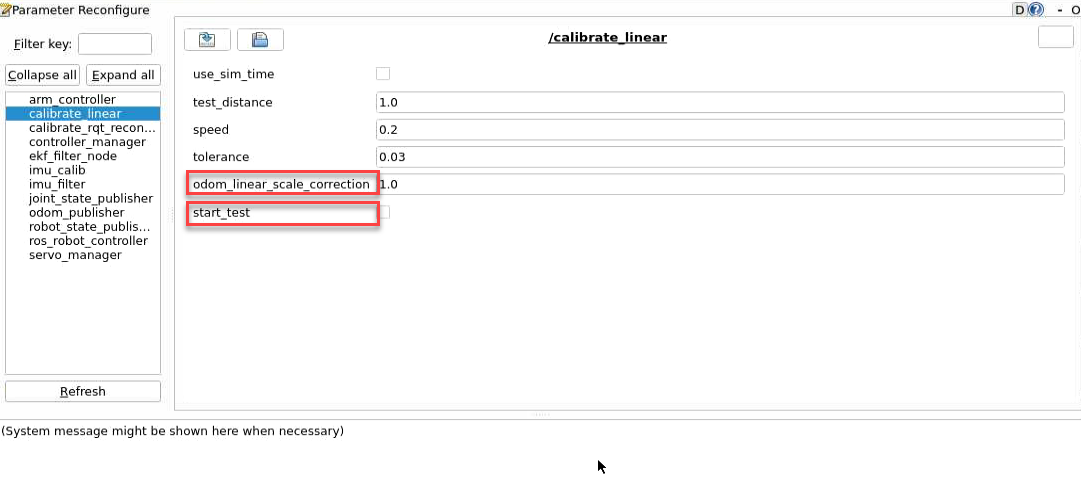
After the calibration program starts, click on calibrate_linear on the left to open the calibration interface, as shown below:
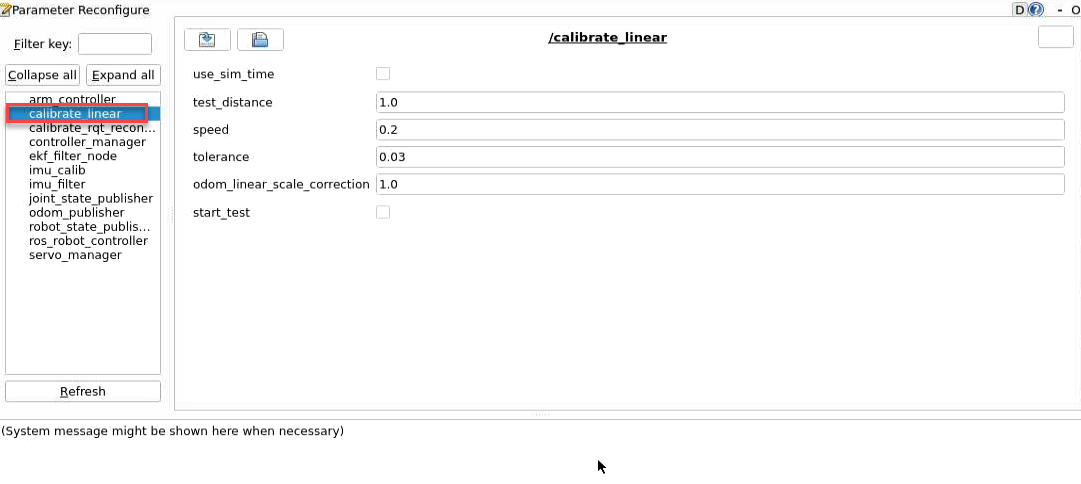
The meanings of the parameters on the left side of the interface are as follows:
(1) test_distance – The test distance, default is 1 meter.
(2) speed – The linear speed, default is 0.2 m/s.
(3) tolerance – The allowable error. Smaller values reduce the deviation from the target but may cause more shaking after reaching the target.
(4) odom_linear_scale_correction – The odometry linear scale factor.
(5) start_test – The button to start testing the odometry linear scale factor.
Ensure the robot is properly aligned and positioned at the start marker, then check start_test. The robot will move forward 1 meter in a straight line.
If no adjustment to the interface parameters is needed and the platform moves exactly 1 meter, the current settings are correct, as shown below.
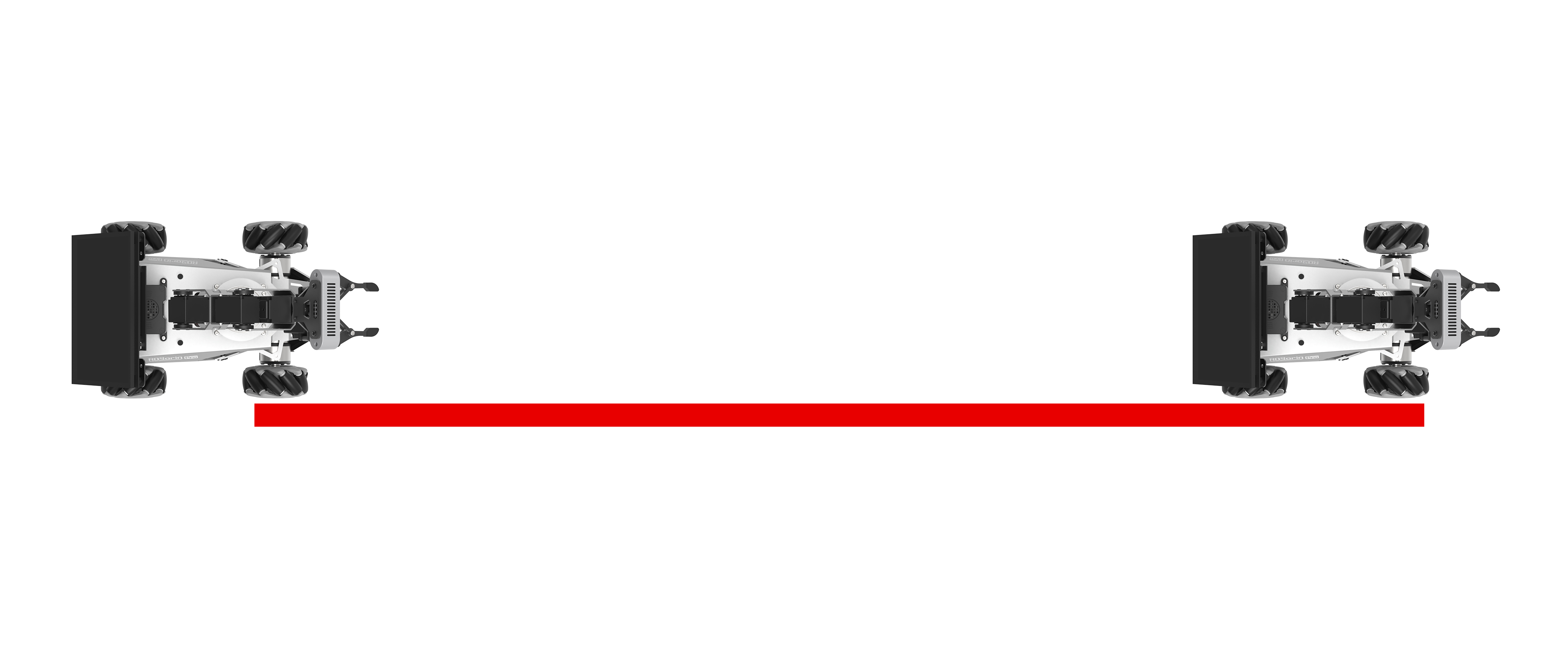
If the robot moves more than 1 meter, the robot’s linear speed is off. Increase the odom_linear_scale_correction parameter by 0.01 at a time until the robot moves exactly 1 meter. Record this critical value, increasing it by 0.01 will cause the robot to travel less than 1 meter. If the robot moves less than 1 meter, decrease the parameter in 0.01 increments.
If there is any deviation, adjust the
odom_linear_scale_correctionvalue, which controls the scaling of the motor’s forward movement. It is recommended to change it in increments of 0.01 each time.
After calibration, open the calibration configuration file to save the corrected parameter.
cd ~/ros2_ws/src/driver/controller/config && vim calibrate_params.yaml
Press the key i to enter edit mode and modify
linear_correction_factorto the calibrated value ofodom_linear_scale_correction.
After editing, press ESC, type
:wq, and press Enter to save and exit.
2.1.4 IMU and Odometry Data Publishing
In robot navigation, calculating the real-time position is crucial.
Typically, odometry information is computed using the motor encoders combined with the robot’s kinematic model. However, in some special scenarios, such as when the robot’s wheels spin in place or the robot is lifted off the ground, it may appear that the robot has moved a certain distance, even though the wheels did not actually turn.
In such cases, fusing IMU and odometry data provides a more accurate estimation of the robot’s position, which helps improve mapping and enhances navigation accuracy.
2.1.4.1 Introduction to IMU and Odometry
The IMU, Inertial Measurement Unit, measures an object’s three-axis orientation (angular velocity) and acceleration. The gyroscope and accelerometer are the main components of the IMU, providing a total of six degrees of freedom to measure angular velocity and acceleration in 3D space.
Odometry is a method for estimating an object’s position over time based on data obtained from motion sensors. It is widely used in robotic systems to estimate how far a robot has moved relative to its initial position.
Common odometry methods include wheel odometry, visual odometry, and visual-inertial odometry. For the robot, wheel odometry is used.
The principle of wheel odometry can be illustrated with a simple example. Suppose the distance from point A to point B needs to be measured for a cart.
If the wheel circumference is known and a device is available to count wheel rotations during motion, the travel distance can be calculated from the wheel circumference and the total number of rotations between point A and point B.
For a wheeled robot, odometry provides a basic estimate of its pose. However, it has a significant limitation, which is cumulative error. Besides inherent hardware inaccuracies, environmental factors, such as wheel slippage caused by wet or slippery surfaces, can increase odometry errors as the robot travels farther.
Therefore, both the IMU and odometry are key components of the robot. They are used to measure the object’s three-axis orientation or angular velocity, and acceleration, as well as to estimate the robot’s displacement and pose relative to its initial position, including movement speed and direction.
To correct for errors in odometry, the IMU is used in combination, and the data from both sources are fused to obtain more accurate information.
The IMU data is published on the topic /imu, and the odometry data is published on /odom. Once both sets of data are obtained, they are fused using the ekf package in ROS, and the resulting fused localization information is then re-published.
2.1.4.2 IMU Data Publishing
Enable Service
Note
Commands must be entered with correct capitalization. The Tab key can be used to auto-complete keywords.
Power on the robot and connect it through NoMachine. For connection details, refer to 1.7.2 AP Mode Connection Steps.
Click the terminal icon
in the system desktop to open a command-line window.Enter the following command and press Enter to stop the app auto-start service.
sudo systemctl stop start_app_node.service
Next, enter the command and press Enter to start the chassis control node:
ros2 launch ros_robot_controller ros_robot_controller.launch.py
Open a new terminal, enter the command, and press Enter to start publishing IMU data:
ros2 launch peripherals imu_filter.launch.py
View Data
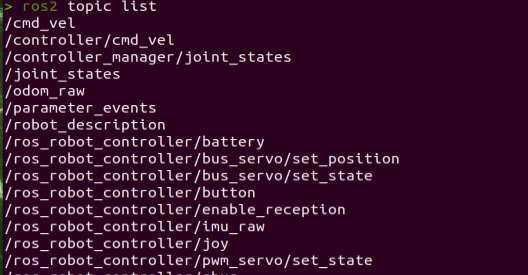
Then, open a new terminal, enter the command to check the current topics:
ros2 topic list
Next, enter the command to check the type, publisher, and subscriber of the
/imutopic. Any topic can be substituted as needed. The type of this topic issensor_msgs/msg/Imu:
ros2 topic info /imu

Then, enter the command to print the topic message content. Any topic can be substituted as needed:
ros2 topic echo /imu
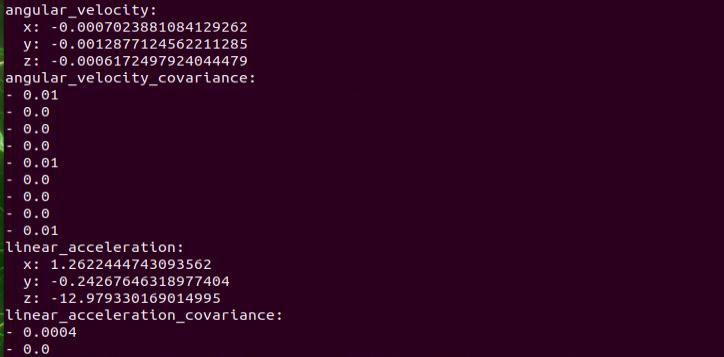
The message content shows the data collected from the three axes of the IMU.
2.1.4.3 Odometry Data Publishing
Enable Service
Note
Commands must be entered with correct capitalization. The Tab key can be used to auto-complete keywords.
Power on the robot and connect it through NoMachine. For remote desktop connection details, refer to 1.7.2 AP Mode Connection Steps.
Click the terminal icon
in the system desktop to open a command-line window.Enter the following command and press Enter to stop the app auto-start service.
sudo systemctl stop start_app_node.service
Enter the command and press Enter to start publishing odometry data:
ros2 launch controller odom_publisher.launch.py
View Data
Open a new terminal, enter the command to check the current topics:
ros2 topic list
Next, enter the command to check the type, publisher, and subscriber of the
/odom_rawtopic. Any topic can be substituted as needed. The type of this topic isnav_msgs/msg/Odometry:
ros2 topic info /odom_raw

Then, enter the command to print the topic message content. Any topic can be substituted as needed:
ros2 topic echo /odom_raw
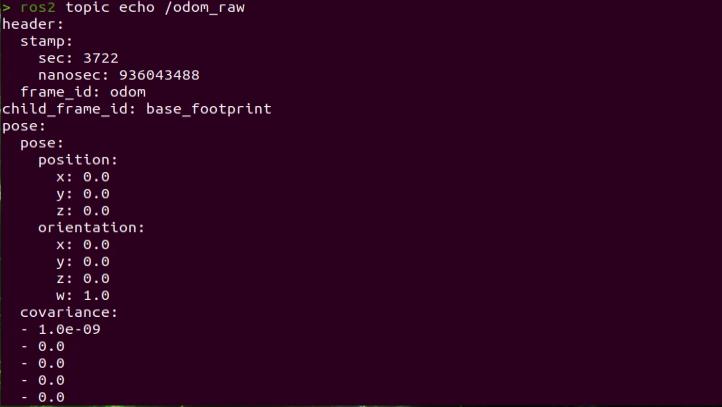
The message contains the robot’s pose and twist data.
2.1.5 Robot Speed Control
This section shows how to control the robot’s forward speed by tuning the linear velocity parameter.
2.1.5.1 Working Principle
Based on the robot’s motion characteristics, the forward, backward, and turning motions are achieved by controlling the rotation direction of the driving wheels.
The program subscribes to the /controller/cmd_vel topic to get the set linear and angular velocities, which are then used to calculate the robot’s movement speed.
The program source code is located at: /home/ubuntu/ros2_ws/src/driver/controller/controller/odom_publisher_node.py
2.1.5.2 Disable the App Service and Enable Speed Control
Note
Commands must be entered with correct capitalization. The Tab key can be used to auto-complete keywords.
Power on the robot and connect it through NoMachine. For remote desktop setup instructions, refer to 1.7.2 AP Mode Connection Steps.
Click the terminal icon
in the system desktop to open a command-line window.Enter the command to stop the app service and press Enter:
sudo systemctl stop start_app_node.service
Enter the command to start the motion control service:
ros2 launch controller controller.launch.py
Open a new ROS2 terminal and enter the command to enable speed control:
ros2 topic pub /controller/cmd_vel geometry_msgs/Twist "linear:
x: 0.0
y: 0.0
z: 0.0
angular:
x: 0.0
y: 0.0
z: 0.0"
The linear parameter sets the linear velocity. From the robot’s perspective, the positive X direction points forward, with no motion along the Y or Z axes.
The angular parameter sets the angular velocity. A positive Z value makes the robot turn left, while a negative Z value makes it turn right. There is no rotation along the X or Y axes.
Note
The unit of linear velocity X is meters per second (m/s), with a recommended range of -0.6 ~ 0.6.
Z represents the angular velocity for turning. It can be calculated using the formulas: V = ωR and tanΦA = D / R, where z = ω, D = 0.213, and ΦA is the turn angle, ranging from 0° to 36°.
Use the keyboard arrow keys to modify the corresponding parameters. For example, to move forward, set linear X to 0.1 and press Enter to execute.
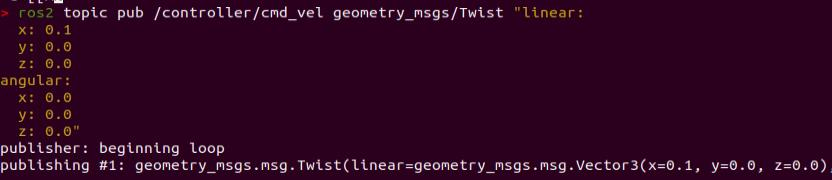
To stop the robot, open a new terminal, set the previously modified linear
Xback to 0.0, and press Enter.
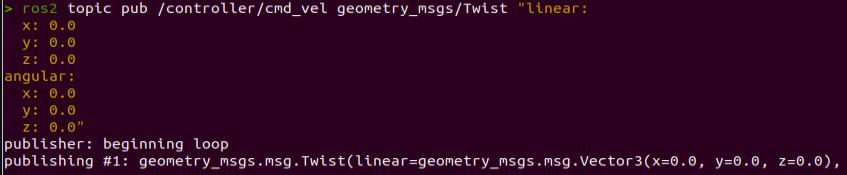
To exit this control mode, press Ctrl + C in each terminal.
Note
Before closing control mode, first open a new terminal and stop the robot as described in Step 6. If the terminal is exited directly with Ctrl + C, the robot may fail to stop properly.
2.1.5.3 Modifying Forward Speed
By adjusting the linear velocity X value, the robot can move forward at different speeds. For example, to make the robot move straight forward, set X to 0.3 as described in Step 5 of 2.1.5.2 Disable the App Service and Enable Speed Control.
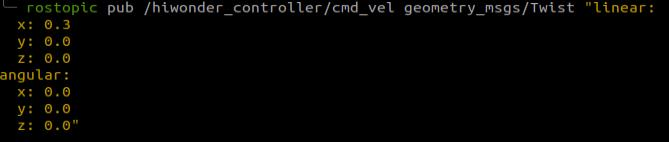
After pressing Enter, the robot will move forward at a speed of 0.3 m/s.
2.1.5.4 Program Outcome
After starting the feature, the robot will move forward at the previously set speed of 0.3 m/s.
2.1.5.5 Program Analysis
There are three files: controller.launch as the launch file, calibrate_params.yaml as the configuration file, and odom_publisher.py as the program file.
When starting, the launch file is executed first. It loads the YAML configuration file and passes the parameters to the ROS nodes. The nodes then read these parameters, initialize themselves, and communicate with other nodes to coordinate the robot’s behavior.
launch File
The launch file is located at /home/ubuntu/ros2_ws/src/driver/controller/launch/controller.launch.py
import os
from ament_index_python.packages import get_package_share_directory

from launch_ros.actions import Node
from launch.conditions import IfCondition
from nav2_common.launch import ReplaceString
from launch import LaunchDescription, LaunchService
from launch.substitutions import LaunchConfiguration
from launch.launch_description_sources import PythonLaunchDescriptionSource
from launch.actions import DeclareLaunchArgument, IncludeLaunchDescription, GroupAction, TimerAction, OpaqueFunction

def launch_setup(context):
    compiled = os.environ['need_compile']
    namespace = LaunchConfiguration('namespace', default='')
    use_namespace = LaunchConfiguration('use_namespace', default='false').perform(context)
    use_sim_time = LaunchConfiguration('use_sim_time', default='false')
    enable_odom = LaunchConfiguration('enable_odom', default='true')
    map_frame = LaunchConfiguration('map_frame', default='map')
    odom_frame = LaunchConfiguration('odom_frame', default='odom')
    base_frame = LaunchConfiguration('base_frame', default='base_footprint')
    imu_frame = LaunchConfiguration('imu_frame', default='imu_link')
    frame_prefix = LaunchConfiguration('frame_prefix', default='')

    namespace_arg = DeclareLaunchArgument('namespace', default_value=namespace)
    use_namespace_arg = DeclareLaunchArgument('use_namespace', default_value=use_namespace)
    use_sim_time_arg = DeclareLaunchArgument('use_sim_time', default_value=use_sim_time)
    enable_odom_arg = DeclareLaunchArgument('enable_odom', default_value=enable_odom)
    map_frame_arg = DeclareLaunchArgument('map_frame', default_value=map_frame)
    odom_frame_arg = DeclareLaunchArgument('odom_frame', default_value=odom_frame)
    base_frame_arg = DeclareLaunchArgument('base_frame', default_value=base_frame)
    imu_frame_arg = DeclareLaunchArgument('imu_frame', default_value=imu_frame)
    frame_prefix_arg = DeclareLaunchArgument('frame_prefix', default_value=frame_prefix)
Setting Paths
Obtain the paths for the three packages: peripherals, controller, and servo_controller.
    if compiled == 'True':
        peripherals_package_path = get_package_share_directory('peripherals')
        controller_package_path = get_package_share_directory('controller')
        servo_controller_package_path = get_package_share_directory('servo_controller')
    else:
        peripherals_package_path = '/home/ubuntu/ros2_ws/src/peripherals'
        controller_package_path = '/home/ubuntu/ros2_ws/src/driver/controller'
        servo_controller_package_path = '/home/ubuntu/ros2_ws/src/driver/servo_controller'
Starting Other Launch Files
    odom_publisher_launch = IncludeLaunchDescription(
        PythonLaunchDescriptionSource([os.path.join(controller_package_path, 'launch/odom_publisher.launch.py')
        ]),
        launch_arguments={
            'namespace': namespace,
            'use_namespace': use_namespace,
            'imu_frame': imu_frame,
            'frame_prefix': frame_prefix,
            'base_frame': base_frame,
            'odom_frame': odom_frame
        }.items()
    )
odom_publisher_launch: Launch file for odometry.
imu_filter_launch: Launch file for IMU.
Start Nodes
Starts the EKF fusion node.
    ekf_filter_node = Node(
        package='robot_localization',
        executable='ekf_node',
        name='ekf_filter_node',
        namespace=namespace,
        output='screen',
        parameters=[ekf_param, {'use_sim_time': use_sim_time}],
        remappings=[
            ('/tf', '/tf'),
            ('/tf_static', '/tf_static'),
            ('odometry/filtered', 'odom'),
            ('cmd_vel', 'controller/cmd_vel')
        ],
        condition=IfCondition(enable_odom),
    )

    servo_controller_launch = IncludeLaunchDescription(
        PythonLaunchDescriptionSource([os.path.join(servo_controller_package_path, 'launch/servo_controller.launch.py')
        ]),
        launch_arguments={
            'base_frame': base_frame,
        }.items()
    )
Python File
The Python file is located at /home/ubuntu/ros2_ws/src/driver/controller/controller/odom_publisher_node.py
Imported Libraries
#!/usr/bin/env python3
# -*- coding: utf-8 -*-
import os
import math
import time
import rclpy
import signal
import threading
from rclpy.node import Node
from std_srvs.srv import Trigger
from nav_msgs.msg import Odometry
from controller import ackermann, mecanum
from ros_robot_controller_msgs.msg import MotorsState, SetPWMServoState, PWMServoState
from geometry_msgs.msg import Pose2D, Pose, Twist, PoseWithCovarianceStamped, TransformStamped
Main Function
def main():
    node = Controller('odom_publisher')
    rclpy.spin(node)
Calls the Controller class and waits for the node to exit.
Global Parameters
ODOM_POSE_COVARIANCE = list(map(float,
                        [1e-3, 0, 0, 0, 0, 0,
                        0, 1e-3, 0, 0, 0, 0,
                        0, 0, 1e6, 0, 0, 0,
                        0, 0, 0, 1e6, 0, 0,
                        0, 0, 0, 0, 1e6, 0,
                        0, 0, 0, 0, 0, 1e3]))

ODOM_POSE_COVARIANCE_STOP = list(map(float,
                            [1e-9, 0, 0, 0, 0, 0,
                             0, 1e-3, 1e-9, 0, 0, 0,
                             0, 0, 1e6, 0, 0, 0,
                             0, 0, 0, 1e6, 0, 0,
                             0, 0, 0, 0, 1e6, 0,
                             0, 0, 0, 0, 0, 1e-9]))

ODOM_TWIST_COVARIANCE = list(map(float,
                        [1e-3, 0, 0, 0, 0, 0,
                         0, 1e-3, 0, 0, 0, 0,
                         0, 0, 1e6, 0, 0, 0,
                         0, 0, 0, 1e6, 0, 0,
                         0, 0, 0, 0, 1e6, 0,
                         0, 0, 0, 0, 0, 1e3]))

ODOM_TWIST_COVARIANCE_STOP = list(map(float,
                            [1e-9, 0, 0, 0, 0, 0,
                              0, 1e-3, 1e-9, 0, 0, 0,
                              0, 0, 1e6, 0, 0, 0,
                              0, 0, 0, 1e6, 0, 0,
                              0, 0, 0, 0, 1e6, 0,
                              0, 0, 0, 0, 0, 1e-9]))
Functions
def rpy2qua(roll, pitch, yaw):
    cy = math.cos(yaw*0.5)
    sy = math.sin(yaw*0.5)
    cp = math.cos(pitch*0.5)
    sp = math.sin(pitch*0.5)
    cr = math.cos(roll * 0.5)
    sr = math.sin(roll * 0.5)

    q = Pose()
    q.orientation.w = cy * cp * cr + sy * sp * sr
    q.orientation.x = cy * cp * sr - sy * sp * cr
    q.orientation.y = sy * cp * sr + cy * sp * cr
    q.orientation.z = sy * cp * cr - cy * sp * sr
    return q.orientation

def qua2rpy(x, y, z, w):
    roll = math.atan2(2 * (w * x + y * z), 1 - 2 * (x * x + y * y))
    pitch = math.asin(2 * (w * y - x * z))
    yaw = math.atan2(2 * (w * z + x * y), 1 - 2 * (z * z + y * y))

    return roll, pitch, yaw
rpy2qua: Converts Euler angles to a quaternion.
qua2rpy: Converts a quaternion to Euler angles.
Controller Class Analysis
(1) Call Kinematics:
self.mecanum = mecanum.MecanumChassis(wheelbase=0.17706, track_width=0.17165, wheel_diameter=0.08)
self.mecanum invokes the Mecanum kinematics by initializing an Mecanum kinematics object.
(2) Define ROS Parameters:
        self.declare_parameter('pub_odom_topic', True)
        self.declare_parameter('base_frame_id', 'base_footprint')
        self.declare_parameter('odom_frame_id', 'odom')
        self.declare_parameter('linear_correction_factor', 1.00)
        self.declare_parameter('linear_correction_factor_tank', 0.52)
        self.declare_parameter('angular_correction_factor', 1.00)
        self.declare_parameter('machine_type', os.environ['MACHINE_TYPE'])


        self.pub_odom_topic = self.get_parameter('pub_odom_topic').value
        self.base_frame_id = self.get_parameter('base_frame_id').value
        self.odom_frame_id = self.get_parameter('odom_frame_id').value

        #self.machine_type = os.environ.get('MACHINE_TYPE', 'ROSOrin_Mecanum')
        self.machine_type = self.get_parameter('machine_type').value
        self.ackermann = ackermann.AckermannChassis(wheelbase=0.17706, track_width=0.17165, wheel_diameter=0.085)
        self.mecanum = mecanum.MecanumChassis(wheelbase=0.17706, track_width=0.17165, wheel_diameter=0.08)
The function self.declare_parameter is used to define a parameter.
The function self.get_parameter is used to obtain a parameter.
pub_odom_topic determines whether to publish the odometry topic.
base_frame_id specifies the robot’s base frame ID.
odom_frame_id specifies the robot’s odometry frame ID.
linear_correction_factor sets the linear velocity correction factor.
angular_correction_factor sets the angular velocity correction factor.
machine_type specifies the type of robot.
(3) Publish Odometry:
        if self.pub_odom_topic:
            # self.odom_broadcaster = tf2_ros.TransformBroadcaster(self)            # self.odom_trans = TransformStamped()
            # self.odom_trans.header.frame_id = self.odom_frame_id
            # self.odom_trans.child_frame_id = self.base_frame_id

            self.odom = Odometry()
            self.odom.header.frame_id = self.odom_frame_id
            self.odom.child_frame_id = self.base_frame_id

            self.odom.pose.covariance = ODOM_POSE_COVARIANCE
            self.odom.twist.covariance = ODOM_TWIST_COVARIANCE

            self.odom_pub = self.create_publisher(Odometry, 'odom_raw', 1)
            self.dt = 1.0/50.0

            threading.Thread(target=self.cal_odom_fun, daemon=True).start()
Whether to publish the odometry topic is determined by the pub_odom_topic parameter. If enabled, the node is initialized.
Relevant parameters are set, and the odometry is published using the self.create_publisher function. The odometry data is updated via the self.cal_odom_fun function.
(4) Topic Publishing:
        self.motor_pub = self.create_publisher(MotorsState, 'ros_robot_controller/set_motor', 1)
        self.servo_state_pub = self.create_publisher(SetPWMServoState, 'ros_robot_controller/pwm_servo/set_state', 10)
        self.pose_pub = self.create_publisher(PoseWithCovarianceStamped, 'set_pose', 1)
        self.create_subscription(Pose2D, 'set_odom', self.set_odom, 1)
        self.create_subscription(Twist, 'controller/cmd_vel', self.cmd_vel_callback, 1)
        self.create_subscription(Twist, 'app/cmd_vel', self.acker_cmd_vel_callback, 1)
        self.create_subscription(Twist, 'cmd_vel', self.app_cmd_vel_callback, 1)
        self.create_service(Trigger, 'controller/load_calibrate_param', self.load_calibrate_param)
        self.create_service(Trigger, '~/init_finish', self.get_node_state)
self.create_subscription is used to subscribe to a topic.
self.create_service is used to create a service.
self.motor_pub publishes motor control messages to ros_robot_controller/set_motor with message type MotorsState.
self.servo_state_pub publishes servo control messages to ros_robot_controller/bus_servo/set_state with message type SetBusServoState.
self.pose_pub publishes servo pose messages to set_pose with message type PoseWithCovarianceStamped.
set_odom topic publishes Pose2D messages, with the callback function self.set_odom.
controller/cmd_vel topic publishes Twist messages, with the callback function self.cmd_vel_callback.
cmd_vel topic publishes Twist messages, with the callback function self.set_app_cmd_vel_callback.
controller/load_calibrate_param service uses the Trigger type, with the callback self.load_calibrate_param.
~/init_finish service uses the Trigger type, with the callback self.get_node_state.
(5) Controller Class Function Descriptions:
get_node_state retrieves the current state of the node, used as a callback function.
shutdown shuts down the ROS node, used as a callback function.
load_calibrate_param reads the current motion parameters, used as a callback function.
set_odom sets the odometry values, used as a callback function.
app_cmd_vel_callback sets the robot velocity based on commands from the app, used as a callback function.
cmd_vel_callback sets the robot velocity, used as a callback function.
cal_odom_fun publishes odometry data.
2.2 Kinematics Analysis
2.2.1 Overview
ROSOrin Pro uses a Mecanum wheel chassis. A Mecanum-wheeled robot uses multiple small, freely rotating rollers to support the robot’s weight. These wheels are usually mounted at the bottom of the chassis and can rotate independently, allowing the robot to turn and maneuver more easily.
2.2.1.1 Purpose
Mecanum-wheeled robots are commonly used in urban environments and on roads because they can turn easily and provide high maneuverability.
2.2.2 Mecanum Chassis
2.2.2.1 Hardware Structure
A Mecanum wheel consists of a main wheel hub and multiple rollers mounted around the hub. The rollers are angled at 45 degrees relative to the axis of the hub. Typically, Mecanum wheels are used in sets of four, two left-handed wheels as Type A and two right-handed wheels as Type B, which are arranged symmetrically.
There are several common configurations, such as AAAA, BBBB, AABB, ABAB, BABA, etc. However, not all configurations support full-range movement functions like forward/backward motion, rotation, and lateral movement. The Mecanum chassis uses the ABAB configuration, which enables true omnidirectional movement.
2.2.2.2 Physical Characteristics
The motion of a Mecanum wheel robot is determined by the direction and speed of each individual wheel. The forces generated by each wheel combine to produce a resultant force vector, allowing the robot to move freely in any desired direction without changing the orientation of the wheels.
Because of the angled rollers distributed around the edge of the wheel, lateral movement is also possible. The rollers follow a unique path. When the wheel rotates around its central axis, the roller surfaces form a cylindrical envelope, allowing the robot to roll continuously in a given direction.
The Mecanum wheel chassis has the following main features:
1. Wheel arrangement: The chassis usually consists of four specially arranged wheels. One at each corner of the chassis, forming a diagonal pattern within a plane. This arrangement allows the robot to generate both lateral and longitudinal thrust simultaneously.
2. Rolling mechanism: Each Mecanum wheel has a unique rolling design with multiple angled rollers or beads around the circumference. These rollers enable the wheel to move in multiple directions, including sideways and forward/backward, allowing the robot to perform translational movements without changing its orientation.
3. Wheel motion control: By adjusting the speed and direction of each wheel, the robot’s movement and direction can be precisely controlled. Proper wheel control enables the vehicle to rotate, translate, or move diagonally, offering highly flexible maneuvering.
4. Stability: Mecanum wheels provide good stability, as the robot can move or translate in place without rotating. This is especially useful for robots navigating narrow passages or performing complex tasks.
5. Load capacity: The load capacity of Mecanum wheels depends on the design of the wheels and the drive system. They can accommodate a range of payloads, from small robots to industrial equipment.
2.2.2.3 Kinematic Principles and Equations
In kinematic analysis, the motion of Mecanum wheels can be described using a kinematic model. This includes several key parameters:
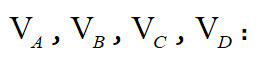
 : Linear velocity of the Mecanum chassis along the X-axis, typically the forward/backward direction.
 : Linear velocity of the Mecanum chassis along the Y-axis, typically the left/right or lateral direction.
 : Angular velocity of the Mecanum chassis, which is the rotation speed around its own center.
 : The real-time speeds of the four Mecanum wheels.
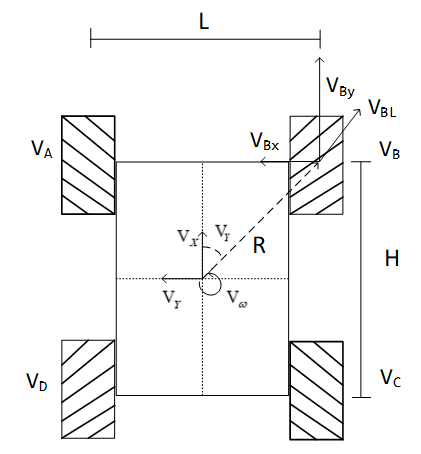
For example, the motion of the front-right wheel on a 2D plane can be decomposed into:
VBx: Linear velocity of the chassis along the X-axis, typically the forward/backward direction.
VBy: Linear velocity of the chassis along the Y-axis, typically the left/right or lateral direction.
L: The distance between the centers of the left and right wheels.
H: The distance between the centers of the front and rear wheels.
 : The angle between the robot’s center of chassis and the front-right wheel is 45°.
Based on these parameters, kinematic analysis can be performed for the Mecanum chassis to determine how wheel speeds contribute to the overall motion of the robot in any direction. The key equations are shown below:
Kinematic Analysis and Formula Derivation:
To simplify the kinematic model, the following two idealized assumptions are made:
(1) The Mecanum wheels do not slip on the ground, and the ground provides sufficient friction.
(2) The four wheels are positioned at the corners of a rectangle or square, and all wheels are parallel to their corresponding axes.
In this model, the robot’s rigid-body motion is decomposed into three components: translation along the X-axis, translation along the Y-axis, and rotation around the Z-axis. By calculating the wheel speeds required for these three basic motions, the combined wheel speeds for simultaneous translation and rotation can then be derived.
 represent the rotational speeds of wheels A, B, C, and D, respectively, corresponding to the motor speeds. is the translational velocity of the robot along the X-axis, is the translational velocity along the Y-axis, and is the rotational velocity around the Z-axis.
 is half the wheel track L, and
  is half the wheelbase H.
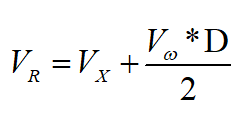
When the robot moves along the X-axis, the speed component of each wheel can be calculated using the following formula:

 represent the real-time speeds of the four Mecanum wheels, while represents the wheels’ speed along the X-axis.
When the robot moves along the Y-axis, the speed component of each wheel can be calculated using the following formula:

represents the speed of the Mecanum wheels along the Y-axis.
When the robot rotates around the Z-axis, the speed component of each wheel can be calculated using the following formula:


 : Angular velocity of the Mecanum chassis, which is the rotation speed around its own center.
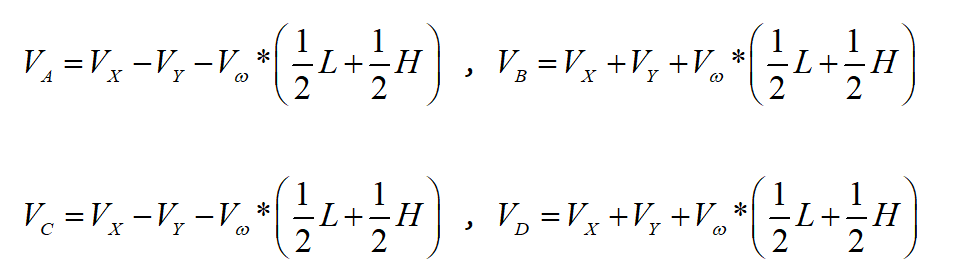
By combining the velocities along the X, Y, and Z axes, the rotational speed required for each of the four wheels can be derived according to the robot’s overall motion state.
2.2.2.4 Program Implementation
File path: ros2_ws\src\driver\controller\controller\mecanum.py
import math
from ros_robot_controller_msgs.msg import MotorState, MotorsState

class MecanumChassis:
    # wheelbase = 0.1368
    # track_width = 0.1446
    # wheel_diameter = 0.065
    def __init__(self, wheelbase=0.206, track_width=0.194, wheel_diameter=0.0065):
        self.wheelbase = wheelbase
        self.track_width = track_width
        self.wheel_diameter = wheel_diameter
Mecanum wheel kinematics class, used to calculate wheel speeds and implement the Mecanum wheel motion.
Init:
    def __init__(self, wheelbase=0.206, track_width=0.194, wheel_diameter=0.0065):
        self.wheelbase = wheelbase
        self.track_width = track_width
        self.wheel_diameter = wheel_diameter
Initializes the wheel dimensions for subsequent calculations.
speed_covert:
    def speed_covert(self, speed):
        """
        covert speed m/s to rps/s
        :param speed:
        :return:
        """
        # distance / circumference = rotations per second
        return speed / (math.pi * self.wheel_diameter)
Converts linear velocity (m/s) to angular velocity (rps/s) based on wheel parameters.
set_velocity:
    def set_velocity(self, linear_x, linear_y, angular_z):
        """
        Use polar coordinates to control moving
                    x
        v1 motor1|  ↑  |motor3 v3
          +  y - |     |
        v2 motor2|     |motor4 v4
        :param speed: m/s
        :param direction: Moving direction 0~2pi, 1/2pi<--- ↑ ---> 3/2pi
        :param angular_rate:  The speed at which the chassis rotates rad/sec
        :param fake:
        :return:
        """
        # vx = speed * math.sin(direction)
        # vy = speed * math.cos(direction)
        # vp = angular_rate * (self.wheelbase + self.track_width) / 2
        # v1 = vx - vy - vp
        # v2 = vx + vy - vp
        # v3 = vx + vy + vp
        # v4 = vx - vy + vp
        # v_s = [self.speed_covert(v) for v in [v1, v2, -v3, -v4]]
        motor1 = (linear_x - linear_y - angular_z * (self.wheelbase + self.track_width) / 2)
        motor2 = (linear_x + linear_y - angular_z * (self.wheelbase + self.track_width) / 2)
        motor3 = (linear_x + linear_y + angular_z * (self.wheelbase + self.track_width) / 2)
        motor4 = (linear_x - linear_y + angular_z * (self.wheelbase + self.track_width) / 2)
        v_s = [self.speed_covert(v) for v in [motor1, motor2, -motor3, -motor4]]
        data = []
        for i in range(len(v_s)):
            msg = MotorState()
            msg.id = i + 1
            msg.rps = float(v_s[i])
            data.append(msg)

        msg = MotorsState()
        msg.data = data
        return msg
Decomposes the input velocity parameters, computes the corresponding angular velocity using speed_covert, and publishes the resulting radian velocity to the motors.