4. AI Vision Features
Note
Before starting the AI vision features, the robotic arm must undergo calibration for visual offset. The detailed steps can be found in the section 1.4.2.5 AI Vision Functions in 1. Tutorials\1. Quick Started\01 Quick Started.pdf within the product materials.
4.1 Program Download Must-Read
Before executing individual control functions, the corresponding control program must be downloaded. The downloading process can refer to the following steps:
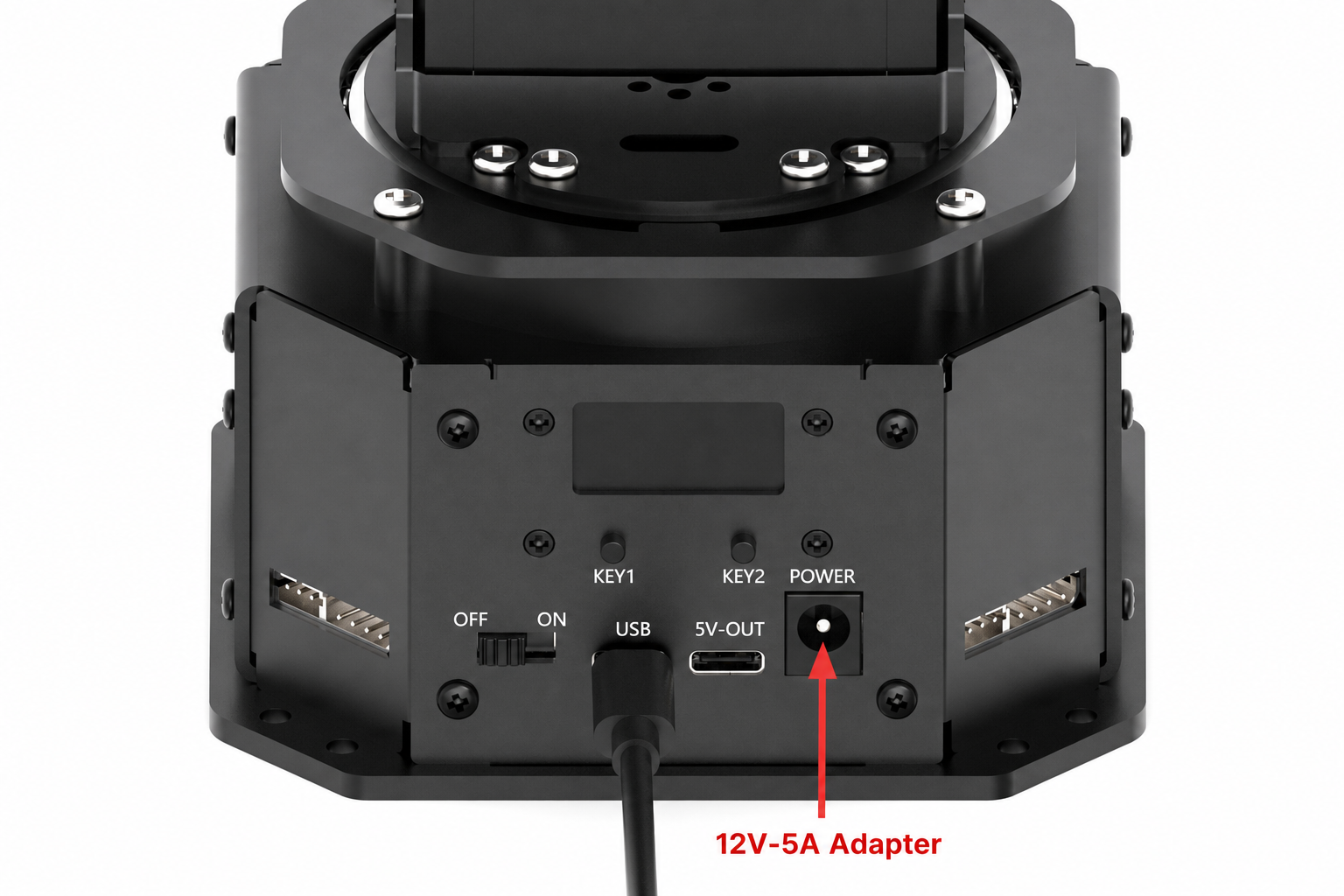
Connect the NexArm to the computer using a Type-C data cable.
Open the corresponding .ino program file under the 02 Program Source Code directory within the same path as this document.

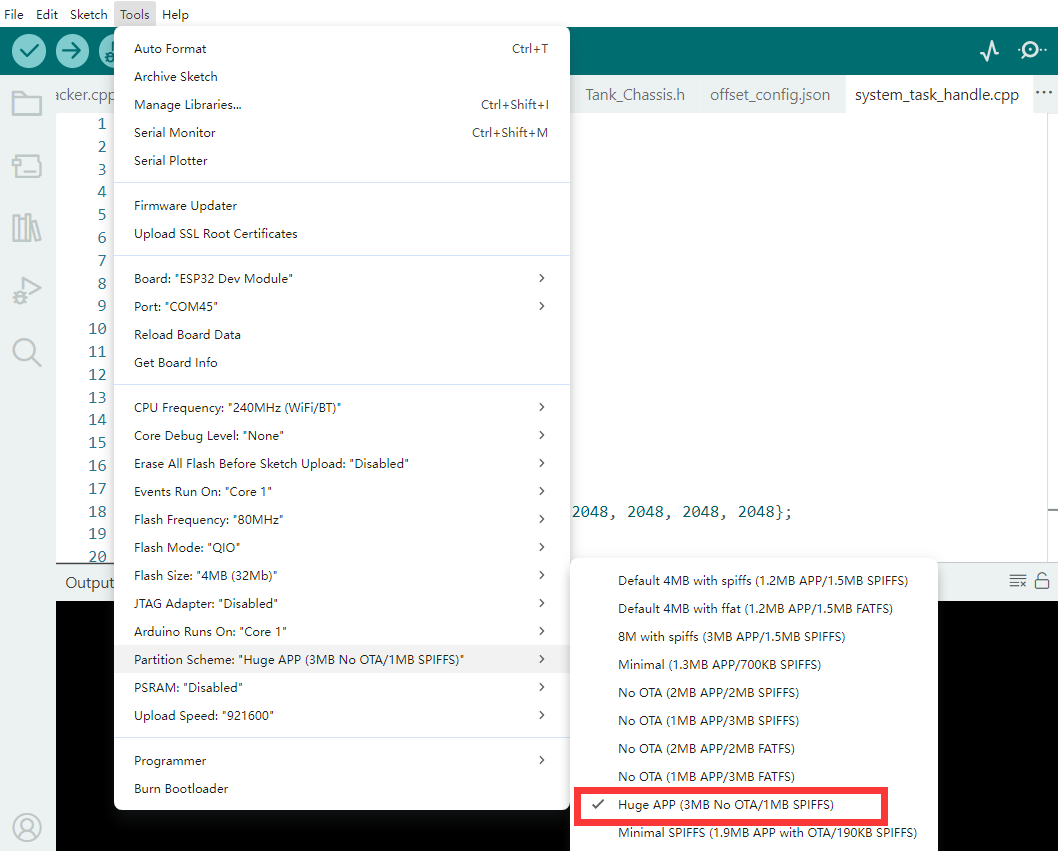
Select the development board model after opening. The specific model is shown in the figure below:

Click Tools in the menu bar and select the corresponding ESP32 development board configuration as shown in the figure below:
Click the compile button
 first, and then click the upload button
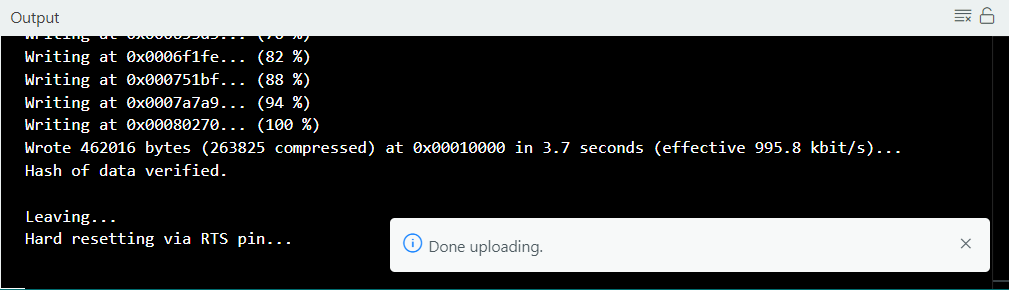
  . The output box at the bottom of the software, displaying the interface below, indicates that the program has been downloaded successfully:
4.2 WonderMK Vision Module Installation and Configuration
4.2.1 WonderMK Installation and Wiring
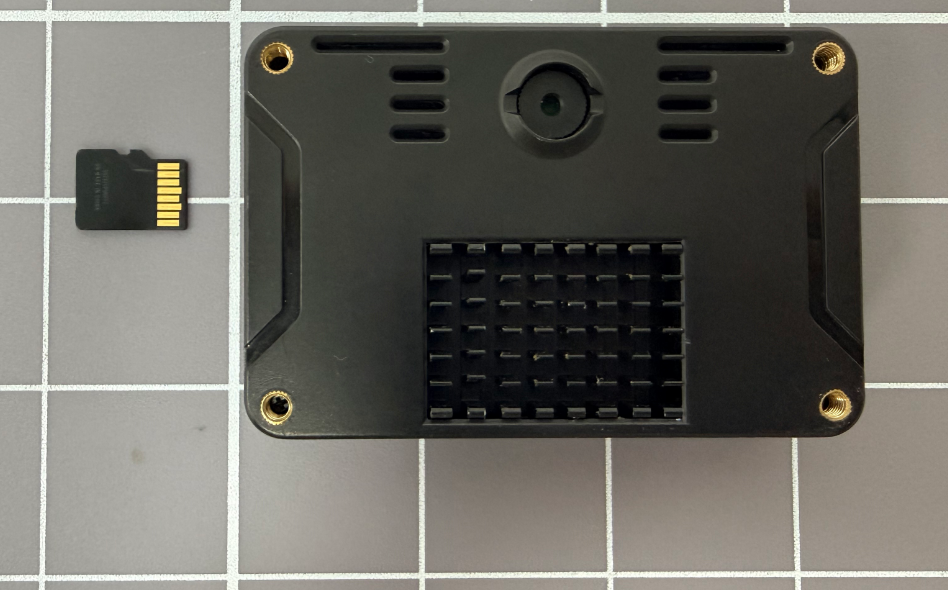
Insert the SD card into the WonderMK first.
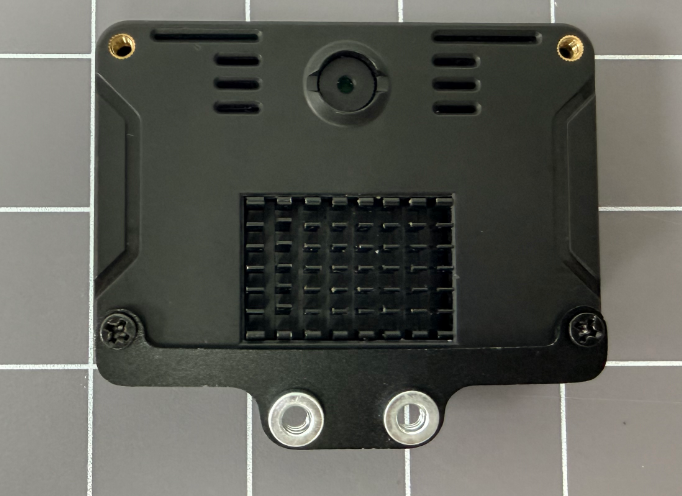
Install the mounting bracket into the designated holes of the WonderMK using the matching round head Phillips machine screws provided.
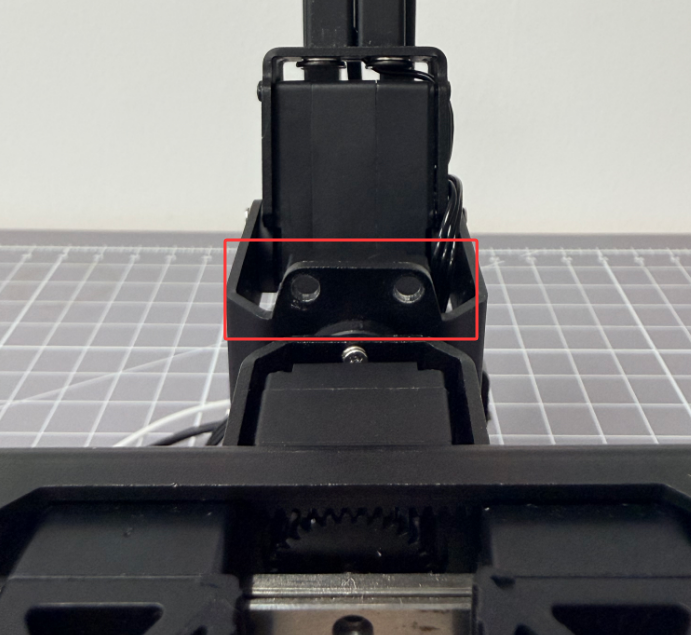
Locate the mounting holes on servo number 5 of the robotic arm.
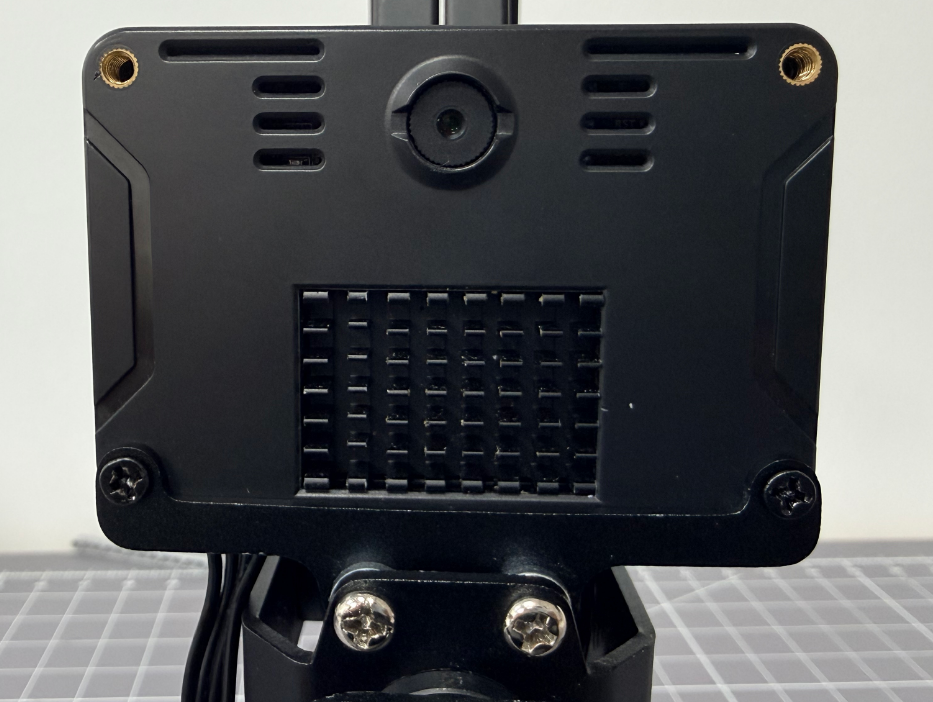
Secure the WonderMK with the installed bracket into the corresponding holes using the matching silver round head Phillips machine screws. Connect the WonderMK to the NexArm controller using the 4-pin cable.
4.2.2 WonderMK Image Flashing (Optional)
The WonderMK comes pre-flashed with firmware from the factory. If a firmware re-flash is required, comprehensive instructions are available in the document 01 WonderMK Quick Start Tutorial.pdf, located in the product documentation under the path 2. Softwares\6. WonderMK K230 Vision Module Manual & Tool\01 K230 Vision Module Manual\1. Quick Start.
4.3 Color Sorting
4.3.1 Project Introduction
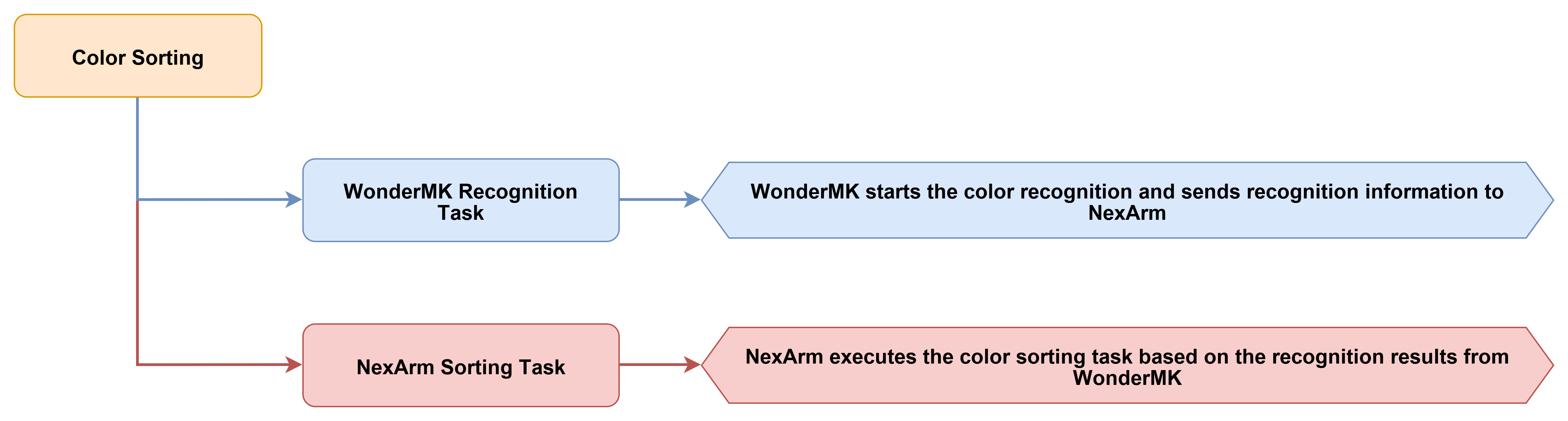
The color sorting function identifies target objects of different colors by calling the WonderMK and locks onto the designated color to perform the robotic arm sorting task.
4.3.2 Program Flow
4.3.3 Program Download
Locate the 01 Color Sorting program under the 02 Program Source Code folder in the same directory as this document for download. The detailed download steps can refer to 4.1 Program Download Must-Read.
4.3.4 Program Outcome
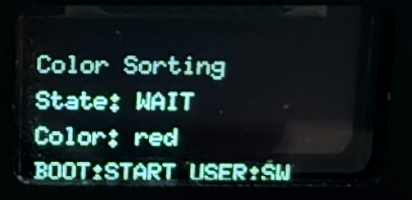
After the system is powered on, initialization will be completed first. The robotic arm automatically returns to the initial position and the screen displays the current status and target color. The system then enters the standby state. At this time, the device will not immediately execute the gripping action. It waits for color selection and a start command.
During actual operation, power on the device normally and wait for initialization to complete. Confirm that the robotic arm has returned to the initial position. Place the target object to be sorted within the recognizable area of the camera. To switch the target color, press the key2 button to cycle through the options. After confirming the color, press the key1 start button to prompt the robotic arm to begin searching and gripping the object of the corresponding color. Once a sorting cycle is complete, the system automatically returns to the standby state. To continue sorting, start the process again. The display screen will show the corresponding prompt information.
4.3.5 Program Analysis
system_task_handle.cpp
The beginning of the file introduces modules including system tasks, global commands, robotic arm control, USB serial port, parameter storage, color gripping, AT32 OTA, and the file system. This file organizes multiple low-level modules into a complete color sorting operation workflow. Specifically, Global.h provides command numbers, Robot_Arm.h provides the robotic arm control object, usb_ctrl.h handles PC serial communication, ColorGrabber.h manages the gripping state machine after color recognition, and AT32_OTA.h is responsible for checking and upgrading the underlying AT32 firmware.
#include "system_task_handle.h"
#include "Global.h"
#include "Robot_Arm.h"
#include "usb_ctrl.h"
#include <Preferences.h>
#include "ColorGrabber.h"
#include "AT32_OTA.h"
#include <LittleFS.h>
#include <math.h>
#include <string.h>

#define CMD_SERVO_STREAM 0x68
These global objects and variables preserve the system states that need to be shared during the color sorting operation. Specifically,
loop_with_sys_taskis used for registering subsequent periodic events, andat32_protocolis used to parse feedback from the underlying controller of the robotic arm.prefsis used to save calibration parameters for color sorting and robotic arm parameters, andis_downloadingis used to pause the regular execution logic during action group downloads. This prevention mechanism ensures that the color sorting task and the download process do not interfere with each other.
static const char* TAG = "ai_vision_sys";
static TimerHandle_t TIMER;
static esp_event_loop_handle_t loop_with_sys_task;
static CommProtocol_t at32_protocol;
static Preferences prefs;
static bool is_downloading = false;

static int16_t g_last_servo_positions[6] = {2048, 2048, 2048, 2048, 2048, 2048};
static uint32_t g_last_servo_feedback_ms = 0;

uint8_t global_channel = 2;
uint8_t global_acc = 245;

static float arm_kin[9] = {
    110.45f, 225.00f, 36.97f, 145.00f, 0.0f, 130.23f, 0.0f, 50.0f, 70.5f
};
The selectable targets for color sorting are fixed to red, green, and blue. The variable
kProtoColorsrepresents the protocol color names passed toColorGrabber,kOledColoris the text for OLED display, ands_color_sel_idxrecords the currently selected color.s_key1_used_since_idleis used to determine whether a color has been manually selected, ands_was_grabber_busyis used to detect if a sorting task has just finished.
ESP_EVENT_DEFINE_BASE(SYS_TIMING_EVENTS);

static const char* kProtoColors[] = {"red", "green", "blue"};
static const char* kOledColor[]  = {"RED", "GREEN", "BLUE"};

static uint8_t  s_color_sel_idx = 0;
static bool     s_key1_used_since_idle = false;
static bool     s_was_grabber_busy = false;
The function
apply_oled_standby_screen()refreshes the OLED based on the status of the color sorting task. WhencolorGrabber.isBusy()is true, the screen displays that the task is running. During idle states, the screen displays button operation prompts and the current color. If a color has not been selected using KEY1, the screen prompts that pressing KEY2 will run the red sorting by default.
static void apply_oled_standby_screen(void)
{
    arm.board.oled.set_custom_text(0, "Color Sorting");
    if (colorGrabber.isBusy()) {
        arm.board.oled.set_custom_text(1, "Running...");
        arm.board.oled.set_custom_text(2, "");
        arm.board.oled.set_custom_text(3, "Please wait");
    } else {
        if (s_key1_used_since_idle) {
            arm.board.oled.set_custom_text(1, "KEY1: Run this");
        } else {
            arm.board.oled.set_custom_text(1, "KEY1: Run(def RED)");
        }
        String line2 = "KEY2:";
        line2 += kOledColor[s_color_sel_idx % 3];
        arm.board.oled.set_custom_text(2, line2);
        arm.board.oled.set_custom_text(3, "Idle");
    }
    arm.board.oled.show_custom();
}
The function
perform_arm_poweron_reset()is the power-on reset routine of the robotic arm before color sorting starts. It displays a homing prompt on the OLED first. It then callsarm.reset_all(2500)to return the robotic arm to its initial pose. During the waiting period, the system continuously reads feedback from the AT32 to prevent the accumulation of underlying data during the reset process.
static void perform_arm_poweron_reset(void)
{
    arm.board.oled.set_custom_text(0, "Color Sorting");
    arm.board.oled.set_custom_text(1, "Arm homing...");
    arm.board.oled.set_custom_text(2, "Please wait");
    arm.board.oled.set_custom_text(3, "");
    arm.board.oled.show_custom();

    arm.reset_all(2500);
    uint32_t t0 = millis();
    while (millis() - t0 < 2600) {
        pump_at32_feedback();
        delay(20);
    }
    for (int i = 0; i < 8; i++) {
        arm.update_status();
        delay(50);
        while (servo.uart->available()) {
            uint8_t c = servo.uart->read();
            at32_protocol.parsing(&c, 1);
        }
    }
    Serial.println("[ColorSort] Power-on arm reset done");
}
The function
on_key1_select_color()serves as the local color selection entry for this project. The KEY1 button is active only whenColorGrabberis idle. Each press switches the color index to the next item and triggers feedback through the buzzer and the OLED.
static void on_key1_select_color(void)
{
    if (colorGrabber.isBusy()) return;
    s_color_sel_idx = (uint8_t)((s_color_sel_idx + 1) % 3);
    s_key1_used_since_idle = true;
    arm.board.buzzer.set(30, 30, 1, 2500);
    apply_oled_standby_screen();
    Serial.printf("[ColorSort] KEY1 -> next color %s\n", kProtoColors[s_color_sel_idx % 3]);
}
The function
on_key2_start_sorting()is the local entry point to start color sorting. The system ignores KEY2 when the color gripping module is busy. When the module is idle, if KEY1 has not been pressed, the system sorts red by default. If KEY1 has been pressed, the system starts the sorting process with the currently selected color by callingcolorGrabber.start().
static void on_key2_start_sorting(void)
{
    if (colorGrabber.isBusy()) {
        Serial.println("[ColorSort] Busy, ignore KEY2");
        return;
    }
    const char* cname = "red";
    if (s_key1_used_since_idle) {
        cname = kProtoColors[s_color_sel_idx % 3];
    }
    const char* colors[] = {cname};
    colorGrabber.start(colors, 1);
    arm.board.buzzer.set(100, 100, 2, 2000);
    apply_oled_standby_screen();
    Serial.printf("[ColorSort] KEY2 -> start '%s' (key1_used=%d)\n", cname, (int)s_key1_used_since_idle);
}
The functions
save_config()andload_config()save and restore parameters related to color sorting. In addition to the channel, acceleration, and robotic arm kinematics parameters, the system savesgrab_z_adj. During loading, the system restores the three color gripping offsets:ag_x,ag_y, andag_z. These parameters directly affect the actual gripping position after identifying the target.
void save_config(void)
{
    prefs.begin("robot_cfg", false);
    prefs.putUChar("channel", global_channel);
    prefs.putUChar("acc", global_acc);
    prefs.putBytes("arm_kin", arm_kin, sizeof(arm_kin));
    prefs.putFloat("grab_z_adj", colorGrabber.getGrabZAdjust());
    prefs.end();
}

void load_config(void)
{
    prefs.begin("robot_cfg", true);
    global_channel = prefs.getUChar("channel", 2);
    global_acc = prefs.getUChar("acc", 245);

    float ag_x = prefs.getFloat("ag_x", 50.0f);
    float ag_y = prefs.getFloat("ag_y", 15.0f);
    float ag_z = prefs.getFloat("ag_z", 60.0f);
    colorGrabber.setOffsets(ag_x, ag_y, ag_z);
    colorGrabber.setGrabZAdjust(prefs.getFloat("grab_z_adj", -12.0f));

    if (prefs.isKey("arm_kin")) {
        float saved_kin[9];
        prefs.getBytes("arm_kin", saved_kin, sizeof(saved_kin));
        if (fabsf(saved_kin[0] - arm_kin[0]) < 0.01f) {
            memcpy(arm_kin, saved_kin, sizeof(arm_kin));
        }
    }
    prefs.end();
}
The periodic timer retains only the basic maintenance tasks related to the operation of color sorting. These tasks include buzzer updates, battery level updates, robotic arm status updates, and OLED refreshes. The timer callback does not directly execute hardware operations. Instead, it posts events to the ESP event loop, which are subsequently executed uniformly by event handler functions.
static void sys_timer_post_callback(TimerHandle_t xTimer)
{
    if (is_downloading) return;

    static uint32_t count = 0;
    if (count % BUZZER_UPDATE_PERIOD == 0) {
        esp_event_post_to(loop_with_sys_task, SYS_TIMING_EVENTS, TIMING_EVENT_BUZZER_UPDATE, NULL, 0, 0);
    }
    if (count % BAT_UPDATE_PERIOD == 0) {
        esp_event_post_to(loop_with_sys_task, SYS_TIMING_EVENTS, TIMING_EVENT_BAT_UPDATE, NULL, 0, 0);
    }
    if (count % SERVO_STATUS_UPDATE_PERIOD == 0) {
        esp_event_post_to(loop_with_sys_task, SYS_TIMING_EVENTS, TIMING_EVENT_SERVO_STATUS_UPDATE, NULL, 0, 0);
    }
    if (count % OLED_REFRESH_PERIOD == 0) {
        esp_event_post_to(loop_with_sys_task, SYS_TIMING_EVENTS, TIMING_EVENT_OLED_REFRESH, NULL, 0, 0);
    }

    count += TIMER_PERIOD;
}
The function
sys_timer_sub_handler()receives periodic events and performs specific maintenance actions. The buzzer is used for button presses and start prompts, and the battery status is used for controller status maintenance andarm.update_status()enables the system to continuously refresh the robotic arm status, and the OLED continuously displays the current status of the color sorting.
static void sys_timer_sub_handler(void* handler_args, esp_event_base_t base, int32_t id, void* event_data)
{
    if (is_downloading) return;

    switch (id) {
        case TIMING_EVENT_BUZZER_UPDATE:
            arm.board.buzzer.update();
            break;
        case TIMING_EVENT_BAT_UPDATE:
            arm.board.bat.update();
            break;
        case TIMING_EVENT_SERVO_STATUS_UPDATE:
            arm.update_status();
            break;
        case TIMING_EVENT_OLED_REFRESH:
            apply_oled_standby_screen();
            break;
        default:
            break;
    }
}
The serial port commands in
func_ctrl_callback()directly related to this project are action group downloading, robotic arm kinematics parameter configuration, color-gripping offset configuration, and color-sorting start/stop control. During the downloading of action groups,is_downloadingis set to true to prompt the main loop to pause the color sorting state machine and button processing.
static void func_ctrl_callback(PacketTypeDef* self)
{
    uint8_t len;
    uint16_t bat_level;

    if (self->elements.id == 0xFF && self->elements.cmd == CMD_ACTION_GROUP_DOWNLOAD) {
        is_downloading = true;
        arm.board.action_group_download(self->elements.args[0], self->elements.args, self->elements.length - 2);
        is_downloading = false;
        return;
    }

    if (self->elements.id != 0xFF) return;

    switch (self->elements.cmd) {
The command
CMD_SET_KINEMATICS_PARAMis used to update the kinematics parameters of the robotic arm. Color sorting ultimately depends on the robotic arm reaching the recognition, gripping, and placing positions. Therefore, this set of parameters is written to local variables, forwarded to the servo control side, and persistently saved viasave_config().
        case CMD_SET_KINEMATICS_PARAM:
            if (self->elements.length - 2 >= (int)sizeof(arm_kin)) {
                memcpy(arm_kin, self->elements.args, sizeof(arm_kin));
                servo.tx_frame_write(0xFF, CMD_SET_KINEMATICS_PARAM, (uint8_t*)arm_kin, sizeof(arm_kin));
                save_config();
                arm.board.buzzer.set(100, 50, 1, 3000);
            }
            break;
The command
CMD_APRILTAG_SET_OFFSETis multiplexed in this project to configure the color gripping offset. After the host computer sends the X, Y, and gripping Z positions, the code callscolorGrabber.setOffsets()to update the color gripping compensation and writes the parameters toPreferencesto ensure that the calibration results are still used at the next startup.
        case CMD_APRILTAG_SET_OFFSET:
            if (self->elements.length >= 14) {
                float x_off, y_off, z_grab;
                memcpy(&x_off, &self->elements.args[0], 4);
                memcpy(&y_off, &self->elements.args[4], 4);
                memcpy(&z_grab, &self->elements.args[8], 4);
                colorGrabber.setOffsets(x_off, y_off, z_grab);
                prefs.begin("robot_cfg", false);
                prefs.putFloat("ag_x", x_off);
                prefs.putFloat("ag_y", y_off);
                prefs.putFloat("ag_z", z_grab);
                prefs.end();
                arm.board.buzzer.set(100, 50, 2, 3000);
            }
            break;
The command
CMD_COLOR_GRABis the primary command for the host computer to control color sorting. Whensw == 0, the current task is stopped and the buzzer is turned off. Whensw != 0, the system selects red, green, or blue based oncolor_idand then callscolorGrabber.start()to start single-color sorting.
        case CMD_COLOR_GRAB:
            if (self->elements.length >= 4) {
                uint8_t sw = self->elements.args[0];
                uint8_t color_id = self->elements.args[1];
                if (sw == 0) {
                    colorGrabber.stop();
                    arm.board.buzzer.off();
                } else {
                    const char* cName = "";
                    if (color_id == 1) cName = "red";
                    else if (color_id == 2) cName = "green";
                    else if (color_id == 3) cName = "blue";
                    if (strlen(cName) > 0) {
                        colorGrabber.stop();
                        delay(100);
                        const char* colors[] = {cName};
                        colorGrabber.start(colors, 1);
                        arm.board.buzzer.set(100, 100, 2, 2000);
                    }
                }
            }
            break;
The core function of
at32_packet_callback()related to color sorting is to cache the servo feedback of the robotic arm. During the color sorting process, it is necessary to determine whether the robotic arm has valid feedback. Therefore, after receiving the servo stream data, the code parses the positions of the 6 servos and updates the timestamp.
void at32_packet_callback(PacketTypeDef* rx_packet)
{
    if (is_downloading) return;

    if (rx_packet->elements.id == 0xFF &&
        rx_packet->elements.cmd == CMD_SERVO_STREAM &&
        rx_packet->elements.length >= 14) {
        for (int i = 0; i < 6; ++i) {
            int idx = i * 2;
            g_last_servo_positions[i] = (int16_t)((rx_packet->elements.args[idx + 1] << 8) | rx_packet->elements.args[idx]);
        }
        g_last_servo_feedback_ms = millis();
        return;
    }

    if (rx_packet->elements.id == 0xFF &&
        rx_packet->elements.cmd == 96 &&
        rx_packet->elements.length >= 14) {
        for (int i = 0; i < 6; ++i) {
            int idx = i * 2;
            g_last_servo_positions[i] = (int16_t)((rx_packet->elements.args[idx + 1] << 8) | rx_packet->elements.args[idx]);
        }
        g_last_servo_feedback_ms = millis();
        return;
    }
When the AT32 returns the current coordinates, the code parses the position, pose, claw value, and servo positions of the robotic arm. The color gripping action depends on the current state of the robotic arm. The system updates
arm.current_poseand the servo cache to provide a data foundation for subsequent gripping actions and status synchronization.
            if (rx_packet->elements.cmd == CMD_GET_CUR_COORDS && rx_packet->elements.length >= 26) {
                int16_t raw_x = (int16_t)((rx_packet->elements.args[1] << 8) | rx_packet->elements.args[0]);
                int16_t raw_y = (int16_t)((rx_packet->elements.args[3] << 8) | rx_packet->elements.args[2]);
                int16_t raw_z = (int16_t)((rx_packet->elements.args[5] << 8) | rx_packet->elements.args[4]);
                int16_t raw_p = (int16_t)((rx_packet->elements.args[7] << 8) | rx_packet->elements.args[6]);
                int16_t raw_r = (int16_t)((rx_packet->elements.args[9] << 8) | rx_packet->elements.args[8]);
                int16_t raw_c = (int16_t)((rx_packet->elements.args[11] << 8) | rx_packet->elements.args[10]);

                arm.current_pose.x = (float)raw_x;
                arm.current_pose.y = (float)raw_y;
                arm.current_pose.z = (float)raw_z;
                arm.current_pose.pitch = (float)raw_p / 10.0f;
                arm.current_pose.roll = (float)raw_r;
                arm.current_pose.claw = (float)raw_c;

                for (int i = 0; i < 6; ++i) {
                    int idx = 12 + i * 2;
                    g_last_servo_positions[i] = (int16_t)((rx_packet->elements.args[idx + 1] << 8) | rx_packet->elements.args[idx]);
                }
                g_last_servo_feedback_ms = millis();
            }
The function
pump_at32_feedback()and the feedback synchronization function are responsible for continuously pulling, parsing, and providing robotic arm feedback during color sorting operations. The functionsync_arm_feedback()actively requests the status of the robotic arm once and processes both the PC serial port and the AT32 serial port within the timeout period until new servo feedback is obtained.
void pump_at32_feedback(void)
{
    while (servo.uart->available()) {
        uint8_t c = servo.uart->read();
        at32_protocol.parsing(&c, 1);
    }
}

bool sync_arm_feedback(uint32_t timeout_ms)
{
    arm.update_status();
    uint32_t start = millis();
    uint32_t prev_feedback_ms = g_last_servo_feedback_ms;

    while (millis() - start < timeout_ms) {
        serial_port.rec_handler();
        pump_at32_feedback();
        if (g_last_servo_feedback_ms != 0 && g_last_servo_feedback_ms != prev_feedback_ms) {
            return true;
        }
        delay(2);
    }

    return g_last_servo_feedback_ms != 0;
}

bool get_last_servo_positions(int16_t out_pos[6])
{
    if (g_last_servo_feedback_ms == 0) {
        return false;
    }
    memcpy(out_pos, g_last_servo_positions, sizeof(g_last_servo_positions));
    return true;
}
The function
system_loop_handler()is the main loop of the color sorting operation phase. In the non-download state, it sequentially processes the host computer serial port, the AT32 feedback, the color gripping state machine, the task completion detection, the button scans, and the buzzer refreshes. Specifically,colorGrabber.update()is the key call that drives the sorting state machine to continue running.
void system_loop_handler(void)
{
    if (!is_downloading) {
        serial_port.rec_handler();
        pump_at32_feedback();

        colorGrabber.update();

        bool busy_now = colorGrabber.isBusy();
        if (s_was_grabber_busy && !busy_now) {
            s_key1_used_since_idle = false;
            Serial.println("[ColorSort] Run finished, idle (KEY1 pick / KEY2 start)");
        }
        s_was_grabber_busy = busy_now;

        arm.board.button.update();
        arm.board.buzzer.update();
The main loop responds to KEY1 and KEY2 only when the color gripping module is idle. This design prevents the robotic arm from being interrupted by new button operations while performing color sorting. In the download state, only the host computer serial port is processed, and the color sorting state machine is not advanced.
        if (!busy_now) {
            if (arm.board.button.is_clicked(1)) {
                on_key1_select_color();
            }
            if (arm.board.button.is_clicked(0)) {
                on_key2_start_sorting();
            }
        }
    } else {
        serial_port.rec_handler();
    }
}
The function
register_system_task()is the initialization entry point for the color sorting project. It saves the event loop handle, increases the CPU frequency, and loads the color sorting and robotic arm configurations first. It then mountsLittleFSto prepare for subsequent access to action groups, configurations, and system files.
void register_system_task(esp_event_loop_handle_t *event_loop)
{
    loop_with_sys_task = *event_loop;
    setCpuFrequencyMhz(240);
    load_config();

    if (!LittleFS.begin(true)) {
        Serial.println("[LittleFS] Mount failed, formatting...");
        LittleFS.format();
        LittleFS.begin();
    }
    Serial.println("[LittleFS] Mounted successfully");
During the initialization process, the PC serial port and the AT32 servo serial port are started, and the mainboard of the robotic arm is initialized. The call
serial_port.register_ops_callback(func_ctrl_callback)binds the host command entry to this file. Consequently, when the host computer sends color sorting start/stop commands or calibration parameters, the execution entersfunc_ctrl_callback().
    serial_port.begin(Serial, 1000000);
    serial_port.register_ops_callback(func_ctrl_callback);

    servo.begin(Serial1, 1000000, 16, 17);
    arm.begin();

    arm.board.oled.set_icon(4);
    for (int i = 0; i < 25; i++) {
        arm.board.oled.show_icon();
        delay(100);
    }

    AT32_OTA::check_and_update(serial_port.protocol, *servo.uart, arm.board.oled);
}
4.4 Color Tracking
4.4.1 Project Introduction
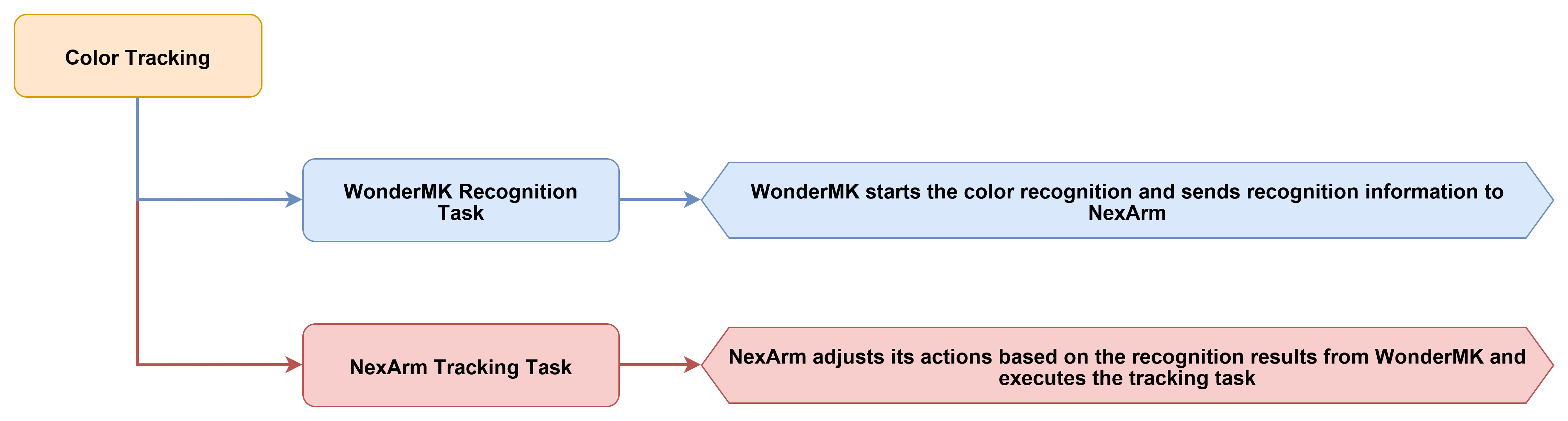
The color tracking function identifies target objects of different colors by calling the WonderMK and locks onto the designated color to perform the robotic arm tracking task.
4.4.2 Program Flow
4.4.3 Program Download
Locate the 02 Color Tracking program under the 02 Program Source Code folder in the same directory as this document for download. The detailed download steps can refer to 4.1 Program Download Must-Read.
4.4.4 Program Outcome
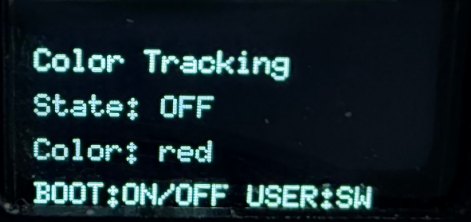
After the device is powered on, initialization will be completed first. The robotic arm automatically returns to the initial observation position, and the screen displays the current operating status and the target color. The system then enters the standby state. After starting, the robotic arm continuously follows the currently selected color target. When the target deviates in the image, the end of the robotic arm continuously makes small adjustments based on the recognition results to gradually bring the target back near the center of the image. When operation stops, the following process ends, the robotic arm returns to the preset initial pose, and the interface status simultaneously switches back to the off state. The entire process demonstrates that the device can recognize the selected color in real time and drive the robotic arm to continuously correct its position, creating a clear dynamic tracking effect.
During actual use, power on the device normally and wait for initialization to end. Confirm that the robotic arm has returned to the initial position and the screen displays normally. To switch the target color, short-press the key2 switch button to cycle through red, green, and blue. After confirming the color, press the key1 start button to prompt the system to enter the following state. The robotic arm will continuously adjust its position based on the color target in the image. To end the following process, press the start button again to stop. The system will exit the running state and return to the standby interface.
4.4.5 Program Analysis
system_task_handle.cpp
The beginning of the file introduces the core modules required for the color tracking project, including the system task interface, global commands, robotic arm control, USB serial port control, parameter storage, color tracking state machine, AT32 OTA, and the file system. Different from the color sorting project, ColorTrackerRot.h is used here. This indicates that the core task of this project is not gripping blocks, but enabling the robotic arm to continuously adjust its pose and track the color target.
#include "system_task_handle.h"
#include "Global.h"
#include "Robot_Arm.h"
#include "usb_ctrl.h"
#include <Preferences.h>
#include "ColorTrackerRot.h"
#include "AT32_OTA.h"
#include <LittleFS.h>
#include <math.h>
#include <string.h>

#define CMD_SERVO_STREAM 0x68
These static objects and global variables save the system’s operating status. Specifically,
loop_with_sys_taskis used to register the ESP event loop, andat32_protocolis used to parse feedback from the AT32 side.prefsis used to save robotic arm parameters, andis_downloadingis used to pause regular tasks during action group downloads. Additionally,g_last_servo_positionsandg_last_servo_feedback_mscache the latest servo feedback to provide baseline data for robotic arm status synchronization during color tracking.
static const char* TAG = "color_tracking";
static TimerHandle_t TIMER;
static esp_event_loop_handle_t loop_with_sys_task;
static CommProtocol_t at32_protocol;
static Preferences prefs;
static bool is_downloading = false;

static int16_t g_last_servo_positions[6] = {2048, 2048, 2048, 2048, 2048, 2048};
static uint32_t g_last_servo_feedback_ms = 0;

uint8_t global_channel = 2;
uint8_t global_acc = 245;
volatile bool servo_uart_busy = false;

static float arm_kin[9] = {
    110.45f, 225.00f, 36.97f, 145.00f, 0.0f, 130.23f, 0.0f, 50.0f, 70.5f
};
The color tracking targets are limited to red, green, and blue. The variable
kTrackColorsrepresents the color names passed to the color tracking module,kTrackLabelsis the text for OLED display, ands_track_color_idx,s_track_color, along withs_track_labelcollectively record the current tracking target. Furthermore,s_was_tracker_busyis used to detect if the tracking task has switched from running back to idle, whiles_buttons_armedands_button_enable_timeare used for button delay enablement after power-on.
static const char* kTrackColors[] = {"red", "green", "blue"};
static const char* kTrackLabels[] = {"RED", "GREEN", "BLUE"};

static uint8_t s_track_color_idx = 0;
static const char* s_track_color = kTrackColors[0];
static const char* s_track_label = kTrackLabels[0];
static bool s_was_tracker_busy = false;
static uint32_t s_button_enable_time = 0;
static bool s_buttons_armed = false;

ESP_EVENT_DEFINE_BASE(SYS_TIMING_EVENTS);
This group of three functions is responsible for converting between the host computer color numbers, color strings, and the current tracking target. Specifically,
color_name_from_id()converts the1,2, and3in the protocol intored,green, andblue,color_index_from_name()converts color names into array indices, andset_tracking_target()uniformly updates the current color index, protocol color name, and OLED label.
static const char* color_name_from_id(uint8_t color_id)
{
    if (color_id >= 1 && color_id <= 3) {
        return kTrackColors[color_id - 1];
    }
    return nullptr;
}

static uint8_t color_index_from_name(const char* color_name)
{
    if (!color_name) return 0;
    for (uint8_t i = 0; i < 3; ++i) {
        if (strcmp(color_name, kTrackColors[i]) == 0) {
            return i;
        }
    }
    return 0;
}

static void set_tracking_target(const char* color_name)
{
    s_track_color_idx = color_index_from_name(color_name);
    s_track_color = kTrackColors[s_track_color_idx];
    s_track_label = kTrackLabels[s_track_color_idx];
}
The function
apply_oled_tracking_screen()is responsible for refreshing the OLED interface of the color tracking project. When tracking is running, the screen displays the current tracking color and shows whether the target is centered based oncolorTrackerRot.isCentered(). During idle states, it displays the tracking entry point, the color switching entry point, and the current target color.
static void apply_oled_tracking_screen(void)
{
    arm.board.oled.set_custom_text(0, "Color Tracking");

    if (colorTrackerRot.isBusy()) {
        String running_line = "Tracking: ";
        running_line += s_track_label;
        arm.board.oled.set_custom_text(1, running_line);
        arm.board.oled.set_custom_text(2, colorTrackerRot.isCentered() ? "Status: Center" : "Status: Search");
        arm.board.oled.set_custom_text(3, "KEY2: Stop");
    } else {
        String target_line = "Target: ";
        target_line += s_track_label;
        arm.board.oled.set_custom_text(1, "KEY2: Track");
        arm.board.oled.set_custom_text(2, "KEY1: Color");
        arm.board.oled.set_custom_text(3, target_line);
    }

    arm.board.oled.show_custom();
}
The function
perform_arm_poweron_reset()is the power-on reset routine of the robotic arm before the tracking task starts. It displays a homing prompt first, and then callsarm.reset_all(2500)to return the robotic arm to its initial pose. During the waiting period, it continuously parses feedback from the AT32 to ensure that the robotic arm status has been refreshed before entering the tracking logic.
static void perform_arm_poweron_reset(void)
{
    arm.board.oled.set_custom_text(0, "Color Tracking");
    arm.board.oled.set_custom_text(1, "Arm homing...");
    arm.board.oled.set_custom_text(2, "Please wait");
    arm.board.oled.set_custom_text(3, "");
    arm.board.oled.show_custom();

    arm.reset_all(2500);
    uint32_t t0 = millis();
    while (millis() - t0 < 2600) {
        pump_at32_feedback();
        delay(20);
    }
    for (int i = 0; i < 8; i++) {
        arm.update_status();
        delay(50);
        while (servo.uart->available()) {
            uint8_t c = servo.uart->read();
            at32_protocol.parsing(&c, 1);
        }
    }
    Serial.println("[ColorTrack] Power-on arm reset done");
}
The function
start_color_tracking()is the local function to start color tracking. It is active only whenColorTrackerRotis idle. Before starting, it callsstop()to clear the old state, and then passes the current target colors_track_colortocolorTrackerRot.start(). Successful and failed starts are distinguished by different buzzer sounds.
static void start_color_tracking(void)
{
    if (colorTrackerRot.isBusy()) {
        Serial.println("[ColorTrack] Busy, ignore KEY1");
        return;
    }

    colorTrackerRot.stop();
    delay(100);
    colorTrackerRot.start(s_track_color);

    if (colorTrackerRot.isBusy()) {
        arm.board.buzzer.set(100, 100, 2, 2000);
        Serial.printf("[ColorTrack] KEY1 -> start '%s'\n", s_track_color);
    } else {
        arm.board.buzzer.set(300, 100, 1, 1000);
        Serial.printf("[ColorTrack] start '%s' failed\n", s_track_color);
    }

    apply_oled_tracking_screen();
}
The function
stop_color_tracking()is responsible for stopping the running color tracking. The stop operation is executed only when the tracking module is busy. After stopping, the buzzer sounds briefly, and the OLED immediately returns to the tracking standby interface.
static void stop_color_tracking(void)
{
    if (!colorTrackerRot.isBusy()) {
        return;
    }

    colorTrackerRot.stop();
    arm.board.buzzer.set(80, 80, 1, 1800);
    apply_oled_tracking_screen();
    Serial.println("[ColorTrack] KEY1 -> stop");
}
The function
select_next_tracking_color()is responsible for switching the tracking color in the idle state. Switching colors during tracking execution is rejected. When idle, each call cycles through red, green, and blue, and synchronously updates the protocol color name, the OLED label, the buzzer prompt, and the serial port log.
static void select_next_tracking_color(void)
{
    if (colorTrackerRot.isBusy()) {
        Serial.println("[ColorTrack] Busy, ignore KEY2");
        return;
    }

    s_track_color_idx = (uint8_t)((s_track_color_idx + 1) % 3);
    s_track_color = kTrackColors[s_track_color_idx];
    s_track_label = kTrackLabels[s_track_color_idx];

    arm.board.buzzer.set(30, 30, 1, 2500);
    apply_oled_tracking_screen();
    Serial.printf("[ColorTrack] KEY2 -> select '%s'\n", s_track_color);
}
The functions
notify_key2_locked()andbuttons_ready()handle button protection logic. The former is used to display a lock prompt when the color switching key is pressed during tracking. The latter clears existing button states after power-on and waits untils_button_enable_timeis reached before allowing button triggers. This prevention mechanism avoids accidental tracking triggers or color switching during the power-on phase.
static void notify_key2_locked(void)
{
    arm.board.buzzer.set(60, 40, 1, 1200);
    apply_oled_tracking_screen();
    Serial.println("[ColorTrack] KEY2 locked while tracking");
}

static bool buttons_ready(void)
{
    if (s_buttons_armed) {
        return true;
    }

    (void)arm.board.button.is_clicked(0);
    (void)arm.board.button.is_clicked(1);

    if (millis() < s_button_enable_time) {
        return false;
    }

    s_buttons_armed = true;
    Serial.println("[ColorTrack] Buttons armed");
    return false;
}
The functions
save_config()andload_config()save and restore basic robotic arm parameters related to color tracking. Specifically, the system saves the channel, acceleration, and kinematics parameters. During loading, ifarm_kinexists, a simple validation is performed first before overwriting the default kinematics parameters to prevent abnormal data from affecting tracking actions.
void save_config(void)
{
    prefs.begin("robot_cfg", false);
    prefs.putUChar("channel", global_channel);
    prefs.putUChar("acc", global_acc);
    prefs.putBytes("arm_kin", arm_kin, sizeof(arm_kin));
    prefs.end();
}

void load_config(void)
{
    prefs.begin("robot_cfg", true);
    global_channel = prefs.getUChar("channel", 2);
    global_acc = prefs.getUChar("acc", 245);

    if (prefs.isKey("arm_kin")) {
        float saved_kin[9];
        prefs.getBytes("arm_kin", saved_kin, sizeof(saved_kin));
        if (fabsf(saved_kin[0] - arm_kin[0]) < 0.01f) {
            memcpy(arm_kin, saved_kin, sizeof(arm_kin));
        }
    }
    prefs.end();
}
The periodic timer callback is responsible for posting system maintenance events at a fixed tempo. For color tracking, these periodic events are mainly used for buzzer refreshes, battery status refreshes, robotic arm status refreshes, and OLED tracking interface refreshes. During action group downloads, these updates are directly skipped to avoid interfering with the download process.
static void sys_timer_post_callback(TimerHandle_t xTimer)
{
    if (is_downloading) return;

    static uint32_t count = 0;
    if (count % BUZZER_UPDATE_PERIOD == 0) {
        esp_event_post_to(loop_with_sys_task, SYS_TIMING_EVENTS, TIMING_EVENT_BUZZER_UPDATE, NULL, 0, 0);
    }
    if (count % BAT_UPDATE_PERIOD == 0) {
        esp_event_post_to(loop_with_sys_task, SYS_TIMING_EVENTS, TIMING_EVENT_BAT_UPDATE, NULL, 0, 0);
    }
    if (count % SERVO_STATUS_UPDATE_PERIOD == 0) {
        esp_event_post_to(loop_with_sys_task, SYS_TIMING_EVENTS, TIMING_EVENT_SERVO_STATUS_UPDATE, NULL, 0, 0);
    }
    if (count % OLED_REFRESH_PERIOD == 0) {
        esp_event_post_to(loop_with_sys_task, SYS_TIMING_EVENTS, TIMING_EVENT_OLED_REFRESH, NULL, 0, 0);
    }

    count += TIMER_PERIOD;
}
The periodic event handler function executes specific maintenance actions based on the event ID. The event
TIMING_EVENT_SERVO_STATUS_UPDATEcallsarm.update_status()to refresh the robotic arm status, andTIMING_EVENT_OLED_REFRESHcallsapply_oled_tracking_screen()to ensure the OLED constantly displays the current tracking color, search status, or center status.
static void sys_timer_sub_handler(void* handler_args, esp_event_base_t base, int32_t id, void* event_data)
{
    if (is_downloading) return;

    switch (id) {
        case TIMING_EVENT_BUZZER_UPDATE:
            arm.board.buzzer.update();
            break;
        case TIMING_EVENT_BAT_UPDATE:
            arm.board.bat.update();
            break;
        case TIMING_EVENT_SERVO_STATUS_UPDATE:
            arm.update_status();
            break;
        case TIMING_EVENT_OLED_REFRESH:
            apply_oled_tracking_screen();
            break;
        default:
            break;
    }
}
The function
func_ctrl_callback()is the serial port command entry point for the host computer. The operations directly related to color tracking execution are action group download protection, kinematics parameter configuration, andCMD_COLOR_TRACK. During action group downloads,is_downloadingis set to true to prompt the main loop to pause the tracking state machine. Packets with non-broadcast IDs return directly and do not enter the overall control logic of this project.
static void func_ctrl_callback(PacketTypeDef* self)
{
    uint8_t len;
    uint16_t bat_level;

    if (self->elements.id == 0xFF && self->elements.cmd == CMD_ACTION_GROUP_DOWNLOAD) {
        is_downloading = true;
        arm.board.action_group_download(self->elements.args[0], self->elements.args, self->elements.length - 2);
        is_downloading = false;
        return;
    }

    if (self->elements.id != 0xFF) return;

    switch (self->elements.cmd) {
The command
CMD_SET_KINEMATICS_PARAMis used to update the kinematics parameters of the robotic arm from the host computer. Color tracking relies on the robotic arm executing motion corrections based on visual deviations. Therefore, new kinematics parameters are written to local variables, sent to the servo control side, and persistently saved by callingsave_config().
        case CMD_SET_KINEMATICS_PARAM:
            if (self->elements.length - 2 >= (int)sizeof(arm_kin)) {
                memcpy(arm_kin, self->elements.args, sizeof(arm_kin));
                servo.tx_frame_write(0xFF, CMD_SET_KINEMATICS_PARAM, (uint8_t*)arm_kin, sizeof(arm_kin));
                save_config();
                arm.board.buzzer.set(100, 50, 1, 3000);
            }
            break;
The command
CMD_COLOR_TRACKis the primary command for the host computer to control color tracking targets. Whensw == 0, the current tracking is stopped and the OLED is refreshed. Whensw != 0, the target color is selected based oncolor_id. However, the code only sets the target and prompts for button activation without directly callingcolorTrackerRot.start(). This indicates that the host computer command here functions primarily to select the target, while the actual start is still handled by the local button workflow.
        case CMD_COLOR_TRACK:
            if (self->elements.length >= 4) {
                uint8_t sw = self->elements.args[0];
                uint8_t color_id = self->elements.args[1];
                if (sw == 0) {
                    colorTrackerRot.stop();
                    arm.board.buzzer.off();
                    apply_oled_tracking_screen();
                } else {
                    const char* color_name = color_name_from_id(color_id);
                    if (color_name) {
                        set_tracking_target(color_name);
                        arm.board.buzzer.set(30, 30, 1, 2500);
                        apply_oled_tracking_screen();
                        Serial.printf("[ColorTrack] CMD select '%s', press KEY1 to start\n", s_track_color);
                    } else {
                        Serial.printf("[ColorTrack] CMD invalid color id=%u\n", color_id);
                    }
                }
            }
            break;
The function
at32_packet_callback()handles data returned from the AT32 or the servo side. For color tracking, the most directly related component is the servo position cache. When a servo position stream is received, the code parses the positions of the 6 servos and updates the timestamp, allowing the tracking logic and status synchronization functions to obtain the latest robotic arm feedback.
void at32_packet_callback(PacketTypeDef* rx_packet)
{
    if (is_downloading) return;

    if (rx_packet->elements.id == 0xFF &&
        rx_packet->elements.cmd == CMD_SERVO_STREAM &&
        rx_packet->elements.length >= 14) {
        for (int i = 0; i < 6; ++i) {
            int idx = i * 2;
            g_last_servo_positions[i] = (int16_t)((rx_packet->elements.args[idx + 1] << 8) | rx_packet->elements.args[idx]);
        }
        g_last_servo_feedback_ms = millis();
        return;
    }

    if (rx_packet->elements.id == 0xFF &&
        rx_packet->elements.cmd == 96 &&
        rx_packet->elements.length >= 14) {
        for (int i = 0; i < 6; ++i) {
            int idx = i * 2;
            g_last_servo_positions[i] = (int16_t)((rx_packet->elements.args[idx + 1] << 8) | rx_packet->elements.args[idx]);
        }
        g_last_servo_feedback_ms = millis();
        return;
    }
Upon the AT32 transmitting the current robotic arm coordinates, the routine parses the x, y, z, pitch, roll, and claw values along with the six servo positions, writing the results directly into
arm.current_poseand the servo cache. During color tracking operations, more responsive updates to the robotic arm state establish a more stable closed-loop system from visual tracking to motion correction.
            if (rx_packet->elements.cmd == CMD_GET_CUR_COORDS && rx_packet->elements.length >= 26) {
                int16_t raw_x = (int16_t)((rx_packet->elements.args[1] << 8) | rx_packet->elements.args[0]);
                int16_t raw_y = (int16_t)((rx_packet->elements.args[3] << 8) | rx_packet->elements.args[2]);
                int16_t raw_z = (int16_t)((rx_packet->elements.args[5] << 8) | rx_packet->elements.args[4]);
                int16_t raw_p = (int16_t)((rx_packet->elements.args[7] << 8) | rx_packet->elements.args[6]);
                int16_t raw_r = (int16_t)((rx_packet->elements.args[9] << 8) | rx_packet->elements.args[8]);
                int16_t raw_c = (int16_t)((rx_packet->elements.args[11] << 8) | rx_packet->elements.args[10]);

                arm.current_pose.x = (float)raw_x;
                arm.current_pose.y = (float)raw_y;
                arm.current_pose.z = (float)raw_z;
                arm.current_pose.pitch = (float)raw_p / 10.0f;
                arm.current_pose.roll = (float)raw_r;
                arm.current_pose.claw = (float)raw_c;

                for (int i = 0; i < 6; ++i) {
                    int idx = 12 + i * 2;
                    g_last_servo_positions[i] = (int16_t)((rx_packet->elements.args[idx + 1] << 8) | rx_packet->elements.args[idx]);
                }
                g_last_servo_feedback_ms = millis();
            }
4.5 Face Tracking
4.5.1 Project Introduction
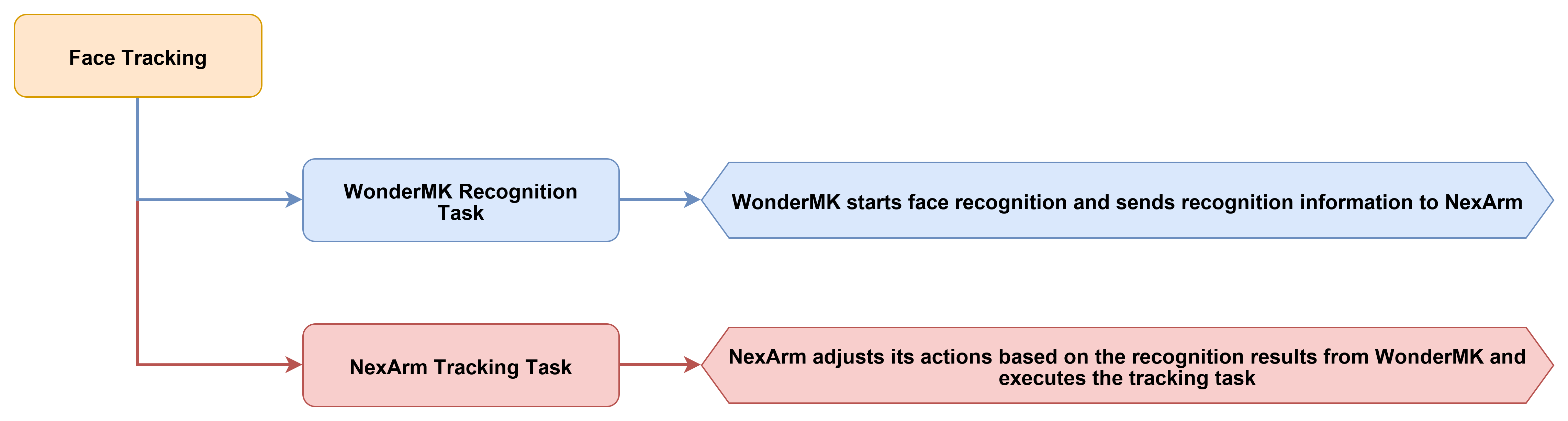
This experiment implements an automatic face tracking function based on visual recognition. The system continuously adjusts the end pose of the robotic arm according to the changes in the position of the face in the image to keep the target near the center of the image.
4.5.2 Program Flow
4.5.3 Program Download
Locate the 03 Face Tracking program under the 02 Program Source Code folder in the same directory as this document for download. The detailed download steps can refer to 4.1 Program Download Must-Read.
4.5.4 Program Outcome
Upon power-on, the system completes initialization, the robotic arm automatically returns to the initial observation position, and the screen displays the current operational status before transitioning to standby mode. Following activation, the system continuously detects face targets within the camera frame and adjusts the position of the robotic arm based on the horizontal and vertical offsets of the target, enabling the end effector to track the facial movement. As the target approaches the center of the frame, the positional adjustments of the robotic arm decrease significantly, resulting in smoother tracking performance. Upon stopping operation, the tracking process concludes, the robotic arm returns to the initial pose, and the interface status updates to indicate an inactive state.
For standard operation, power is applied to the hardware normally to allow the initialization sequence to conclude, followed by verification that the robotic arm has successfully homed to the initial position. Once the face target is positioned within the recognizable field of view of the camera, pressing the start button initiates the face tracking state, allowing the robotic arm to make continuous compensatory adjustments based on real-time shifts in the target position. Pressing the start button a second time terminates the tracking process. If the robotic arm must return to the initial observation position, pressing the reset button triggers an immediate homing action, returning the equipment to its baseline configuration to facilitate the next demonstration cycle.
4.5.5 Program Analysis
system_task_handle.cpp
The top of the file includes header files for core modules required by the face tracking project, such as system task interfaces, global commands, robotic arm control, USB serial communication, parameter storage, the face tracking state machine, the AT32 OTA mechanism, and the file system. The key component is FaceTracker.h, which manages communication with the vision module and drives the face tracking state machine. In addition, Robot_Arm.h handles motion control, and usb_ctrl.h manages serial communication with the host computer.
#include "system_task_handle.h"
#include "Global.h"
#include "Robot_Arm.h"
#include "usb_ctrl.h"
#include <Preferences.h>
#include "FaceTracker.h"
#include "AT32_OTA.h"
#include <LittleFS.h>
#include <math.h>
#include <string.h>

#define CMD_SERVO_STREAM 0x68
Static objects and global variables maintain system states shared across tasks. Specifically,
loop_with_sys_taskregisters periodic events,at32_protocolparses feedback from the AT32 controller, andprefssaves configuration parameters. To prevent conflicts,is_downloadingpauses regular tracking tasks when action groups are being downloaded, whileg_last_servo_positionsandg_last_servo_feedback_mscache the latest servo feedback.
static const char* TAG = "face_tracking";
static TimerHandle_t TIMER;
static esp_event_loop_handle_t loop_with_sys_task;
static CommProtocol_t at32_protocol;
static Preferences prefs;
static bool is_downloading = false;

static int16_t g_last_servo_positions[6] = {2048, 2048, 2048, 2048, 2048, 2048};
static uint32_t g_last_servo_feedback_ms = 0;

uint8_t global_channel = 2;
uint8_t global_acc = 245;
volatile bool servo_uart_busy = false;

static float arm_kin[9] = {
    110.45f, 225.00f, 36.97f, 145.00f, 0.0f, 130.23f, 0.0f, 50.0f, 70.5f
};
These variables track the run status and handle startup delay. The flag
s_was_tracker_busydetects when face tracking transitions from running to idle. The variabless_button_enable_timeands_buttons_armedimplement a power-on button delay to prevent accidental triggers while the system is booting.
static bool s_was_tracker_busy = false;
static uint32_t s_button_enable_time = 0;
static bool s_buttons_armed = false;

ESP_EVENT_DEFINE_BASE(SYS_TIMING_EVENTS);
The
apply_oled_face_screenfunction refreshes the OLED interface for the face tracking project. WhenfaceTracker.isBusyreturns true, the screen displays the active face tracking and search status. During idle states, the interface displays the tracking entry point along with theFace ReadyandIdleparameters to enable direct verification of tracking readiness from the screen.
static void apply_oled_face_screen(void)
{
    arm.board.oled.set_custom_text(0, "Face Tracking");

    if (faceTracker.isBusy()) {
        arm.board.oled.set_custom_text(1, "Tracking Face");
        arm.board.oled.set_custom_text(2, "Status: Search");
        arm.board.oled.set_custom_text(3, "KEY2: Stop");
    } else {
        arm.board.oled.set_custom_text(1, "KEY2: Track");
        arm.board.oled.set_custom_text(2, "Face Ready");
        arm.board.oled.set_custom_text(3, "Idle");
    }

    arm.board.oled.show_custom();
}
The
perform_arm_poweron_resetfunction executes the robotic arm power-on reset sequence before face tracking begins. This routine first displays a homing prompt on the OLED screen and then callsarm.reset_all(2500)to return the robotic arm to its initial posture. During the wait period, AT32 feedback is continuously polled to ensure the robotic arm is fully operational before tracking operations initiate.
static void perform_arm_poweron_reset(void)
{
    arm.board.oled.set_custom_text(0, "Face Tracking");
    arm.board.oled.set_custom_text(1, "Arm homing...");
    arm.board.oled.set_custom_text(2, "Please wait");
    arm.board.oled.set_custom_text(3, "");
    arm.board.oled.show_custom();

    arm.reset_all(2500);
    uint32_t t0 = millis();
    while (millis() - t0 < 2600) {
        pump_at32_feedback();
        delay(20);
    }
    for (int i = 0; i < 8; i++) {
        arm.update_status();
        delay(50);
        while (servo.uart->available()) {
            uint8_t c = servo.uart->read();
            at32_protocol.parsing(&c, 1);
        }
    }
    Serial.println("[FaceTrack] Power-on arm reset done");
}
The
start_face_tracking()function locally initiates the face tracking process. Execution occurs exclusively whenFaceTrackeris idle. Before initiation,faceTracker.stop()is called to clear previous states, and thenfaceTracker.start()is invoked to enter the tracking routine. The system subsequently evaluates startup success viafaceTracker.isBusy()to trigger the corresponding buzzer notification.
static void start_face_tracking(void)
{
    if (faceTracker.isBusy()) {
        Serial.println("[FaceTrack] Busy, ignore KEY1 start");
        return;
    }

    faceTracker.stop();
    delay(100);
    faceTracker.start();

    if (faceTracker.isBusy()) {
        arm.board.buzzer.set(100, 100, 2, 2000);
        Serial.println("[FaceTrack] KEY1 -> start");
    } else {
        arm.board.buzzer.set(300, 100, 1, 1000);
        Serial.println("[FaceTrack] start failed");
    }

    apply_oled_face_screen();
}
The function
stop_face_tracking()is responsible for stopping the running face tracking. The function checksfaceTracker.isBusy()first. Only when tracking is active does it stop the state machine, trigger the buzzer prompt, and refresh the OLED. This prevents redundant stop operations in the idle state.
static void stop_face_tracking(void)
{
    if (!faceTracker.isBusy()) {
        return;
    }

    faceTracker.stop();
    arm.board.buzzer.set(80, 80, 1, 1800);
    apply_oled_face_screen();
    Serial.println("[FaceTrack] KEY1 -> stop");
}
The function
buttons_ready()is the button protection function after power-on. When the system starts, it reads and clears the click states of both buttons first. No button triggers are allowed befores_button_enable_timeis reached. Once the time is reached,s_buttons_armedis set to true, making subsequent button presses effective.
static bool buttons_ready(void)
{
    if (s_buttons_armed) {
        return true;
    }

    (void)arm.board.button.is_clicked(0);
    (void)arm.board.button.is_clicked(1);

    if (millis() < s_button_enable_time) {
        return false;
    }

    s_buttons_armed = true;
    Serial.println("[FaceTrack] Buttons armed");
    return false;
}
The functions
save_config()andload_config()save and restore basic robotic arm parameters related to face tracking. Specifically, the system saves the channel, acceleration, and kinematics parameters. During loading, ifarm_kinexists in NVS, a simple validation is performed first before overwriting the default kinematics parameters to prevent abnormal parameters from affecting tracking actions.
void save_config(void)
{
    prefs.begin("robot_cfg", false);
    prefs.putUChar("channel", global_channel);
    prefs.putUChar("acc", global_acc);
    prefs.putBytes("arm_kin", arm_kin, sizeof(arm_kin));
    prefs.end();
}

void load_config(void)
{
    prefs.begin("robot_cfg", true);
    global_channel = prefs.getUChar("channel", 2);
    global_acc = prefs.getUChar("acc", 245);

    if (prefs.isKey("arm_kin")) {
        float saved_kin[9];
        prefs.getBytes("arm_kin", saved_kin, sizeof(saved_kin));
        if (fabsf(saved_kin[0] - arm_kin[0]) < 0.01f) {
            memcpy(arm_kin, saved_kin, sizeof(arm_kin));
        }
    }
    prefs.end();
}
The periodic timer callback is responsible for posting basic maintenance events required during face tracking execution. It does not directly operate hardware. Instead, it periodically posts buzzer, battery, robotic arm status, and OLED refresh events. If an action group is being downloaded, it returns directly to prevent the download process from being disturbed by periodic tasks.
static void sys_timer_post_callback(TimerHandle_t xTimer)
{
    if (is_downloading) return;

    static uint32_t count = 0;
    if (count % BUZZER_UPDATE_PERIOD == 0) {
        esp_event_post_to(loop_with_sys_task, SYS_TIMING_EVENTS, TIMING_EVENT_BUZZER_UPDATE, NULL, 0, 0);
    }
    if (count % BAT_UPDATE_PERIOD == 0) {
        esp_event_post_to(loop_with_sys_task, SYS_TIMING_EVENTS, TIMING_EVENT_BAT_UPDATE, NULL, 0, 0);
    }
    if (count % SERVO_STATUS_UPDATE_PERIOD == 0) {
        esp_event_post_to(loop_with_sys_task, SYS_TIMING_EVENTS, TIMING_EVENT_SERVO_STATUS_UPDATE, NULL, 0, 0);
    }
    if (count % OLED_REFRESH_PERIOD == 0) {
        esp_event_post_to(loop_with_sys_task, SYS_TIMING_EVENTS, TIMING_EVENT_OLED_REFRESH, NULL, 0, 0);
    }

    count += TIMER_PERIOD;
}
The function
sys_timer_sub_handler()receives periodic events and performs specific maintenance actions. The buzzer and battery manage basic motherboard status maintenance,arm.update_status()is used to continuously refresh the robotic arm status, andapply_oled_face_screen()prompts the OLED to continuously display the tracking or idle interface based on the current state ofFaceTracker.
static void sys_timer_sub_handler(void* handler_args, esp_event_base_t base, int32_t id, void* event_data)
{
    if (is_downloading) return;

    switch (id) {
        case TIMING_EVENT_BUZZER_UPDATE:
            arm.board.buzzer.update();
            break;
        case TIMING_EVENT_BAT_UPDATE:
            arm.board.bat.update();
            break;
        case TIMING_EVENT_SERVO_STATUS_UPDATE:
            arm.update_status();
            break;
        case TIMING_EVENT_OLED_REFRESH:
            apply_oled_face_screen();
            break;
        default:
            break;
    }
}
The function
func_ctrl_callback()is the serial port command entry point for the host computer. The operations directly related to the main flow of face tracking are action group download protection, kinematics parameter configuration, andCMD_FACE_TRACK. During action group downloads,is_downloadingis set to true to prompt the main loop to pause the face tracking state machine and button processing.
static void func_ctrl_callback(PacketTypeDef* self)
{
    uint8_t len;
    uint16_t bat_level;

    if (self->elements.id == 0xFF && self->elements.cmd == CMD_ACTION_GROUP_DOWNLOAD) {
        is_downloading = true;
        arm.board.action_group_download(self->elements.args[0], self->elements.args, self->elements.length - 2);
        is_downloading = false;
        return;
    }

    if (self->elements.id != 0xFF) return;

    switch (self->elements.cmd) {
The command
CMD_SET_KINEMATICS_PARAMis used to update the kinematics parameters of the robotic arm from the host computer. Face tracking relies on the robotic arm executing motion corrections based on visual deviations. Therefore, updated parameters are written to the localarm_kin, forwarded to the servo control side, and saved to NVS by callingsave_config().
        case CMD_SET_KINEMATICS_PARAM:
            if (self->elements.length - 2 >= (int)sizeof(arm_kin)) {
                memcpy(arm_kin, self->elements.args, sizeof(arm_kin));
                servo.tx_frame_write(0xFF, CMD_SET_KINEMATICS_PARAM, (uint8_t*)arm_kin, sizeof(arm_kin));
                save_config();
                arm.board.buzzer.set(100, 50, 1, 3000);
            }
            break;
The command
CMD_FACE_TRACKis the command for the host computer to control face tracking. Whensw == 0, the current tracking stops, the buzzer is turned off, and the OLED is refreshed. Whensw != 0, the system only makes preparation prompts and refreshes the interface without directly callingfaceTracker.start(). This indicates that starting the actual tracking in this project is still triggered by local buttons.
        case CMD_FACE_TRACK:
            if (self->elements.length >= 3) {
                uint8_t sw = self->elements.args[0];
                if (sw == 0) {
                    faceTracker.stop();
                    arm.board.buzzer.off();
                    apply_oled_face_screen();
                    Serial.println("[FaceTrack] CMD stop");
                } else {
                    arm.board.buzzer.set(30, 30, 1, 2500);
                    apply_oled_face_screen();
                    Serial.println("[FaceTrack] CMD ready, press KEY1 to start");
                }
            }
            break;
The function
at32_packet_callback()handles data returned from the AT32 or the servo side. After receivingCMD_SERVO_STREAMor command96, the code parses the positions of the 6 servos and updates the timestamp, providing data for robotic arm status synchronization during the tracking process.
void at32_packet_callback(PacketTypeDef* rx_packet)
{
    if (is_downloading) return;

    if (rx_packet->elements.id == 0xFF &&
        rx_packet->elements.cmd == CMD_SERVO_STREAM &&
        rx_packet->elements.length >= 14) {
        for (int i = 0; i < 6; ++i) {
            int idx = i * 2;
            g_last_servo_positions[i] = (int16_t)((rx_packet->elements.args[idx + 1] << 8) | rx_packet->elements.args[idx]);
        }
        g_last_servo_feedback_ms = millis();
        return;
    }

    if (rx_packet->elements.id == 0xFF &&
        rx_packet->elements.cmd == 96 &&
        rx_packet->elements.length >= 14) {
        for (int i = 0; i < 6; ++i) {
            int idx = i * 2;
            g_last_servo_positions[i] = (int16_t)((rx_packet->elements.args[idx + 1] << 8) | rx_packet->elements.args[idx]);
        }
        g_last_servo_feedback_ms = millis();
        return;
    }
When the AT32 returns the current robotic arm coordinates, the code parses the X, Y, Z, pitch, roll, claw, and six servo positions to update
arm.current_poseand the servo cache. Because face tracking relies on visual data to continuously adjust the position of the robotic arm, these feedback metrics enable the system to maintain real-time state synchronization.
            if (rx_packet->elements.cmd == CMD_GET_CUR_COORDS && rx_packet->elements.length >= 26) {
                int16_t raw_x = (int16_t)((rx_packet->elements.args[1] << 8) | rx_packet->elements.args[0]);
                int16_t raw_y = (int16_t)((rx_packet->elements.args[3] << 8) | rx_packet->elements.args[2]);
                int16_t raw_z = (int16_t)((rx_packet->elements.args[5] << 8) | rx_packet->elements.args[4]);
                int16_t raw_p = (int16_t)((rx_packet->elements.args[7] << 8) | rx_packet->elements.args[6]);
                int16_t raw_r = (int16_t)((rx_packet->elements.args[9] << 8) | rx_packet->elements.args[8]);
                int16_t raw_c = (int16_t)((rx_packet->elements.args[11] << 8) | rx_packet->elements.args[10]);

                arm.current_pose.x = (float)raw_x;
                arm.current_pose.y = (float)raw_y;
                arm.current_pose.z = (float)raw_z;
                arm.current_pose.pitch = (float)raw_p / 10.0f;
                arm.current_pose.roll = (float)raw_r;
                arm.current_pose.claw = (float)raw_c;

                for (int i = 0; i < 6; ++i) {
                    int idx = 12 + i * 2;
                    g_last_servo_positions[i] = (int16_t)((rx_packet->elements.args[idx + 1] << 8) | rx_packet->elements.args[idx]);
                }
                g_last_servo_feedback_ms = millis();
            }
The
pump_at32_feedback(),sync_arm_feedback(), andget_last_servo_positions()functions serve as auxiliary feedback routines for the robotic arm. These routines extract raw data from the AT32 serial port, wait for new robotic arm feedback, and provide the latest cached servo positions to other modules to prevent tracking operations from relying on outdated status information.
void pump_at32_feedback(void)
{
    while (servo.uart->available()) {
        uint8_t c = servo.uart->read();
        at32_protocol.parsing(&c, 1);
    }
}

bool sync_arm_feedback(uint32_t timeout_ms)
{
    arm.update_status();
    uint32_t start = millis();
    uint32_t prev_feedback_ms = g_last_servo_feedback_ms;

    while (millis() - start < timeout_ms) {
        serial_port.rec_handler();
        pump_at32_feedback();
        if (g_last_servo_feedback_ms != 0 && g_last_servo_feedback_ms != prev_feedback_ms) {
            return true;
        }
        delay(2);
    }

    return g_last_servo_feedback_ms != 0;
}

bool get_last_servo_positions(int16_t out_pos[6])
{
    if (g_last_servo_feedback_ms == 0) {
        return false;
    }
    memcpy(out_pos, g_last_servo_positions, sizeof(g_last_servo_positions));
    return true;
}
The
system_loop_handler()function serves as the main loop during the face tracking execution phase. In non-download mode, this handler sequentially processes the host computer serial port, AT32 feedback, the face tracking state machine, tracking termination detection, button scanning, and buzzer refreshing. Within this loop,faceTracker.update()acts as the critical call that drives both face detection and continuous robotic arm tracking movements.
void system_loop_handler(void)
{
    if (!is_downloading) {
        serial_port.rec_handler();
        pump_at32_feedback();

        faceTracker.update();

        bool busy_now = faceTracker.isBusy();
        if (s_was_tracker_busy && !busy_now) {
            Serial.println("[FaceTrack] Tracking stopped, idle");
            apply_oled_face_screen();
        }
        s_was_tracker_busy = busy_now;

        arm.board.button.update();
        arm.board.buzzer.update();
4.6 Single-Object Tracking
4.6.1 Project Introduction
This experiment implements a single-object tracking function based on visual recognition. The system selects a target in the image and drives the robotic arm to continuously adjust its pose according to the changes in target position, establishing a stable dynamic following effect.
4.6.2 Program Flow
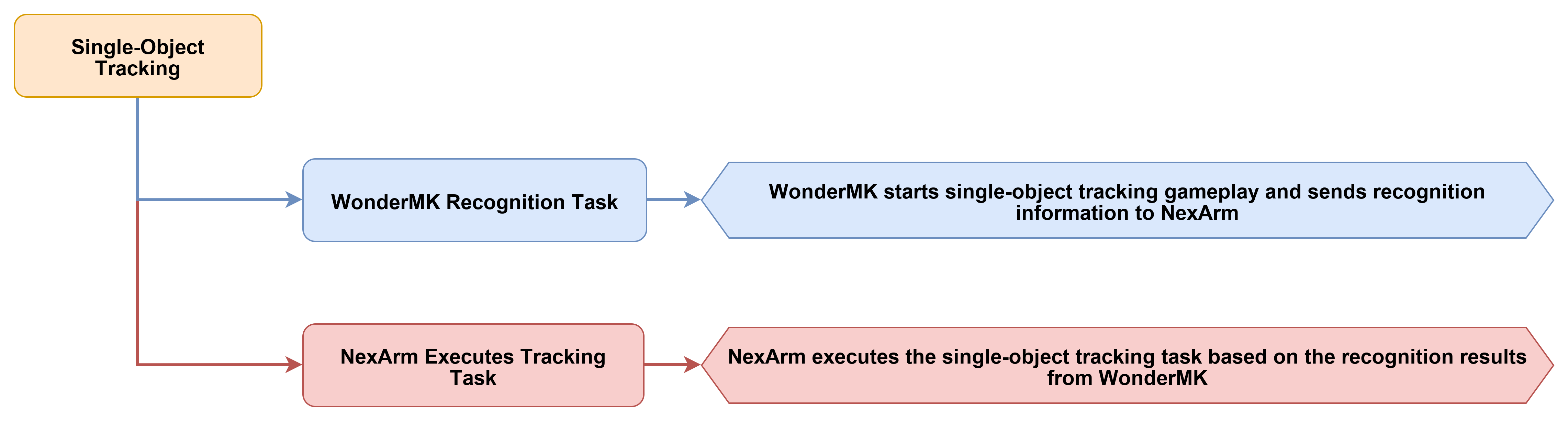
4.6.3 Program Download
Locate the 04 Single-Object Tracking program under the 02 Program Source Code folder in the same directory as this document for download. The detailed download steps can refer to 4.1 Program Download Must-Read.
4.6.4 Program Outcome
Upon power-on, the device completes initialization, and the robotic arm automatically returns to the initial observation position. The screen displays the current operating status before the system enters a standby state. Following activation, the system continuously tracks a single target within the frame. When the target deviates within the frame, the robotic arm end-effector makes continuous minor adjustments based on the recognition results to gradually bring the target back near the center of the frame. To designate a new tracking object, the target is moved into the central area of the frame before the confirmation button is pressed, prompting the system to reset the current position as the new tracking target. This entire process enables the device to perform continuous real-time tracking around a selected target and synchronously adjust the posture of the robotic arm as the target moves.
During actual operation, the device is first powered on normally to await the completion of initialization. Verification must be made that the robotic arm has returned to the initial position and the screen displays correctly. Pressing the start button transitions the system into the target tracking state. The tracking target is then placed within the field of view of the camera. If target reconfirmation is required, the target is moved to the center of the frame before the confirmation button is pressed. To terminate tracking, pressing the start button once more exits the operational state and restores the standby interface.
4.6.5 Program Analysis
system_task_handle.cpp
The beginning of the file introduces the core modules required for the single-object tracking project, including the system task interface, global commands, robotic arm control, USB serial port control, parameter storage, single-object tracking state machine, AT32 OTA, and the file system. The most critical component here is ObjectTrack.h, which is responsible for communicating with the K230 vision side and continuously tracking a target after it is manually selected. Additionally, Robot_Arm.h manages robotic arm actions, and usb_ctrl.h is responsible for receiving serial port commands from the host computer.
#include "system_task_handle.h"
#include "Global.h"
#include "Robot_Arm.h"
#include "usb_ctrl.h"
#include <Preferences.h>
#include "ObjectTrack.h"
#include "AT32_OTA.h"
#include <LittleFS.h>
#include <math.h>
#include <string.h>

#define CMD_SERVO_STREAM 0x68
These static objects and global variables save the system states that need to be shared during single-object tracking execution. Specifically,
loop_with_sys_taskis used to register periodic events,at32_protocolis used to parse the robotic arm feedback on the AT32 side,prefsis used to save robotic arm parameters,is_downloadingis used to pause regular tasks during action group downloads, andg_last_servo_positionsalong withg_last_servo_feedback_mscache the latest servo feedback.
static const char* TAG = "single_object_tracking";
static TimerHandle_t TIMER;
static esp_event_loop_handle_t loop_with_sys_task;
static CommProtocol_t at32_protocol;
static Preferences prefs;
static bool is_downloading = false;

static int16_t g_last_servo_positions[6] = {2048, 2048, 2048, 2048, 2048, 2048};
static uint32_t g_last_servo_feedback_ms = 0;

uint8_t global_channel = 2;
uint8_t global_acc = 245;
volatile bool servo_uart_busy = false;

static float arm_kin[9] = {
    110.45f, 225.00f, 36.97f, 145.00f, 0.0f, 130.23f, 0.0f, 50.0f, 70.5f
};
The operating status flags for the single-object tracking project are defined here. The flag
s_was_tracker_busyis used to determine whether the tracking task has just transitioned from the running state back to the idle state,s_was_target_trackingis used to determine whether the system has transitioned from waiting for target to currently tracking target, ands_button_enable_timealong withs_buttons_armedare used for button delay enablement after power-on to prevent accidental triggers.
static bool s_was_tracker_busy = false;
static bool s_was_target_tracking = false;
static uint32_t s_button_enable_time = 0;
static bool s_buttons_armed = false;

ESP_EVENT_DEFINE_BASE(SYS_TIMING_EVENTS);
The function
apply_oled_single_object_screen()is responsible for refreshing the OLED interface of the single-object tracking project. WhenobjectTrack.isBusy()is true, it indicates that the tracking function has started. IfobjectTrack.isTracking()is true, the OLED displays that target tracking is active. Otherwise, it displays that the system is waiting for target selection on the K230 side. During idle states, the screen prompts that tracking can be started and displaysIdle.
static void apply_oled_single_object_screen(void)
{
    arm.board.oled.set_custom_text(0, "Object Tracking");

    if (objectTrack.isBusy()) {
        if (objectTrack.isTracking()) {
            arm.board.oled.set_custom_text(1, "Tracking Target");
            arm.board.oled.set_custom_text(2, "Arm Tracking");
        } else {
            arm.board.oled.set_custom_text(1, "Waiting Target");
            arm.board.oled.set_custom_text(2, "Select on K230");
        }
        arm.board.oled.set_custom_text(3, "KEY2: Stop");
    } else {
        arm.board.oled.set_custom_text(1, "KEY2: Start");
        arm.board.oled.set_custom_text(2, "Select on K230");
        arm.board.oled.set_custom_text(3, "Idle");
    }

    arm.board.oled.show_custom();
}
The function
perform_arm_poweron_reset()is the power-on reset routine of the robotic arm before single-object tracking starts. It displays a homing prompt on the OLED first, and then callsarm.reset_all(2500)to return the robotic arm to its initial pose. During the waiting period, the system continuously reads feedback from the AT32 to ensure that the robotic arm status is ready before entering tracking execution.
static void perform_arm_poweron_reset(void)
{
    arm.board.oled.set_custom_text(0, "Object Tracking");
    arm.board.oled.set_custom_text(1, "Arm homing...");
    arm.board.oled.set_custom_text(2, "Please wait");
    arm.board.oled.set_custom_text(3, "");
    arm.board.oled.show_custom();

    arm.reset_all(2500);
    uint32_t t0 = millis();
    while (millis() - t0 < 2600) {
        pump_at32_feedback();
        delay(20);
    }
    for (int i = 0; i < 8; i++) {
        arm.update_status();
        delay(50);
        while (servo.uart->available()) {
            uint8_t c = servo.uart->read();
            at32_protocol.parsing(&c, 1);
        }
    }
    Serial.println("[SingleObj] Power-on arm reset done");
}
The function
start_single_object_tracking()is the local function to start single-object tracking. It is executed only whenObjectTrackis idle. Before starting, it callsobjectTrack.stop()to clear the old state and then callsobjectTrack.start()to enter the process of waiting for target selection. After a successful start, the buzzer sounds a prompt, and the serial port log indicates that the system is waiting for target selection on the K230.
static void start_single_object_tracking(void)
{
    if (objectTrack.isBusy()) {
        Serial.println("[SingleObj] Busy, ignore KEY1 start");
        return;
    }

    objectTrack.stop();
    delay(100);
    objectTrack.start();

    if (objectTrack.isBusy()) {
        arm.board.buzzer.set(100, 100, 2, 2000);
        Serial.println("[SingleObj] KEY1 -> start, waiting K230 selection");
    } else {
        arm.board.buzzer.set(300, 100, 1, 1000);
        Serial.println("[SingleObj] start failed");
    }

    apply_oled_single_object_screen();
}
The
stop_single_object_tracking()function halts the active single-object tracking routine. The function first evaluatesobjectTrack.isBusy()to ensure that the state machine terminates, the buzzer notification triggers, and the OLED refreshes only if a tracking task is already active. This validation prevents redundant execution of the stop logic during idle states.
static void stop_single_object_tracking(void)
{
    if (!objectTrack.isBusy()) {
        return;
    }

    objectTrack.stop();
    arm.board.buzzer.set(80, 80, 1, 1800);
    apply_oled_single_object_screen();
    Serial.println("[SingleObj] KEY1 -> stop");
}
The
buttons_ready()function serves as a button protection routine after power-on. Upon system startup, the click states of both buttons are initially read and cleared, and button triggers remain disabled untils_button_enable_timeis reached. Once this duration elapses,s_buttons_armedis set to true, enabling subsequent button actions to take effect.
static bool buttons_ready(void)
{
    if (s_buttons_armed) {
        return true;
    }

    (void)arm.board.button.is_clicked(0);
    (void)arm.board.button.is_clicked(1);

    if (millis() < s_button_enable_time) {
        return false;
    }

    s_buttons_armed = true;
    Serial.println("[SingleObj] Buttons armed");
    return false;
}
The
save_config()andload_config()functions handle saving and loading the fundamental robotic arm parameters related to single-object tracking. These routines manage the storage of the channel, acceleration, and kinematics parameters. During configuration loading, ifarm_kinexists in NVS, a basic validation is performed before overwriting the default kinematics parameters to prevent anomalous values from disrupting target tracking movements.
void save_config(void)
{
    prefs.begin("robot_cfg", false);
    prefs.putUChar("channel", global_channel);
    prefs.putUChar("acc", global_acc);
    prefs.putBytes("arm_kin", arm_kin, sizeof(arm_kin));
    prefs.end();
}

void load_config(void)
{
    prefs.begin("robot_cfg", true);
    global_channel = prefs.getUChar("channel", 2);
    global_acc = prefs.getUChar("acc", 245);

    if (prefs.isKey("arm_kin")) {
        float saved_kin[9];
        prefs.getBytes("arm_kin", saved_kin, sizeof(saved_kin));
        if (fabsf(saved_kin[0] - arm_kin[0]) < 0.01f) {
            memcpy(arm_kin, saved_kin, sizeof(arm_kin));
        }
    }
    prefs.end();
}
The periodic timer callback posts essential maintenance events required during single-object tracking execution. Instead of interacting directly with the hardware, this routine posts buzzer, battery, robotic arm status, and OLED refresh events at set intervals. If an action group download is currently in progress, the callback returns immediately to ensure the download sequence faces no interference from periodic tasks.
static void sys_timer_post_callback(TimerHandle_t xTimer)
{
    if (is_downloading) return;

    static uint32_t count = 0;
    if (count % BUZZER_UPDATE_PERIOD == 0) {
        esp_event_post_to(loop_with_sys_task, SYS_TIMING_EVENTS, TIMING_EVENT_BUZZER_UPDATE, NULL, 0, 0);
    }
    if (count % BAT_UPDATE_PERIOD == 0) {
        esp_event_post_to(loop_with_sys_task, SYS_TIMING_EVENTS, TIMING_EVENT_BAT_UPDATE, NULL, 0, 0);
    }
    if (count % SERVO_STATUS_UPDATE_PERIOD == 0) {
        esp_event_post_to(loop_with_sys_task, SYS_TIMING_EVENTS, TIMING_EVENT_SERVO_STATUS_UPDATE, NULL, 0, 0);
    }
    if (count % OLED_REFRESH_PERIOD == 0) {
        esp_event_post_to(loop_with_sys_task, SYS_TIMING_EVENTS, TIMING_EVENT_OLED_REFRESH, NULL, 0, 0);
    }

    count += TIMER_PERIOD;
}
The
sys_timer_sub_handler()function receives periodic events and executes the corresponding maintenance tasks. Buzzer and battery operations handle fundamental mainboard status maintenance,arm.update_status()continuously refreshes the robotic arm state, andapply_oled_single_object_screen()updates the OLED screen to display idle, waiting for target, or actively tracking based on the current state ofObjectTrack.
static void sys_timer_sub_handler(void* handler_args, esp_event_base_t base, int32_t id, void* event_data)
{
    if (is_downloading) return;

    switch (id) {
        case TIMING_EVENT_BUZZER_UPDATE:
            arm.board.buzzer.update();
            break;
        case TIMING_EVENT_BAT_UPDATE:
            arm.board.bat.update();
            break;
        case TIMING_EVENT_SERVO_STATUS_UPDATE:
            arm.update_status();
            break;
        case TIMING_EVENT_OLED_REFRESH:
            apply_oled_single_object_screen();
            break;
        default:
            break;
    }
}
The
func_ctrl_callback()function acts as the entry point for serial commands from the host computer. Commands directly associated with the main single-object tracking workflow include action group download protection, robotic arm kinematics parameter configuration, andCMD_SELF_LEARN_TRACK. When an action group is downloading,is_downloadingis set to true to pause the single-object tracking state machine and button processing within the main loop.
static void func_ctrl_callback(PacketTypeDef* self)
{
    uint8_t len;
    uint16_t bat_level;

    if (self->elements.id == 0xFF && self->elements.cmd == CMD_ACTION_GROUP_DOWNLOAD) {
        is_downloading = true;
        arm.board.action_group_download(self->elements.args[0], self->elements.args, self->elements.length - 2);
        is_downloading = false;
        return;
    }

    if (self->elements.id != 0xFF) return;

    switch (self->elements.cmd) {
The
CMD_SET_KINEMATICS_PARAMcommand handles updating the robotic arm kinematics parameters from the host computer. Because single-object tracking requires continuous adjustment of robotic arm movements based on the center position of the target, updated parameters are written to the localarm_kinarray, forwarded to the servo control subsystem, and saved to NVS via a call tosave_config().
        case CMD_SET_KINEMATICS_PARAM:
            if (self->elements.length - 2 >= (int)sizeof(arm_kin)) {
                memcpy(arm_kin, self->elements.args, sizeof(arm_kin));
                servo.tx_frame_write(0xFF, CMD_SET_KINEMATICS_PARAM, (uint8_t*)arm_kin, sizeof(arm_kin));
                save_config();
                arm.board.buzzer.set(100, 50, 1, 3000);
            }
            break;
The
CMD_SELF_LEARN_TRACKcommand serves as the primary mechanism for host computer involvement in single-object tracking. Tracking stops whensw == 0. A value ofsw == 2indicates that the target is confirmed, prompting the code to parse the target center coordinates along with the target ID and then callobjectTrack.confirm(id, cx, cy)to transfer the target selected by the K230 or host computer to the tracking state machine.
        case CMD_SELF_LEARN_TRACK:
            if (self->elements.length >= 3) {
                uint8_t sw = self->elements.args[0];
                if (sw == 0) {
                    objectTrack.stop();
                    arm.board.buzzer.off();
                    apply_oled_single_object_screen();
                    Serial.println("[SingleObj] CMD stop");
                } else if (sw == 2) {
                    int cx = 160;
                    int cy = 120;
                    String id = "1";

                    if (self->elements.length >= 7) {
                        cx = (int16_t)((self->elements.args[1] << 8) | self->elements.args[2]);
                        cy = (int16_t)((self->elements.args[3] << 8) | self->elements.args[4]);

                        uint8_t n_len = self->elements.args[5];
                        if (n_len > 0 && self->elements.length >= 7 + n_len) {
                            char name_buf[32] = {0};
                            int copy_len = (n_len < 31) ? n_len : 31;
                            memcpy(name_buf, &self->elements.args[6], copy_len);
                            id = String(name_buf);
                        }
                    }
                    objectTrack.confirm(id, cx, cy);
                    arm.board.buzzer.set(100, 50, 2, 3000);
                    apply_oled_single_object_screen();
                    Serial.println("[SingleObj] CMD confirm target");
Within the same
CMD_SELF_LEARN_TRACKbranch, any non-zeroswvalue other than stop or confirm initiates a ready state. The code does not immediately complete target confirmation. Instead, a buzzer notification triggers, the OLED refreshes, and a button startup log message prints to indicate that the system has transitioned into an unactivated state or is waiting for target selection.
                } else {
                    arm.board.buzzer.set(30, 30, 1, 2500);
                    apply_oled_single_object_screen();
                    Serial.println("[SingleObj] CMD ready, press KEY1 to start");
                }
            }
            break;
The
at32_packet_callback()function processes data returned from the AT32 or servo side. For single-object tracking, the most directly relevant data is the servo position feedback. Upon receivingCMD_SERVO_STREAMor command96, the code parses the six servo positions and updates the timestamp to provide essential synchronization metrics for the robotic arm state during tracking operations.
void at32_packet_callback(PacketTypeDef* rx_packet)
{
    if (is_downloading) return;

    if (rx_packet->elements.id == 0xFF &&
        rx_packet->elements.cmd == CMD_SERVO_STREAM &&
        rx_packet->elements.length >= 14) {
        for (int i = 0; i < 6; ++i) {
            int idx = i * 2;
            g_last_servo_positions[i] = (int16_t)((rx_packet->elements.args[idx + 1] << 8) | rx_packet->elements.args[idx]);
        }
        g_last_servo_feedback_ms = millis();
        return;
    }

    if (rx_packet->elements.id == 0xFF &&
        rx_packet->elements.cmd == 96 &&
        rx_packet->elements.length >= 14) {
        for (int i = 0; i < 6; ++i) {
            int idx = i * 2;
            g_last_servo_positions[i] = (int16_t)((rx_packet->elements.args[idx + 1] << 8) | rx_packet->elements.args[idx]);
        }
        g_last_servo_feedback_ms = millis();
        return;
    }
4.7 Gesture Recognition
4.7.1 Project Introduction
This experiment implements a gesture control function based on visual recognition. The system recognizes different gesture results and drives the robotic arm to execute the corresponding preset action groups while displaying the current status and the most recently recognized gesture on the screen.
4.7.2 Program Flow
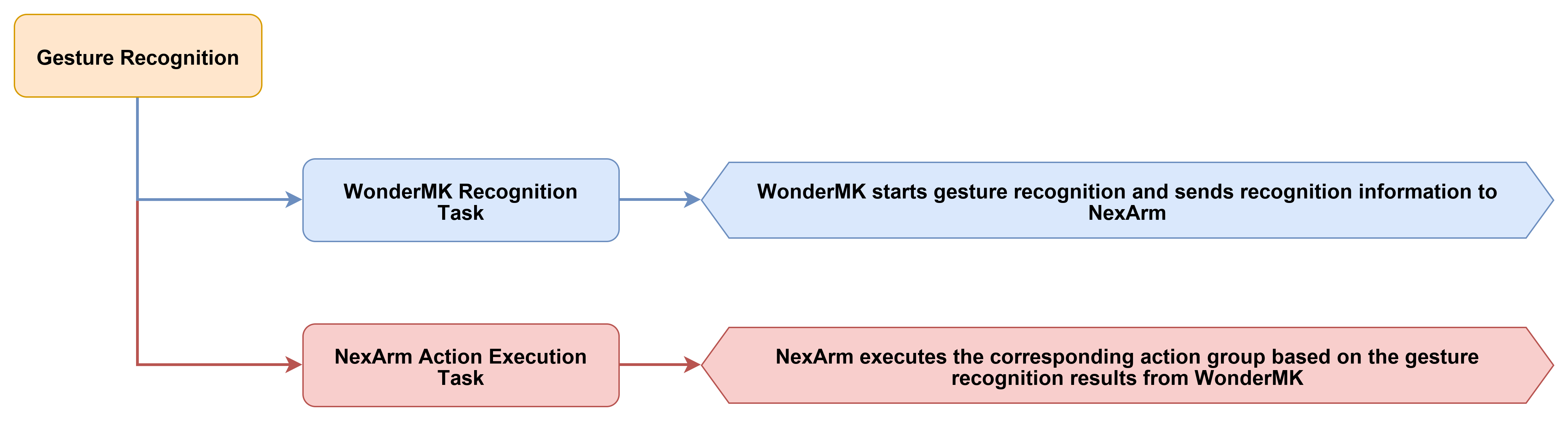
4.7.3 Program Download
Locate the 05 Gesture Recognition program under the 02 Program Source Code folder in the same directory as this document for download. The detailed download steps can refer to 4.1 Program Download Must-Read.
4.7.4 Program Outcome
Upon power-on, the device completes initialization, and the robotic arm automatically returns to the initial standby position. The screen displays the current operating status before the system transitions into a standby state. Following activation, the system continuously detects gesture information within the camera frame. Once the recognition result stabilizes, the corresponding preset action group triggers, causing the robotic arm to execute the designated movements. The screen simultaneously displays the name of the most recently recognized gesture to facilitate monitoring of the current detection results. When operation is halted, the recognition process terminates and the system returns to the standby state. The interface continues to display the last recognized result to support ongoing debugging and demonstrations.
During actual operation, the device is first powered on normally to await the completion of initialization. Verification must be made that the robotic arm has returned to the initial position. The hand is then placed within the recognizable range of the camera. Pressing the start button transitions the system into the gesture recognition state. Performing different gestures at this stage triggers the corresponding preset movements. To terminate recognition, pressing the start button once more stops the process. To return the robotic arm to its initial posture, the reset button can be pressed. The device immediately executes the homing action to facilitate a seamless transition to the next demonstration cycle.
4.7.5 Program Analysis
system_task_handle.cpp
The beginning of the file introduces the core modules required for the gesture recognition project, including the system task interface, global commands, robotic arm control, USB serial port control, parameter storage, gesture recognition state machine, AT32 OTA, and the file system. The most critical component here is GestureTracker.h, which is responsible for communicating with the K230 vision side and obtaining gesture recognition results. Additionally, Robot_Arm.h manages the robotic arm and motherboard peripherals, and usb_ctrl.h handles the serial port command entry point of the host computer.
#include "system_task_handle.h"
#include "Global.h"
#include "Robot_Arm.h"
#include "usb_ctrl.h"
#include <Preferences.h>
#include "GestureTracker.h"
#include "AT32_OTA.h"
#include <LittleFS.h>
#include <math.h>
#include <string.h>

#define CMD_SERVO_STREAM 0x68
These static objects and global variables save the system states that need to be shared during gesture recognition execution. Specifically,
loop_with_sys_taskis used to register periodic events,at32_protocolparses the robotic arm feedback on the AT32 side,prefsis used to save robotic arm parameters,is_downloadingis used to pause regular tasks during action group downloads, andg_last_servo_positionsalong withg_last_servo_feedback_mscache the latest servo feedback.
static const char* TAG = "gesture_recognition";
static TimerHandle_t TIMER;
static esp_event_loop_handle_t loop_with_sys_task;
static CommProtocol_t at32_protocol;
static Preferences prefs;
static bool is_downloading = false;

static int16_t g_last_servo_positions[6] = {2048, 2048, 2048, 2048, 2048, 2048};
static uint32_t g_last_servo_feedback_ms = 0;

uint8_t global_channel = 2;
uint8_t global_acc = 245;
volatile bool servo_uart_busy = false;

static float arm_kin[9] = {
    110.45f, 225.00f, 36.97f, 145.00f, 0.0f, 130.23f, 0.0f, 50.0f, 70.5f
};
The operating status flags for the gesture recognition project are defined here. The flag
s_was_tracker_busyis used to determine whether the recognition task has just transitioned from the running state back to the idle state.s_button_enable_timealong withs_buttons_armedare used for button delay enablement after power-on to prevent accidental gesture recognition activation or deactivation during the power-on process.
static bool s_was_tracker_busy = false;
static uint32_t s_button_enable_time = 0;
static bool s_buttons_armed = false;

ESP_EVENT_DEFINE_BASE(SYS_TIMING_EVENTS);
The function
apply_oled_gesture_screen()is responsible for refreshing the OLED interface of the gesture recognition project. WhengestureTracker.isBusy()is true, the screen displays that recognition is active and shows the most recently recognized gesture viagestureTracker.getLastGestureStr(). If there is no valid result, it displaysNo Gesture. When idle, the screen displays the start entry point,Gesture Ready, andIdle.
static void apply_oled_gesture_screen(void)
{
    arm.board.oled.set_custom_text(0, "Gesture Recognition");

    if (gestureTracker.isBusy()) {
        const char* gesture = gestureTracker.getLastGestureStr();
        arm.board.oled.set_custom_text(1, "Recognizing");
        arm.board.oled.set_custom_text(2, (gesture && gesture[0]) ? gesture : "No Gesture");
        arm.board.oled.set_custom_text(3, "KEY2: Stop");
    } else {
        arm.board.oled.set_custom_text(1, "KEY2: Start");
        arm.board.oled.set_custom_text(2, "Gesture Ready");
        arm.board.oled.set_custom_text(3, "Idle");
    }

    arm.board.oled.show_custom();
}
The function
perform_arm_poweron_reset()is the power-on reset routine of the robotic arm before the gesture recognition project starts. It displays a homing prompt on the OLED first, and then callsarm.reset_all(2500)to return the robotic arm to its initial pose. During the waiting period, the system continuously reads feedback from the AT32 to ensure that the robotic arm status is ready before entering recognition execution.
static void perform_arm_poweron_reset(void)
{
    arm.board.oled.set_custom_text(0, "Gesture Recognition");
    arm.board.oled.set_custom_text(1, "Arm homing...");
    arm.board.oled.set_custom_text(2, "Please wait");
    arm.board.oled.set_custom_text(3, "");
    arm.board.oled.show_custom();

    arm.reset_all(2500);
    uint32_t t0 = millis();
    while (millis() - t0 < 2600) {
        pump_at32_feedback();
        delay(20);
    }
    for (int i = 0; i < 8; i++) {
        arm.update_status();
        delay(50);
        while (servo.uart->available()) {
            uint8_t c = servo.uart->read();
            at32_protocol.parsing(&c, 1);
        }
    }
    Serial.println("[GestureRec] Power-on arm reset done");
}
The function
start_gesture_recognition()is the local function to start gesture recognition. It is executed only whenGestureTrackeris idle. Before starting, it callsgestureTracker.stop()to clear the old state and then callsgestureTracker.start()to enter the recognition flow. It subsequently determines if the start was successful based ongestureTracker.isBusy()and provides a buzzer prompt.
static void start_gesture_recognition(void)
{
    if (gestureTracker.isBusy()) {
        Serial.println("[GestureRec] Busy, ignore KEY1 start");
        return;
    }

    gestureTracker.stop();
    delay(100);
    gestureTracker.start();

    if (gestureTracker.isBusy()) {
        arm.board.buzzer.set(100, 100, 2, 2000);
        Serial.println("[GestureRec] KEY1 -> start");
    } else {
        arm.board.buzzer.set(300, 100, 1, 1000);
        Serial.println("[GestureRec] start failed");
    }

    apply_oled_gesture_screen();
}
The function
stop_gesture_recognition()is responsible for stopping the running gesture recognition. The function checksgestureTracker.isBusy()first. Only when the recognition task is active does it stop the state machine, trigger the buzzer prompt, and refresh the OLED. This prevents redundant stop operations in the idle state.
static void stop_gesture_recognition(void)
{
    if (!gestureTracker.isBusy()) {
        return;
    }

    gestureTracker.stop();
    arm.board.buzzer.set(80, 80, 1, 1800);
    apply_oled_gesture_screen();
    Serial.println("[GestureRec] KEY1 -> stop");
}
The function
buttons_ready()is the button protection function after power-on. When the system starts, it reads and clears the click states of both buttons first. No button triggers are allowed befores_button_enable_timeis reached. Once the time is reached,s_buttons_armedis set to true, making subsequent button presses effective.
static bool buttons_ready(void)
{
    if (s_buttons_armed) {
        return true;
    }

    (void)arm.board.button.is_clicked(0);
    (void)arm.board.button.is_clicked(1);

    if (millis() < s_button_enable_time) {
        return false;
    }

    s_buttons_armed = true;
    Serial.println("[GestureRec] Buttons armed");
    return false;
}
The functions
save_config()andload_config()save and restore basic robotic arm parameters related to the gesture recognition project. Specifically, the system saves the channel, acceleration, and kinematics parameters. During loading, ifarm_kinexists in NVS, a simple validation is performed first before overwriting the default kinematics parameters to prevent abnormal parameters from affecting the basic status of the robotic arm.
void save_config(void)
{
    prefs.begin("robot_cfg", false);
    prefs.putUChar("channel", global_channel);
    prefs.putUChar("acc", global_acc);
    prefs.putBytes("arm_kin", arm_kin, sizeof(arm_kin));
    prefs.end();
}

void load_config(void)
{
    prefs.begin("robot_cfg", true);
    global_channel = prefs.getUChar("channel", 2);
    global_acc = prefs.getUChar("acc", 245);

    if (prefs.isKey("arm_kin")) {
        float saved_kin[9];
        prefs.getBytes("arm_kin", saved_kin, sizeof(saved_kin));
        if (fabsf(saved_kin[0] - arm_kin[0]) < 0.01f) {
            memcpy(arm_kin, saved_kin, sizeof(arm_kin));
        }
    }
    prefs.end();
}
The periodic timer callback is responsible for posting basic maintenance events required during gesture recognition execution. It does not directly operate hardware. Instead, it periodically posts buzzer, battery, robotic arm status, and OLED refresh events. If an action group is being downloaded, it returns directly to prevent the download process from being disturbed by periodic tasks.
static void sys_timer_post_callback(TimerHandle_t xTimer)
{
    if (is_downloading) return;

    static uint32_t count = 0;
    if (count % BUZZER_UPDATE_PERIOD == 0) {
        esp_event_post_to(loop_with_sys_task, SYS_TIMING_EVENTS, TIMING_EVENT_BUZZER_UPDATE, NULL, 0, 0);
    }
    if (count % BAT_UPDATE_PERIOD == 0) {
        esp_event_post_to(loop_with_sys_task, SYS_TIMING_EVENTS, TIMING_EVENT_BAT_UPDATE, NULL, 0, 0);
    }
    if (count % SERVO_STATUS_UPDATE_PERIOD == 0) {
        esp_event_post_to(loop_with_sys_task, SYS_TIMING_EVENTS, TIMING_EVENT_SERVO_STATUS_UPDATE, NULL, 0, 0);
    }
    if (count % OLED_REFRESH_PERIOD == 0) {
        esp_event_post_to(loop_with_sys_task, SYS_TIMING_EVENTS, TIMING_EVENT_OLED_REFRESH, NULL, 0, 0);
    }

    count += TIMER_PERIOD;
}
The function
sys_timer_sub_handler()receives periodic events and performs specific maintenance actions. The buzzer and battery manage basic motherboard status maintenance,arm.update_status()is used to continuously refresh the robotic arm status, andapply_oled_gesture_screen()prompts the OLED to display idle, active recognition, or the most recently recognized gesture based on the current state ofGestureTracker.
static void sys_timer_sub_handler(void* handler_args, esp_event_base_t base, int32_t id, void* event_data)
{
    if (is_downloading) return;

    switch (id) {
        case TIMING_EVENT_BUZZER_UPDATE:
            arm.board.buzzer.update();
            break;
        case TIMING_EVENT_BAT_UPDATE:
            arm.board.bat.update();
            break;
        case TIMING_EVENT_SERVO_STATUS_UPDATE:
            arm.update_status();
            break;
        case TIMING_EVENT_OLED_REFRESH:
            apply_oled_gesture_screen();
            break;
        default:
            break;
    }
}
The function
func_ctrl_callback()is the serial port command entry point for the host computer. The operations directly related to the main flow of gesture recognition are action group download protection, kinematics parameter configuration, andCMD_GESTURE_TRACK. During action group downloads,is_downloadingis set to true to prompt the main loop to pause the gesture recognition state machine and button processing.
static void func_ctrl_callback(PacketTypeDef* self)
{
    uint8_t len;
    uint16_t bat_level;

    if (self->elements.id == 0xFF && self->elements.cmd == CMD_ACTION_GROUP_DOWNLOAD) {
        is_downloading = true;
        arm.board.action_group_download(self->elements.args[0], self->elements.args, self->elements.length - 2);
        is_downloading = false;
        return;
    }

    if (self->elements.id != 0xFF) return;

    switch (self->elements.cmd) {
The command
CMD_SET_KINEMATICS_PARAMis used to update the kinematics parameters of the robotic arm from the host computer. Although gesture recognition itself mainly involves visual recognition and displaying results, the project still relies on the basic parameters and status synchronization of the robotic arm. Therefore, updated parameters are written to the localarm_kin, forwarded to the servo control side, and saved to NVS by callingsave_config().
        case CMD_SET_KINEMATICS_PARAM:
            if (self->elements.length - 2 >= (int)sizeof(arm_kin)) {
                memcpy(arm_kin, self->elements.args, sizeof(arm_kin));
                servo.tx_frame_write(0xFF, CMD_SET_KINEMATICS_PARAM, (uint8_t*)arm_kin, sizeof(arm_kin));
                save_config();
                arm.board.buzzer.set(100, 50, 1, 3000);
            }
            break;
The command
CMD_GESTURE_TRACKis the primary command for the host computer to control gesture recognition. Whensw == 0, the current recognition stops, the buzzer is turned off, and the OLED is refreshed. Whensw != 0, the system only makes preparation prompts and refreshes the interface without directly callinggestureTracker.start(). This indicates that starting the actual recognition in this project is still triggered by local buttons.
        case CMD_GESTURE_TRACK:
            if (self->elements.length >= 3) {
                uint8_t sw = self->elements.args[0];
                if (sw == 0) {
                    gestureTracker.stop();
                    arm.board.buzzer.off();
                    apply_oled_gesture_screen();
                    Serial.println("[GestureRec] CMD stop");
                } else {
                    arm.board.buzzer.set(30, 30, 1, 2500);
                    apply_oled_gesture_screen();
                    Serial.println("[GestureRec] CMD ready, press KEY1 to start");
                }
            }
            break;
The function
at32_packet_callback()handles data returned from the AT32 or the servo side. For the gesture recognition project, the most directly related component is the servo position feedback. After receivingCMD_SERVO_STREAMor command96, the code parses the positions of the 6 servos and updates the timestamp, providing data for robotic arm status synchronization and external queries.
void at32_packet_callback(PacketTypeDef* rx_packet)
{
    if (is_downloading) return;

    if (rx_packet->elements.id == 0xFF &&
        rx_packet->elements.cmd == CMD_SERVO_STREAM &&
        rx_packet->elements.length >= 14) {
        for (int i = 0; i < 6; ++i) {
            int idx = i * 2;
            g_last_servo_positions[i] = (int16_t)((rx_packet->elements.args[idx + 1] << 8) | rx_packet->elements.args[idx]);
        }
        g_last_servo_feedback_ms = millis();
        return;
    }

    if (rx_packet->elements.id == 0xFF &&
        rx_packet->elements.cmd == 96 &&
        rx_packet->elements.length >= 14) {
        for (int i = 0; i < 6; ++i) {
            int idx = i * 2;
            g_last_servo_positions[i] = (int16_t)((rx_packet->elements.args[idx + 1] << 8) | rx_packet->elements.args[idx]);
        }
        g_last_servo_feedback_ms = millis();
        return;
    }
When the AT32 returns the current coordinates of the robotic arm, the code parses the X, Y, Z, pitch, roll, claw, and 6 servo positions, and writes them to
arm.current_poseand the servo cache. Although gesture recognition focuses primarily on visual results, these feedback data are still used to maintain the robotic arm state, handle host computer queries, and synchronize system operations.
            if (rx_packet->elements.cmd == CMD_GET_CUR_COORDS && rx_packet->elements.length >= 26) {
                int16_t raw_x = (int16_t)((rx_packet->elements.args[1] << 8) | rx_packet->elements.args[0]);
                int16_t raw_y = (int16_t)((rx_packet->elements.args[3] << 8) | rx_packet->elements.args[2]);
                int16_t raw_z = (int16_t)((rx_packet->elements.args[5] << 8) | rx_packet->elements.args[4]);
                int16_t raw_p = (int16_t)((rx_packet->elements.args[7] << 8) | rx_packet->elements.args[6]);
                int16_t raw_r = (int16_t)((rx_packet->elements.args[9] << 8) | rx_packet->elements.args[8]);
                int16_t raw_c = (int16_t)((rx_packet->elements.args[11] << 8) | rx_packet->elements.args[10]);

                arm.current_pose.x = (float)raw_x;
                arm.current_pose.y = (float)raw_y;
                arm.current_pose.z = (float)raw_z;
                arm.current_pose.pitch = (float)raw_p / 10.0f;
                arm.current_pose.roll = (float)raw_r;
                arm.current_pose.claw = (float)raw_c;

                for (int i = 0; i < 6; ++i) {
                    int idx = 12 + i * 2;
                    g_last_servo_positions[i] = (int16_t)((rx_packet->elements.args[idx + 1] << 8) | rx_packet->elements.args[idx]);
                }
                g_last_servo_feedback_ms = millis();
            }
The functions
pump_at32_feedback(),sync_arm_feedback(), andget_last_servo_positions()are auxiliary functions for robotic arm feedback. They are responsible for pulling raw data from the AT32 serial port, waiting for new robotic arm feedback, and providing the latest servo position cache to other modules respectively. This ensures that the system execution does not rely solely on expired states.
void pump_at32_feedback(void)
{
    while (servo.uart->available()) {
        uint8_t c = servo.uart->read();
        at32_protocol.parsing(&c, 1);
    }
}

bool sync_arm_feedback(uint32_t timeout_ms)
{
    arm.update_status();
    uint32_t start = millis();
    uint32_t prev_feedback_ms = g_last_servo_feedback_ms;

    while (millis() - start < timeout_ms) {
        serial_port.rec_handler();
        pump_at32_feedback();
        if (g_last_servo_feedback_ms != 0 && g_last_servo_feedback_ms != prev_feedback_ms) {
            return true;
        }
        delay(2);
    }

    return g_last_servo_feedback_ms != 0;
}

bool get_last_servo_positions(int16_t out_pos[6])
{
    if (g_last_servo_feedback_ms == 0) {
        return false;
    }
    memcpy(out_pos, g_last_servo_positions, sizeof(g_last_servo_positions));
    return true;
}
The function
system_loop_handler()is the main loop of the gesture recognition execution phase. In the non-download state, it sequentially processes the host computer serial port, the AT32 feedback, andgestureTracker.update(). It subsequently detects if the recognition task has just transitioned from the running state back to the idle state. If it has stopped, the OLED refreshes to return to the standby interface.
void system_loop_handler(void)
{
    if (!is_downloading) {
        serial_port.rec_handler();
        pump_at32_feedback();

        gestureTracker.update();

        bool busy_now = gestureTracker.isBusy();
        if (s_was_tracker_busy && !busy_now) {
            Serial.println("[GestureRec] Recognition stopped, idle");
            apply_oled_gesture_screen();
        }
        s_was_tracker_busy = busy_now;

        arm.board.button.update();
        arm.board.buzzer.update();
The button logic in the main loop uses only button ID 1 as the entry point for starting and stopping gesture recognition. When buttons are not enabled, it returns directly. Once the buttons are enabled, if recognition is active, it calls
stop_gesture_recognition(). Otherwise, it callsstart_gesture_recognition(). In the download state, only the host computer serial port is processed, and the gesture recognition state machine is not advanced.
        if (!buttons_ready()) {
            s_was_tracker_busy = gestureTracker.isBusy();
            return;
        }

        if (arm.board.button.is_clicked(1)) {
            if (gestureTracker.isBusy()) {
                stop_gesture_recognition();
            } else {
                start_gesture_recognition();
            }
        }

        s_was_tracker_busy = gestureTracker.isBusy();
    } else {
        serial_port.rec_handler();
    }
}
The function
register_system_task()is the initialization entry point for the gesture recognition project. It saves the event loop handle, sets the CPU frequency, and loads the robotic arm configuration first. It then mountsLittleFSto prepare for subsequent access to action groups and system files.
void register_system_task(esp_event_loop_handle_t *event_loop)
{
    loop_with_sys_task = *event_loop;
    setCpuFrequencyMhz(240);
    load_config();

    if (!LittleFS.begin(true)) {
        Serial.println("[LittleFS] Mount failed, formatting...");
        LittleFS.format();
        LittleFS.begin();
    }
    Serial.println("[LittleFS] Mounted successfully");
4.8 AprilTag Tracking
4.8.1 Project Introduction
This experiment implements an automatic robotic arm tracking function based on AprilTag identification. The system continuously adjusts the end position of the robotic arm according to the visual recognition results to keep the target tag near the center of the image.
4.8.2 Program Flow
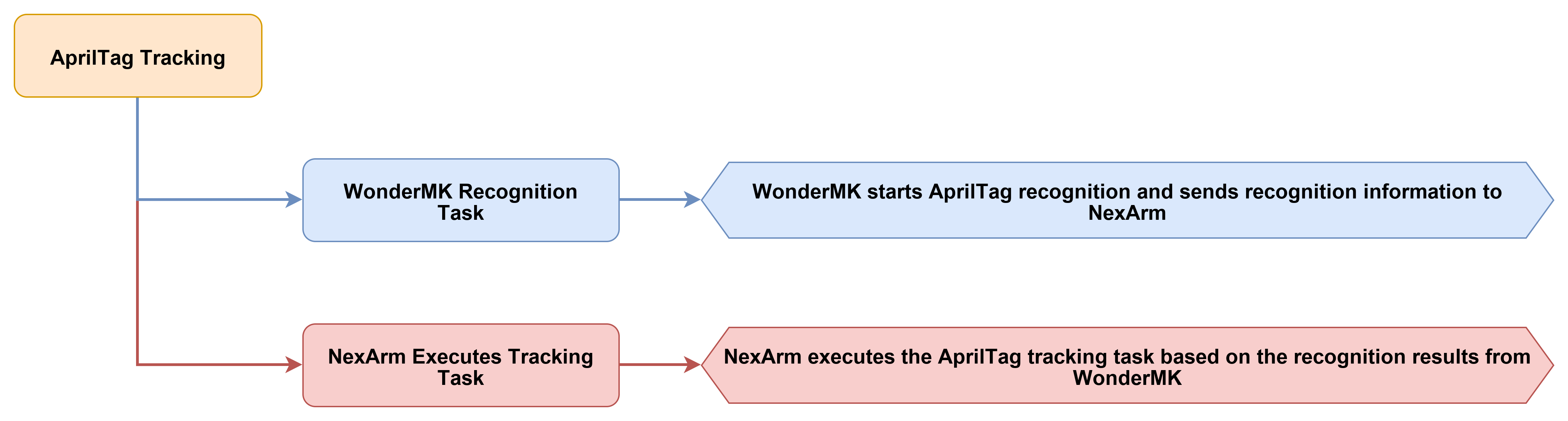
4.8.3 Program Download
Locate the 06 AprilTag Tracking program under the 02 Program Source Code folder in the same directory as this document for download. The detailed download steps can refer to 4.1 Program Download Must-Read.
4.8.4 Program Outcome
Upon power-on, the device completes initialization, and the robotic arm automatically returns to the initial observation position. The screen displays the current operating status before the system transitions into a standby state. Following activation, the system continuously detects the tag target within the frame and adjusts the position of the robotic arm based on the deviation of the target within the frame. This mechanism allows the end-effector to follow the tag with horizontal and vertical dynamic adjustments. When operation is halted, the tracking process terminates, the robotic arm returns to its initial posture, and the interface status simultaneously restores to the deactivated state. This entire process enables the device to perform real-time tag recognition and drive the robotic arm to execute stable dynamic tracking.
During actual operation, the device is first powered on normally to await the completion of initialization. Verification must be made that the robotic arm has returned to the initial position. The target equipped with the tag is then placed within the recognizable range of the camera. Pressing the start button transitions the system into the tracking state, prompting the robotic arm to continuously adjust its posture as the target position changes. To terminate tracking, pressing the start button once more stops the process. To return the robotic arm to the initial observation position, the reset button can be pressed. The device immediately executes the homing action. If the system remains in the operational state after homing, tracking adjustments will continue uninterrupted based on the recognition results.
4.8.5 Program Analysis
system_task_handle.cpp
The beginning of the file introduces the core modules required for the AprilTag tracking project, including the system task interface, global commands, robotic arm control, USB serial port control, parameter storage, AprilTag tracking state machine, AT32 OTA, and the file system. The most critical component here is AprilTagTracker.h, which is responsible for communicating with the K230 vision side and driving the tracking based on the AprilTag position. Additionally, Robot_Arm.h manages the robotic arm and motherboard peripherals, and usb_ctrl.h handles the serial port command entry point of the host computer.
#include "system_task_handle.h"
#include "Global.h"
#include "Robot_Arm.h"
#include "usb_ctrl.h"
#include <Preferences.h>
#include "AprilTagTracker.h"
#include "AT32_OTA.h"
#include <LittleFS.h>
#include <math.h>
#include <string.h>

#define CMD_SERVO_STREAM 0x68
These static objects and global variables save the system states that need to be shared during AprilTag tracking execution. Specifically,
loop_with_sys_taskis used to register periodic events,at32_protocolparses the robotic arm feedback on the AT32 side, andprefsis used to save robotic arm parameters.is_downloadingis used to pause regular tasks during action group downloads, andg_last_servo_positionsandg_last_servo_feedback_mscache the latest servo feedback.
static const char* TAG = "apriltag_tracking";
static TimerHandle_t TIMER;
static esp_event_loop_handle_t loop_with_sys_task;
static CommProtocol_t at32_protocol;
static Preferences prefs;
static bool is_downloading = false;

static int16_t g_last_servo_positions[6] = {2048, 2048, 2048, 2048, 2048, 2048};
static uint32_t g_last_servo_feedback_ms = 0;

uint8_t global_channel = 2;
uint8_t global_acc = 245;
volatile bool servo_uart_busy = false;

static float arm_kin[9] = {
    110.45f, 225.00f, 36.97f, 145.00f, 0.0f, 130.23f, 0.0f, 50.0f, 70.5f
};
The operating status flags for the AprilTag tracking project are defined here. The flag
s_was_tracker_busyis used to determine whether the tracking task has just transitioned from the running state back to the idle state, ands_button_enable_timealong withs_buttons_armedare used for button delay enablement after power-on to prevent accidental AprilTag tracking activation or deactivation during the power-on process.
static bool s_was_tracker_busy = false;
static uint32_t s_button_enable_time = 0;
static bool s_buttons_armed = false;

ESP_EVENT_DEFINE_BASE(SYS_TIMING_EVENTS);
The function
apply_oled_apriltag_screen()is responsible for refreshing the OLED interface of the AprilTag tracking project. WhenaprilTagTracker.isBusy()is true, the screen displays that tag tracking is active and shows the search status. When idle, the screen displays the start entry point,Tag Ready, andIdle. This allows checks directly from the screen to determine if tracking can be started.
static void apply_oled_apriltag_screen(void)
{
    arm.board.oled.set_custom_text(0, "AprilTag Tracking");

    if (aprilTagTracker.isBusy()) {
        arm.board.oled.set_custom_text(1, "Tracking Tag");
        arm.board.oled.set_custom_text(2, "Status: Search");
        arm.board.oled.set_custom_text(3, "KEY2: Stop");
    } else {
        arm.board.oled.set_custom_text(1, "KEY2: Start");
        arm.board.oled.set_custom_text(2, "Tag Ready");
        arm.board.oled.set_custom_text(3, "Idle");
    }

    arm.board.oled.show_custom();
}
The function
perform_arm_poweron_reset()is the power-on reset routine of the robotic arm before AprilTag tracking starts. It displays a homing prompt on the OLED first, and then callsarm.reset_all(2500)to return the robotic arm to its initial pose. During the waiting period, the system continuously reads feedback from the AT32 to ensure that the robotic arm status is ready before entering tracking execution.
static void perform_arm_poweron_reset(void)
{
    arm.board.oled.set_custom_text(0, "AprilTag Tracking");
    arm.board.oled.set_custom_text(1, "Arm homing...");
    arm.board.oled.set_custom_text(2, "Please wait");
    arm.board.oled.set_custom_text(3, "");
    arm.board.oled.show_custom();

    arm.reset_all(2500);
    uint32_t t0 = millis();
    while (millis() - t0 < 2600) {
        pump_at32_feedback();
        delay(20);
    }
    for (int i = 0; i < 8; i++) {
        arm.update_status();
        delay(50);
        while (servo.uart->available()) {
            uint8_t c = servo.uart->read();
            at32_protocol.parsing(&c, 1);
        }
    }
    Serial.println("[AprilTagTrack] Power-on arm reset done");
}
The function
start_apriltag_tracking()is the local function to start AprilTag tracking. It is executed only whenAprilTagTrackeris idle. Before starting, it callsaprilTagTracker.stop()to clear the old state and then callsaprilTagTracker.start()to enter the tracking flow. It subsequently determines if the start was successful based onaprilTagTracker.isBusy()and provides a buzzer prompt.
static void start_apriltag_tracking(void)
{
    if (aprilTagTracker.isBusy()) {
        Serial.println("[AprilTagTrack] Busy, ignore KEY1 start");
        return;
    }

    aprilTagTracker.stop();
    delay(100);
    aprilTagTracker.start();

    if (aprilTagTracker.isBusy()) {
        arm.board.buzzer.set(100, 100, 2, 2000);
        Serial.println("[AprilTagTrack] KEY1 -> start");
    } else {
        arm.board.buzzer.set(300, 100, 1, 1000);
        Serial.println("[AprilTagTrack] start failed");
    }

    apply_oled_apriltag_screen();
}
The function
stop_apriltag_tracking()is responsible for stopping the running AprilTag tracking. The function checksaprilTagTracker.isBusy()first. Only when the tracking task is active does it stop the state machine, trigger the buzzer prompt, and refresh the OLED. This prevents redundant stop operations in the idle state.
static void stop_apriltag_tracking(void)
{
    if (!aprilTagTracker.isBusy()) {
        return;
    }

    aprilTagTracker.stop();
    arm.board.buzzer.set(80, 80, 1, 1800);
    apply_oled_apriltag_screen();
    Serial.println("[AprilTagTrack] KEY1 -> stop");
}
The function
buttons_ready()is the button protection function after power-on. When the system starts, it reads and clears the click states of both buttons first. No button triggers are allowed befores_button_enable_timeis reached. Once the time is reached,s_buttons_armedis set to true, making subsequent button presses effective.
static bool buttons_ready(void)
{
    if (s_buttons_armed) {
        return true;
    }

    (void)arm.board.button.is_clicked(0);
    (void)arm.board.button.is_clicked(1);

    if (millis() < s_button_enable_time) {
        return false;
    }

    s_buttons_armed = true;
    Serial.println("[AprilTagTrack] Buttons armed");
    return false;
}
The functions
save_config()andload_config()save and restore basic robotic arm parameters related to the AprilTag tracking project. Specifically, the system saves the channel, acceleration, and kinematics parameters. During loading, ifarm_kinexists in NVS, a simple validation is performed first before overwriting the default kinematics parameters to prevent abnormal parameters from affecting tag tracking actions.
void save_config(void)
{
    prefs.begin("robot_cfg", false);
    prefs.putUChar("channel", global_channel);
    prefs.putUChar("acc", global_acc);
    prefs.putBytes("arm_kin", arm_kin, sizeof(arm_kin));
    prefs.end();
}

void load_config(void)
{
    prefs.begin("robot_cfg", true);
    global_channel = prefs.getUChar("channel", 2);
    global_acc = prefs.getUChar("acc", 245);

    if (prefs.isKey("arm_kin")) {
        float saved_kin[9];
        prefs.getBytes("arm_kin", saved_kin, sizeof(saved_kin));
        if (fabsf(saved_kin[0] - arm_kin[0]) < 0.01f) {
            memcpy(arm_kin, saved_kin, sizeof(arm_kin));
        }
    }
    prefs.end();
}
The periodic timer callback posts essential maintenance events required during AprilTag tracking execution. Instead of interacting directly with the hardware, this routine posts buzzer, battery, robotic arm status, and OLED refresh events at set intervals. If an action group download is currently in progress, the callback returns immediately to ensure the download sequence faces no interference from periodic tasks.
static void sys_timer_post_callback(TimerHandle_t xTimer)
{
    if (is_downloading) return;

    static uint32_t count = 0;
    if (count % BUZZER_UPDATE_PERIOD == 0) {
        esp_event_post_to(loop_with_sys_task, SYS_TIMING_EVENTS, TIMING_EVENT_BUZZER_UPDATE, NULL, 0, 0);
    }
    if (count % BAT_UPDATE_PERIOD == 0) {
        esp_event_post_to(loop_with_sys_task, SYS_TIMING_EVENTS, TIMING_EVENT_BAT_UPDATE, NULL, 0, 0);
    }
    if (count % SERVO_STATUS_UPDATE_PERIOD == 0) {
        esp_event_post_to(loop_with_sys_task, SYS_TIMING_EVENTS, TIMING_EVENT_SERVO_STATUS_UPDATE, NULL, 0, 0);
    }
    if (count % OLED_REFRESH_PERIOD == 0) {
        esp_event_post_to(loop_with_sys_task, SYS_TIMING_EVENTS, TIMING_EVENT_OLED_REFRESH, NULL, 0, 0);
    }

    count += TIMER_PERIOD;
}
The function
sys_timer_sub_handler()receives periodic events and performs specific maintenance actions. The buzzer and battery manage basic motherboard status maintenance,arm.update_status()is used to continuously refresh the robotic arm status, andapply_oled_apriltag_screen()prompts the OLED to display idle or active tag tracking based on the current state ofAprilTagTracker.
static void sys_timer_sub_handler(void* handler_args, esp_event_base_t base, int32_t id, void* event_data)
{
    if (is_downloading) return;

    switch (id) {
        case TIMING_EVENT_BUZZER_UPDATE:
            arm.board.buzzer.update();
            break;
        case TIMING_EVENT_BAT_UPDATE:
            arm.board.bat.update();
            break;
        case TIMING_EVENT_SERVO_STATUS_UPDATE:
            arm.update_status();
            break;
        case TIMING_EVENT_OLED_REFRESH:
            apply_oled_apriltag_screen();
            break;
        default:
            break;
    }
}
The function
func_ctrl_callback()is the serial port command entry point for the host computer. The operations directly related to the main flow of AprilTag tracking are action group download protection, kinematics parameter configuration, andCMD_APRILTAG_TRACK. During action group downloads,is_downloadingis set to true to prompt the main loop to pause the AprilTag tracking state machine and button processing.
static void func_ctrl_callback(PacketTypeDef* self)
{
    uint8_t len;
    uint16_t bat_level;

    if (self->elements.id == 0xFF && self->elements.cmd == CMD_ACTION_GROUP_DOWNLOAD) {
        is_downloading = true;
        arm.board.action_group_download(self->elements.args[0], self->elements.args, self->elements.length - 2);
        is_downloading = false;
        return;
    }

    if (self->elements.id != 0xFF) return;

    switch (self->elements.cmd) {
The command
CMD_SET_KINEMATICS_PARAMis used to update the kinematics parameters of the robotic arm from the host computer. AprilTag tracking requires continuous correction of robotic arm actions based on the tag position in the image. Therefore, updated parameters are written to the localarm_kin, forwarded to the servo control side, and saved to NVS by callingsave_config().
        case CMD_SET_KINEMATICS_PARAM:
            if (self->elements.length - 2 >= (int)sizeof(arm_kin)) {
                memcpy(arm_kin, self->elements.args, sizeof(arm_kin));
                servo.tx_frame_write(0xFF, CMD_SET_KINEMATICS_PARAM, (uint8_t*)arm_kin, sizeof(arm_kin));
                save_config();
                arm.board.buzzer.set(100, 50, 1, 3000);
            }
            break;
The command
CMD_APRILTAG_TRACKis the primary command for the host computer to control AprilTag tracking. Whensw == 0, the current tracking stops, the buzzer is turned off, and the OLED is refreshed. Whensw != 0, the system only makes preparation prompts and refreshes the interface without directly callingaprilTagTracker.start(). This indicates that starting the actual tracking in this project is still triggered by local buttons.
        case CMD_APRILTAG_TRACK:
            if (self->elements.length >= 3) {
                uint8_t sw = self->elements.args[0];
                if (sw == 0) {
                    aprilTagTracker.stop();
                    arm.board.buzzer.off();
                    apply_oled_apriltag_screen();
                    Serial.println("[AprilTagTrack] CMD stop");
                } else {
                    arm.board.buzzer.set(30, 30, 1, 2500);
                    apply_oled_apriltag_screen();
                    Serial.println("[AprilTagTrack] CMD ready, press KEY1 to start");
                }
            }
            break;
The function
at32_packet_callback()handles data returned from the AT32 or the servo side. For the AprilTag tracking project, the most directly related component is the servo position feedback. After receivingCMD_SERVO_STREAMor command96, the code parses the positions of the 6 servos and updates the timestamp, providing data for robotic arm status synchronization and external queries.
void at32_packet_callback(PacketTypeDef* rx_packet)
{
    if (is_downloading) return;

    if (rx_packet->elements.id == 0xFF &&
        rx_packet->elements.cmd == CMD_SERVO_STREAM &&
        rx_packet->elements.length >= 14) {
        for (int i = 0; i < 6; ++i) {
            int idx = i * 2;
            g_last_servo_positions[i] = (int16_t)((rx_packet->elements.args[idx + 1] << 8) | rx_packet->elements.args[idx]);
        }
        g_last_servo_feedback_ms = millis();
        return;
    }

    if (rx_packet->elements.id == 0xFF &&
        rx_packet->elements.cmd == 96 &&
        rx_packet->elements.length >= 14) {
        for (int i = 0; i < 6; ++i) {
            int idx = i * 2;
            g_last_servo_positions[i] = (int16_t)((rx_packet->elements.args[idx + 1] << 8) | rx_packet->elements.args[idx]);
        }
        g_last_servo_feedback_ms = millis();
        return;
    }
When the AT32 returns the current coordinates of the robotic arm, the code parses the X, Y, Z, pitch, roll, claw, and 6 servo positions, and writes them to
arm.current_poseand the servo cache. AprilTag tracking requires continuous correction of the robotic arm position based on the tag center. These feedback data help the system maintain robotic arm status synchronization.
            if (rx_packet->elements.cmd == CMD_GET_CUR_COORDS && rx_packet->elements.length >= 26) {
                int16_t raw_x = (int16_t)((rx_packet->elements.args[1] << 8) | rx_packet->elements.args[0]);
                int16_t raw_y = (int16_t)((rx_packet->elements.args[3] << 8) | rx_packet->elements.args[2]);
                int16_t raw_z = (int16_t)((rx_packet->elements.args[5] << 8) | rx_packet->elements.args[4]);
                int16_t raw_p = (int16_t)((rx_packet->elements.args[7] << 8) | rx_packet->elements.args[6]);
                int16_t raw_r = (int16_t)((rx_packet->elements.args[9] << 8) | rx_packet->elements.args[8]);
                int16_t raw_c = (int16_t)((rx_packet->elements.args[11] << 8) | rx_packet->elements.args[10]);

                arm.current_pose.x = (float)raw_x;
                arm.current_pose.y = (float)raw_y;
                arm.current_pose.z = (float)raw_z;
                arm.current_pose.pitch = (float)raw_p / 10.0f;
                arm.current_pose.roll = (float)raw_r;
                arm.current_pose.claw = (float)raw_c;

                for (int i = 0; i < 6; ++i) {
                    int idx = 12 + i * 2;
                    g_last_servo_positions[i] = (int16_t)((rx_packet->elements.args[idx + 1] << 8) | rx_packet->elements.args[idx]);
                }
                g_last_servo_feedback_ms = millis();
            }
The functions
pump_at32_feedback(),sync_arm_feedback(), andget_last_servo_positions()are auxiliary functions for robotic arm feedback. They are responsible for pulling raw data from the AT32 serial port, waiting for new robotic arm feedback, and providing the latest servo position cache to other modules respectively. This ensures that the tracking execution does not rely solely on expired states.
void pump_at32_feedback(void)
{
    while (servo.uart->available()) {
        uint8_t c = servo.uart->read();
        at32_protocol.parsing(&c, 1);
    }
}

bool sync_arm_feedback(uint32_t timeout_ms)
{
    arm.update_status();
    uint32_t start = millis();
    uint32_t prev_feedback_ms = g_last_servo_feedback_ms;

    while (millis() - start < timeout_ms) {
        serial_port.rec_handler();
        pump_at32_feedback();
        if (g_last_servo_feedback_ms != 0 && g_last_servo_feedback_ms != prev_feedback_ms) {
            return true;
        }
        delay(2);
    }

    return g_last_servo_feedback_ms != 0;
}

bool get_last_servo_positions(int16_t out_pos[6])
{
    if (g_last_servo_feedback_ms == 0) {
        return false;
    }
    memcpy(out_pos, g_last_servo_positions, sizeof(g_last_servo_positions));
    return true;
}
The function
system_loop_handler()is the main loop of the AprilTag tracking execution phase. In the non-download state, it sequentially processes the host computer serial port, the AT32 feedback, andaprilTagTracker.update(). It subsequently detects if the tracking task has just transitioned from the running state back to the idle state. If it has stopped, the OLED refreshes to return to the standby interface.
void system_loop_handler(void)
{
    if (!is_downloading) {
        serial_port.rec_handler();
        pump_at32_feedback();

        aprilTagTracker.update();

        bool busy_now = aprilTagTracker.isBusy();
        if (s_was_tracker_busy && !busy_now) {
            Serial.println("[AprilTagTrack] Tracking stopped, idle");
            apply_oled_apriltag_screen();
        }
        s_was_tracker_busy = busy_now;

        arm.board.button.update();
        arm.board.buzzer.update();
4.9 AprilTag Gripping
4.9.1 Project Introduction
This experiment implements an automatic robotic arm gripping and placement function based on AprilTag identification. The system completes target positioning, gripping offset compensation, gripping transport, and return resetting based on visual recognition results.
4.9.2 Program Flow
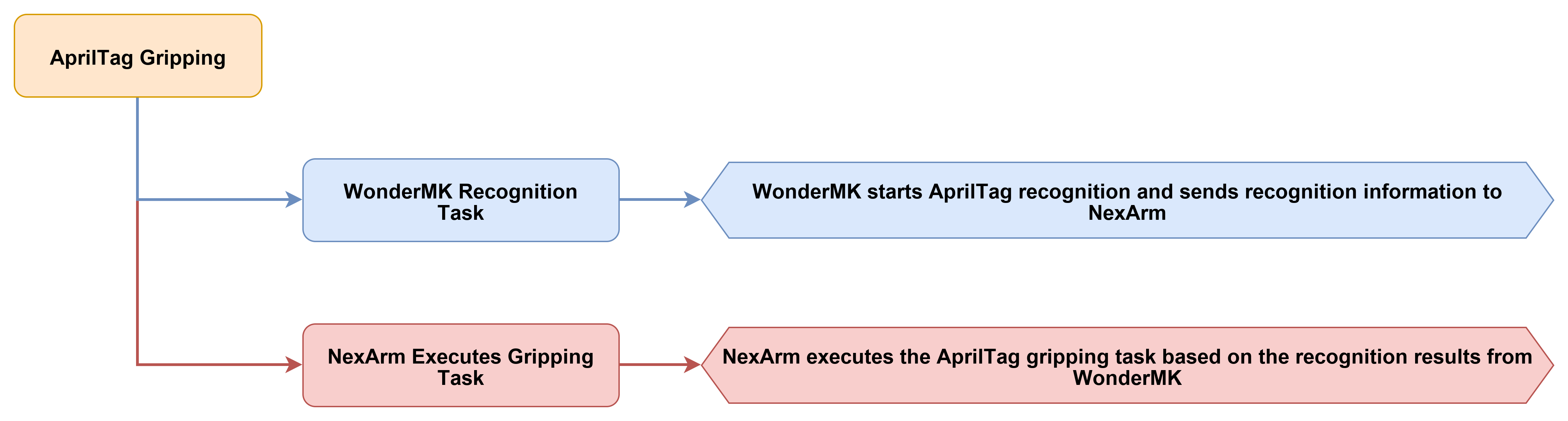
4.9.3 Program Download
Locate the 07 AprilTag Gripping program under the 02 Program Source Code folder in the same directory as this document for download. The detailed download steps can refer to 4.1 Program Download Must-Read.
4.9.4 Program Outcome
Upon power-on, the device completes initialization, and the robotic arm automatically returns to the initial standby position before the system enters a standby state. Following activation, the system continuously detects the tag target within the frame and drives the robotic arm to fine-tune its position. This continuous adjustment gradually brings the target into the designated gripping zone. Once the position of the target stabilizes, the robotic arm automatically descends and opens the gripper to achieve proper alignment. The gripper then closes to secure the target, lifts it, and transfers it to the preset placement area. Finally, the robotic arm releases the target and returns to its initial posture to await the next activation cycle. This entire workflow demonstrates the capability of the device to complete a fully automated sequence encompassing recognition, positioning, gripping, transporting, and releasing.
During actual operation, the device is first powered on normally to await the completion of initialization. Verification must be made that the robotic arm has returned to the initial position. The target equipped with the tag is then placed within the recognizable range of the camera. Pressing the start button prompts the system to automatically initiate target recognition and execute the gripping sequence. To manually restore the initial state mid-process, the reset button can be pressed. This action stops the active task, returns the robotic arm to the initial position, and reopens the gripper, allowing the target to be repositioned for a seamless restart.
4.9.5 Program Analysis
system_task_handle.cpp
The beginning of the file introduces the core modules required for the AprilTag gripping project, including the system task interface, global commands, robotic arm control, USB serial port control, parameter storage, AprilTag gripping state machine, AT32 OTA, and the file system. The most critical component here is AprilTagGrabber.h, which is responsible for communicating with the K230 vision side and executing searching, alignment, descending, gripping, lifting, and placing routines based on the identified AprilTag position. Additionally, Robot_Arm.h manages the robotic arm and motherboard peripherals, and usb_ctrl.h handles the serial port command entry point of the host computer.
#include "system_task_handle.h"
#include "Global.h"
#include "Robot_Arm.h"
#include "usb_ctrl.h"
#include <Preferences.h>
#include "AprilTagGrabber.h"
#include "AT32_OTA.h"
#include <LittleFS.h>
#include <math.h>
#include <string.h>

#define CMD_SERVO_STREAM 0x68
These static objects and global variables save the system states that need to be shared during AprilTag gripping execution. Specifically,
loop_with_sys_taskis used to register periodic events,at32_protocolparses the robotic arm feedback on the AT32 side,prefsis used to save robotic arm parameters and gripping offsets,is_downloadingis used to pause regular tasks during action group downloads, andg_last_servo_positionsalong withg_last_servo_feedback_mscache the latest servo feedback.
static const char* TAG = "apriltag_gripping";
static TimerHandle_t TIMER;
static esp_event_loop_handle_t loop_with_sys_task;
static CommProtocol_t at32_protocol;
static Preferences prefs;
static bool is_downloading = false;

static int16_t g_last_servo_positions[6] = {2048, 2048, 2048, 2048, 2048, 2048};
static uint32_t g_last_servo_feedback_ms = 0;

uint8_t global_channel = 2;
uint8_t global_acc = 245;
volatile bool servo_uart_busy = false;

static float arm_kin[9] = {
    110.45f, 225.00f, 36.97f, 145.00f, 0.0f, 130.23f, 0.0f, 50.0f, 70.5f
};
The operating status flags for the AprilTag gripping project are defined here. The flag
s_was_tracker_busyis used to determine whether the gripping task has just transitioned from the running state back to the idle state, ands_button_enable_timealong withs_buttons_armedare used for button delay enablement after power-on to prevent accidental gripping task activation or deactivation during the power-on process.
static bool s_was_tracker_busy = false;
static uint32_t s_button_enable_time = 0;
static bool s_buttons_armed = false;

ESP_EVENT_DEFINE_BASE(SYS_TIMING_EVENTS);
The function
apply_oled_apriltag_screen()is responsible for refreshing the OLED interface of the AprilTag gripping project. WhenaprilTagGrabber.isBusy()is true, the screen displays that tag gripping is active and shows the search status. When idle, the screen displays the start entry point,Grip Ready, andIdle. This allows checks directly from the screen to determine if the gripping process can be started.
static void apply_oled_apriltag_screen(void)
{
    arm.board.oled.set_custom_text(0, "AprilTag Gripping");

    if (aprilTagGrabber.isBusy()) {
        arm.board.oled.set_custom_text(1, "Gripping Tag");
        arm.board.oled.set_custom_text(2, "Status: Search");
        arm.board.oled.set_custom_text(3, "KEY1: Stop");
    } else {
        arm.board.oled.set_custom_text(1, "KEY1: Start");
        arm.board.oled.set_custom_text(2, "Grip Ready");
        arm.board.oled.set_custom_text(3, "Idle");
    }

    arm.board.oled.show_custom();
}
The function
perform_arm_poweron_reset()is the power-on reset routine of the robotic arm before AprilTag gripping starts. It displays a homing prompt on the OLED first, and then callsarm.reset_all(2500)to return the robotic arm to its initial pose. During the waiting period, the system continuously reads feedback from the AT32 to ensure that the robotic arm status is ready before entering gripping execution.
static void perform_arm_poweron_reset(void)
{
    arm.board.oled.set_custom_text(0, "AprilTag Gripping");
    arm.board.oled.set_custom_text(1, "Arm homing...");
    arm.board.oled.set_custom_text(2, "Please wait");
    arm.board.oled.set_custom_text(3, "");
    arm.board.oled.show_custom();

    arm.reset_all(2500);
    uint32_t t0 = millis();
    while (millis() - t0 < 2600) {
        pump_at32_feedback();
        delay(20);
    }
    for (int i = 0; i < 8; i++) {
        arm.update_status();
        delay(50);
        while (servo.uart->available()) {
            uint8_t c = servo.uart->read();
            at32_protocol.parsing(&c, 1);
        }
    }
    Serial.println("[AprilTagGrip] Power-on arm reset done");
}
The function
start_apriltag_gripping()is the local function to start AprilTag gripping. It is executed only whenAprilTagGrabberis idle. Before starting, it callsaprilTagGrabber.stop()to clear the old state and then callsaprilTagGrabber.start()to enter the gripping state machine. It subsequently determines if the start was successful based onaprilTagGrabber.isBusy()and provides a buzzer prompt.
static void start_apriltag_gripping(void)
{
    if (aprilTagGrabber.isBusy()) {
        Serial.println("[AprilTagGrip] Busy, ignore KEY1 start");
        return;
    }

    aprilTagGrabber.stop();
    delay(100);
    aprilTagGrabber.start();

    if (aprilTagGrabber.isBusy()) {
        arm.board.buzzer.set(100, 100, 2, 2000);
        Serial.println("[AprilTagGrip] KEY1 -> start");
    } else {
        arm.board.buzzer.set(300, 100, 1, 1000);
        Serial.println("[AprilTagGrip] start failed");
    }

    apply_oled_apriltag_screen();
}
The function
stop_apriltag_gripping()is responsible for stopping the running AprilTag gripping task. The function checksaprilTagGrabber.isBusy()first. Only when the gripping task is active does it stop the state machine, trigger the buzzer prompt, and refresh the OLED. This prevents redundant stop operations in the idle state.
static void stop_apriltag_gripping(void)
{
    if (!aprilTagGrabber.isBusy()) {
        return;
    }

    aprilTagGrabber.stop();
    arm.board.buzzer.set(80, 80, 1, 1800);
    apply_oled_apriltag_screen();
    Serial.println("[AprilTagGrip] KEY1 -> stop");
}
The function
buttons_ready()is the button protection function after power-on. When the system starts, it reads and clears the click states of both buttons first. No button triggers are allowed befores_button_enable_timeis reached. Once the time is reached,s_buttons_armedis set to true, making subsequent button presses effective.
static bool buttons_ready(void)
{
    if (s_buttons_armed) {
        return true;
    }

    (void)arm.board.button.is_clicked(0);
    (void)arm.board.button.is_clicked(1);

    if (millis() < s_button_enable_time) {
        return false;
    }

    s_buttons_armed = true;
    Serial.println("[AprilTagGrip] Buttons armed");
    return false;
}
The function
save_config()saves basic operating parameters, including the wireless channel, global acceleration, and robotic arm kinematics parameters. AprilTag gripping depends on the motion accuracy of the robotic arm, so the kinematics parameters are persisted along with the calibration results of the host computer.
void save_config(void)
{
    prefs.begin("robot_cfg", false);
    prefs.putUChar("channel", global_channel);
    prefs.putUChar("acc", global_acc);
    prefs.putBytes("arm_kin", arm_kin, sizeof(arm_kin));
    prefs.end();
}
The function
load_config()loads the basic parameters of the robotic arm and restores the AprilTag gripping offset. The parametersag_x,ag_y, andag_zare passed toaprilTagGrabber.setOffsets(). These offsets affect the actual descending and gripping positions after tag recognition.
void load_config(void)
{
    prefs.begin("robot_cfg", true);
    global_channel = prefs.getUChar("channel", 2);
    global_acc = prefs.getUChar("acc", 245);

    if (prefs.isKey("arm_kin")) {
        float saved_kin[9];
        prefs.getBytes("arm_kin", saved_kin, sizeof(saved_kin));
        if (fabsf(saved_kin[0] - arm_kin[0]) < 0.01f) {
            memcpy(arm_kin, saved_kin, sizeof(arm_kin));
        }
    }

    if (prefs.isKey("ag_x") && prefs.isKey("ag_y") && prefs.isKey("ag_z")) {
        float ag_x = prefs.getFloat("ag_x", 15.0f);
        float ag_y = prefs.getFloat("ag_y", 50.0f);
        float ag_z = prefs.getFloat("ag_z", 60.0f);
        aprilTagGrabber.setOffsets(ag_x, ag_y, ag_z);
    }
    prefs.end();
}
The periodic timer callback is responsible for posting basic maintenance events required during AprilTag gripping execution. It does not directly operate hardware. Instead, it periodically posts buzzer, battery, robotic arm status, and OLED refresh events. If an action group is being downloaded, it returns directly to prevent the download process from being disturbed by periodic tasks.
static void sys_timer_post_callback(TimerHandle_t xTimer)
{
    if (is_downloading) return;

    static uint32_t count = 0;
    if (count % BUZZER_UPDATE_PERIOD == 0) {
        esp_event_post_to(loop_with_sys_task, SYS_TIMING_EVENTS, TIMING_EVENT_BUZZER_UPDATE, NULL, 0, 0);
    }
    if (count % BAT_UPDATE_PERIOD == 0) {
        esp_event_post_to(loop_with_sys_task, SYS_TIMING_EVENTS, TIMING_EVENT_BAT_UPDATE, NULL, 0, 0);
    }
    if (count % SERVO_STATUS_UPDATE_PERIOD == 0) {
        esp_event_post_to(loop_with_sys_task, SYS_TIMING_EVENTS, TIMING_EVENT_SERVO_STATUS_UPDATE, NULL, 0, 0);
    }
    if (count % OLED_REFRESH_PERIOD == 0) {
        esp_event_post_to(loop_with_sys_task, SYS_TIMING_EVENTS, TIMING_EVENT_OLED_REFRESH, NULL, 0, 0);
    }

    count += TIMER_PERIOD;
}
The function
sys_timer_sub_handler()receives periodic events and performs specific maintenance actions. The buzzer and battery manage basic motherboard status maintenance,arm.update_status()is used to continuously refresh the robotic arm status, andapply_oled_apriltag_screen()prompts the OLED to display idle or active tag gripping based on the current state ofAprilTagGrabber.
static void sys_timer_sub_handler(void* handler_args, esp_event_base_t base, int32_t id, void* event_data)
{
    if (is_downloading) return;

    switch (id) {
        case TIMING_EVENT_BUZZER_UPDATE:
            arm.board.buzzer.update();
            break;
        case TIMING_EVENT_BAT_UPDATE:
            arm.board.bat.update();
            break;
        case TIMING_EVENT_SERVO_STATUS_UPDATE:
            arm.update_status();
            break;
        case TIMING_EVENT_OLED_REFRESH:
            apply_oled_apriltag_screen();
            break;
        default:
            break;
    }
}
The function
func_ctrl_callback()is the serial port command entry point for the host computer. The operations directly related to the main flow of AprilTag gripping are action group download protection, kinematics parameter configuration,CMD_APRILTAG_GRABstart/stop control, andCMD_APRILTAG_SET_OFFSETgripping offset calibration. During action group downloads,is_downloadingis set to true to prompt the main loop to pause the gripping state machine and button processing.
static void func_ctrl_callback(PacketTypeDef* self)
{
    uint8_t len;
    uint16_t bat_level;

    if (self->elements.id == 0xFF && self->elements.cmd == CMD_ACTION_GROUP_DOWNLOAD) {
        is_downloading = true;
        arm.board.action_group_download(self->elements.args[0], self->elements.args, self->elements.length - 2);
        is_downloading = false;
        return;
    }

    if (self->elements.id != 0xFF) return;

    switch (self->elements.cmd) {
The command
CMD_SET_KINEMATICS_PARAMis used to update the kinematics parameters of the robotic arm from the host computer. AprilTag gripping requires the robotic arm to accurately reach the searching, descending, gripping, lifting, and placing positions. Therefore, updated parameters are written to the localarm_kin, forwarded to the servo control side, and saved to NVS by callingsave_config().
        case CMD_SET_KINEMATICS_PARAM:
            if (self->elements.length - 2 >= (int)sizeof(arm_kin)) {
                memcpy(arm_kin, self->elements.args, sizeof(arm_kin));
                servo.tx_frame_write(0xFF, CMD_SET_KINEMATICS_PARAM, (uint8_t*)arm_kin, sizeof(arm_kin));
                save_config();
                arm.board.buzzer.set(100, 50, 1, 3000);
            }
            break;
The command
CMD_APRILTAG_GRABis the primary command for the host computer to control AprilTag gripping. Whensw == 0, the current gripping stops, the buzzer is turned off, and the OLED is refreshed. Whensw != 0, the system only makes preparation prompts and refreshes the interface without directly callingaprilTagGrabber.start(). This indicates that starting the actual gripping in this project is still triggered by local buttons.
        case CMD_APRILTAG_GRAB:
            if (self->elements.length >= 3) {
                uint8_t sw = self->elements.args[0];
                if (sw == 0) {
                    aprilTagGrabber.stop();
                    arm.board.buzzer.off();
                    apply_oled_apriltag_screen();
                    Serial.println("[AprilTagGrip] CMD stop");
                } else {
                    arm.board.buzzer.set(30, 30, 1, 2500);
                    apply_oled_apriltag_screen();
                    Serial.println("[AprilTagGrip] CMD ready, press KEY1 to start");
                }
            }
            break;
The command
CMD_APRILTAG_SET_OFFSETis the calibration entry point for AprilTag gripping. After the host computer sends the X, Y, and gripping Z positions, the code callsaprilTagGrabber.setOffsets()to update the gripping compensation, and writesag_x,ag_y, andag_ztoPreferencesto ensure that the calibration results are still used at the next startup.
        case CMD_APRILTAG_SET_OFFSET:
            if (self->elements.length >= 14) {
                float x_off, y_off, z_grab;
                memcpy(&x_off, &self->elements.args[0], 4);
                memcpy(&y_off, &self->elements.args[4], 4);
                memcpy(&z_grab, &self->elements.args[8], 4);
                aprilTagGrabber.setOffsets(x_off, y_off, z_grab);

                prefs.begin("robot_cfg", false);
                prefs.putFloat("ag_x", x_off);
                prefs.putFloat("ag_y", y_off);
                prefs.putFloat("ag_z", z_grab);
                prefs.end();

                arm.board.buzzer.set(100, 50, 2, 3000);
                Serial.printf("[AprilTagGrip] offsets x=%.1f y=%.1f z=%.1f\n", x_off, y_off, z_grab);
            }
            break;
The function
at32_packet_callback()handles data returned from the AT32 or the servo side. For the AprilTag gripping project, the most directly related component is the servo position feedback. After receivingCMD_SERVO_STREAMor command96, the code parses the positions of the 6 servos and updates the timestamp, providing data for robotic arm status synchronization during the gripping process.
void at32_packet_callback(PacketTypeDef* rx_packet)
{
    if (is_downloading) return;

    if (rx_packet->elements.id == 0xFF &&
        rx_packet->elements.cmd == CMD_SERVO_STREAM &&
        rx_packet->elements.length >= 14) {
        for (int i = 0; i < 6; ++i) {
            int idx = i * 2;
            g_last_servo_positions[i] = (int16_t)((rx_packet->elements.args[idx + 1] << 8) | rx_packet->elements.args[idx]);
        }
        g_last_servo_feedback_ms = millis();
        return;
    }

    if (rx_packet->elements.id == 0xFF &&
        rx_packet->elements.cmd == 96 &&
        rx_packet->elements.length >= 14) {
        for (int i = 0; i < 6; ++i) {
            int idx = i * 2;
            g_last_servo_positions[i] = (int16_t)((rx_packet->elements.args[idx + 1] << 8) | rx_packet->elements.args[idx]);
        }
        g_last_servo_feedback_ms = millis();
        return;
    }
4.10 AprilTag Palletizing
4.10.1 Project Introduction
This experiment implements an automatic robotic arm palletizing function based on AprilTag identification. The system completes target positioning, automatic gripping, sequential placement according to layer heights, and return resetting to establish a continuous stacking demonstration workflow.
4.10.2 Program Flow
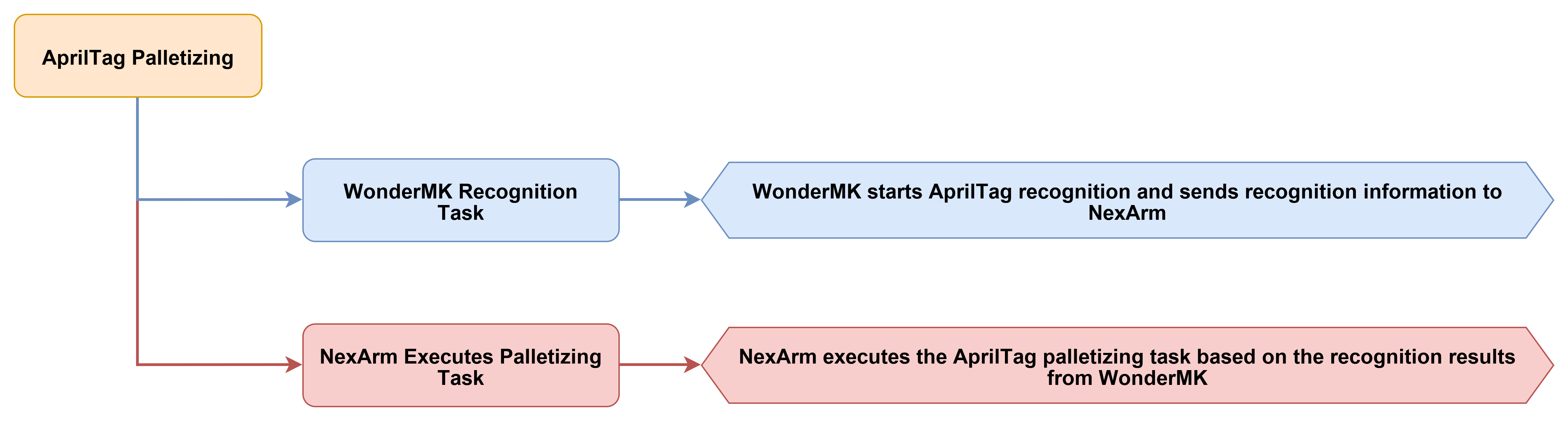
4.10.3 Program Download
Locate the 08 AprilTag Palletizing program under the 02 Program Source Code folder in the same directory as this document for download. The detailed download steps can refer to 4.1 Program Download Must-Read.
4.10.4 Program Outcome
Upon power-on, the device completes initialization, and the robotic arm automatically returns to the initial standby position. The screen displays the current operating status and the current palletizing layer count before the system transitions into a standby state. Following activation, the system continuously detects the tag target within the frame and drives the robotic arm to fine-tune its position. This adjustment gradually brings the target into the designated gripping zone. Once the position of the target stabilizes, the robotic arm automatically descends and closes the gripper to complete the grip. The arm then lifts and transfers the target to the fixed palletizing area for placement. The placement height increments progressively with the layer count. After the first layer is completed, the second layer is placed at an elevated height on top of the previous layer, and the third layer shifts further upward to create a distinct layer-by-layer stacking effect. Upon completion of each placement, the robotic arm returns to the search posture to await the detection of the next target.
During actual operation, the device is first powered on normally to await the completion of initialization. Verification must be made that the robotic arm has returned to the initial position. The target equipped with the tag is then placed within the recognizable range of the camera. Pressing the start button prompts the system to automatically initiate target recognition and execute the gripping and palletizing workflow. To stop the process mid-way, pressing the start button once more terminates the current demonstration. To return the robotic arm to its initial posture and open the gripper immediately, the reset button can be pressed, allowing the target to be repositioned before restarting.
4.10.5 Program Analysis
system_task_handle.cpp
The beginning of the file introduces the core modules required for the AprilTag palletizing project, including the system task interface, global commands, robotic arm control, USB serial port control, parameter storage, AprilTag palletizing state machine, AT32 OTA, and the file system. The most critical component here is AprilTagPalletizer.h, which is responsible for communicating with the K230 vision side and executing searching, alignment, gripping, lifting, placing, and palletizing slot advancement routines based on the identified AprilTag position. Additionally, Robot_Arm.h manages the robotic arm and motherboard peripherals, and usb_ctrl.h handles the serial port command entry point of the host computer.
#include "system_task_handle.h"
#include "Global.h"
#include "Robot_Arm.h"
#include "usb_ctrl.h"
#include <Preferences.h>
#include "AprilTagPalletizer.h"
#include "AT32_OTA.h"
#include <LittleFS.h>
#include <math.h>
#include <string.h>

#define CMD_SERVO_STREAM 0x68
These static objects and global variables save the system states that need to be shared during AprilTag palletizing execution. Specifically,
loop_with_sys_taskis used to register periodic events,at32_protocolparses the robotic arm feedback on the AT32 side, andprefsis used to save robotic arm parameters and gripping offsets.is_downloadingis used to pause regular tasks during action group downloads, andg_last_servo_positionsandg_last_servo_feedback_mscache the latest servo feedback.
static const char* TAG = "apriltag_palletizing";
static TimerHandle_t TIMER;
static esp_event_loop_handle_t loop_with_sys_task;
static CommProtocol_t at32_protocol;
static Preferences prefs;
static bool is_downloading = false;

static int16_t g_last_servo_positions[6] = {2048, 2048, 2048, 2048, 2048, 2048};
static uint32_t g_last_servo_feedback_ms = 0;

uint8_t global_channel = 2;
uint8_t global_acc = 245;
volatile bool servo_uart_busy = false;

static float arm_kin[9] = {
    110.45f, 225.00f, 36.97f, 145.00f, 0.0f, 130.23f, 0.0f, 50.0f, 70.5f
};
The operating status flags for the AprilTag palletizing project are defined here. The flag
s_was_tracker_busyis used to determine whether the palletizing task has just transitioned from the running state back to the idle state, ands_button_enable_timealong withs_buttons_armedare used for button delay enablement after power-on to prevent accidental palletizing task activation or deactivation during the power-on process.
static bool s_was_tracker_busy = false;
static uint32_t s_button_enable_time = 0;
static bool s_buttons_armed = false;

ESP_EVENT_DEFINE_BASE(SYS_TIMING_EVENTS);
The function
apply_oled_apriltag_screen()is responsible for refreshing the OLED interface of the AprilTag palletizing project. WhenaprilTagPalletizer.isBusy()is true, the screen displays that palletizing is active and shows the current slot progress viagetPlacedCount()andgetSlotCount(). When idle, it displays the start entry point,Pallet Ready, andIdle.
static void apply_oled_apriltag_screen(void)
{
    arm.board.oled.set_custom_text(0, "AprilTagPalletizin");

    if (aprilTagPalletizer.isBusy()) {
        uint8_t slot = aprilTagPalletizer.getPlacedCount() + 1;
        uint8_t total = aprilTagPalletizer.getSlotCount();
        if (slot > total) {
            slot = total;
        }
        arm.board.oled.set_custom_text(1, "Palletizing");
        arm.board.oled.set_custom_text(2, String("Slot: ") + String(slot) + "/" + String(total));
        arm.board.oled.set_custom_text(3, "KEY2: Stop");
    } else {
        arm.board.oled.set_custom_text(1, "KEY2: Start");
        arm.board.oled.set_custom_text(2, "Pallet Ready");
        arm.board.oled.set_custom_text(3, "Idle");
    }

    arm.board.oled.show_custom();
}
The function
perform_arm_poweron_reset()is the power-on reset routine of the robotic arm before AprilTag palletizing starts. It displays a homing prompt on the OLED first, and then callsarm.reset_all(2500)to return the robotic arm to its initial pose. During the waiting period, the system continuously reads feedback from the AT32 to ensure that the robotic arm status is ready before entering palletizing execution.
static void perform_arm_poweron_reset(void)
{
    arm.board.oled.set_custom_text(0, "AprilTagPalletizin");
    arm.board.oled.set_custom_text(1, "Arm homing...");
    arm.board.oled.set_custom_text(2, "Please wait");
    arm.board.oled.set_custom_text(3, "");
    arm.board.oled.show_custom();

    arm.reset_all(2500);
    uint32_t t0 = millis();
    while (millis() - t0 < 2600) {
        pump_at32_feedback();
        delay(20);
    }
    for (int i = 0; i < 8; i++) {
        arm.update_status();
        delay(50);
        while (servo.uart->available()) {
            uint8_t c = servo.uart->read();
            at32_protocol.parsing(&c, 1);
        }
    }
    Serial.println("[AprilTagPallet] Power-on arm reset done");
}
The function
reset_arm_after_stop()is the robotic arm reset routine after the palletizing task is manually stopped. It displays stop and reset prompts first, and then callsarm.reset_all(2000). During the waiting period, it continuously processes AT32 feedback and buzzer updates, and finally updates the robotic arm status to ensure that the robotic arm returns to a safe pose after a mid-course stop.
static void reset_arm_after_stop(void)
{
    arm.board.oled.set_custom_text(0, "AprilTagPalletizin");
    arm.board.oled.set_custom_text(1, "Stopping...");
    arm.board.oled.set_custom_text(2, "Arm reset");
    arm.board.oled.set_custom_text(3, "");
    arm.board.oled.show_custom();

    arm.reset_all(2000);
    uint32_t t0 = millis();
    while (millis() - t0 < 2100) {
        pump_at32_feedback();
        arm.board.buzzer.update();
        delay(20);
    }

    for (int i = 0; i < 6; i++) {
        arm.update_status();
        delay(40);
        while (servo.uart->available()) {
            uint8_t c = servo.uart->read();
            at32_protocol.parsing(&c, 1);
        }
    }

    Serial.println("[AprilTagPallet] Arm reset after KEY1 stop");
}
The function
start_apriltag_palletizing()is the local function to start AprilTag palletizing. It is executed only whenAprilTagPalletizeris idle. Before starting, it callsaprilTagPalletizer.stop()to clear the old state and then callsaprilTagPalletizer.start()to enter the palletizing state machine. It subsequently determines if the start was successful based onaprilTagPalletizer.isBusy()and provides a buzzer prompt.
static void start_apriltag_palletizing(void)
{
    if (aprilTagPalletizer.isBusy()) {
        Serial.println("[AprilTagPallet] Busy, ignore KEY1 start");
        return;
    }

    aprilTagPalletizer.stop();
    delay(100);
    aprilTagPalletizer.start();

    if (aprilTagPalletizer.isBusy()) {
        arm.board.buzzer.set(100, 100, 2, 2000);
        Serial.println("[AprilTagPallet] KEY1 -> start");
    } else {
        arm.board.buzzer.set(300, 100, 1, 1000);
        Serial.println("[AprilTagPallet] start failed");
    }

    apply_oled_apriltag_screen();
}
The function
stop_apriltag_palletizing()is responsible for stopping the running AprilTag palletizing task. The function checksaprilTagPalletizer.isBusy()first and stops the state machine only when the task is active. Ifreset_armis true, it also callsreset_arm_after_stop()to reset the robotic arm, which provides an additional layer of safety processing after stopping compared to ordinary gripping projects.
static void stop_apriltag_palletizing(bool reset_arm = false)
{
    if (!aprilTagPalletizer.isBusy()) {
        return;
    }

    aprilTagPalletizer.stop();
    arm.board.buzzer.set(80, 80, 1, 1800);
    if (reset_arm) {
        reset_arm_after_stop();
    }
    apply_oled_apriltag_screen();
    Serial.println(reset_arm ? "[AprilTagPallet] KEY1 -> stop reset" : "[AprilTagPallet] stop");
}
The function
buttons_ready()is the button protection function after power-on. When the system starts, it reads and clears the click states of both buttons first. No button triggers are allowed befores_button_enable_timeis reached. Once the time is reached,s_buttons_armedis set to true, making subsequent button presses effective.
static bool buttons_ready(void)
{
    if (s_buttons_armed) {
        return true;
    }

    (void)arm.board.button.is_clicked(0);
    (void)arm.board.button.is_clicked(1);

    if (millis() < s_button_enable_time) {
        return false;
    }

    s_buttons_armed = true;
    Serial.println("[AprilTagPallet] Buttons armed");
    return false;
}
The function
save_config()saves basic operating parameters, including the wireless channel, global acceleration, and robotic arm kinematics parameters. AprilTag palletizing depends on the motion accuracy of the robotic arm, so the kinematics parameters are persisted along with the calibration results of the host computer.
void save_config(void)
{
    prefs.begin("robot_cfg", false);
    prefs.putUChar("channel", global_channel);
    prefs.putUChar("acc", global_acc);
    prefs.putBytes("arm_kin", arm_kin, sizeof(arm_kin));
    prefs.end();
}
The function
load_config()loads the basic parameters of the robotic arm and restores the AprilTag palletizing gripping offset. The parametersag_x,ag_y, andag_zare passed toaprilTagPalletizer.setOffsets(). These offsets affect the actual descending, gripping, and target compensation before palletizing placement after tag recognition.
void load_config(void)
{
    prefs.begin("robot_cfg", true);
    global_channel = prefs.getUChar("channel", 2);
    global_acc = prefs.getUChar("acc", 245);

    if (prefs.isKey("arm_kin")) {
        float saved_kin[9];
        prefs.getBytes("arm_kin", saved_kin, sizeof(saved_kin));
        if (fabsf(saved_kin[0] - arm_kin[0]) < 0.01f) {
            memcpy(arm_kin, saved_kin, sizeof(arm_kin));
        }
    }

    if (prefs.isKey("ag_x") && prefs.isKey("ag_y") && prefs.isKey("ag_z")) {
        float ag_x = prefs.getFloat("ag_x", 15.0f);
        float ag_y = prefs.getFloat("ag_y", 50.0f);
        float ag_z = prefs.getFloat("ag_z", 60.0f);
        aprilTagPalletizer.setOffsets(ag_x, ag_y, ag_z);
    }
    prefs.end();
}
The periodic timer callback is responsible for posting basic maintenance events required during AprilTag palletizing execution. It does not directly operate hardware. Instead, it periodically posts buzzer, battery, robotic arm status, and OLED refresh events. If an action group is being downloaded, it returns directly to prevent the download process from being disturbed by periodic tasks.
static void sys_timer_post_callback(TimerHandle_t xTimer)
{
    if (is_downloading) return;

    static uint32_t count = 0;
    if (count % BUZZER_UPDATE_PERIOD == 0) {
        esp_event_post_to(loop_with_sys_task, SYS_TIMING_EVENTS, TIMING_EVENT_BUZZER_UPDATE, NULL, 0, 0);
    }
    if (count % BAT_UPDATE_PERIOD == 0) {
        esp_event_post_to(loop_with_sys_task, SYS_TIMING_EVENTS, TIMING_EVENT_BAT_UPDATE, NULL, 0, 0);
    }
    if (count % SERVO_STATUS_UPDATE_PERIOD == 0) {
        esp_event_post_to(loop_with_sys_task, SYS_TIMING_EVENTS, TIMING_EVENT_SERVO_STATUS_UPDATE, NULL, 0, 0);
    }
    if (count % OLED_REFRESH_PERIOD == 0) {
        esp_event_post_to(loop_with_sys_task, SYS_TIMING_EVENTS, TIMING_EVENT_OLED_REFRESH, NULL, 0, 0);
    }

    count += TIMER_PERIOD;
}
The function
sys_timer_sub_handler()receives periodic events and performs specific maintenance actions. The buzzer and battery manage basic motherboard status maintenance,arm.update_status()is used to continuously refresh the robotic arm status, andapply_oled_apriltag_screen()prompts the OLED to display idle or active palletizing slot progress based on the current state ofAprilTagPalletizer.
static void sys_timer_sub_handler(void* handler_args, esp_event_base_t base, int32_t id, void* event_data)
{
    if (is_downloading) return;

    switch (id) {
        case TIMING_EVENT_BUZZER_UPDATE:
            arm.board.buzzer.update();
            break;
        case TIMING_EVENT_BAT_UPDATE:
            arm.board.bat.update();
            break;
        case TIMING_EVENT_SERVO_STATUS_UPDATE:
            arm.update_status();
            break;
        case TIMING_EVENT_OLED_REFRESH:
            apply_oled_apriltag_screen();
            break;
        default:
            break;
    }
}
The function
func_ctrl_callback()is the serial port command entry point for the host computer. The operations directly related to the main flow of AprilTag palletizing are action group download protection, kinematics parameter configuration,CMD_APRILTAG_GRABstart/stop control, andCMD_APRILTAG_SET_OFFSETgripping offset calibration. During action group downloads,is_downloadingis set to true to prompt the main loop to pause the palletizing state machine and button processing.
static void func_ctrl_callback(PacketTypeDef* self)
{
    uint8_t len;
    uint16_t bat_level;

    if (self->elements.id == 0xFF && self->elements.cmd == CMD_ACTION_GROUP_DOWNLOAD) {
        is_downloading = true;
        arm.board.action_group_download(self->elements.args[0], self->elements.args, self->elements.length - 2);
        is_downloading = false;
        return;
    }

    if (self->elements.id != 0xFF) return;

    switch (self->elements.cmd) {
The command
CMD_SET_KINEMATICS_PARAMis used to update the kinematics parameters of the robotic arm from the host computer. AprilTag palletizing requires the robotic arm to accurately reach the searching, gripping, lifting, and multiple palletizing slot positions. Therefore, updated parameters are written to the localarm_kin, forwarded to the servo control side, and saved to NVS by callingsave_config().
        case CMD_SET_KINEMATICS_PARAM:
            if (self->elements.length - 2 >= (int)sizeof(arm_kin)) {
                memcpy(arm_kin, self->elements.args, sizeof(arm_kin));
                servo.tx_frame_write(0xFF, CMD_SET_KINEMATICS_PARAM, (uint8_t*)arm_kin, sizeof(arm_kin));
                save_config();
                arm.board.buzzer.set(100, 50, 1, 3000);
            }
            break;
The command
CMD_APRILTAG_GRABis also used as the start/stop entry point for the host computer in the palletizing project. Whensw == 0, the current palletizing stops, the buzzer is turned off, and the OLED is refreshed. Whensw != 0, the system only makes preparation prompts and refreshes the interface without directly callingaprilTagPalletizer.start(). This indicates that starting the actual palletizing in this project is still triggered by local buttons.
        case CMD_APRILTAG_GRAB:
            if (self->elements.length >= 3) {
                uint8_t sw = self->elements.args[0];
                if (sw == 0) {
                    aprilTagPalletizer.stop();
                    arm.board.buzzer.off();
                    apply_oled_apriltag_screen();
                    Serial.println("[AprilTagPallet] CMD stop");
                } else {
                    arm.board.buzzer.set(30, 30, 1, 2500);
                    apply_oled_apriltag_screen();
                    Serial.println("[AprilTagPallet] CMD ready, press KEY1 to start");
                }
            }
            break;
The command
CMD_APRILTAG_SET_OFFSETis the calibration entry point for the gripping offset in AprilTag palletizing. After the host computer sends the X, Y, and gripping Z positions, the code callsaprilTagPalletizer.setOffsets()to update the compensation and writesag_x,ag_y, andag_ztoPreferencesto ensure that the calibration results are still used at the next startup.
        case CMD_APRILTAG_SET_OFFSET:
            if (self->elements.length >= 14) {
                float x_off, y_off, z_grab;
                memcpy(&x_off, &self->elements.args[0], 4);
                memcpy(&y_off, &self->elements.args[4], 4);
                memcpy(&z_grab, &self->elements.args[8], 4);
                aprilTagPalletizer.setOffsets(x_off, y_off, z_grab);

                prefs.begin("robot_cfg", false);
                prefs.putFloat("ag_x", x_off);
                prefs.putFloat("ag_y", y_off);
                prefs.putFloat("ag_z", z_grab);
                prefs.end();

                arm.board.buzzer.set(100, 50, 2, 3000);
                Serial.printf("[AprilTagPallet] offsets x=%.1f y=%.1f z=%.1f\n", x_off, y_off, z_grab);
            }
            break;
The
at32_packet_callback()function processes data returned from the AT32 or servo side. For the AprilTag palletizing project, the most directly relevant data is the servo position feedback. Upon receivingCMD_SERVO_STREAMor command96, the code parses the six servo positions and updates the timestamp to provide essential synchronization metrics for the robotic arm state during the palletizing process.
void at32_packet_callback(PacketTypeDef* rx_packet)
{
    if (is_downloading) return;

    if (rx_packet->elements.id == 0xFF &&
        rx_packet->elements.cmd == CMD_SERVO_STREAM &&
        rx_packet->elements.length >= 14) {
        for (int i = 0; i < 6; ++i) {
            int idx = i * 2;
            g_last_servo_positions[i] = (int16_t)((rx_packet->elements.args[idx + 1] << 8) | rx_packet->elements.args[idx]);
        }
        g_last_servo_feedback_ms = millis();
        return;
    }

    if (rx_packet->elements.id == 0xFF &&
        rx_packet->elements.cmd == 96 &&
        rx_packet->elements.length >= 14) {
        for (int i = 0; i < 6; ++i) {
            int idx = i * 2;
            g_last_servo_positions[i] = (int16_t)((rx_packet->elements.args[idx + 1] << 8) | rx_packet->elements.args[idx]);
        }
        g_last_servo_feedback_ms = millis();
        return;
    }
When the AT32 returns the current coordinates of the robotic arm, the code parses the X, Y, Z, pitch, roll, claw, and 6 servo positions, and writes them to
arm.current_poseand the servo cache. AprilTag palletizing requires monitoring the state of the robotic arm during the searching, gripping, lifting, and placing slot processes. These feedback data help the system maintain status synchronization.
            if (rx_packet->elements.cmd == CMD_GET_CUR_COORDS && rx_packet->elements.length >= 26) {
                int16_t raw_x = (int16_t)((rx_packet->elements.args[1] << 8) | rx_packet->elements.args[0]);
                int16_t raw_y = (int16_t)((rx_packet->elements.args[3] << 8) | rx_packet->elements.args[2]);
                int16_t raw_z = (int16_t)((rx_packet->elements.args[5] << 8) | rx_packet->elements.args[4]);
                int16_t raw_p = (int16_t)((rx_packet->elements.args[7] << 8) | rx_packet->elements.args[6]);
                int16_t raw_r = (int16_t)((rx_packet->elements.args[9] << 8) | rx_packet->elements.args[8]);
                int16_t raw_c = (int16_t)((rx_packet->elements.args[11] << 8) | rx_packet->elements.args[10]);

                arm.current_pose.x = (float)raw_x;
                arm.current_pose.y = (float)raw_y;
                arm.current_pose.z = (float)raw_z;
                arm.current_pose.pitch = (float)raw_p / 10.0f;
                arm.current_pose.roll = (float)raw_r;
                arm.current_pose.claw = (float)raw_c;

                for (int i = 0; i < 6; ++i) {
                    int idx = 12 + i * 2;
                    g_last_servo_positions[i] = (int16_t)((rx_packet->elements.args[idx + 1] << 8) | rx_packet->elements.args[idx]);
                }
                g_last_servo_feedback_ms = millis();
            }
4.11 Waste Sorting
4.11.1 Project Introduction
This experiment implements a waste sorting and gripping function based on visual recognition. The system identifies different waste categories, automatically completes target tracking, gripping, transporting to the corresponding disposal areas, and returning to establish a complete automated sorting process.
4.11.2 Program Flow
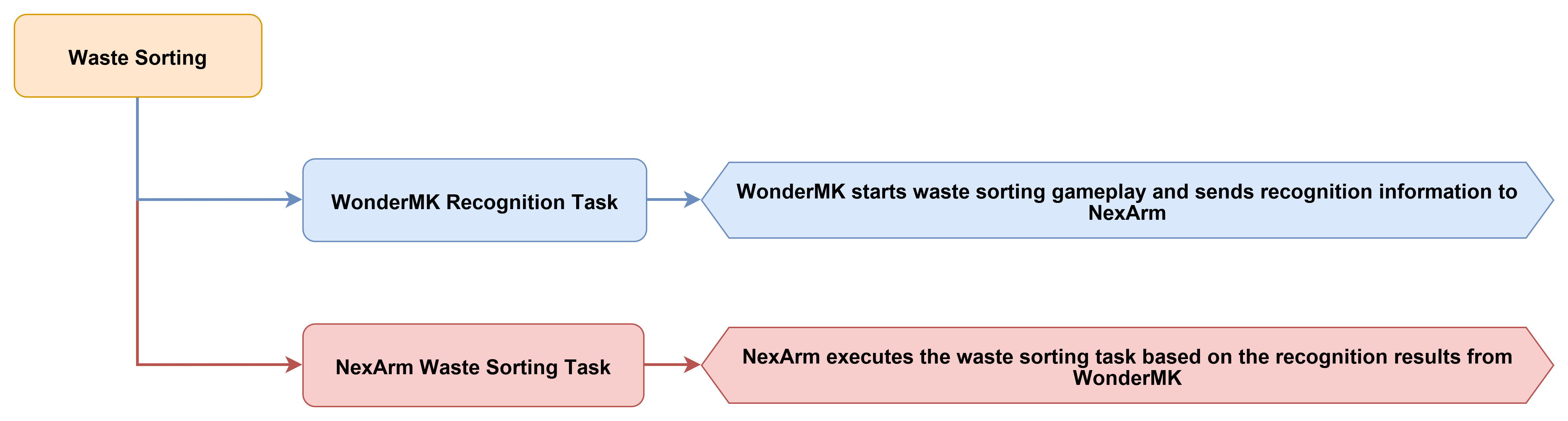
4.11.3 Program Download
Locate the 09 Waste Sorting program under the 02 Program Source Code folder in the same directory as this document for download. The detailed download steps can refer to 4.1 Program Download Must-Read.
4.11.4 Program Outcome
Upon power-on, the device completes initialization, and the robotic arm automatically returns to the initial standby position. The screen displays the current status and the fixed recognition threshold before the system transitions into a standby state. Following activation, the system continuously detects waste targets within the frame. Once the recognition result meets the preset threshold and the target position stabilizes near the center of the frame, the robotic arm automatically descends and closes the gripper to complete the grip. The arm then lifts the target, transfers it to the corresponding sorting disposal area, releases the target, and returns to its initial posture. This entire workflow demonstrates the capability of the device to automatically complete a continuous sequence encompassing recognition, alignment, gripping, sorting placement, and resetting based on the identified waste category.
During actual operation, the device is first powered on normally to await the completion of initialization. Verification must be made that the robotic arm has returned to the initial position and the screen displays correctly. The target to be sorted is then placed within the recognizable range of the camera. Pressing the start button prompts the device to automatically initiate recognition and execute the sorting and gripping workflow. Upon completion of a single sorting cycle, the robotic arm automatically returns to the standby position. To continue demonstrating the next sorting operation, the target is simply repositioned before the start button is pressed again.
4.11.5 Program Analysis
system_task_handle.cpp
The beginning of the file introduces the core modules required for the waste-sorting project, including the system task interface, global commands, robotic arm control, USB serial port control, parameter storage, waste-sorting gripping state machine, AT32 OTA, and the file system. The most critical component here is GarbageGrabber.h, which is responsible for communicating with the K230 vision side and executing search, alignment, descending, gripping, lifting, and sorted-placement routines based on the identified waste target. Additionally, Robot_Arm.h manages the robotic arm and motherboard peripherals, and usb_ctrl.h handles the serial port command entry point of the host computer.
#include "system_task_handle.h"
#include "Global.h"
#include "Robot_Arm.h"
#include "usb_ctrl.h"
#include <Preferences.h>
#include "GarbageGrabber.h"
#include "AT32_OTA.h"
#include <LittleFS.h>
#include <math.h>
#include <string.h>

#define CMD_SERVO_STREAM 0x68
These static objects and global variables save the system states that need to be shared during waste sorting execution. Specifically,
loop_with_sys_taskis used to register periodic events,at32_protocolparses the robotic arm feedback on the AT32 side,prefsis used to save robotic arm parameters and gripping offsets,is_downloadingis used to pause regular tasks during action group downloads, andg_last_servo_positionsalong withg_last_servo_feedback_mscache the latest servo feedback.
static const char* TAG = "garbage_sorting";
static TimerHandle_t TIMER;
static esp_event_loop_handle_t loop_with_sys_task;
static CommProtocol_t at32_protocol;
static Preferences prefs;
static bool is_downloading = false;

static int16_t g_last_servo_positions[6] = {2048, 2048, 2048, 2048, 2048, 2048};
static uint32_t g_last_servo_feedback_ms = 0;

uint8_t global_channel = 2;
uint8_t global_acc = 245;
volatile bool servo_uart_busy = false;

static float arm_kin[9] = {
    110.45f, 225.00f, 36.97f, 145.00f, 0.0f, 130.23f, 0.0f, 50.0f, 70.5f
};
The operating status flags for the waste sorting project are defined here. The flag
s_was_tracker_busyis used to determine whether the waste sorting task has just transitioned from the running state back to the idle state, ands_button_enable_timealong withs_buttons_armedare used for button delay enablement after power-on to prevent accidental sorting task activation or deactivation during the power-on process.
static bool s_was_tracker_busy = false;
static uint32_t s_button_enable_time = 0;
static bool s_buttons_armed = false;

ESP_EVENT_DEFINE_BASE(SYS_TIMING_EVENTS);
The function
apply_oled_garbage_screen()is responsible for refreshing the OLED interface of the waste sorting project. WhengarbageGrabber.isBusy()is true, the screen displays that sorting is active and shows the search status. When idle, the screen displays the start entry point,Sorting Ready, andIdle, allowing checks directly from the screen to determine if the waste sorting process can be started.
static void apply_oled_garbage_screen(void)
{
    arm.board.oled.set_custom_text(0, "GarbageSorting");

    if (garbageGrabber.isBusy()) {
        arm.board.oled.set_custom_text(1, "Sorting");
        arm.board.oled.set_custom_text(2, "Status: Search");
        arm.board.oled.set_custom_text(3, "KEY2: Stop");
    } else {
        arm.board.oled.set_custom_text(1, "KEY2: Start");
        arm.board.oled.set_custom_text(2, "Sorting Ready");
        arm.board.oled.set_custom_text(3, "Idle");
    }

    arm.board.oled.show_custom();
}
The function
perform_arm_poweron_reset()is the power-on reset routine of the robotic arm before waste sorting starts. It displays a homing prompt on the OLED first, and then callsarm.reset_all(2500)to return the robotic arm to its initial pose. During the waiting period, the system continuously reads feedback from the AT32 to ensure that the robotic arm status is ready before entering sorting execution.
static void perform_arm_poweron_reset(void)
{
    arm.board.oled.set_custom_text(0, "GarbageSorting");
    arm.board.oled.set_custom_text(1, "Arm homing...");
    arm.board.oled.set_custom_text(2, "Please wait");
    arm.board.oled.set_custom_text(3, "");
    arm.board.oled.show_custom();

    arm.reset_all(2500);
    uint32_t t0 = millis();
    while (millis() - t0 < 2600) {
        pump_at32_feedback();
        delay(20);
    }
    for (int i = 0; i < 8; i++) {
        arm.update_status();
        delay(50);
        while (servo.uart->available()) {
            uint8_t c = servo.uart->read();
            at32_protocol.parsing(&c, 1);
        }
    }
    Serial.println("[GarbageSorting] Power-on arm reset done");
}
The function
reset_arm_after_stop()is the robotic arm reset routine after the waste sorting task is manually stopped. It displays stop and reset prompts first, and then callsarm.reset_all(2000). During the waiting period, it continuously processes AT32 feedback and buzzer updates, and finally updates the robotic arm status to ensure that the robotic arm returns to a safe pose after a mid-course stop.
static void reset_arm_after_stop(void)
{
    arm.board.oled.set_custom_text(0, "GarbageSorting");
    arm.board.oled.set_custom_text(1, "Stopping...");
    arm.board.oled.set_custom_text(2, "Arm reset");
    arm.board.oled.set_custom_text(3, "");
    arm.board.oled.show_custom();

    arm.reset_all(2000);
    uint32_t t0 = millis();
    while (millis() - t0 < 2100) {
        pump_at32_feedback();
        arm.board.buzzer.update();
        delay(20);
    }

    for (int i = 0; i < 6; i++) {
        arm.update_status();
        delay(40);
        while (servo.uart->available()) {
            uint8_t c = servo.uart->read();
            at32_protocol.parsing(&c, 1);
        }
    }

    Serial.println("[GarbageSorting] Arm reset after KEY1 stop");
}
The function
start_garbage_sorting()is the local function to start waste sorting. It is executed only whenGarbageGrabberis idle. Before starting, it callsgarbageGrabber.stop()to clear the old state and then callsgarbageGrabber.start()to enter the sorted gripping state machine. It subsequently determines if the start was successful based ongarbageGrabber.isBusy()and provides a buzzer prompt.
static void start_garbage_sorting(void)
{
    if (garbageGrabber.isBusy()) {
        Serial.println("[GarbageSorting] Busy, ignore KEY1 start");
        return;
    }

    garbageGrabber.stop();
    delay(100);
    garbageGrabber.start();

    if (garbageGrabber.isBusy()) {
        arm.board.buzzer.set(100, 100, 2, 2000);
        Serial.println("[GarbageSorting] KEY1 -> start");
    } else {
        arm.board.buzzer.set(300, 100, 1, 1000);
        Serial.println("[GarbageSorting] start failed");
    }

    apply_oled_garbage_screen();
}
The function
stop_garbage_sorting()is responsible for stopping the running waste sorting task. The function checksgarbageGrabber.isBusy()first and stops the state machine only when the task is active. Ifreset_armis true, it also callsreset_arm_after_stop()to reset the robotic arm, ensuring that the robotic arm does not remain in a dangerous pose during the gripping or placing process after a mid-course stop.
static void stop_garbage_sorting(bool reset_arm = false)
{
    if (!garbageGrabber.isBusy()) {
        return;
    }

    garbageGrabber.stop();
    arm.board.buzzer.set(80, 80, 1, 1800);
    if (reset_arm) {
        reset_arm_after_stop();
    }
    apply_oled_garbage_screen();
    Serial.println(reset_arm ? "[GarbageSorting] KEY1 -> stop reset" : "[GarbageSorting] stop");
}
The function
buttons_ready()is the button protection function after power-on. When the system starts, it reads and clears the click states of both buttons first. No button triggers are allowed befores_button_enable_timeis reached. Once the time is reached,s_buttons_armedis set to true, making subsequent button presses effective.
static bool buttons_ready(void)
{
    if (s_buttons_armed) {
        return true;
    }

    (void)arm.board.button.is_clicked(0);
    (void)arm.board.button.is_clicked(1);

    if (millis() < s_button_enable_time) {
        return false;
    }

    s_buttons_armed = true;
    Serial.println("[GarbageSorting] Buttons armed");
    return false;
}
The function
save_config()saves basic operating parameters, including the wireless channel, global acceleration, and robotic arm kinematics parameters. Waste sorting requires the robotic arm to accurately complete searching, gripping, lifting, and sorted placing, so the kinematics parameters are persisted along with the calibration results of the host computer.
void save_config(void)
{
    prefs.begin("robot_cfg", false);
    prefs.putUChar("channel", global_channel);
    prefs.putUChar("acc", global_acc);
    prefs.putBytes("arm_kin", arm_kin, sizeof(arm_kin));
    prefs.end();
}
The function
load_config()loads the basic parameters of the robotic arm and restores the waste sorting gripping offset. The parametersag_xandag_yare read, butag_zis fixed to60.0fbefore being passed togarbageGrabber.setOffsets(). This indicates that the gripping height in this project uses a fixed value, while the horizontal and vertical offsets can be persisted through calibration.
void load_config(void)
{
    prefs.begin("robot_cfg", true);
    global_channel = prefs.getUChar("channel", 2);
    global_acc = prefs.getUChar("acc", 245);

    if (prefs.isKey("arm_kin")) {
        float saved_kin[9];
        prefs.getBytes("arm_kin", saved_kin, sizeof(saved_kin));
        if (fabsf(saved_kin[0] - arm_kin[0]) < 0.01f) {
            memcpy(arm_kin, saved_kin, sizeof(arm_kin));
        }
    }

    if (prefs.isKey("ag_x") && prefs.isKey("ag_y") && prefs.isKey("ag_z")) {
        float ag_x = prefs.getFloat("ag_x", 15.0f);
        float ag_y = prefs.getFloat("ag_y", 50.0f);
        float ag_z = 60.0f;
        garbageGrabber.setOffsets(ag_x, ag_y, ag_z);
    }
    prefs.end();
}
The periodic timer callback is responsible for posting basic maintenance events required during waste sorting execution. It does not directly operate hardware. Instead, it periodically posts buzzer, battery, robotic arm status, and OLED refresh events. If an action group is being downloaded, it returns directly to prevent the download process from being disturbed by periodic tasks.
static void sys_timer_post_callback(TimerHandle_t xTimer)
{
    if (is_downloading) return;

    static uint32_t count = 0;
    if (count % BUZZER_UPDATE_PERIOD == 0) {
        esp_event_post_to(loop_with_sys_task, SYS_TIMING_EVENTS, TIMING_EVENT_BUZZER_UPDATE, NULL, 0, 0);
    }
    if (count % BAT_UPDATE_PERIOD == 0) {
        esp_event_post_to(loop_with_sys_task, SYS_TIMING_EVENTS, TIMING_EVENT_BAT_UPDATE, NULL, 0, 0);
    }
    if (count % SERVO_STATUS_UPDATE_PERIOD == 0) {
        esp_event_post_to(loop_with_sys_task, SYS_TIMING_EVENTS, TIMING_EVENT_SERVO_STATUS_UPDATE, NULL, 0, 0);
    }
    if (count % OLED_REFRESH_PERIOD == 0) {
        esp_event_post_to(loop_with_sys_task, SYS_TIMING_EVENTS, TIMING_EVENT_OLED_REFRESH, NULL, 0, 0);
    }

    count += TIMER_PERIOD;
}
The function
sys_timer_sub_handler()receives periodic events and performs specific maintenance actions. The buzzer and battery manage basic motherboard status maintenance,arm.update_status()is used to continuously refresh the robotic arm status, andapply_oled_garbage_screen()prompts the OLED to display idle or active sorted searching based on the current state ofGarbageGrabber.
static void sys_timer_sub_handler(void* handler_args, esp_event_base_t base, int32_t id, void* event_data)
{
    if (is_downloading) return;

    switch (id) {
        case TIMING_EVENT_BUZZER_UPDATE:
            arm.board.buzzer.update();
            break;
        case TIMING_EVENT_BAT_UPDATE:
            arm.board.bat.update();
            break;
        case TIMING_EVENT_SERVO_STATUS_UPDATE:
            arm.update_status();
            break;
        case TIMING_EVENT_OLED_REFRESH:
            apply_oled_garbage_screen();
            break;
        default:
            break;
    }
}
The function
func_ctrl_callback()is the serial port command entry point for the host computer. The operations directly related to the main flow of waste sorting are action group download protection, kinematics parameter configuration,CMD_GARBAGE_GRABstart/stop and threshold control, andCMD_APRILTAG_SET_OFFSETgripping offset calibration. During action group downloads,is_downloadingis set to true to prompt the main loop to pause the waste sorting state machine and button processing.
static void func_ctrl_callback(PacketTypeDef* self)
{
    uint8_t len;
    uint16_t bat_level;

    if (self->elements.id == 0xFF && self->elements.cmd == CMD_ACTION_GROUP_DOWNLOAD) {
        is_downloading = true;
        arm.board.action_group_download(self->elements.args[0], self->elements.args, self->elements.length - 2);
        is_downloading = false;
        return;
    }

    if (self->elements.id != 0xFF) return;

    switch (self->elements.cmd) {
The command
CMD_SET_KINEMATICS_PARAMis used to update the kinematics parameters of the robotic arm from the host computer. Waste sorting requires the robotic arm to accurately reach the searching, gripping, lifting, and different sorted placing positions. Therefore, updated parameters are written to the localarm_kin, forwarded to the servo control side, and saved to NVS by callingsave_config().
        case CMD_SET_KINEMATICS_PARAM:
            if (self->elements.length - 2 >= (int)sizeof(arm_kin)) {
                memcpy(arm_kin, self->elements.args, sizeof(arm_kin));
                servo.tx_frame_write(0xFF, CMD_SET_KINEMATICS_PARAM, (uint8_t*)arm_kin, sizeof(arm_kin));
                save_config();
                arm.board.buzzer.set(100, 50, 1, 3000);
            }
            break;
The command
CMD_GARBAGE_GRABis the primary command for the host computer to control waste sorting. If the command parameters contain a threshold between 1 and 100, the code callsgarbageGrabber.setThreshold()first to update the recognition confidence threshold. Whensw == 0, sorting stops. Whensw != 0, the system restarts directly and startsgarbageGrabber.start(), which differs from the logic in previous projects that only prompt button activation.
        case CMD_GARBAGE_GRAB:
            if (self->elements.length >= 3) {
                uint8_t sw = self->elements.args[0];
                if (self->elements.length >= 4) {
                    uint8_t thresh = self->elements.args[1];
                    if (thresh > 0 && thresh <= 100) {
                        garbageGrabber.setThreshold(thresh);
                    }
                }

                if (sw == 0) {
                    garbageGrabber.stop();
                    arm.board.buzzer.off();
                    apply_oled_garbage_screen();
                    Serial.println("[GarbageSorting] CMD stop");
                } else {
                    garbageGrabber.stop();
                    delay(100);
                    garbageGrabber.start();
                    arm.board.buzzer.set(100, 100, 2, 2000);
                    apply_oled_garbage_screen();
                    Serial.println("[GarbageSorting] CMD start");
                }
            }
            break;
The command
CMD_APRILTAG_SET_OFFSETis multiplexed in the waste sorting project as the gripping offset calibration entry point. After the host computer sends X, Y, and Z, the code fixes Z to60.0f. It then callsgarbageGrabber.setOffsets()to update the compensation, and writesag_x,ag_y, andag_ztoPreferencesto ensure that the calibration results are still used at the next startup.
        case CMD_APRILTAG_SET_OFFSET:
            if (self->elements.length >= 14) {
                float x_off, y_off, z_grab;
                memcpy(&x_off, &self->elements.args[0], 4);
                memcpy(&y_off, &self->elements.args[4], 4);
                memcpy(&z_grab, &self->elements.args[8], 4);
                z_grab = 60.0f;
                garbageGrabber.setOffsets(x_off, y_off, z_grab);

                prefs.begin("robot_cfg", false);
                prefs.putFloat("ag_x", x_off);
                prefs.putFloat("ag_y", y_off);
                prefs.putFloat("ag_z", z_grab);
                prefs.end();

                arm.board.buzzer.set(100, 50, 2, 3000);
                Serial.printf("[GarbageSorting] offsets x=%.1f y=%.1f z=%.1f\n", x_off, y_off, z_grab);
            }
            break;
The function
at32_packet_callback()handles data returned from the AT32 or the servo side. For the waste sorting project, the most directly related component is the servo position feedback. After receivingCMD_SERVO_STREAMor command96, the code parses the positions of the 6 servos and updates the timestamp, providing data for robotic arm status synchronization during the sorted gripping process.
void at32_packet_callback(PacketTypeDef* rx_packet)
{
    if (is_downloading) return;

    if (rx_packet->elements.id == 0xFF &&
        rx_packet->elements.cmd == CMD_SERVO_STREAM &&
        rx_packet->elements.length >= 14) {
        for (int i = 0; i < 6; ++i) {
            int idx = i * 2;
            g_last_servo_positions[i] = (int16_t)((rx_packet->elements.args[idx + 1] << 8) | rx_packet->elements.args[idx]);
        }
        g_last_servo_feedback_ms = millis();
        return;
    }

    if (rx_packet->elements.id == 0xFF &&
        rx_packet->elements.cmd == 96 &&
        rx_packet->elements.length >= 14) {
        for (int i = 0; i < 6; ++i) {
            int idx = i * 2;
            g_last_servo_positions[i] = (int16_t)((rx_packet->elements.args[idx + 1] << 8) | rx_packet->elements.args[idx]);
        }
        g_last_servo_feedback_ms = millis();
        return;
    }
When the AT32 returns the current coordinates of the robotic arm, the code parses the X, Y, Z, pitch, roll, claw, and 6 servo positions, and writes them to
arm.current_poseand the servo cache. Waste sorting requires monitoring the state of the robotic arm during the searching, descending, gripping, lifting, and sorted placing processes. These feedback data help the system maintain status synchronization.
            if (rx_packet->elements.cmd == CMD_GET_CUR_COORDS && rx_packet->elements.length >= 26) {
                int16_t raw_x = (int16_t)((rx_packet->elements.args[1] << 8) | rx_packet->elements.args[0]);
                int16_t raw_y = (int16_t)((rx_packet->elements.args[3] << 8) | rx_packet->elements.args[2]);
                int16_t raw_z = (int16_t)((rx_packet->elements.args[5] << 8) | rx_packet->elements.args[4]);
                int16_t raw_p = (int16_t)((rx_packet->elements.args[7] << 8) | rx_packet->elements.args[6]);
                int16_t raw_r = (int16_t)((rx_packet->elements.args[9] << 8) | rx_packet->elements.args[8]);
                int16_t raw_c = (int16_t)((rx_packet->elements.args[11] << 8) | rx_packet->elements.args[10]);

                arm.current_pose.x = (float)raw_x;
                arm.current_pose.y = (float)raw_y;
                arm.current_pose.z = (float)raw_z;
                arm.current_pose.pitch = (float)raw_p / 10.0f;
                arm.current_pose.roll = (float)raw_r;
                arm.current_pose.claw = (float)raw_c;

                for (int i = 0; i < 6; ++i) {
                    int idx = 12 + i * 2;
                    g_last_servo_positions[i] = (int16_t)((rx_packet->elements.args[idx + 1] << 8) | rx_packet->elements.args[idx]);
                }
                g_last_servo_feedback_ms = millis();
            }
The functions
pump_at32_feedback(),sync_arm_feedback(), andget_last_servo_positions()are auxiliary functions for robotic arm feedback. They are responsible for pulling raw data from the AT32 serial port, waiting for new robotic arm feedback, and providing the latest servo position cache to other modules respectively. This ensures that waste sorting execution does not rely solely on expired states.
void pump_at32_feedback(void)
{
    while (servo.uart->available()) {
        uint8_t c = servo.uart->read();
        at32_protocol.parsing(&c, 1);
    }
}

bool sync_arm_feedback(uint32_t timeout_ms)
{
    arm.update_status();
    uint32_t start = millis();
    uint32_t prev_feedback_ms = g_last_servo_feedback_ms;

    while (millis() - start < timeout_ms) {
        serial_port.rec_handler();
        pump_at32_feedback();
        if (g_last_servo_feedback_ms != 0 && g_last_servo_feedback_ms != prev_feedback_ms) {
            return true;
        }
        delay(2);
    }

    return g_last_servo_feedback_ms != 0;
}

bool get_last_servo_positions(int16_t out_pos[6])
{
    if (g_last_servo_feedback_ms == 0) {
        return false;
    }
    memcpy(out_pos, g_last_servo_positions, sizeof(g_last_servo_positions));
    return true;
}
The function
system_loop_handler()is the main loop of the waste sorting execution phase. In the non-download state, it sequentially processes the host computer serial port, the AT32 feedback, andgarbageGrabber.update(). It subsequently detects if the sorting task has just transitioned from the running state back to the idle state. If it has stopped, the OLED refreshes to return to the standby interface.
void system_loop_handler(void)
{
    if (!is_downloading) {
        serial_port.rec_handler();
        pump_at32_feedback();

        garbageGrabber.update();

        bool busy_now = garbageGrabber.isBusy();
        if (s_was_tracker_busy && !busy_now) {
            Serial.println("[GarbageSorting] GarbageSorting stopped, idle");
            apply_oled_garbage_screen();
        }
        s_was_tracker_busy = busy_now;

        arm.board.button.update();
        arm.board.buzzer.update();