4. ROS1-Lidar Lesson
4.1 Lidar Introduction
4.1.1 Preface
Lidar, a high-precision and high-speed remote sensing technology, is pivotal in numerous domains, including map creation, autonomous driving, environmental perception, and robot navigation. This document provides an overview of Lidar’s principles, components, working mechanisms, application areas, advantages, and development trends.
In autonomous driving and intelligent transportation, Lidar assumes a critical role by offering real-time perception of obstacles, pedestrians, and vehicles on the road, providing precise distance and location information. In robot navigation and environmental perception, Lidar contributes by furnishing accurate maps and information about the surrounding environment. Furthermore, Lidar finds extensive applications in areas such as 3D modeling, map creation, safety monitoring, and remote sensing mapping.
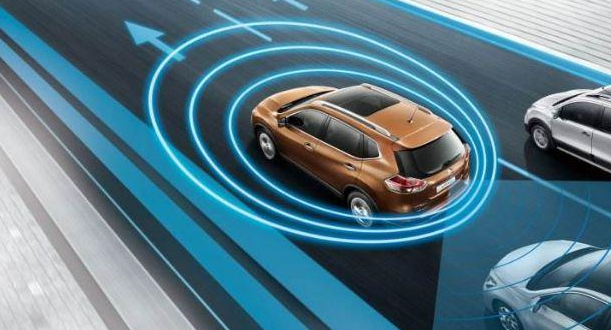
4.1.2 Lidar Composition and Classification
Lidar is composed of essential components such as a laser emitter, receiver, photodetector, scanning mechanism, and angle resolver. The laser emitter produces laser beams, while the receiver and photodetector capture reflected light signals. The scanning mechanism is responsible for surveying the surrounding environment, and the angle resolver assists in determining the position of target objects.
Lidar can be categorized into various types based on the scanning method:
Rotating Lidar: Achieves omnidirectional scanning horizontally by rotating the emitter or scanning mechanism. Known for high scanning speed and measurement accuracy, it is widely applied in areas such as autonomous driving, 3D environmental modeling, and map creation.
Solid-State Lidar: Utilizes solid-state laser emitters, eliminating the need for rotating components. Compact, lightweight, and energy-efficient, solid-state lidar is suitable for applications like mobile devices, drones, and robots.
Mechanical Lidar: Employs mechanical components like rotating mirrors or prisms for laser beam scanning. Although offering longer measurement distances and higher accuracy, mechanical lidar tends to have slower scanning speeds. It is commonly used in terrain measurement, building scanning, and navigation.
Phase-Modulated Lidar: Measures the distance between target objects and the lidar by altering the phase of the laser beam. Known for high measurement accuracy and a large measurement range, phase-modulated lidar is extensively used in map creation, surveying, and industrial applications.
Flash Lidar: Utilizes brief, high-power laser pulses to illuminate the entire scene simultaneously. It captures reflected light signals through an array of receivers, making it suitable for high-speed and high-resolution applications, including rapid scene capture and motion tracking.
4.1.3 Switch Lidar Version
Note
Note: the following instructions are based on G4 Lidar, and is also applicable to A1 Lidar.
The robot provides two Lidar options, and the default Lidar version in the system image is G4 Lidar. Therefore, please confirm the Lidar version upon you receiving the robot kit.
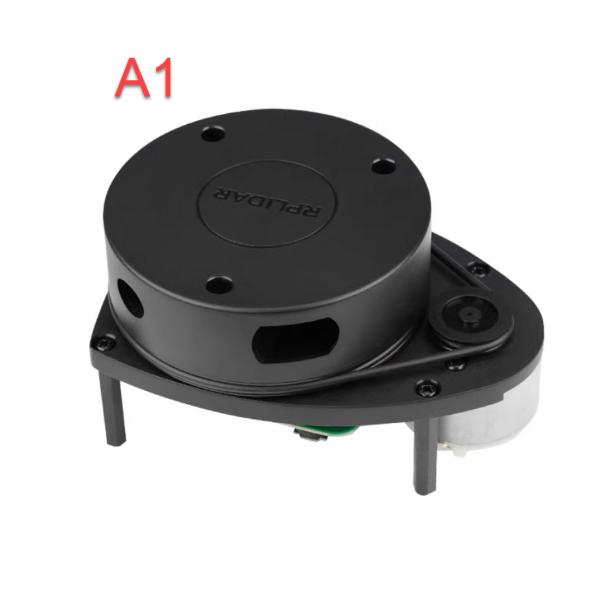
A1 Lidar
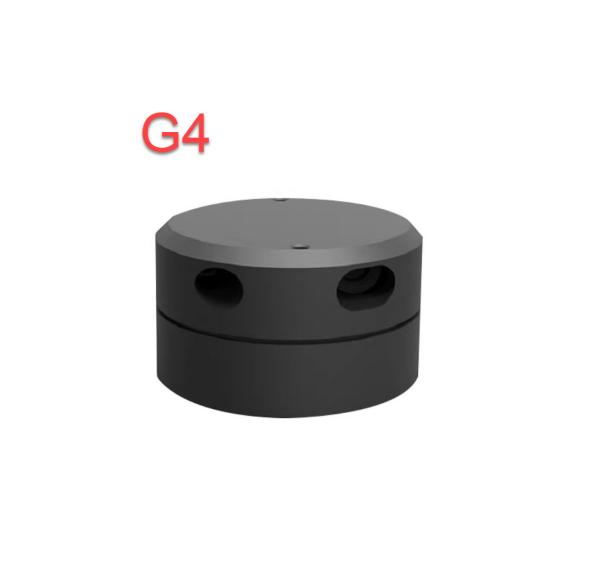
G4 Lidar
If the Lidar you are using serves as G4 Lidar, you don’t need to change the Lidar configuration in the system image. If you are using A1 Lidar, please follow the below steps to switch the Lidar version.
Start the robot, and connect it to NoMachine according to the instructions provided in ‘1. Quick Start Guide/ 1.6 Development Environment Setup and Configuration’.
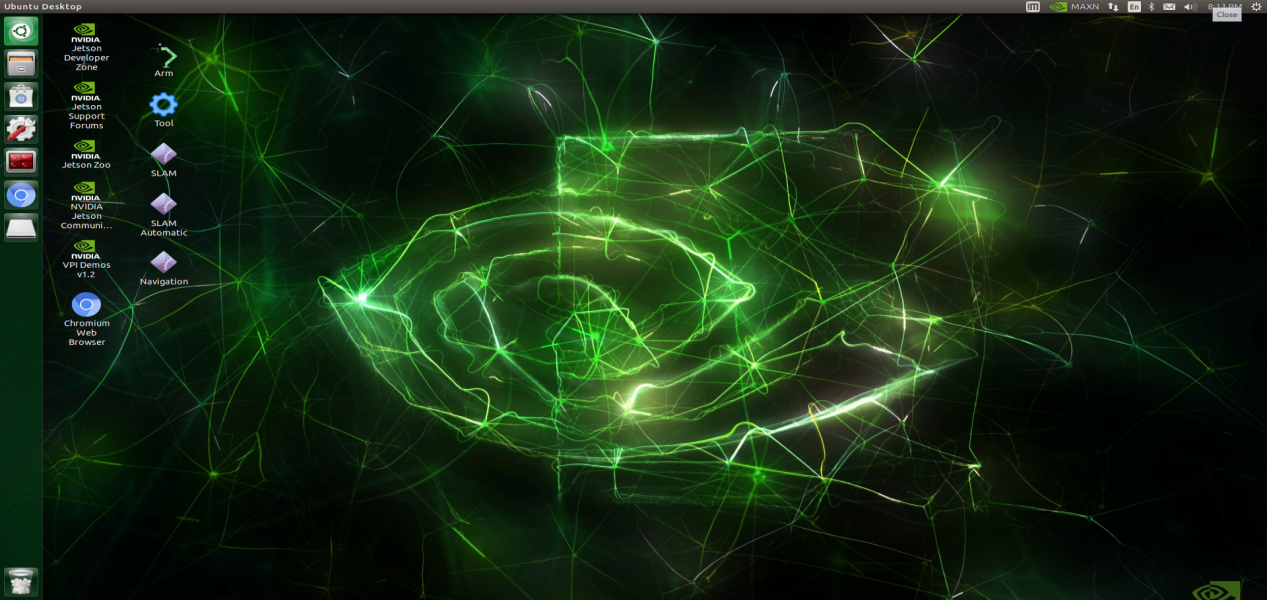
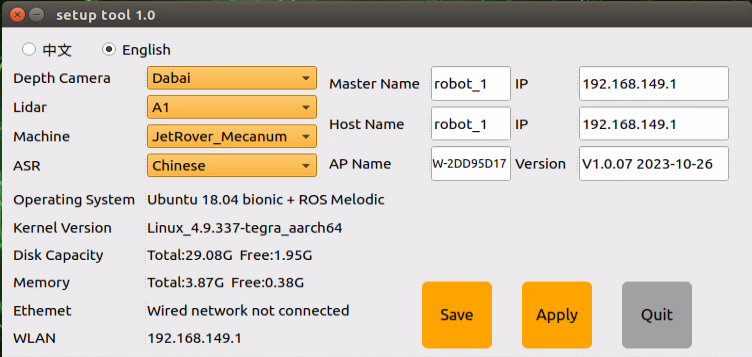
After successful connection, double-click
 .
.
Select “A1” Click-on Lidar TAB, and select “A1”, then click-on “Save” and “Apply” in sequence.
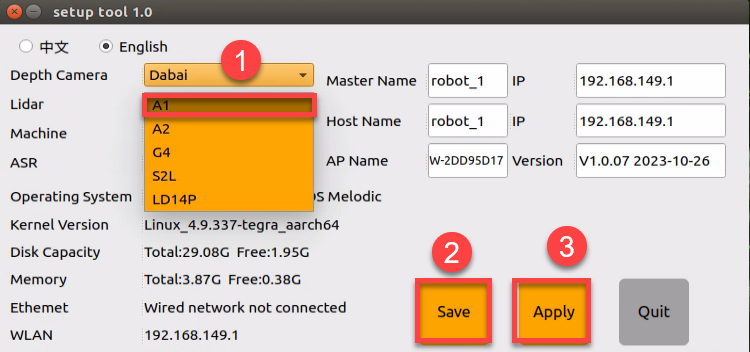
After you reselect the Lidar version, the below prompt will appear.
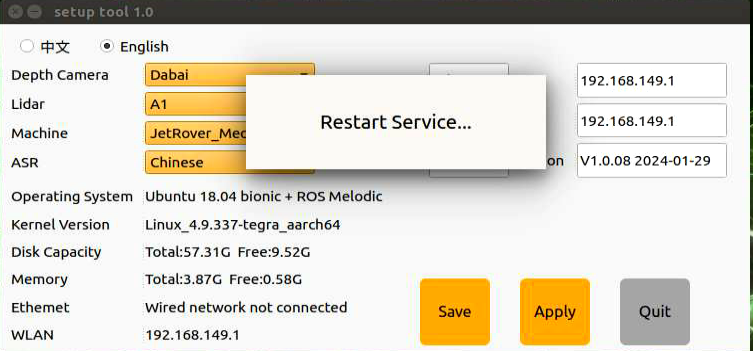
After the system completes a restart, click-on “Exit” icon.
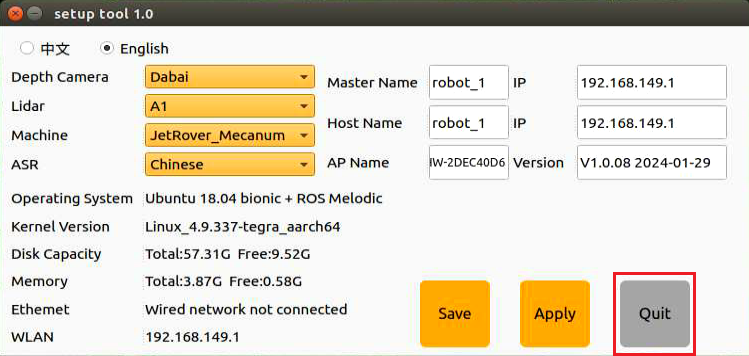
Finally, click-on
 to confirm the Lidar version.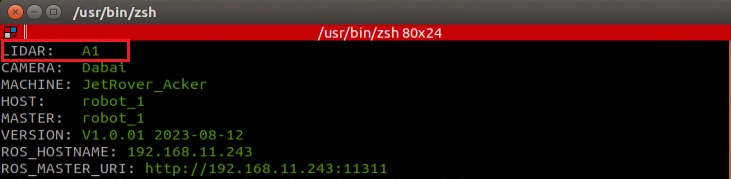
4.2 Lidar Working and Ranging Principle
4.2.1 Lidar Ranging
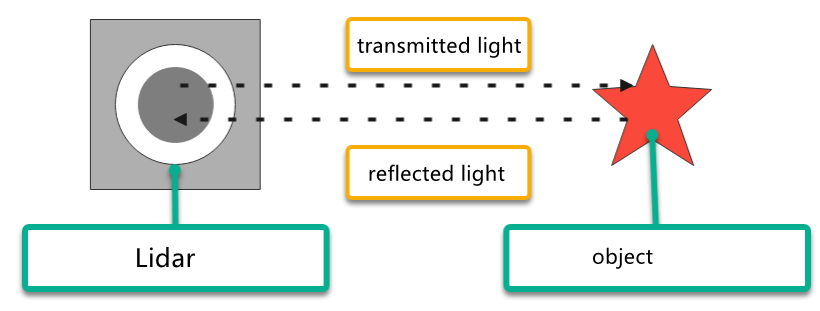
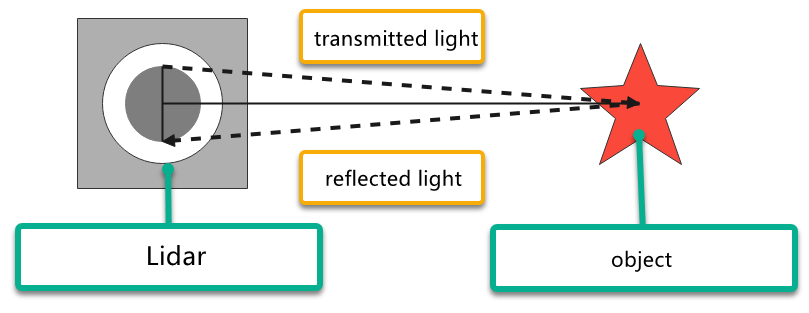
Two common methods are employed by Lidar to determine the distance to a target: triangulation and Time of Flight (TOF).
In the case of TOF, as depicted in the diagram, the Lidar initially projects light onto the object. The object reflects the light directly back to the Lidar, which calculates the time it takes for the light to return. The distance between the object and the Lidar is then obtained by multiplying this time by the speed of light.
In triangulation, as illustrated in the diagram, the Lidar undergoes adjustments during manufacturing to ensure that the light does not directly strike the object. Instead, it is projected at a specific angle, a pre-set value that remains constant during operation. The distance from the object to the Lidar can be calculated by incorporating this angle into trigonometric functions.
4.2.2 Lidar Working Result
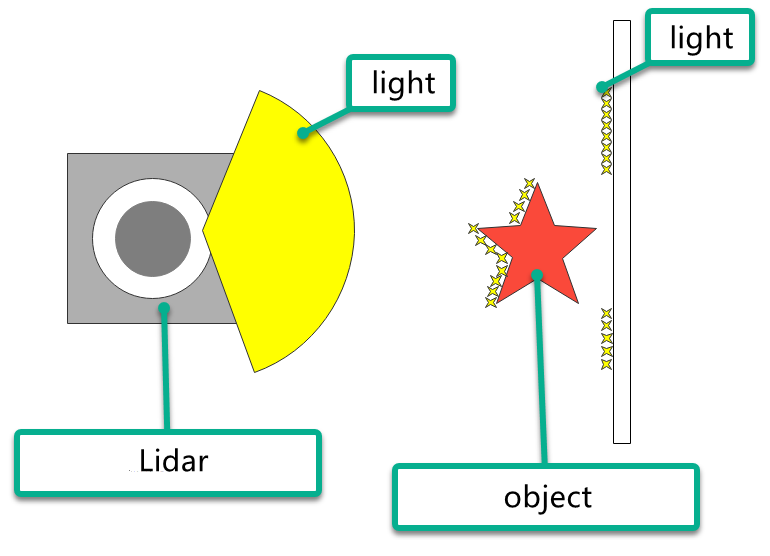
Its working result is as follows. Lidar will emit light and shine it on the object surface. When receiving the light reflected by the object, Lidar will mark the contour of the object at the position where the light is reflected.
4.3 Lidar Obstacle Avoidance
The robot senses the distance between itself and an object directly in front of it. Depending on the configured distance, the robot will either turn left or right to avoid obstacles. If no obstacles are detected, it will proceed to move forward.
This game can be activated in two ways: either through a mobile app or by issuing commands after establishing a remote connection to the system.
For instructions on app connection, please consult the tutorial located in ‘1. Quick Start Guide/1.5 APP Control’
For details on remote connection, please refer to the tutorial saved in ‘1. Quick Start Guide/1.6 Development Environment Setup and Configuration.’
4.3.1 Initiate Lidar Game through App
Connect the robot to WonderAi app.
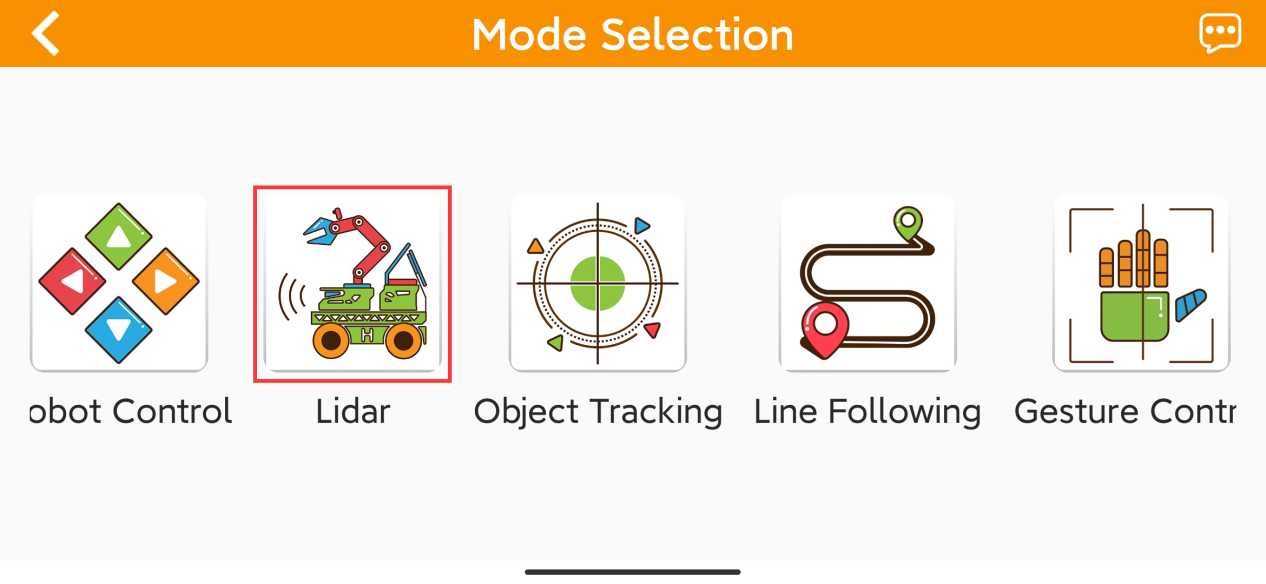
Click-on Lidar to navigate to the game interface.
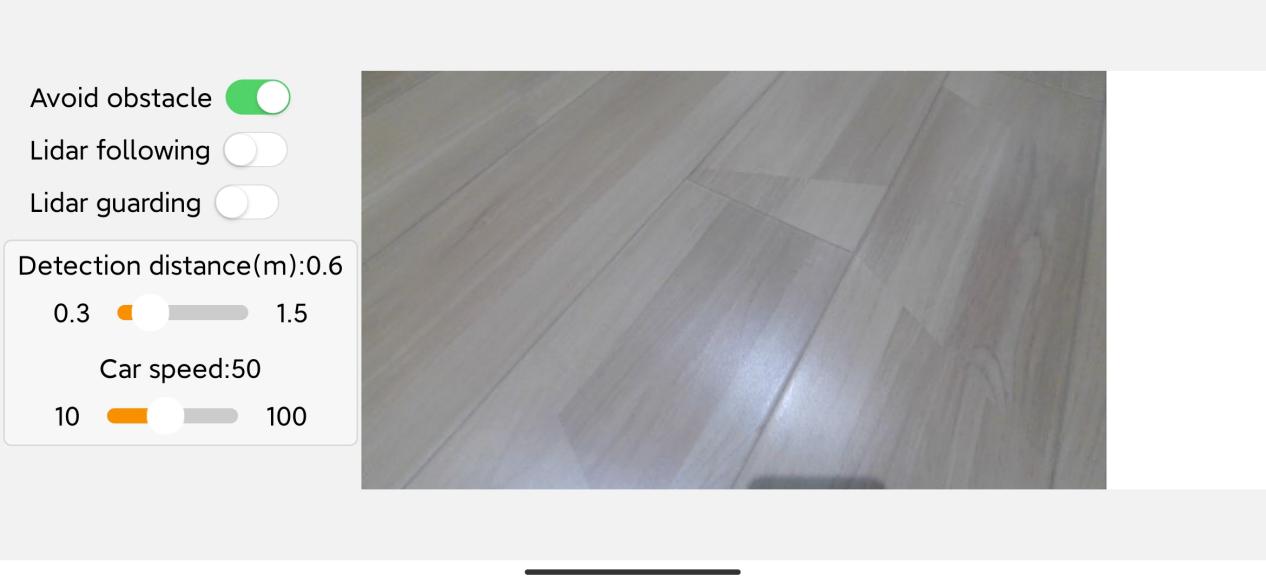
Switch on ‘Avoid obstacle’ button to start the game.
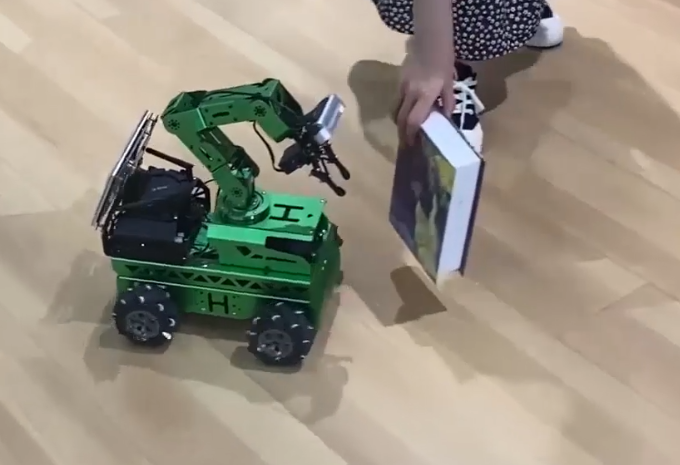
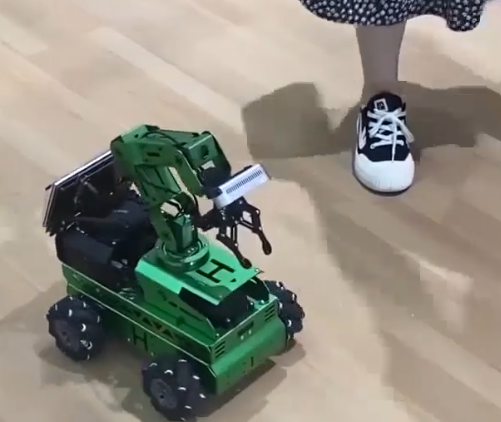
The robot moves forward in a straight line. Upon detecting an obstacle, the robot will navigate around it to avoid a collision.
4.3.2 Initiate Lidar Game Using Command
Start the robot, and access the robot system desktop using NoMachine according to the tutorial saved in ‘1. Quick Start Guide/ 1.6 Development Environment Setup and Configuration’.
Click-on
 to open the command line terminal.
Execute the command ‘sudo systemctl stop start_app_node.service’ and press Enter to deactivate the automatic start service for the app. This service includes the handle and depth camera services.
sudo systemctl stop start_app_node.service
Run the command ‘roslaunch hiwonder_bringup bringup.launch’ to enable the local services for app-related game and chassis control services.
roslaunch hiwonder_bringup bringup.launch
Open a new terminal, and execute the command ‘rosservice call /lidar_app/enter “{}”’, then press Enter to start the Lidar game.
rosservice call /lidar_app/enter "{}"
Enter the command ‘rosservice call /lidar_app/set_running “data: 1”’ and hit Enter to launch Lidar obstacle avoidance game.
rosservice call /lidar_app/set_running "data: 1"
Note
Note: The robot’s performance initiated by the app and command is identical. If you wish to access the source code, please find the file ‘lidar.py’ located in this folder: /ros_ws/src/hiwonder_app/scripts/
If you need to terminate the program, press short-cut ‘Ctrl+C’ on the terminal opened in step 4) and 5).
After experiencing the Lidar game, you can activate the mobile app service either by using a command or restarting the robot. If the mobile app service is not activated, related app functions will be disabled. In the case of a robot restart, the mobile app service will start automatically. Use the command ‘sudo systemctl restart start_app_node.service’ to restart the mobile app service, and wait for the buzzer to make sound, signaling the completion of the service startup.
sudo systemctl restart start_app_node.service
4.4 Lidar Following
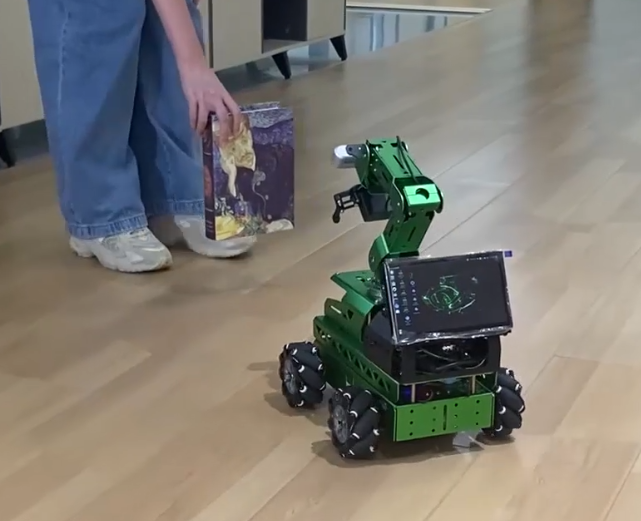
The robot monitors the distance between itself and an object directly in front. If the distance exceeds 35cm, it will track the object ahead. If the distance is less than 35cm, it will reverse. The robot automatically halts when the distance directly in front is detected as 35cm.
This game can be activated in two ways: either through a mobile app or by issuing commands after establishing a remote connection to the system.
For instructions on app connection, please consult the tutorial located in ‘1. Quick Start Guide/1.5 APP Control’.
For details on remote connection, please refer to the tutorial saved in ‘1. Quick Start Guide/1.6 Development Environment Setup and Configuration.’
4.4.1 Initiate Lidar Game through App
Connect the robot to WonderAi app.
Click-on Lidar to navigate to the game interface.
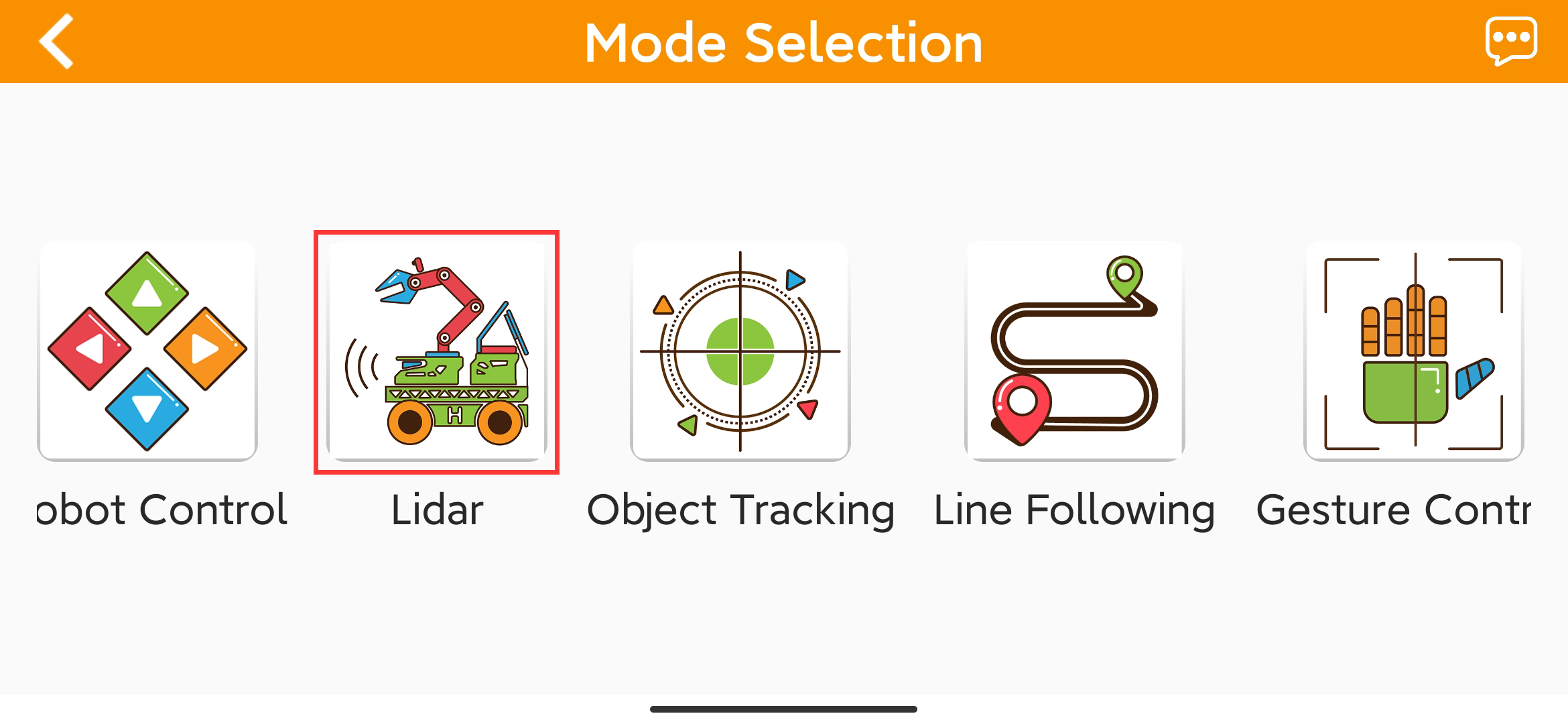
Switch on ‘Lidar following’ button to start the game.
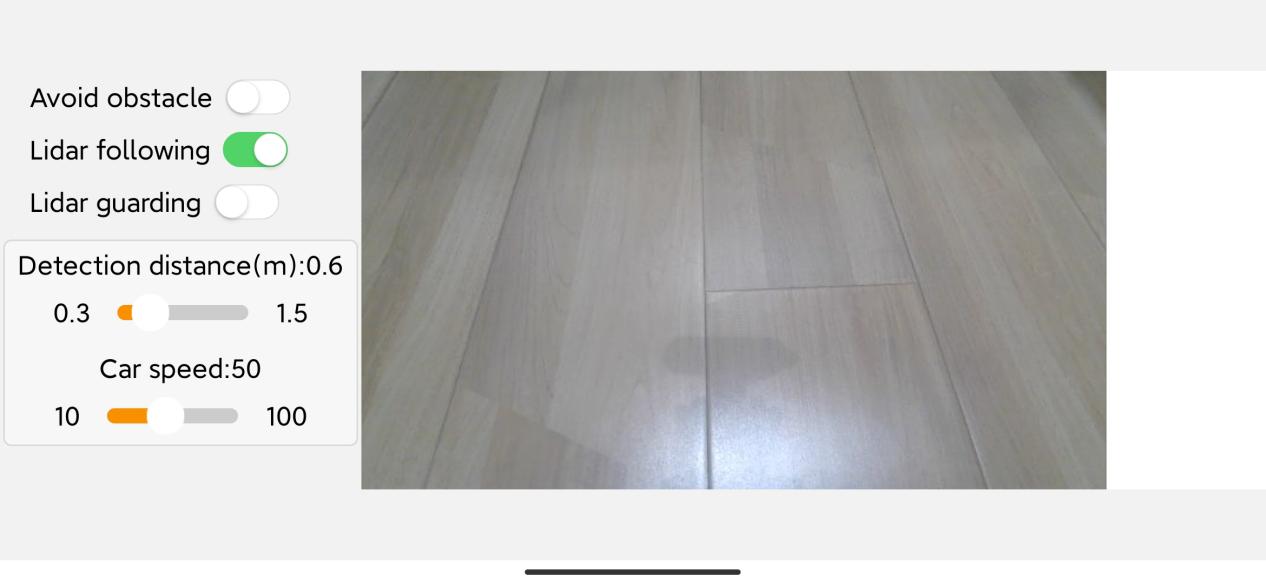
When the robot detects an obstacle, it will adjust its position to consistently maintain a distance of around 0.35m between its body and the obstacle.
4.4.2 Initiate Lidar Game Using Command
Start the robot, and access the robot system desktop using NoMachine.
Click-on
to open the command line terminal.Execute the command ‘sudo systemctl stop start_app_node.service’ and press Enter to deactivate the automatic start service for the app. This service includes the handle and depth camera services.
sudo systemctl stop start_app_node.service
Run the command ‘roslaunch hiwonder_bringup bringup.launch’ to enable the local services for app-related game and chassis control services.
roslaunch hiwonder_bringup bringup.launch
Open a new terminal, and execute the command ‘rosservice call /lidar_app/enter “{}”’, then press Enter to start the Lidar game.
rosservice call /lidar_app/enter "{}"
Enter the command ‘rosservice call /lidar_app/set_running “data: 2”’ and hit Enter to launch Lidar obstacle avoidance game.
rosservice call /lidar_app/set_running "data: 2"
Note
Note: The robot’s performance initiated by the app and command is identical. If you wish to access the source code, please find the file ‘lidar.py’ located in this folder: /ros_ws/src/hiwonder_app/scripts/
If you need to terminate the program, press short-cut ‘Ctrl+C’ on the terminal opened in step 4) and 5).
After experiencing the Lidar game, you can activate the mobile app service either by using a command or restarting the robot. If the mobile app service is not activated, related app functions will be disabled. In the case of a robot restart, the mobile app service will start automatically. Use the command ‘sudo systemctl restart start_app_node.service’ to restart the mobile app service, and wait for the buzzer to make sound, signaling the completion of the service startup.
sudo systemctl restart start_app_node.service
4.5 Lidar Guarding
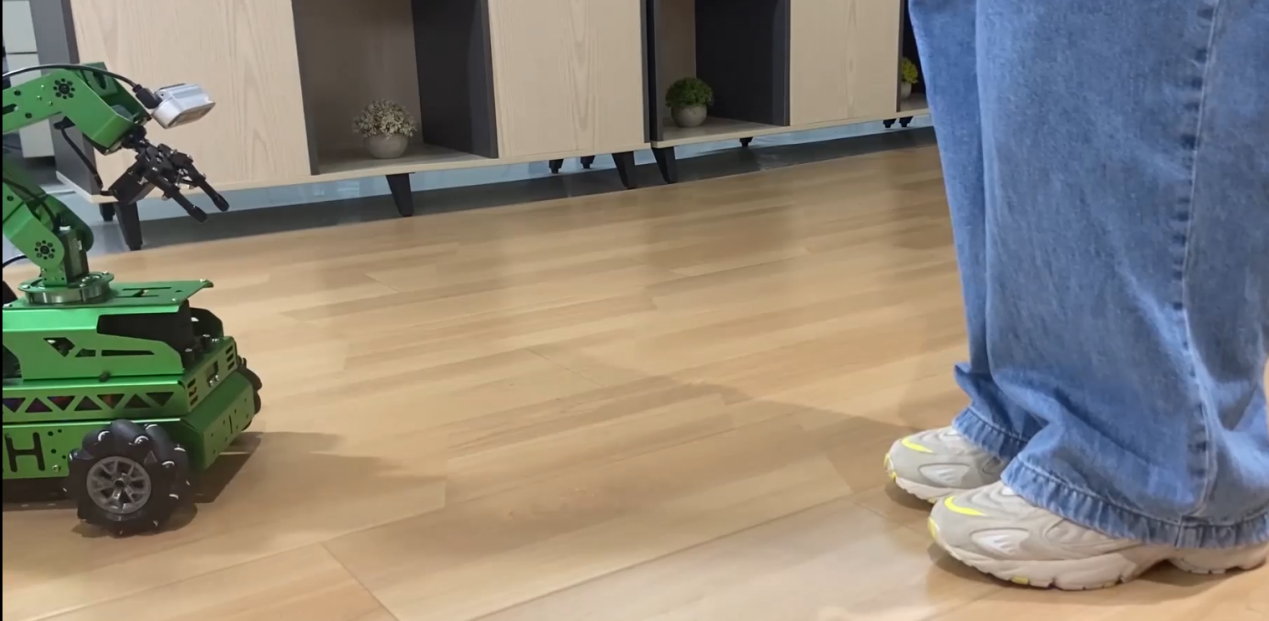
The robot assesses the distance between itself and an object directly in front. If an object is detected within the configured distance, it will initiate a turn to ensure that the vehicle consistently faces the object.
This game can be activated through two methods: either via a mobile app or by issuing commands after establishing a remote connection to the system.
For instructions on app connection, please consult the tutorial located in ‘1. Quick Start Guide/1.5 APP Control’
For details on remote connection, please refer to the tutorial saved in ‘1. Quick Start Guide/1.6 Development Environment Setup and Configuration.’
4.5.1 Initiate Lidar Game through App
Connect the robot to WonderAi app.
Click-on Lidar to navigate to the game interface.
Activate the ‘Lidar guarding’ button to start this game.
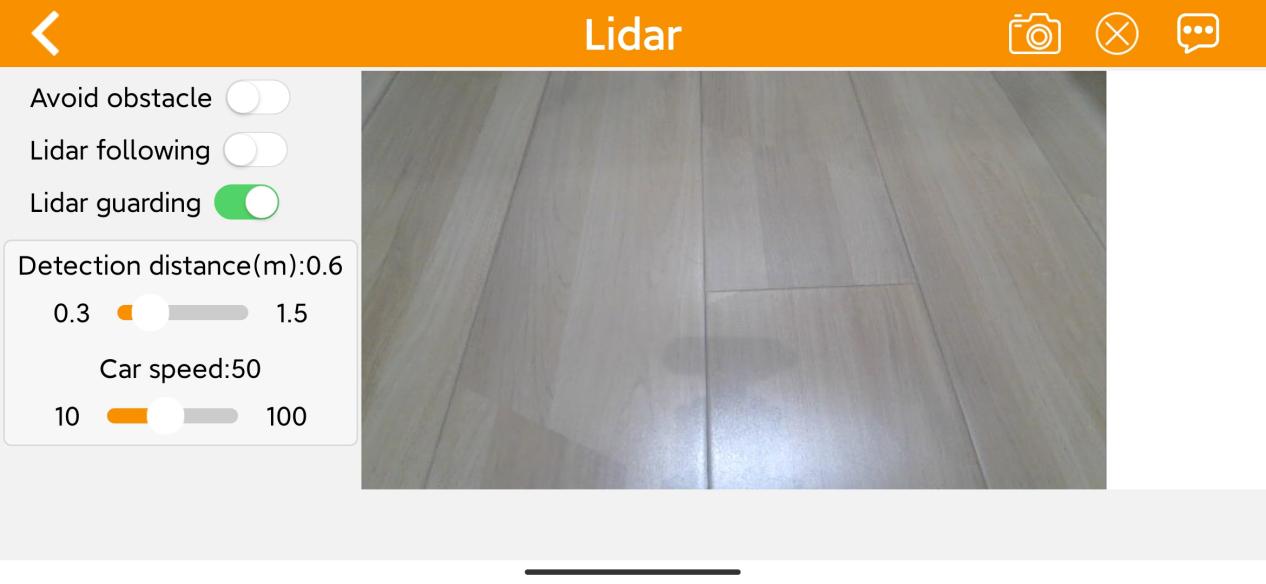
When an obstacle is detected, the robot will pivot in place, aligning its body towards the obstacle to ensure that the camera is directly facing it.
4.5.2 Initiate Lidar Game Using Command
Start the robot, and access the robot system desktop using NoMachine.
Click-on
to open the command line terminal.Execute the command ‘sudo systemctl stop start_app_node.service’ and press Enter to deactivate the automatic start service for the app. This service includes the handle and depth camera services.
sudo systemctl stop start_app_node.service
Run the command ‘roslaunch hiwonder_bringup bringup.launch’ to enable the local services for app-related game and chassis control services.
roslaunch hiwonder_bringup bringup.launch
Open a new terminal, and execute the command ‘rosservice call /lidar_app/enter “{}”’, then hit Enter to start Lidar game.
rosservice call /lidar_app/enter "{}"
Enter the command ‘rosservice call /lidar_app/set_running “data: 3”’ and hit Enter to start Lidar guarding game.
rosservice call /lidar_app/set_running "data: 3"
Note
Note: The robot’s performance initiated by the app and command is identical. If you wish to access the source code, please find the file ‘lidar.py’ located in this folder: /ros_ws/src/hiwonder_app/scripts/
If you need to terminate the program, press short-cut ‘Ctrl+C’ on the terminal opened in step 4) and 5).
After experiencing the Lidar game, you can activate the mobile app service either by using a command or restarting the robot. If the mobile app service is not activated, related app functions will be disabled. In the case of a robot restart, the mobile app service will start automatically. Use the command ‘sudo systemctl restart start_app_node.service’ to restart the mobile app service, and wait for the buzzer to make sound, signaling the completion of the service startup.
sudo systemctl restart start_app_node.service